Feature Summary
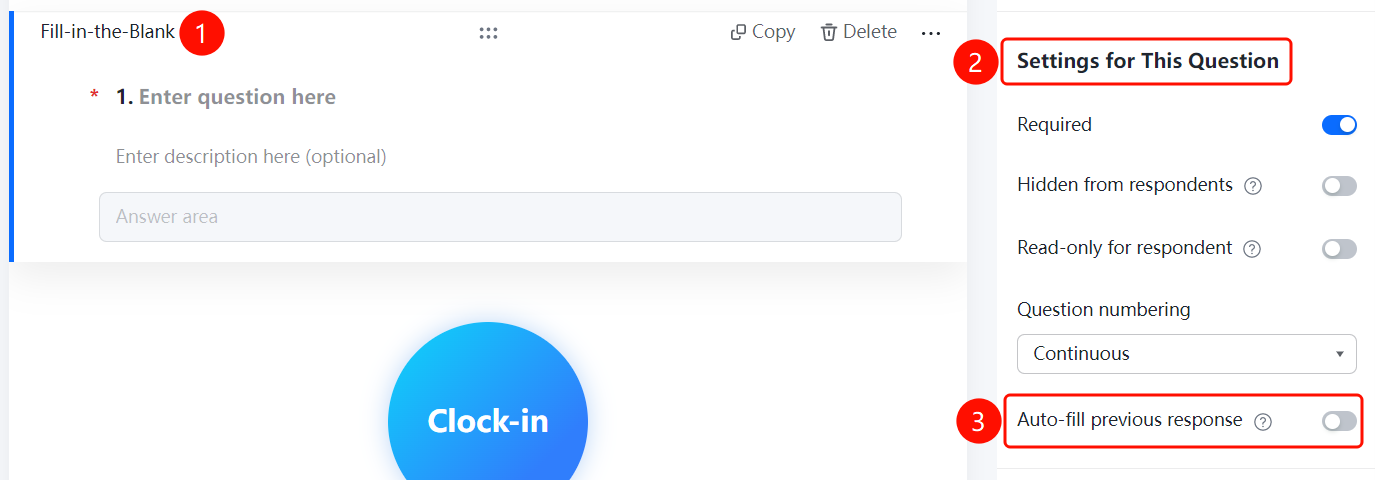
Basic settings are used to configure basic attributes such as required, hidden, non-fillable, numbering, and auto-fill for questions.
Feature Description
| Feature Dimension | Description |
|---|---|
| Membership Restriction | No membership restriction |
| Version Restriction | No version restriction |
Operation Steps
Set This Question as Required
Feature Entry
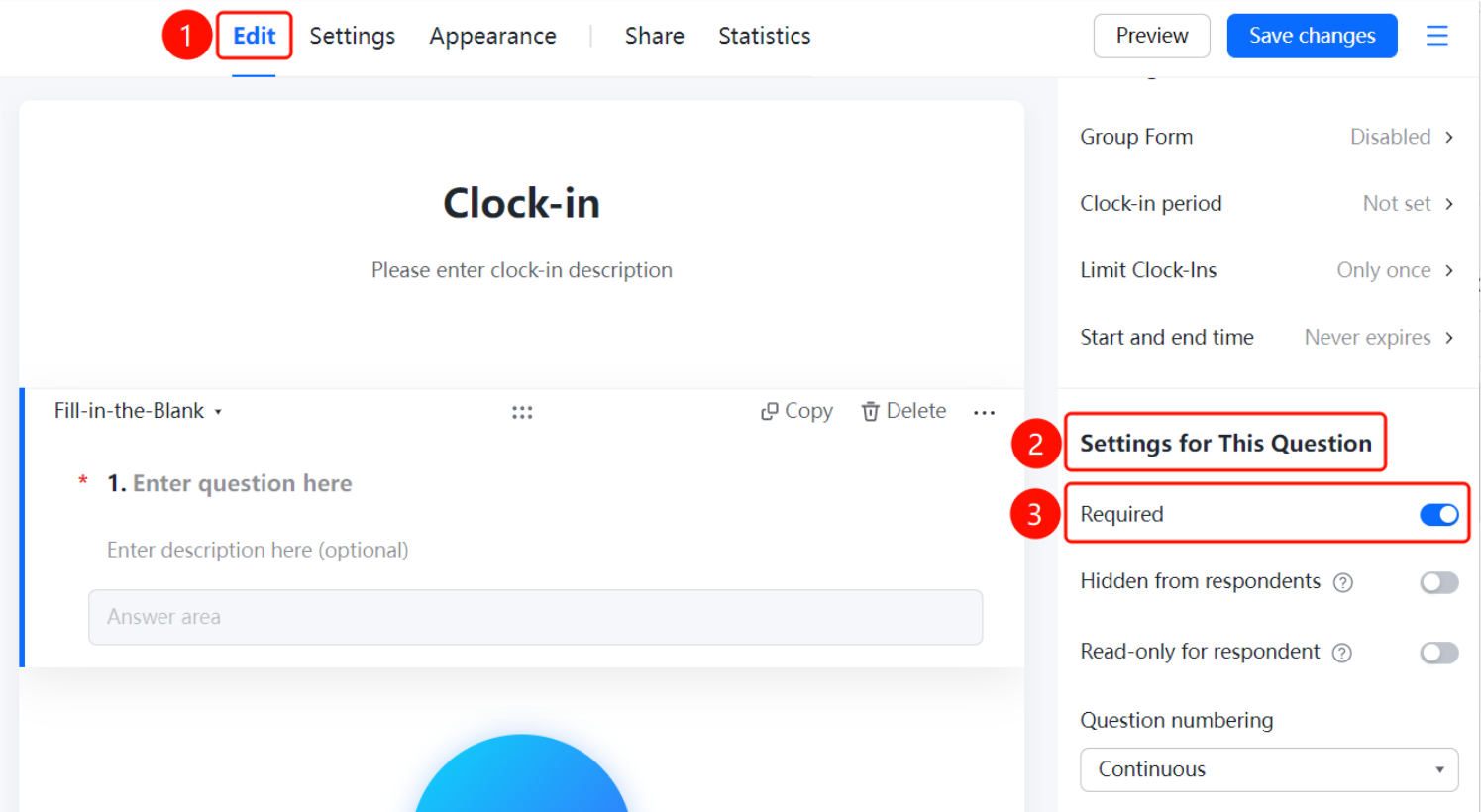
Question → 「Basic Settings」 → 「This Question is Required」 toggle
- Click the question to be set
- In the 「Basic Settings」 panel on the right, turn on the 「This Question is Required」 toggle
- After turning it on, respondents must fill in this question to submit
Set This Question as Hidden from Respondents
Feature Entry
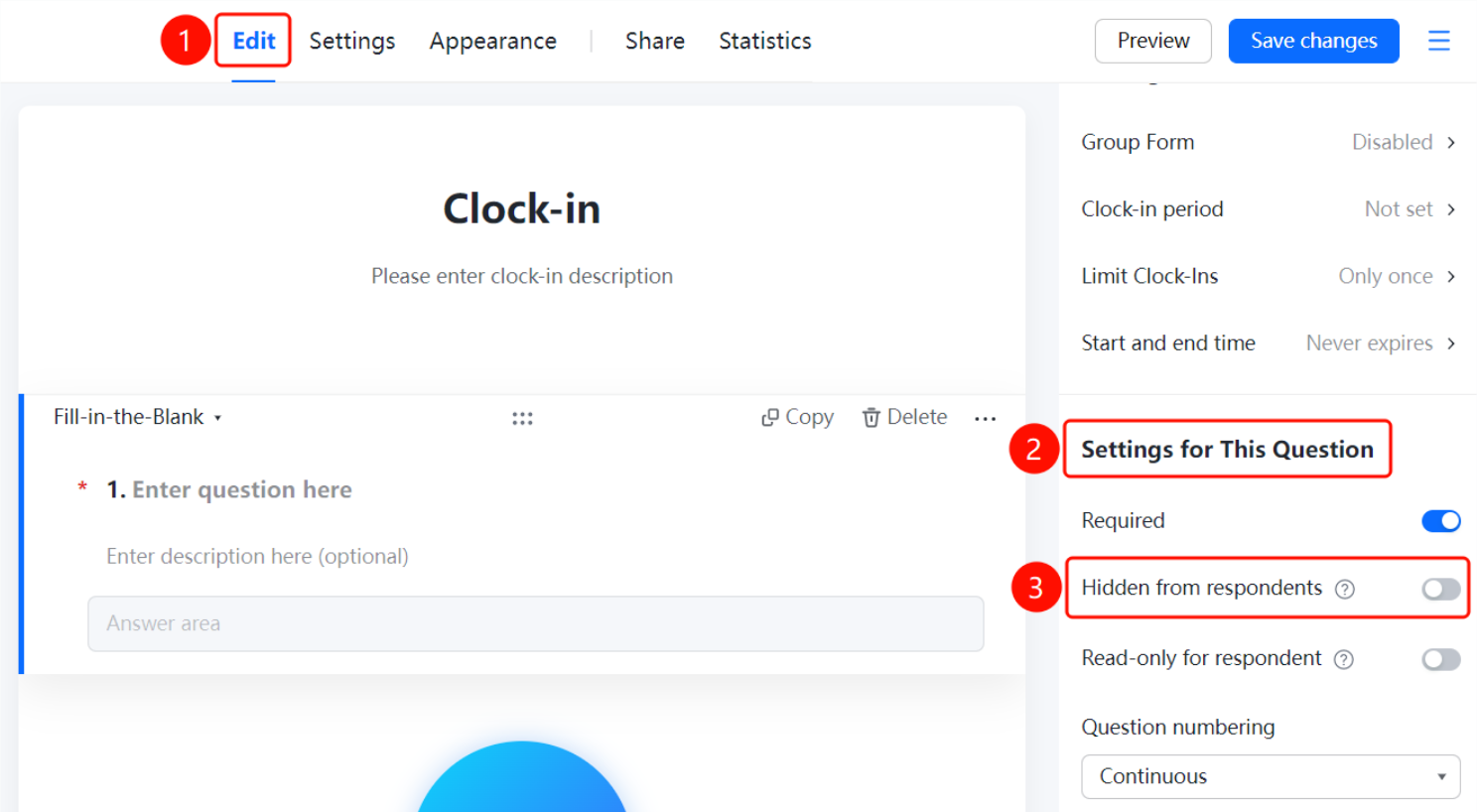
Question → 「Basic Settings」 → 「This Question is Hidden from Respondents」 toggle
- Click the question to be set
- In the 「Basic Settings」 panel on the right, turn on the 「This Question is Hidden from Respondents」 toggle
- After turning it on, this question is invisible to respondents
Set This Question as Non-fillable by Respondents
Feature Entry
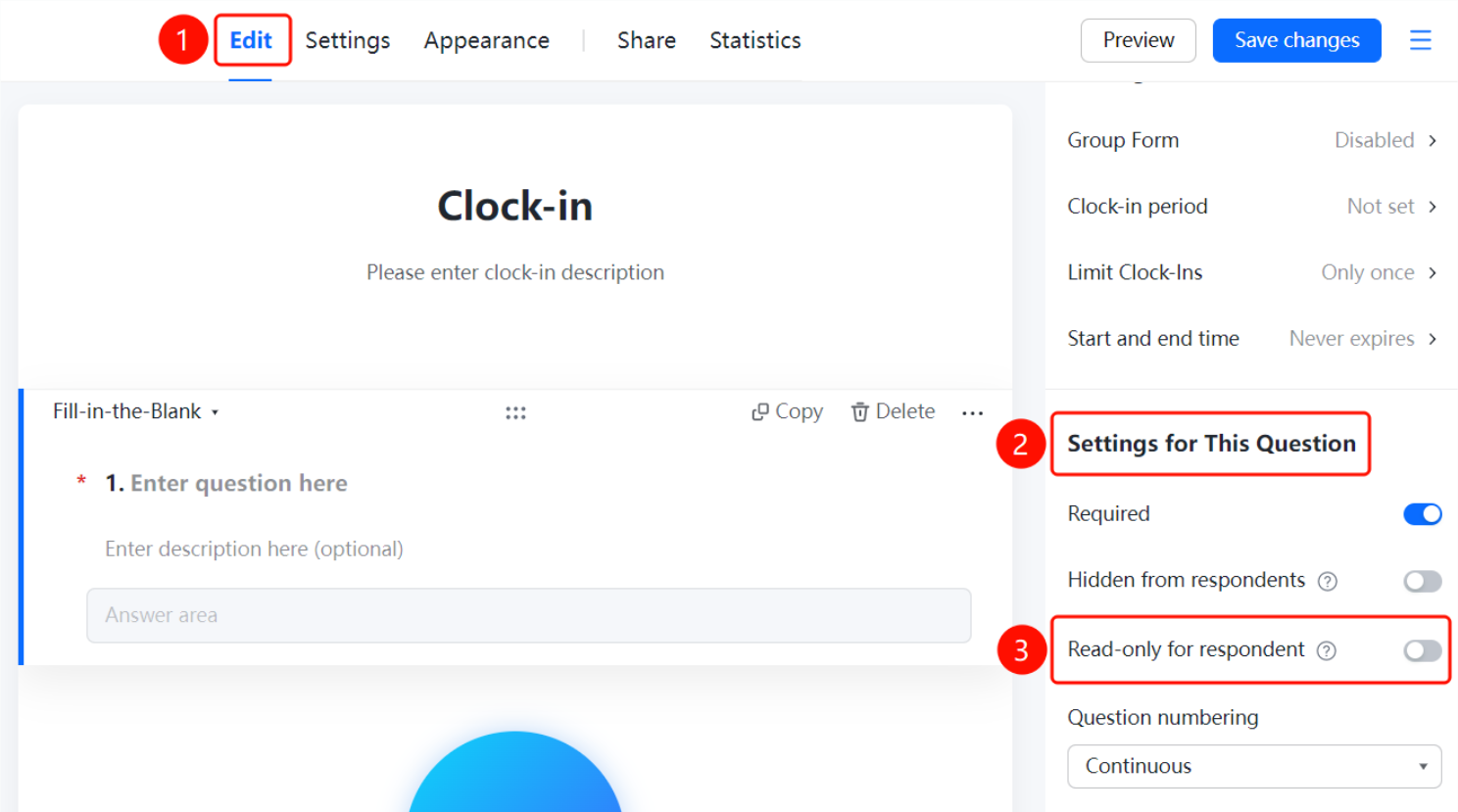
Question → 「Basic Settings」 → 「This Question is Non-fillable by Respondents」 toggle
- Click the question to be set
- In the 「Basic Settings」 panel on the right, turn on the 「This Question is Non-fillable by Respondents」 toggle
- After turning it on, respondents cannot fill in the content of this question
Set Question Numbering
Feature Entry
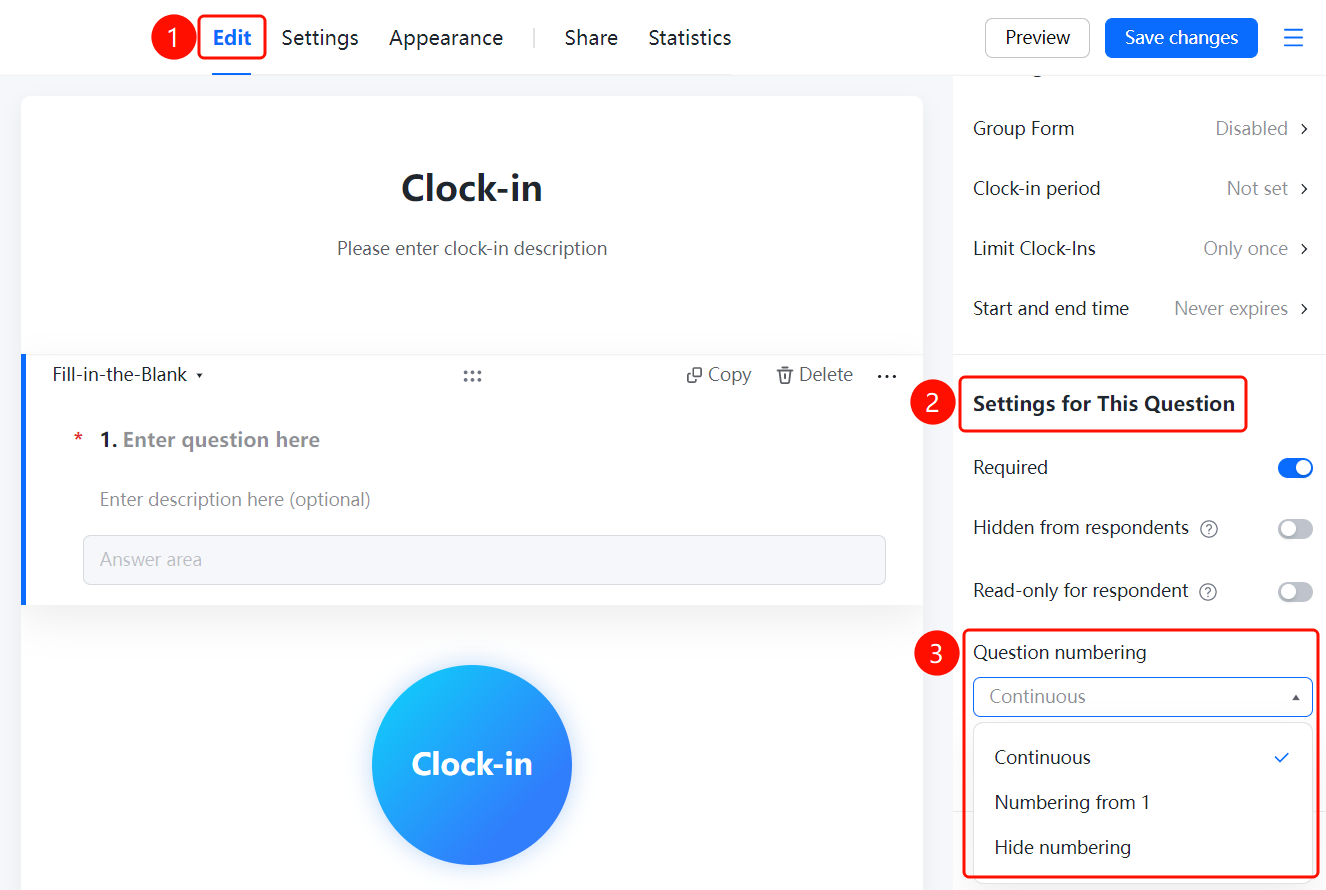
Question → 「Basic Settings」 → 「Question Numbering Settings」 dropdown menu
- Click the question to be set
- In the 「Basic Settings」 panel on the right, click the 「Question Numbering Settings」 dropdown menu
- Select the numbering method: 「Continuous Numbering」, 「Start Numbering from 1」, or 「Do Not Display Numbering」
Set Auto-fill with Last Submitted Content
Feature Entry
Question → 「Basic Settings」 → 「Auto-fill with Last Submitted Content」 toggle
- Click the question to be set
- In the 「Basic Settings」 panel on the right, turn on the 「Auto-fill with Last Submitted Content」 toggle
- After turning it on, the content from the last submission will be automatically filled in when the respondent fills it out again
FAQ
Q1: What is the difference between hiding this question from respondents and making this question non-fillable by respondents?
- Solution: Hiding this question from respondents means the question is completely invisible to respondents; making this question non-fillable by respondents means the question is visible but respondents cannot fill in the content.
Q2: How to set a question to not display numbering?
- Solution: In the 「Basic Settings」 panel, click the 「Question Numbering Settings」 dropdown menu and select 「Do Not Display Numbering」.
Q3: What is the purpose of auto-filling with the last submitted content?
- Solution: After turning it on, the content from the last submission will be automatically filled in when the respondent fills it out again, facilitating quick filling in repetitive check-in scenarios.
Notes
- After this question is required is turned on, respondents must fill in this question to submit
- Question numbering supports continuous numbering, starting numbering from 1, or not displaying numbering
- The auto-fill with last submitted content feature is suitable for repetitive check-in scenarios