Feature Summary
Fill settings are used to control form filling restrictions and display methods, including features such as total response limit, hiding and custom logo, hiding question numbers, and hiding the fill outline.
Feature Description
| Feature Dimension | Description |
|---|---|
| Member Restrictions | No member restrictions |
| Version Restrictions | No version restrictions |
Operation Steps
Set Total Responses
Feature Entry
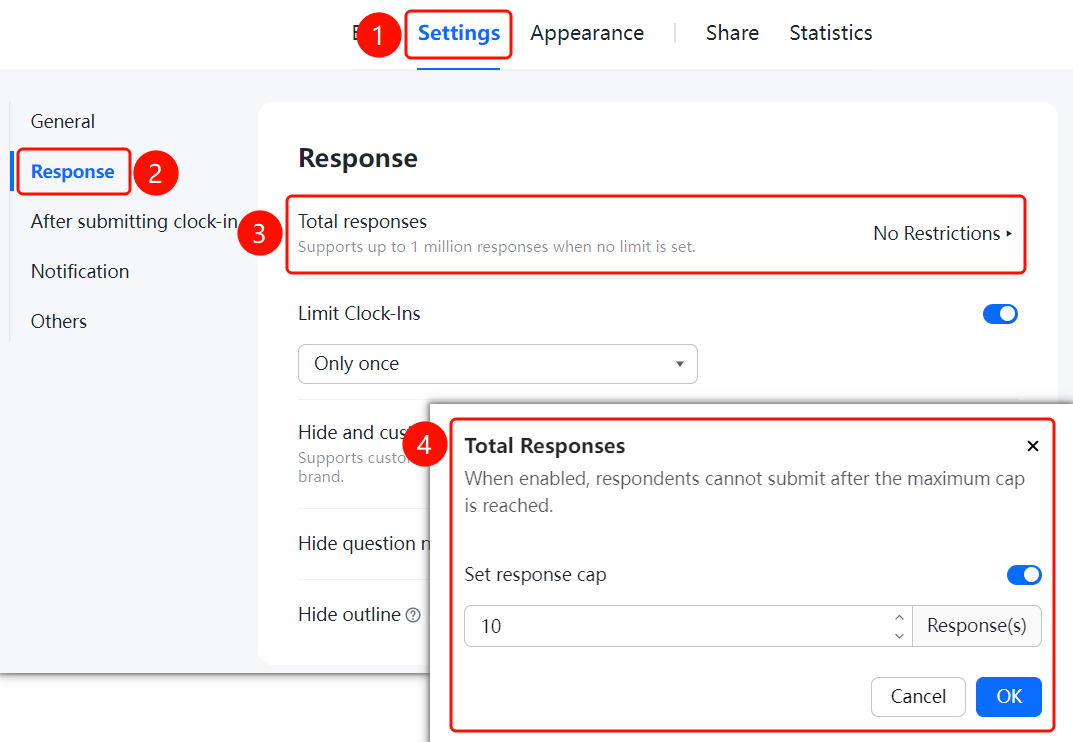
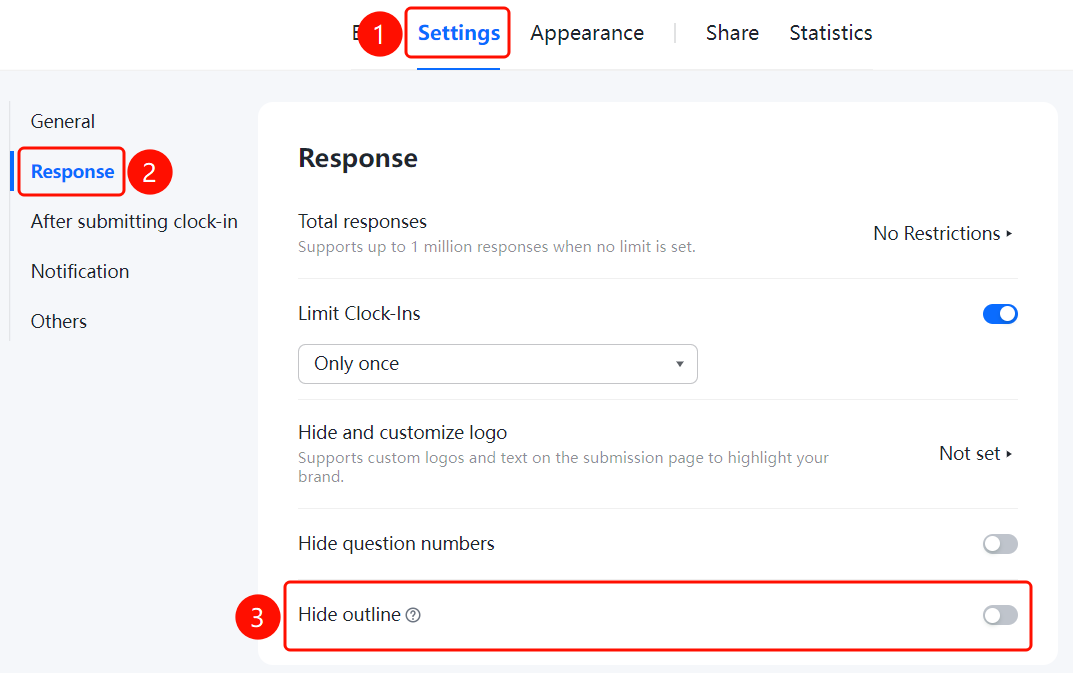
「Settings」 tab → 「Fill Settings」 → 「Total Responses」
- Click the top 「Settings」 tab
- Click 「Fill Settings」 in the left menu
- Click the 「Total Responses」 option
- In the pop-up panel, enable the 「Limit Total Responses」 toggle and set the quantity
- Once the maximum limit is exceeded, respondents will be unable to submit
- Click the 「Confirm」 button to save the settings
Set Check-in Limit
Feature Entry
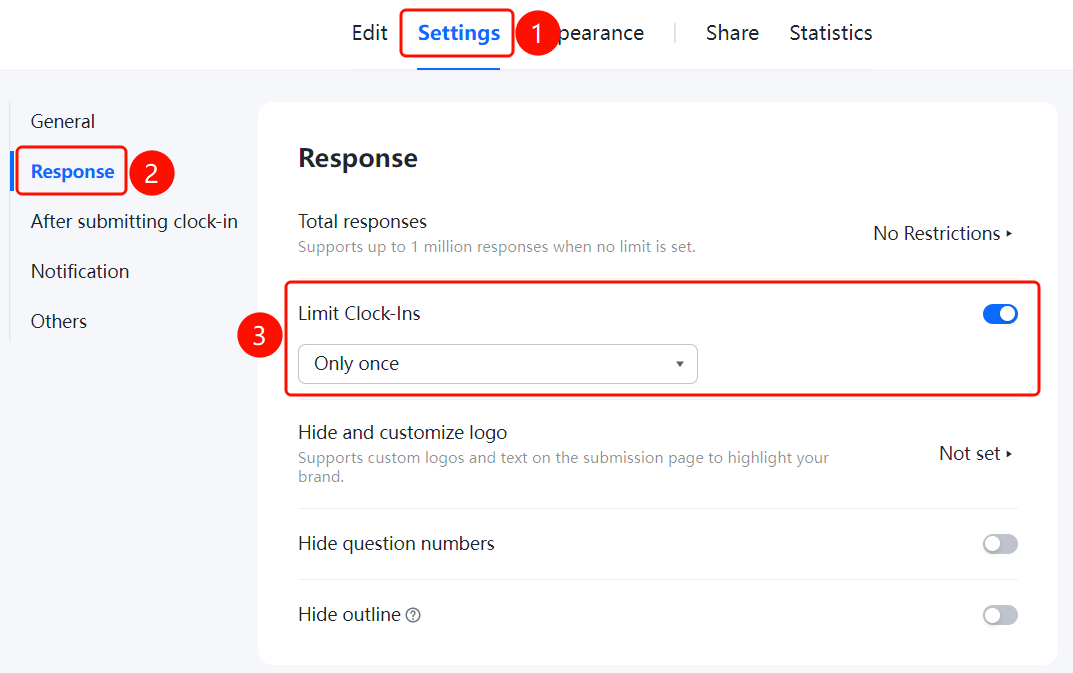
「Settings」 tab → 「Fill Settings」 → 「Limit Check-in Times」 toggle
- Click the top 「Settings」 tab
- Click 「Fill Settings」 in the left menu
- Enable the 「Limit Check-in Times」 toggle
- After enabling, you can choose: 「Only 1 time in total」, 「Only 1 time per day」, and 「Only 1 time per cycle」
Set Hide and Custom Logo
Feature Entry
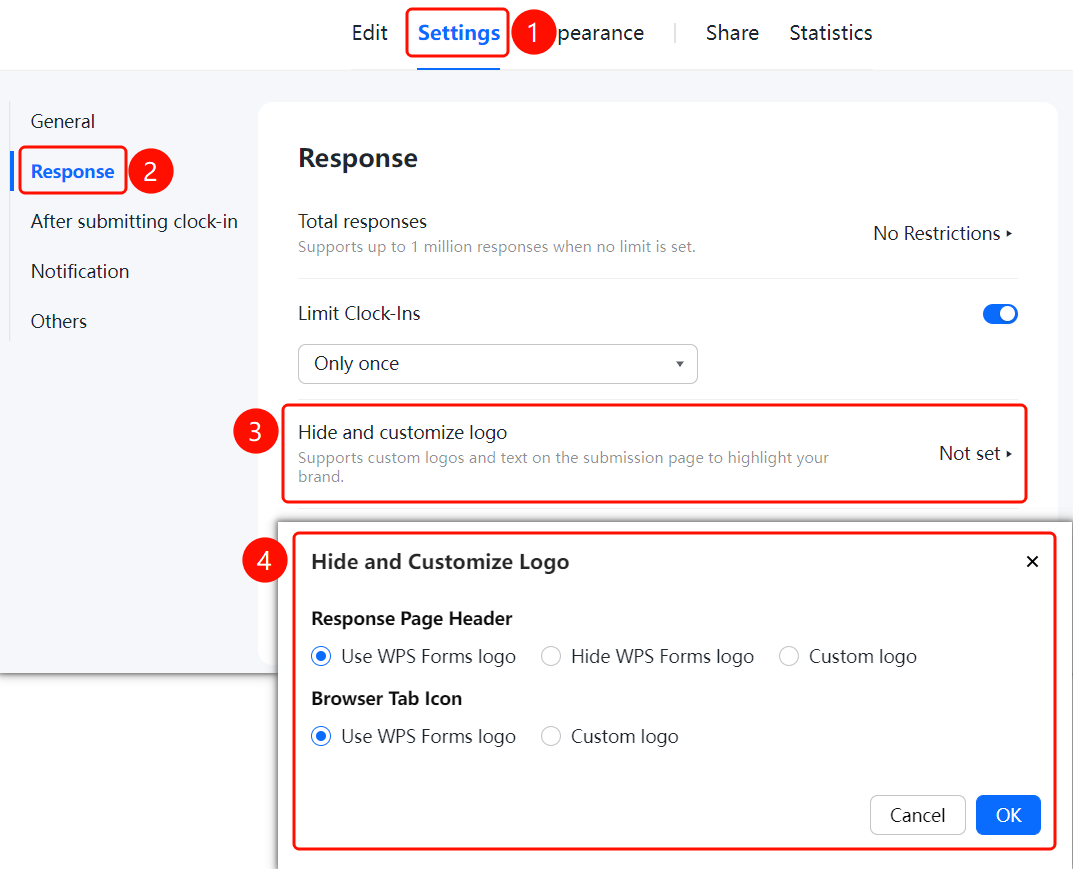
「Settings」 tab → 「Fill Settings」 → 「Hide and Custom Logo」
- Click the top 「Settings」 tab
- Click 「Fill Settings」 in the left menu
- Click the 「Hide and Custom Logo」 option
- In the pop-up panel, set the logo display method for the fill page navigation bar and computer browser tab
- Click the 「Confirm」 button to save the settings
Set Hide Question Numbers
Feature Entry
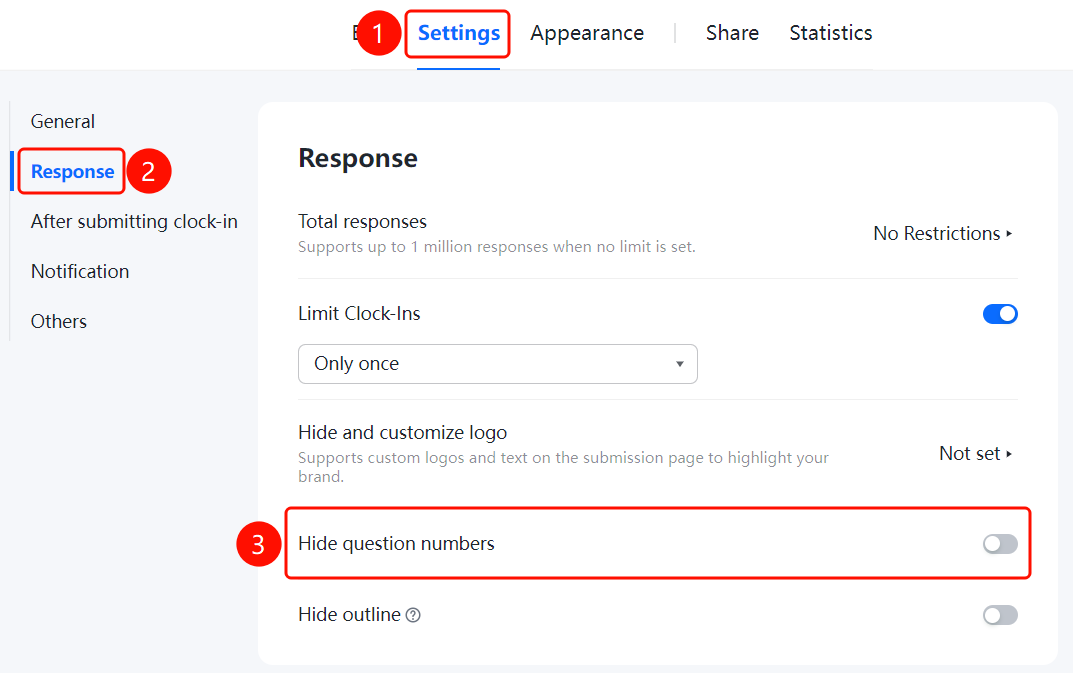
「Settings」 tab → 「Fill Settings」 → 「Hide Question Numbers」 toggle
- Click the top 「Settings」 tab
- Click 「Fill Settings」 in the left menu
- Enable the 「Hide Question Numbers」 toggle
- After enabling, respondents will not see the question numbers
Set Hide Fill Outline
Feature Entry
「Settings」 tab → 「Fill Settings」 → 「Hide Fill Outline」 toggle
- Click the top 「Settings」 tab
- Click 「Fill Settings」 in the left menu
- Enable the 「Hide Fill Outline」 toggle
- After enabling, respondents will not see the fill outline and cannot jump to questions via the fill outline, but they can still see the fill progress bar
FAQ
Q1: How to limit the form to collect only a certain number of responses?
- Solution: In Fill Settings, click 「Total Responses」, enable the 「Limit Total Responses」 toggle and set the quantity. Once the limit is exceeded, respondents will be unable to submit.
Q2: How to customize the logo on the fill page?
- Solution: In Fill Settings, click 「Hide and Custom Logo」 to set the logo display method for the fill page navigation bar and computer browser tab. It supports using the WPS Forms logo, hiding the logo, or customizing the logo.
Q3: Can respondents still jump to questions after hiding the fill outline?
- Solution: After enabling Hide Fill Outline, respondents will not see the fill outline and cannot jump to questions via the fill outline, but they can still see the fill progress bar (completed questions / total questions).
Notes
- When the total response limit is not enabled, the total number can support up to one million entries
- The Hide and Custom Logo feature can highlight the organization's brand image
- After hiding the fill outline, respondents can still see the fill progress bar