Feature Summary
The fill-in-the-blank question is used to collect a piece of content entered by the respondent. You can specify the content format through format restrictions, such as phone number, ID number, bank card number, etc., to prevent people from filling it out against the specification.
Feature Description
| Feature Dimension | Description |
|---|---|
| Membership Restriction | No membership restriction |
| Version Restriction | No version restriction |
Operation Steps
Adding a Fill-in-the-Blank Question
Feature Entry
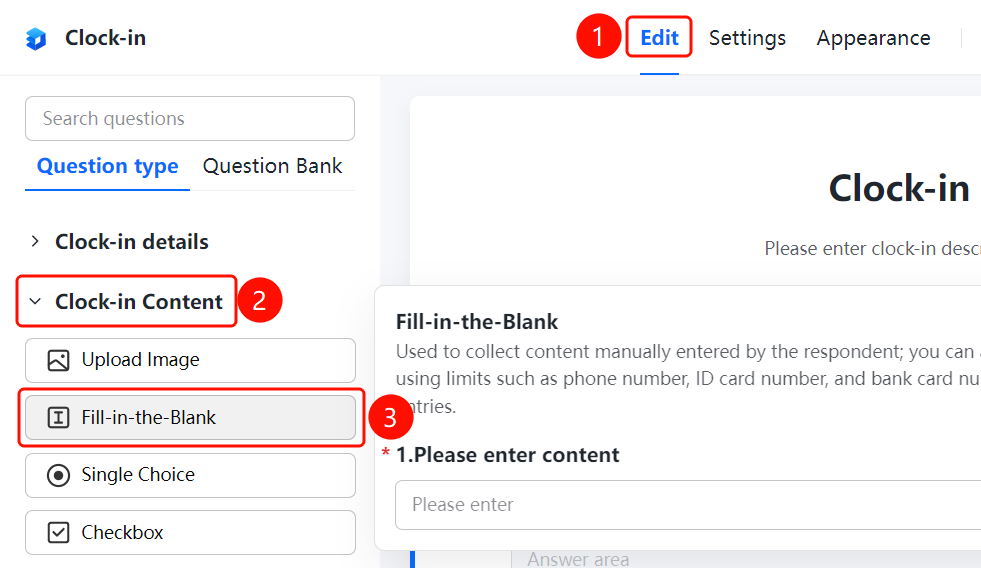
「Edit」 tab → 「Question Type」 → 「Fill-in-the-Blank」 button
- Click the top 「Edit」 tab
- Expand the 「Question Type」 area in the left panel
- Click the 「Fill-in-the-Blank」 button to add a fill-in-the-blank question to the form
Setting Format Restrictions
Feature Entry
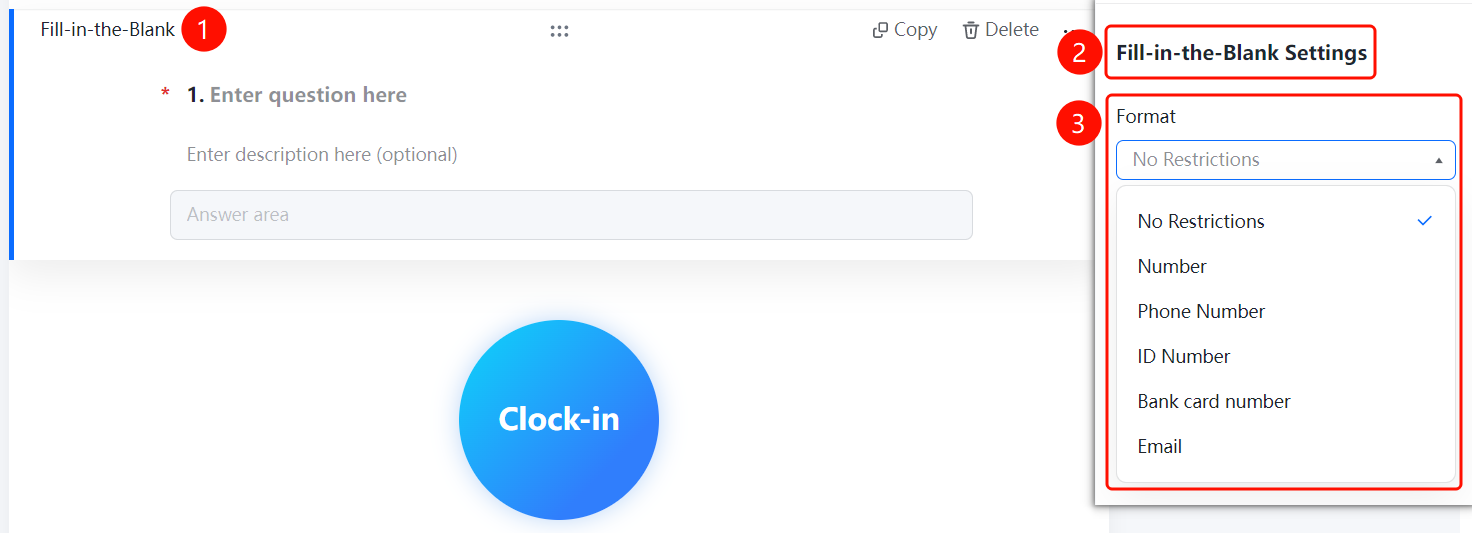
Fill-in-the-Blank → 「Fill-in-the-Blank Settings」 → 「Format Restriction」 dropdown menu
- Click the added fill-in-the-blank question
- In the right 「Fill-in-the-Blank Settings」 panel, click the 「Format Restriction」 dropdown menu
- Select the format type: 「No Restriction」, 「Number」, 「Phone Number」, 「ID Number」, 「Bank Card Number」, or 「Email」
Setting Character Limit
Feature Entry
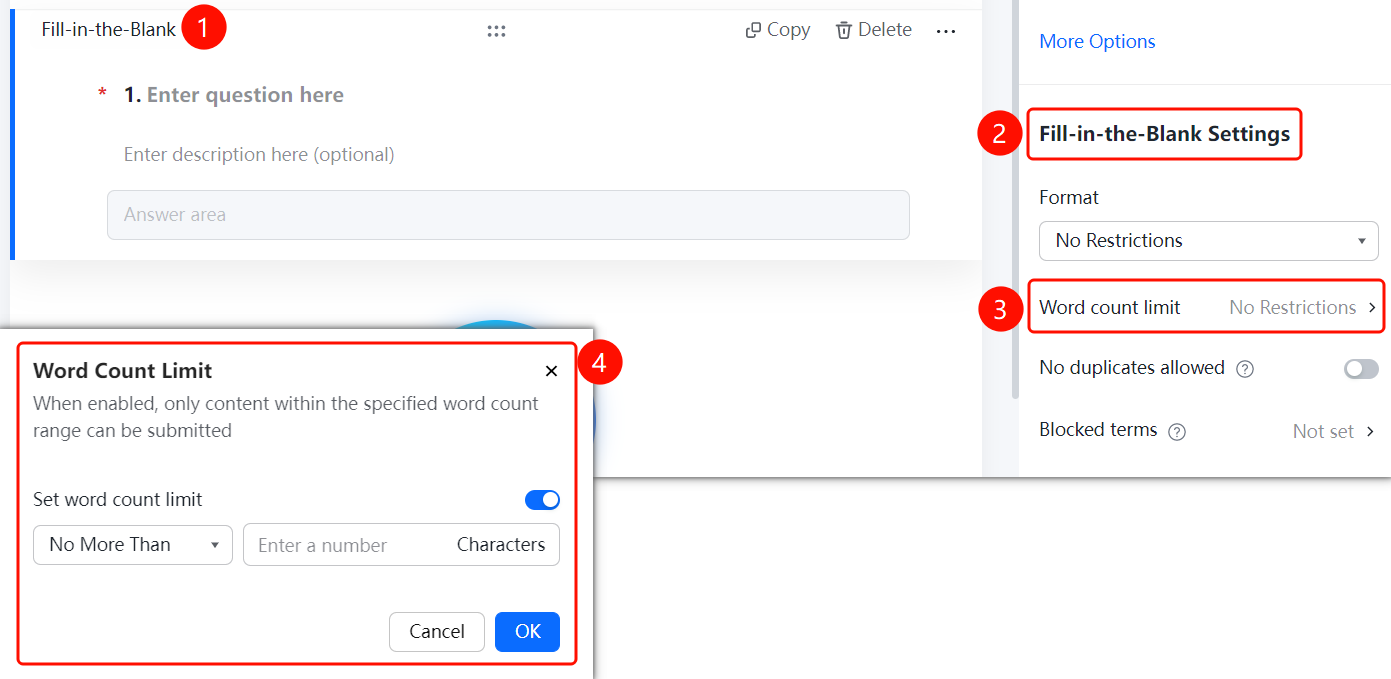
Fill-in-the-Blank → 「Fill-in-the-Blank Settings」 → 「Character Limit」 option
- Click the added fill-in-the-blank question
- In the right 「Fill-in-the-Blank Settings」 panel, click the 「Character Limit」 option
- Set the character limit range in the pop-up panel
- After enabling, only content within the specified character range can be submitted
- Click the 「Confirm」 button to complete the setting
Setting No Duplicates Allowed
Feature Entry
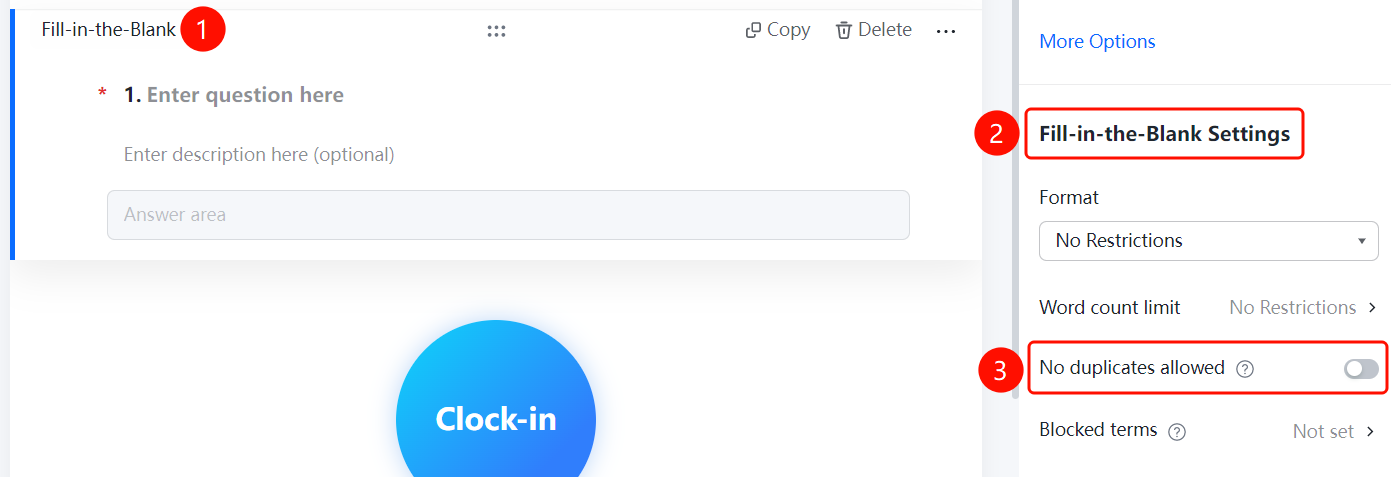
Fill-in-the-Blank → 「Fill-in-the-Blank Settings」 → 「No Duplicates Allowed」 toggle
- Click the added fill-in-the-blank question
- In the right 「Fill-in-the-Blank Settings」 panel, turn on the 「No Duplicates Allowed」 toggle
- After enabling, respondents cannot submit duplicate content
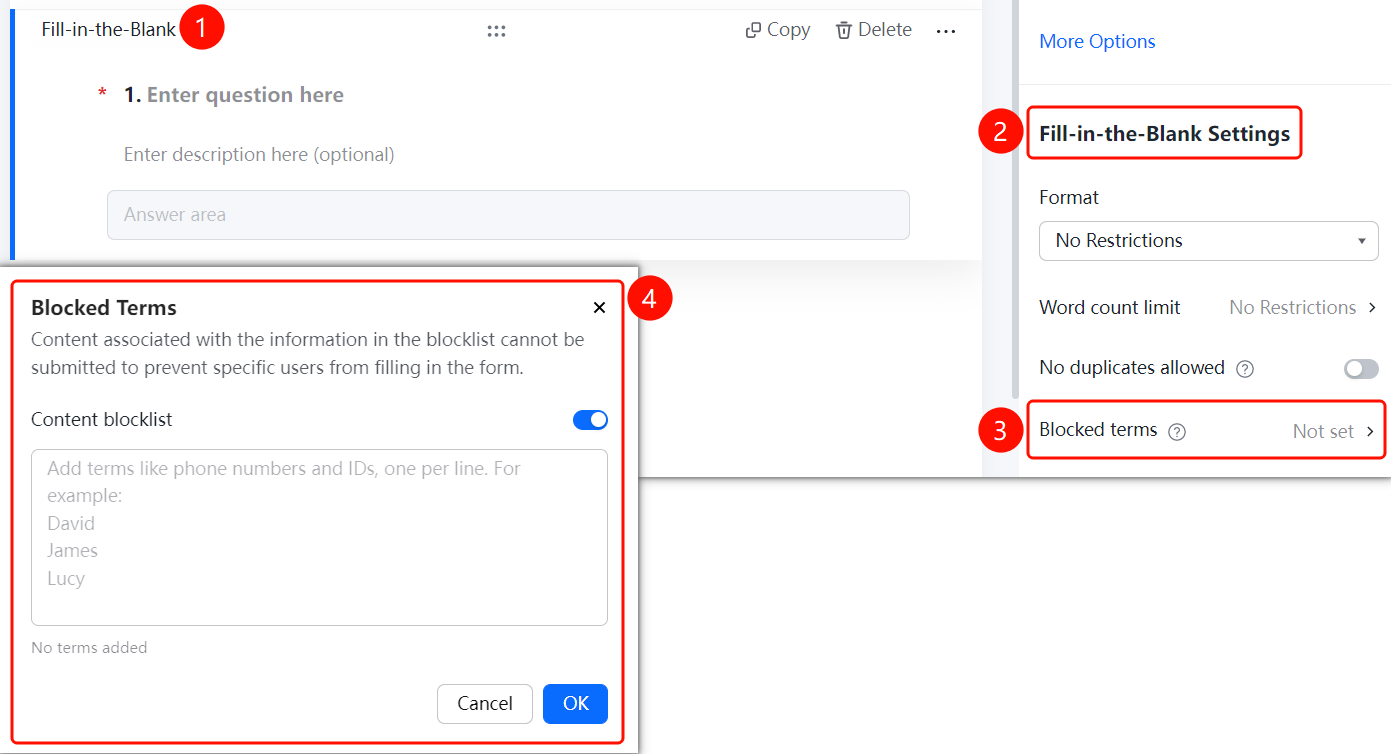
Setting Prohibited Content
Feature Entry
Fill-in-the-Blank → 「Fill-in-the-Blank Settings」 → 「Prohibited Content」 option
- Click the added fill-in-the-blank question
- In the right 「Fill-in-the-Blank Settings」 panel, click the 「Prohibited Content」 option
- Set the content blacklist in the pop-up panel
- Content on the blacklist cannot be submitted, effectively preventing certain people from filling it out
- Click the 「Confirm」 button to complete the setting
FAQ
Q1: How to restrict the fill-in-the-blank question to only accept phone numbers?
- Solution: Click the fill-in-the-blank question, click the 「Format Restriction」 dropdown menu in the 「Fill-in-the-Blank Settings」 panel, and select 「Phone Number」.
Q2: How to limit the number of characters in a fill-in-the-blank question?
- Solution: Click the fill-in-the-blank question, click 「Character Limit」 in the 「Fill-in-the-Blank Settings」 panel, set the character limit range, and after enabling, only content within the specified character range can be submitted.
Q3: How to prevent respondents from submitting specific content?
- Solution: Click the fill-in-the-blank question, click 「Prohibited Content」 in the 「Fill-in-the-Blank Settings」 panel, set the content blacklist, and content on the blacklist cannot be submitted.
Notes
- Format restrictions support multiple formats such as number, phone number, ID number, bank card number, and email
- After enabling No Duplicates Allowed, respondents cannot submit duplicate content
- The Prohibited Content feature can effectively prevent certain people from filling it out