Feature Summary
Multi-segment selection is commonly used for multi-level choices, such as selecting "Province-City-District", "Level 1 Department-Level 2 Department-Level 3 Department", etc. It supports setting preset answers, referencing Sheets data, and overall batch editing of options.
Feature Description
| Feature Dimension | Description |
|---|---|
| Membership Restriction | No membership restriction |
| Version Restriction | No version restriction |
Operation Steps
Adding a Multi-Segment Selection Question
Feature Entry
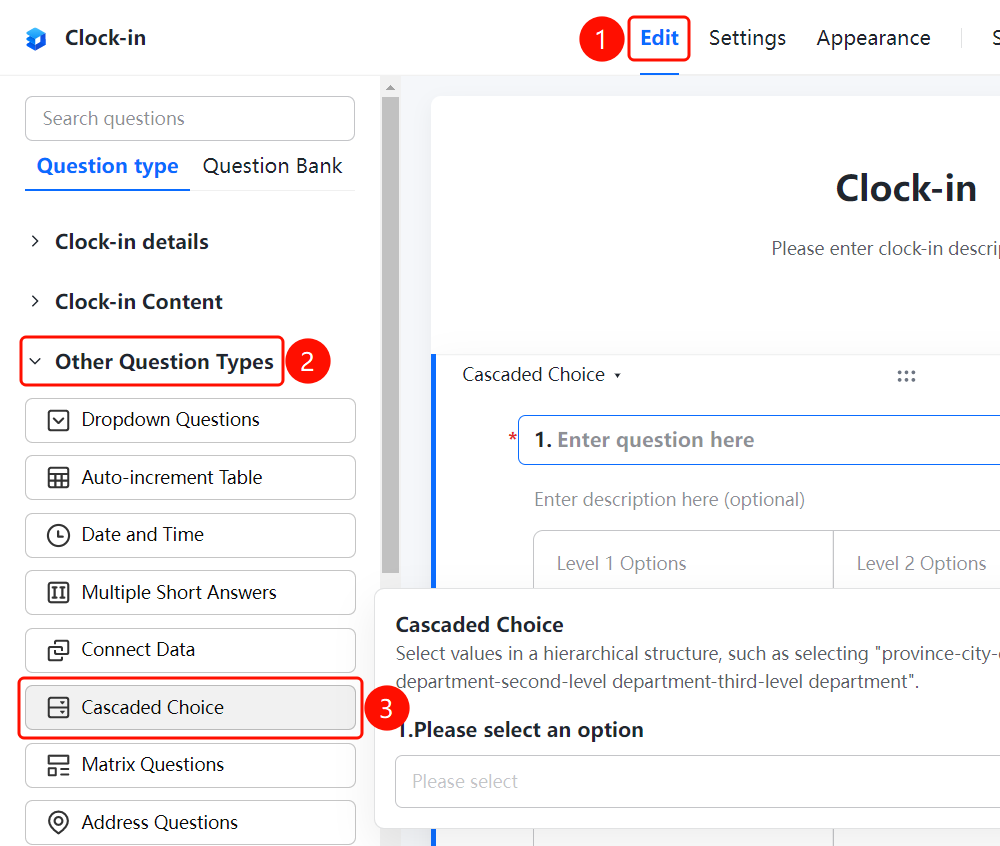
"Edit" Tab → "Question Type" → "Other Question Types" → "Multi-Segment Selection" Button
- Click the top "Edit" tab
- In the left panel, expand the "Question Type" area
- Expand the "Other Question Types" area
- Click the "Multi-Segment Selection" button to add the multi-segment selection question to the form
Setting Preset Answers
Feature Entry
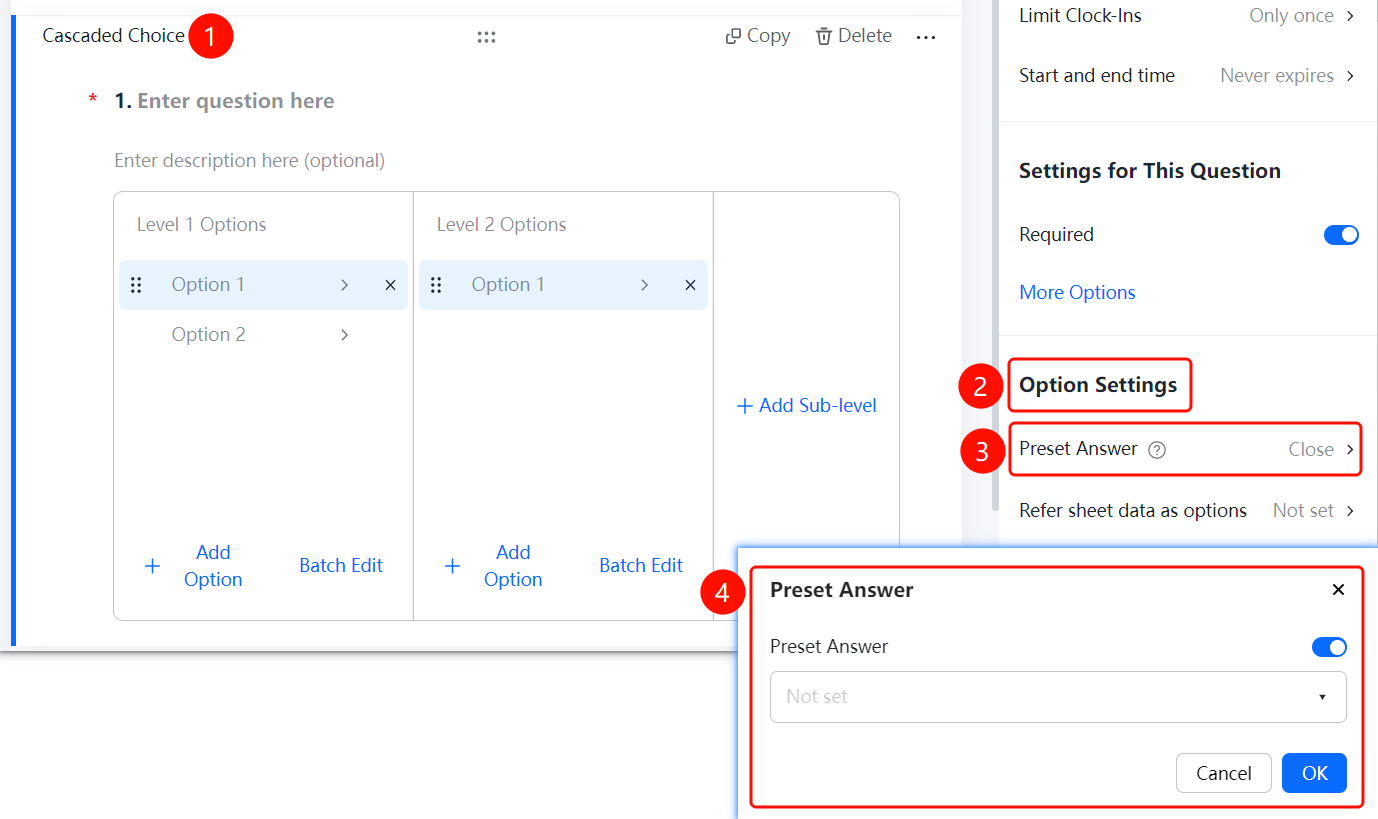
Multi-Segment Selection → "Option Settings" → "Preset Answer" Option
- Click the added multi-segment selection question
- In the right-side "Option Settings" panel, click the "Preset Answer" option
- In the pop-up dropdown box, select the default answer
- Click the "Confirm" button to complete the setting
Referencing Sheets Data as Options
Feature Entry
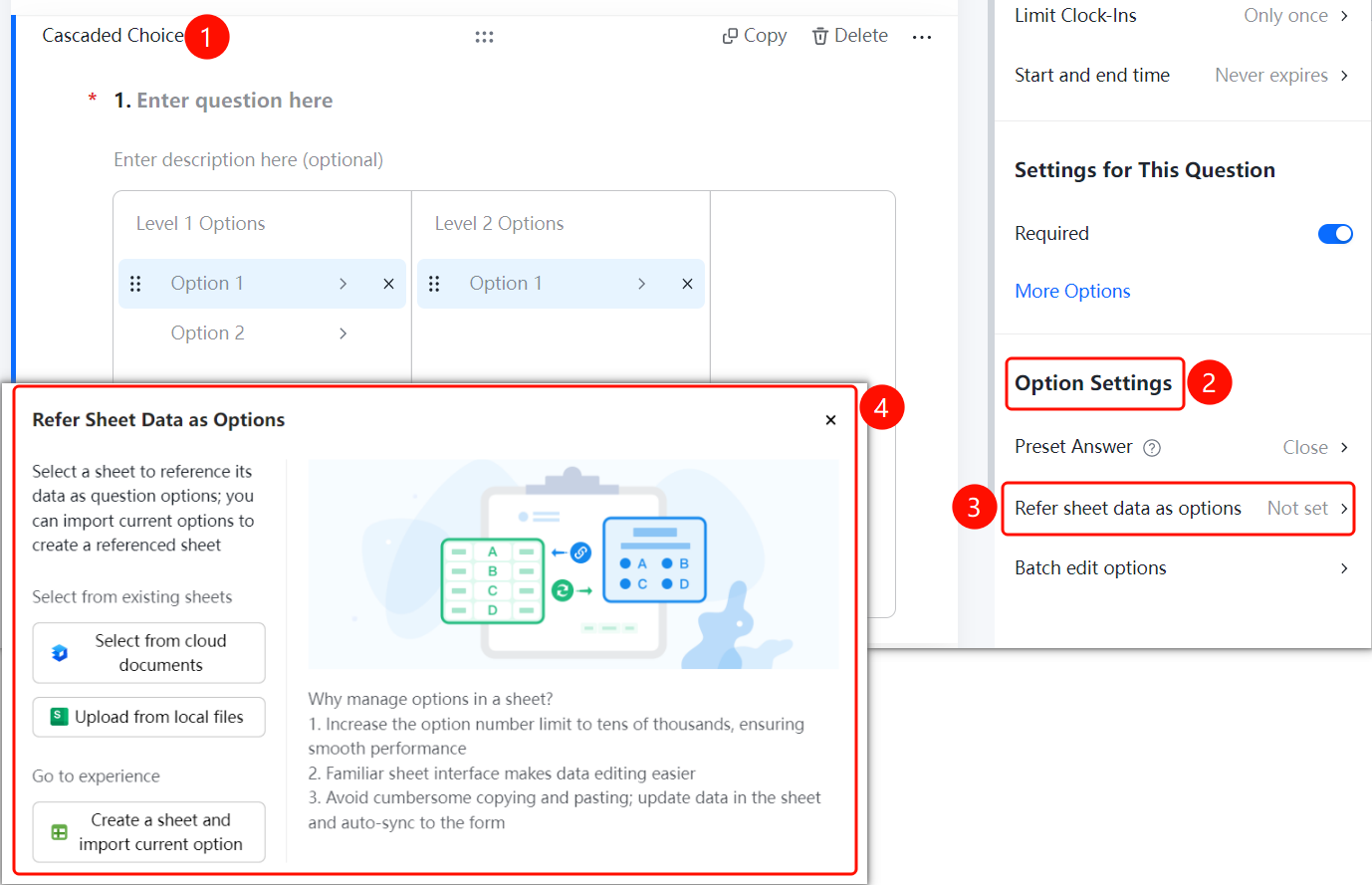
Multi-Segment Selection → "Option Settings" → "Reference Sheets Data as Options" Option
- Click the added multi-segment selection question
- In the right-side "Option Settings" panel, click the "Reference Sheets Data as Options" option
- In the pop-up panel, select the Sheets source: "Select from Cloud Document", "Upload from Local File", or "Create New Sheets and Import Current Options"
Overall Batch Editing of Options
Feature Entry
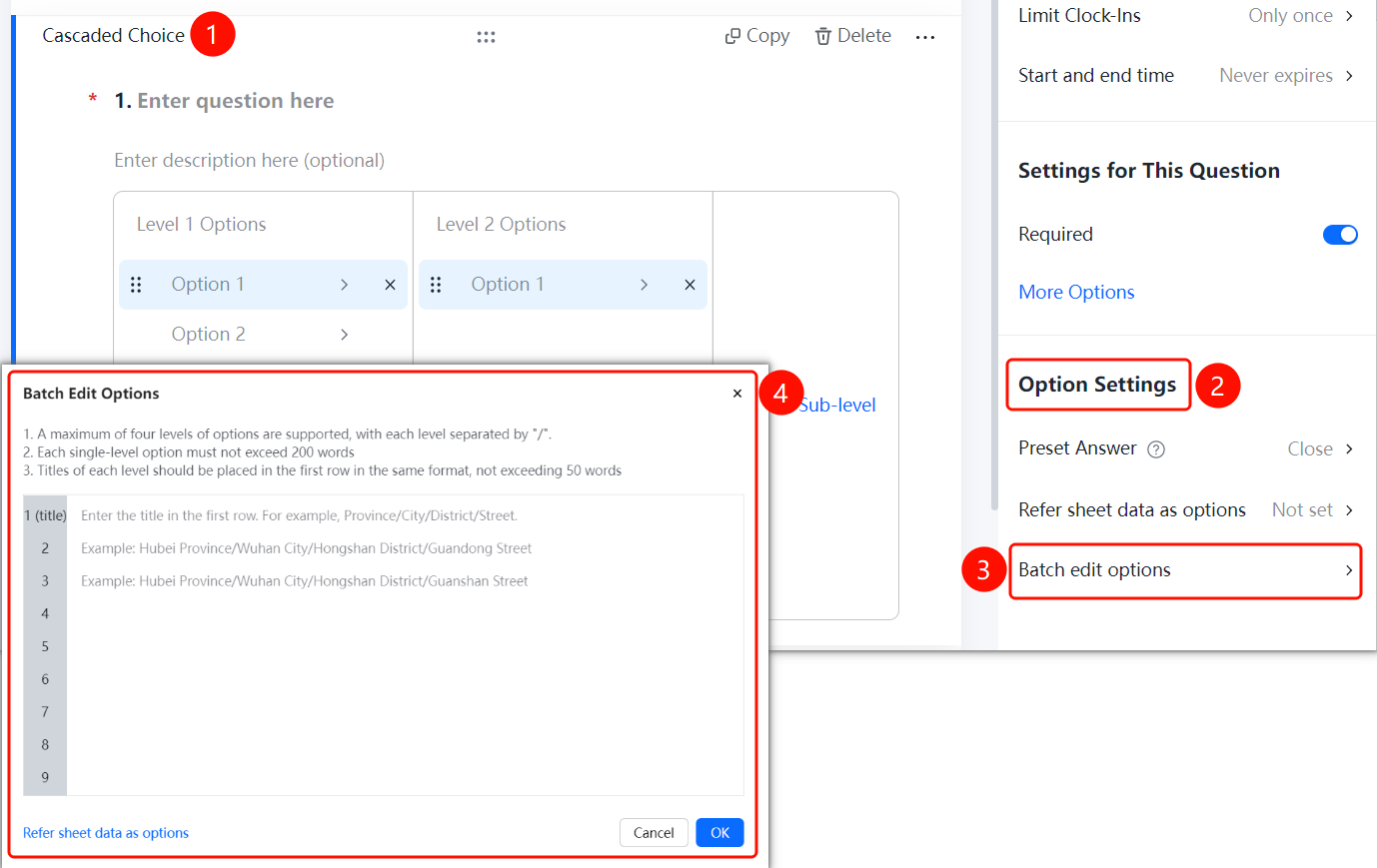
Multi-Segment Selection → "Option Settings" → "Overall Batch Edit Options" Option
- Click the added multi-segment selection question
- In the right-side "Option Settings" panel, click the "Overall Batch Edit Options" option
- In the pop-up panel, batch input options for each level according to the format, with each option separated by "/"
- Place the titles for each level in the first row following the same format
- Click the "Confirm" button to complete the setting
FAQ
Q1: How many levels of options does multi-segment selection support at most?
- Solution: Multi-segment selection supports up to four levels of options, with each option separated by "/", and a single-level option not exceeding 200 characters.
Q2: How to batch edit options for multi-segment selection?
- Solution: In the "Option Settings" panel, click "Overall Batch Edit Options", batch input options for each level according to the format, and place the titles for each level in the first row following the same format.
Q3: What scenarios is multi-segment selection suitable for?
- Solution: Multi-segment selection is suitable for multi-level selection scenarios, such as selecting "Province-City-District", "Level 1 Department-Level 2 Department-Level 3 Department", etc.
Notes
- Multi-segment selection supports up to four levels of options, with each option separated by "/"
- A single-level option does not exceed 200 characters, and titles for each level do not exceed 50 characters
- Place the titles for each level in the first row following the same format, e.g.: Province/City/District/Street