Feature Summary
The multiple choice question allows respondents to select one or more options from a set. It is commonly used in scenarios such as questionnaire surveys, exams and teaching, and satisfaction surveys. It supports features including setting preset answers, selectable quantity, option quotas, exclusive options, referencing Sheets data, adding input boxes, displaying Poll results, and shuffling option order.
Feature Description
| Feature Dimension | Description |
|---|---|
| Membership Restriction | No membership restriction |
| Version Restriction | No version restriction |
Operation Steps
Adding a Multiple Choice Question
Feature Entry
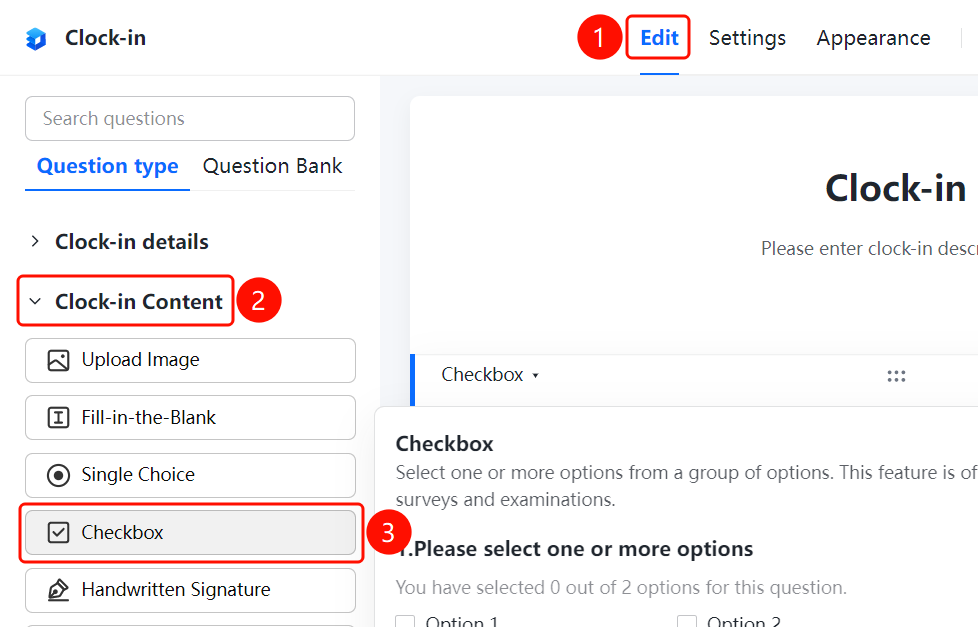
「Edit」 tab → 「Question Type」 → 「Multiple Choice」 button
- Click the top 「Edit」 tab
- Expand the 「Question Type」 area in the left panel
- Click the 「Multiple Choice」 button to add a multiple choice question to the form
Setting Preset Answers
Feature Entry
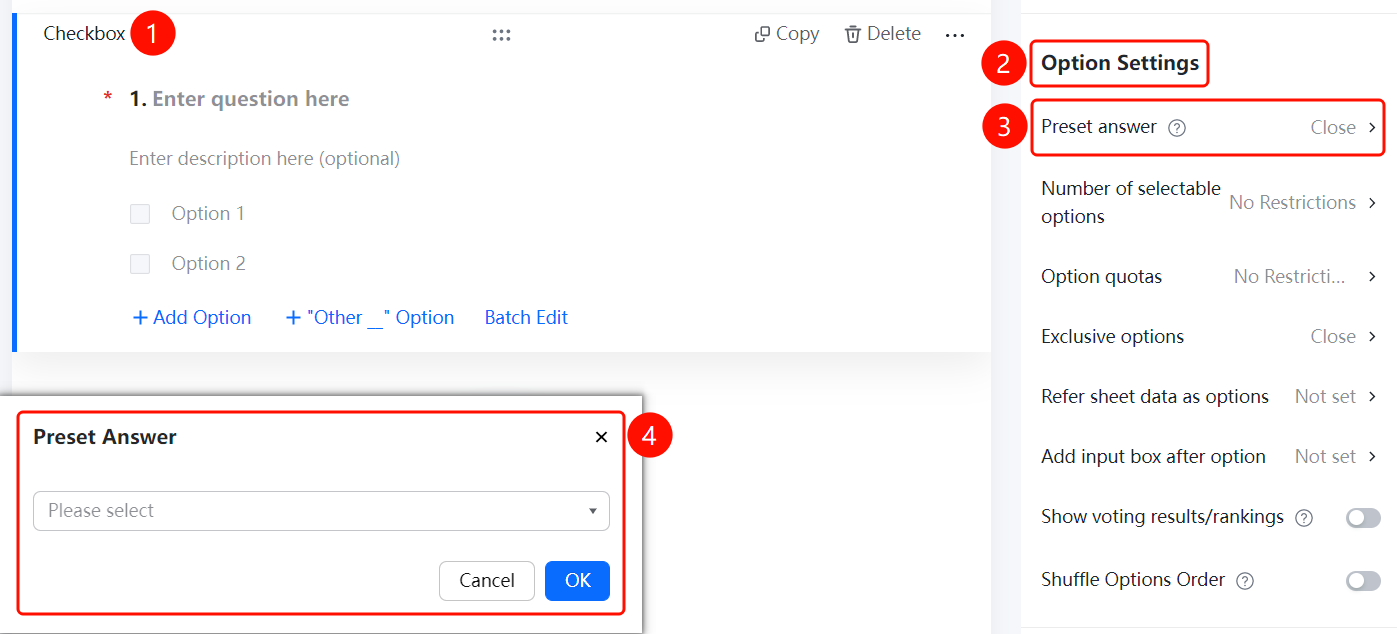
Multiple Choice → 「Option Settings」 → 「Preset Answer」 option
- Click the added multiple choice question
- In the right-side 「Option Settings」 panel, click the 「Preset Answer」 option
- In the pop-up dropdown box, check the options you want to set as default
Setting Selectable Option Quantity
Feature Entry
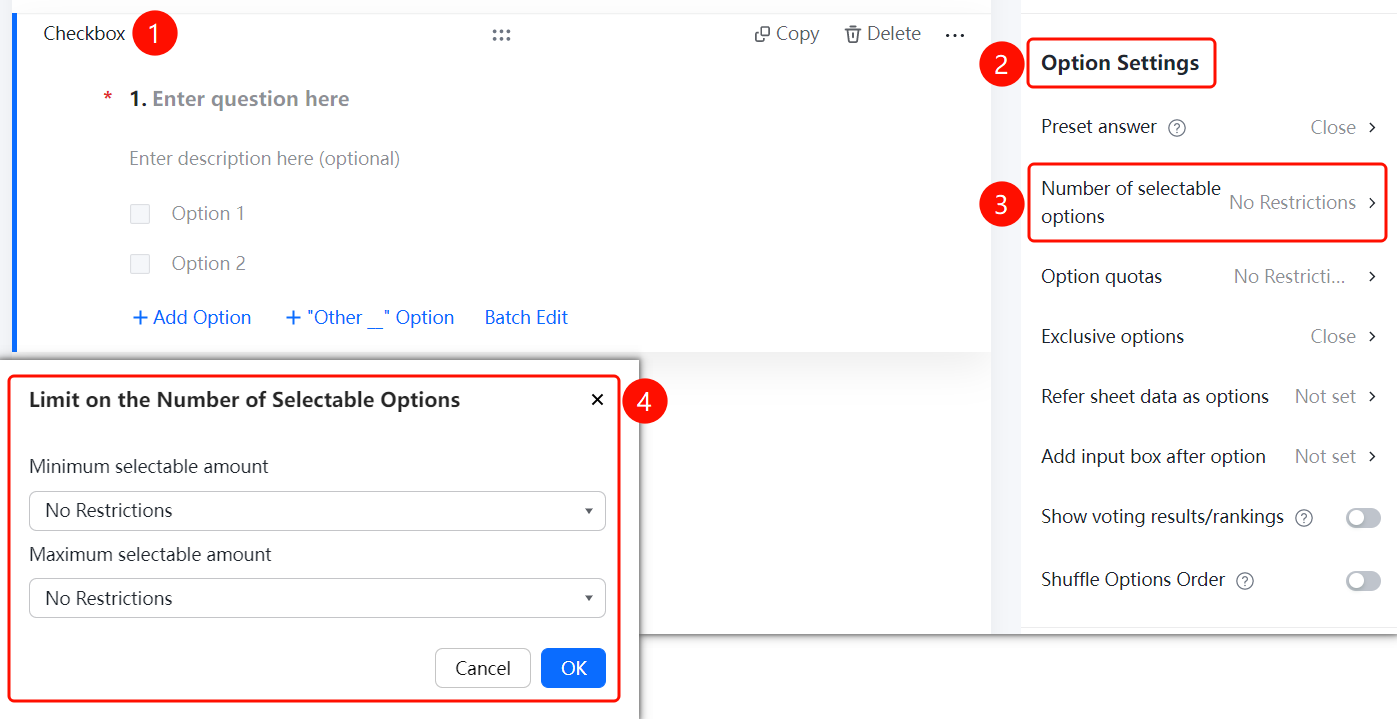
Multiple Choice → 「Option Settings」 → 「Selectable Option Quantity」 option
- Click the added multiple choice question
- In the right-side 「Option Settings」 panel, click the 「Selectable Option Quantity」 option
- In the pop-up panel, set the 「Minimum Required Selections」 and 「Maximum Allowed Selections」
- Click the 「Confirm」 button to complete the setting
Setting Option Quotas
Feature Entry
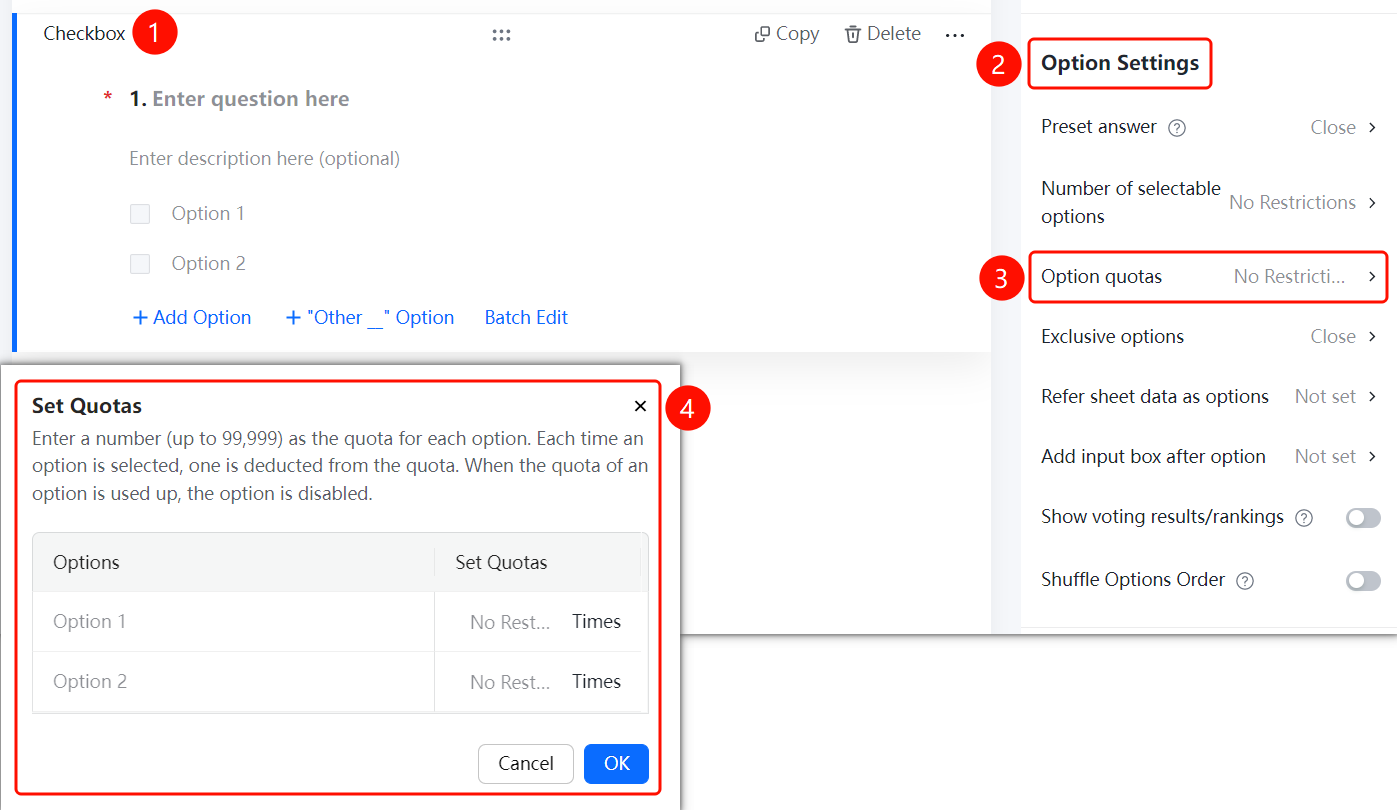
Multiple Choice → 「Option Settings」 → 「Option Quota」 option
- Click the added multiple choice question
- In the right-side 「Option Settings」 panel, click the 「Option Quota」 option
- In the pop-up panel, set the quota quantity for each option (maximum can be set to 99999)
- Click the 「Confirm」 button to complete the setting
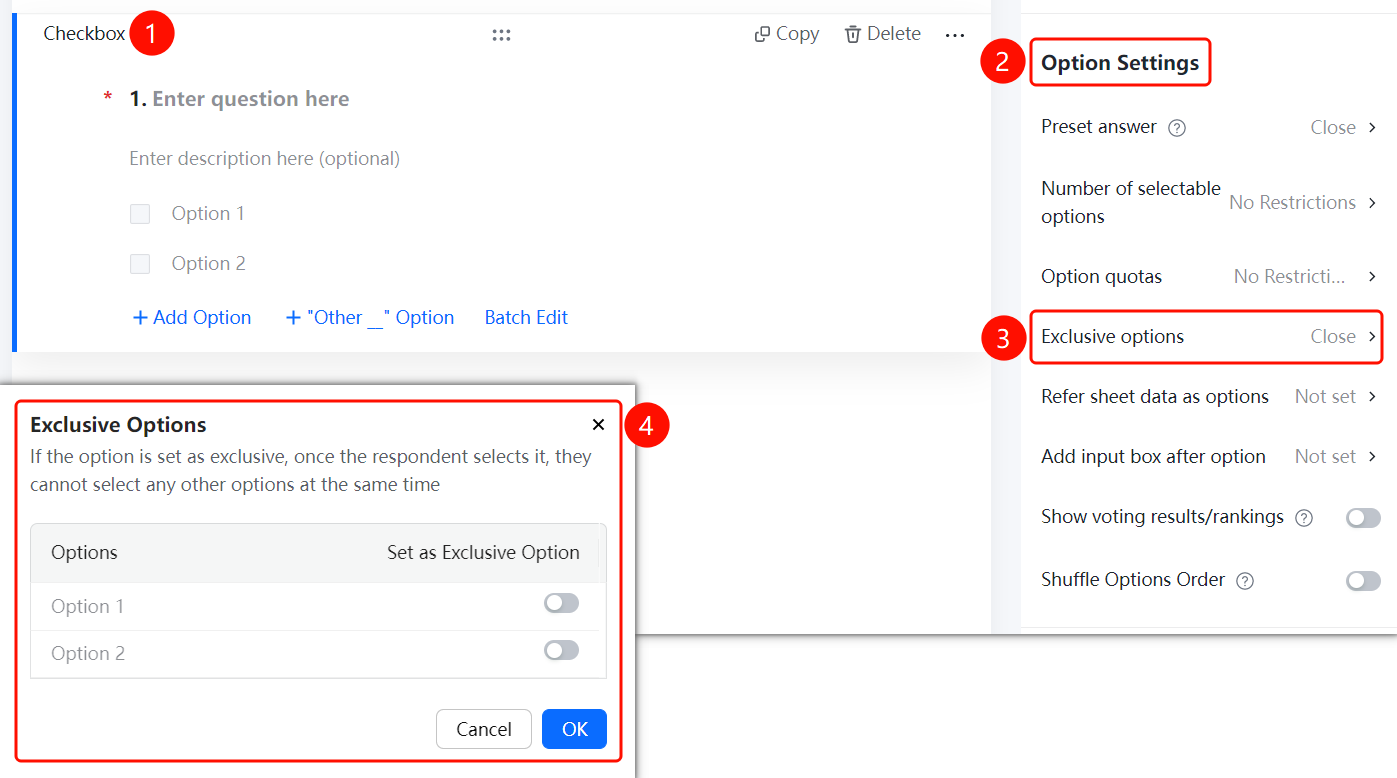
Setting Exclusive Options
Feature Entry
Multiple Choice → 「Option Settings」 → 「Exclusive Option」 option
- Click the added multiple choice question
- In the right-side 「Option Settings」 panel, click the 「Exclusive Option」 option
- In the pop-up panel, turn on the switch for the options you want to set as exclusive
- After checking an exclusive option, other options cannot be checked simultaneously
- Click the 「Confirm」 button to complete the setting
Referencing Sheets Data as Options
Feature Entry
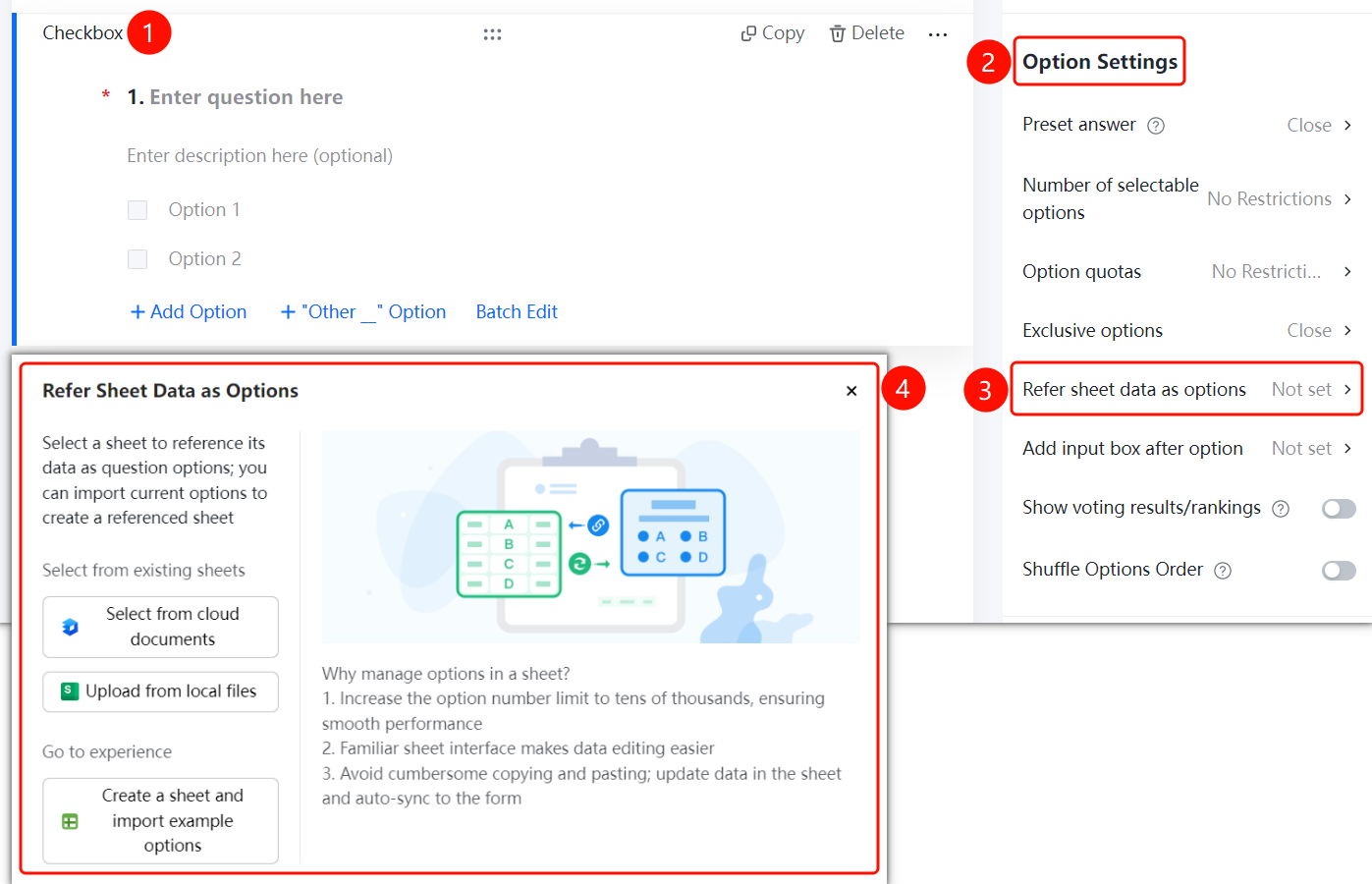
Multiple Choice → 「Option Settings」 → 「Reference Sheets Data as Options」 option
- Click the added multiple choice question
- In the right-side 「Option Settings」 panel, click the 「Reference Sheets Data as Options」 option
- In the pop-up panel, select the Sheets source: 「Select from Cloud Document」, 「Upload from Local File」, or 「Create New Sheets and Import Sample Options」
Adding Input Box After Options
Feature Entry
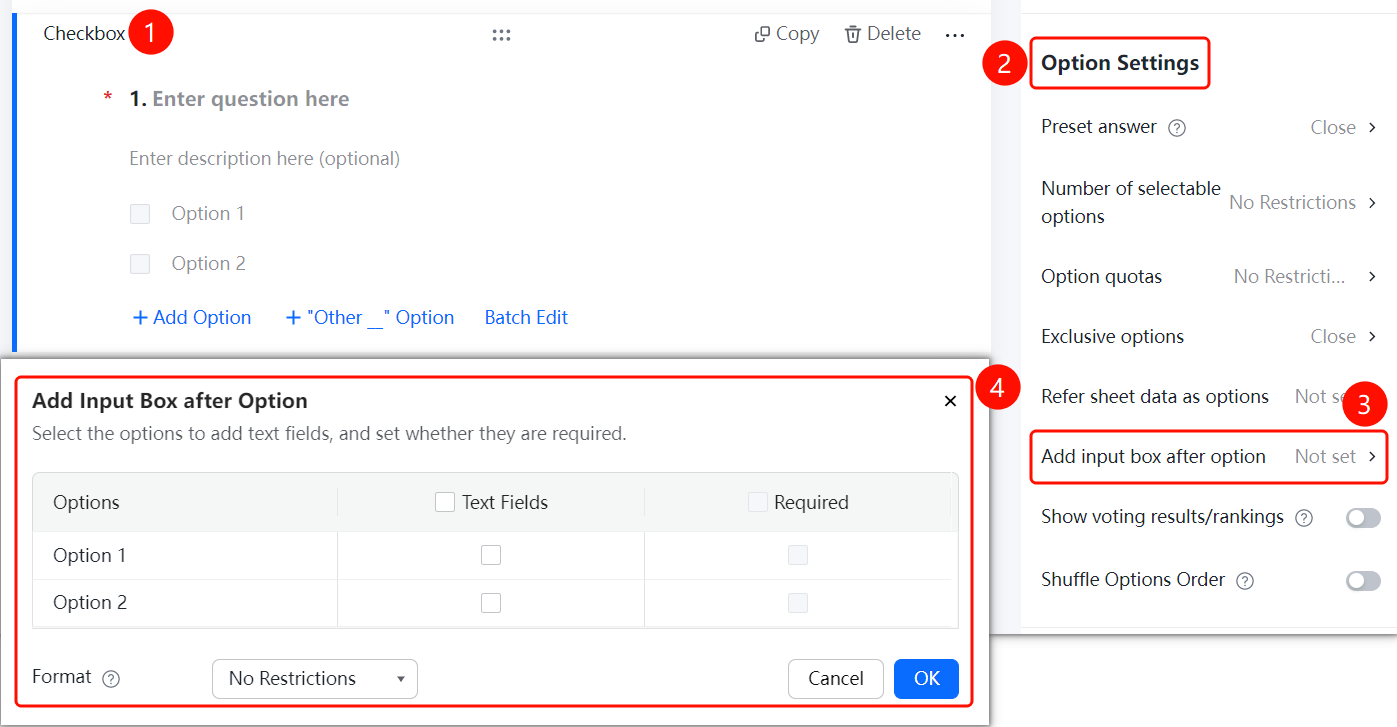
Multiple Choice → 「Option Settings」 → 「Add Input Box After Options」 option
- Click the added multiple choice question
- In the right-side 「Option Settings」 panel, click the 「Add Input Box After Options」 option
- In the pop-up panel, check the options for which you want to add an input box
- Set whether the input box is required and the input content format restriction
- Click the 「Confirm」 button to complete the setting
Display Poll Results/Leaderboard
Feature Entry
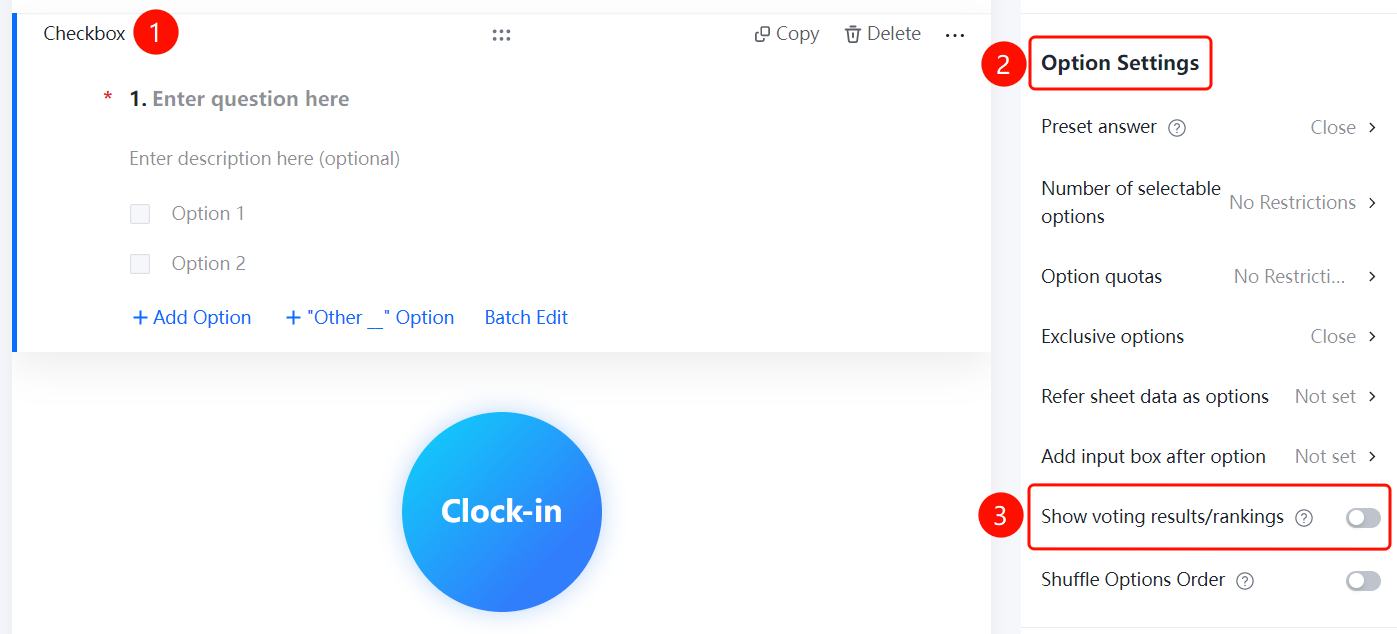
Multiple Choice → "Option Settings" → "Display Poll Results/Leaderboard" toggle
- Click on an added multiple choice question
- In the "Option Settings" panel on the right, enable the "Display Poll Results/Leaderboard" toggle
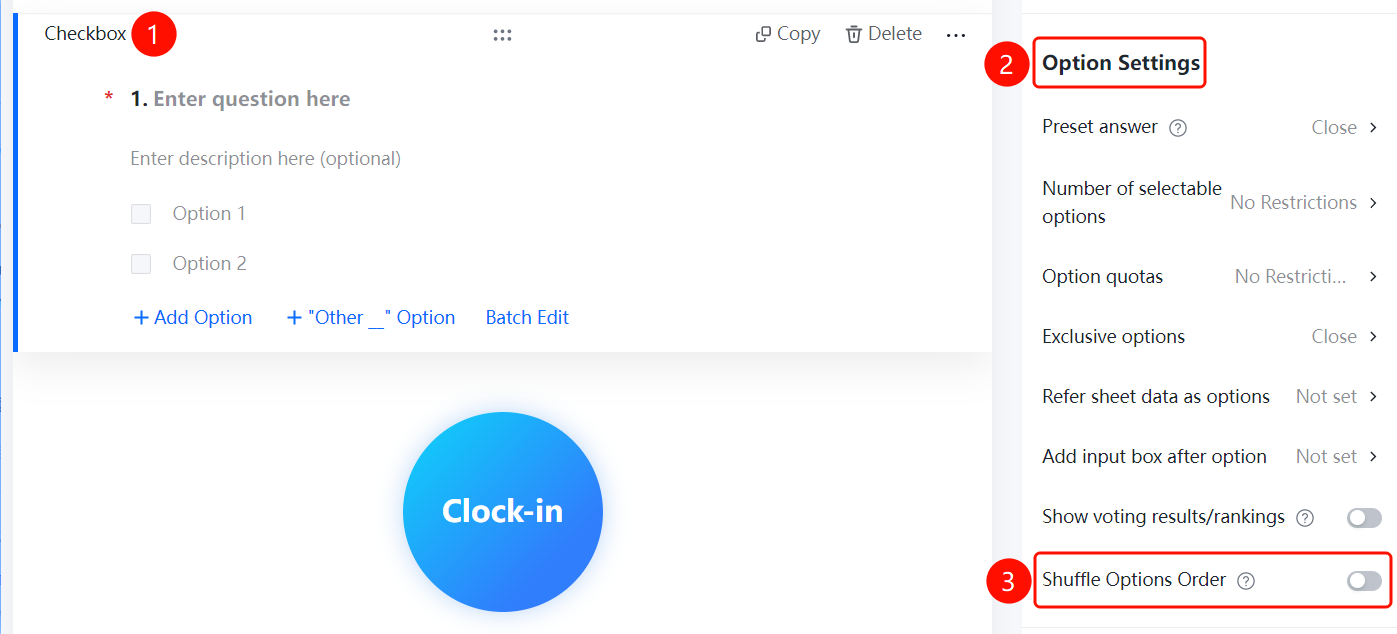
Shuffle Option Order
Feature Entry
Multiple Choice → "Option Settings" → "Shuffle Option Order" toggle
- Click on an added multiple choice question
- In the "Option Settings" panel on the right, enable the "Shuffle Option Order" toggle
FAQ
Q1: How to limit the minimum number of options a respondent must select for a multiple choice question?
- Solution: Click on the multiple choice question, click "Selectable Option Quantity" in the "Option Settings" panel, and set the "Minimum Required Selections".
Q2: What does exclusive option mean?
- Solution: An exclusive option means that once a respondent selects this option, they cannot select any other options simultaneously. It is suitable for mutually exclusive selection scenarios.
Q3: Can I set a quota for each option in a multiple choice question?
- Solution: Yes. Click on the multiple choice question, click "Option Quota" in the "Option Settings" panel, and set a quota for each option. Once the quota is filled, that option will no longer be selectable.
Notes
- Multiple choice questions support adding multiple options, which can be managed via "Add Option" or "Batch Edit".
- When "Shuffle Option Order" is enabled, the order of options displayed to each respondent will be randomized.
- When referencing Sheets data as options, the options will automatically sync after the Sheets data is updated.