Feature Summary
Common Settings are used to control core configuration features of the check-in form, such as start and end time, check-in permissions, check-in cycle, response modification, and approval.
Feature Description
| Feature Dimension | Description |
|---|---|
| Membership Restriction | No membership restriction |
| Version Restriction | No version restriction |
Operation Steps
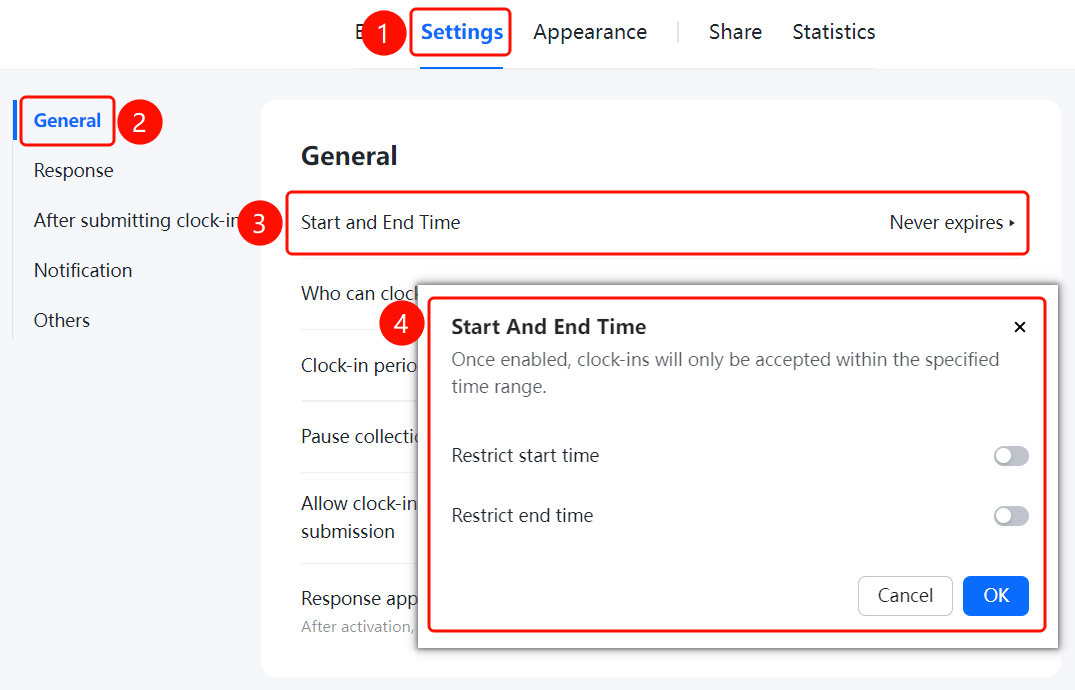
Setting Start and End Time
Feature Entry
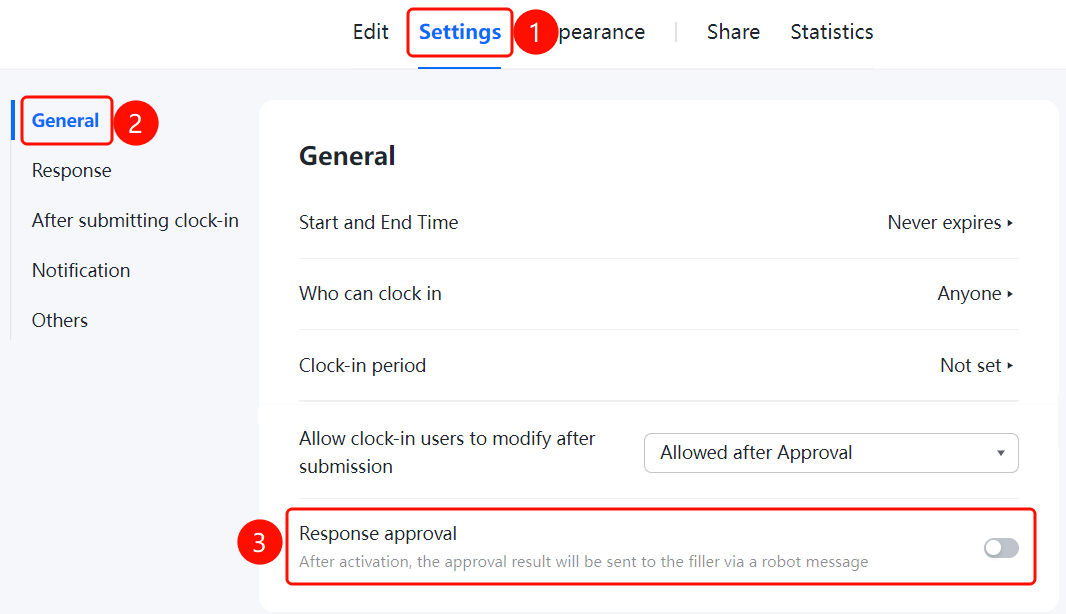
「Settings」 tab → 「Common Settings」 → 「Start and End Time」
- Click the top 「Settings」 tab
- Click 「Common Settings」 in the left menu
- Click the 「Start and End Time」 option
- In the pop-up panel, enable the 「Restrict Start Time」 and 「Restrict End Time」 toggles
- Set the specific start and end times
- Click the 「Confirm」 button to save the settings
Setting Who Can Check In
Feature Entry
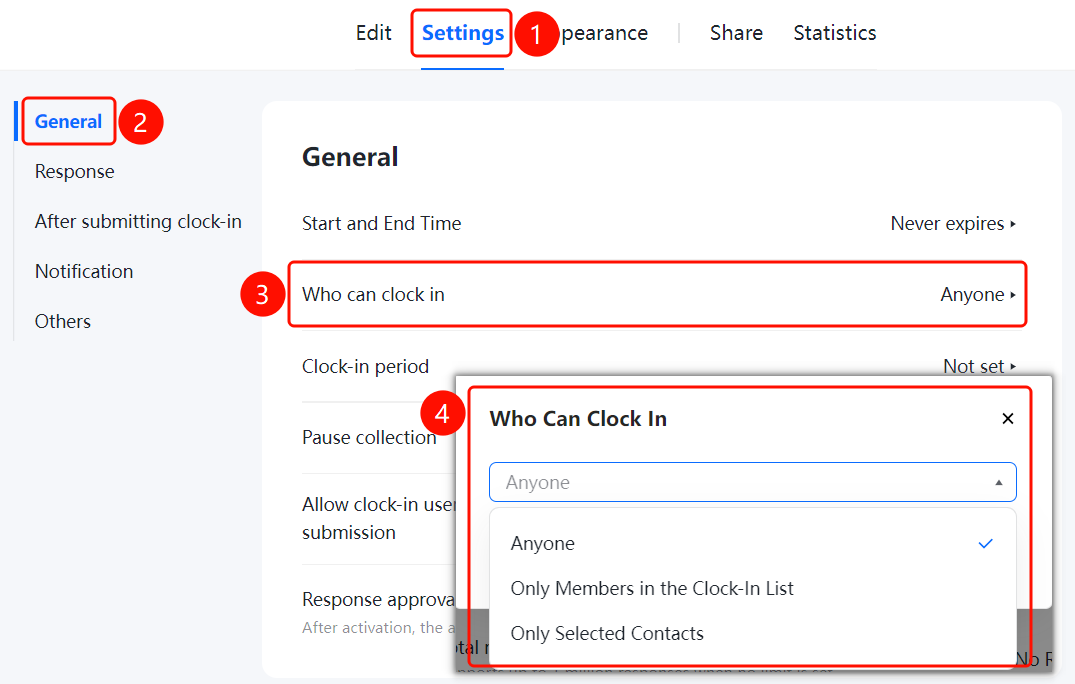
「Settings」 tab → 「Common Settings」 → 「Who Can Check In」 dropdown menu
- Click the top 「Settings」 tab
- Click 「Common Settings」 in the left menu
- Click the 「Who Can Check In」 dropdown menu
- Select check-in permission: 「Anyone Can Check In」, 「Only Members in the Check-in List Can Check In」, or 「Only Selected Contacts Can Check In」
Setting Check-in Cycle
Feature Entry
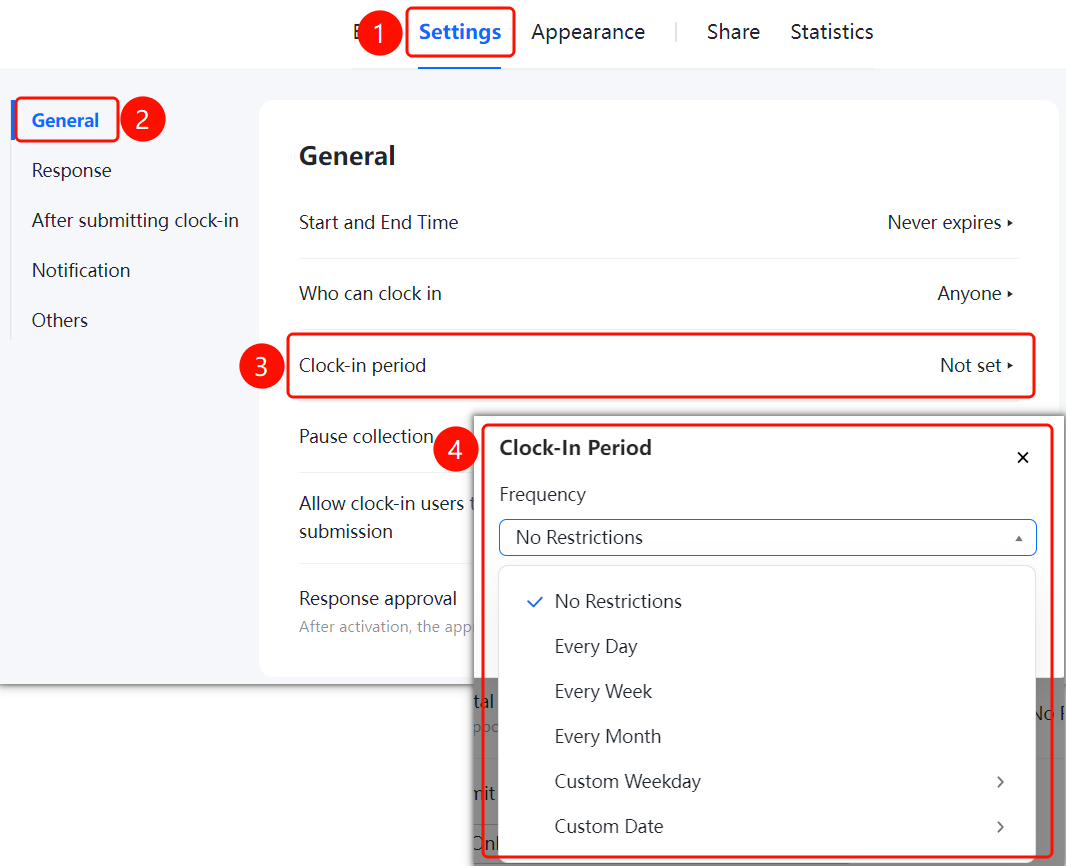
「Settings」 tab → 「Common Settings」 → 「Check-in Cycle」 dropdown menu
- Click the top 「Settings」 tab
- Click 「Common Settings」 in the left menu
- Click the 「Check-in Cycle」 dropdown menu
- Select cycle type: 「No Restriction」, 「Every Day」, 「Every Week」, 「Every Month」, 「Custom Days of the Week」, or 「Custom Date」
Setting Allow Check-in Person to Modify After Submission
Feature Entry
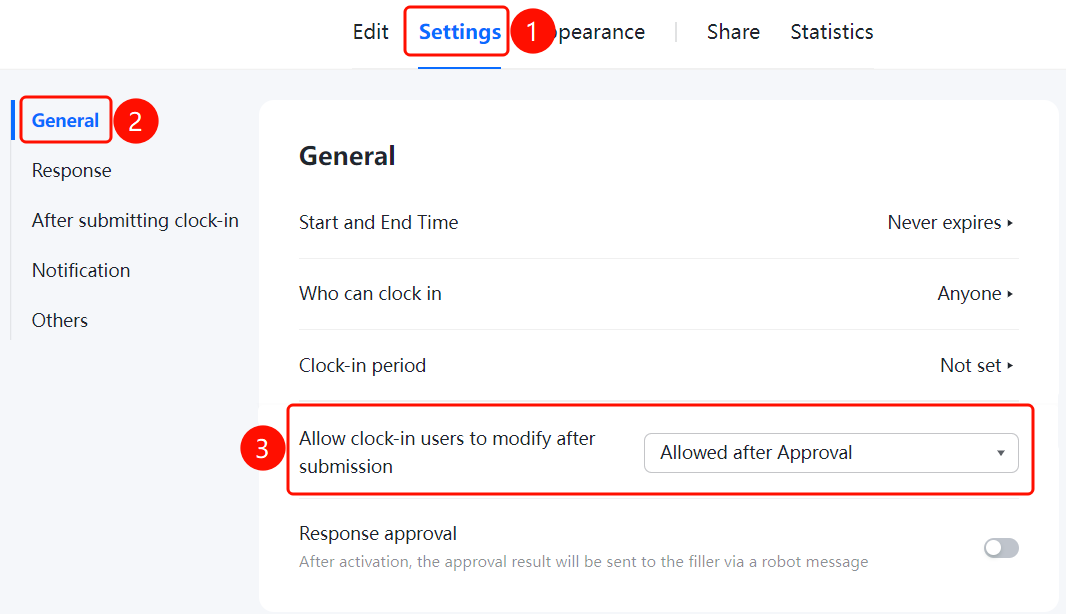
「Settings」 tab → 「Common Settings」 → 「Allow Check-in Person to Modify After Submission」 dropdown menu
- Click the top 「Settings」 tab
- Click 「Common Settings」 in the left menu
- Click the 「Allow Check-in Person to Modify After Submission」 dropdown menu
- Select modification permission: 「Allow Modification After Approval」, 「Do Not Allow Modification」, 「Always Allow Modification」, or 「Allow Modification Only Within Check-in Cycle」
Setting Response Approval
Feature Entry
「Settings」 tab → 「Common Settings」 → 「Response Approval」 toggle
- Click the top 「Settings」 tab
- Click 「Common Settings」 in the left menu
- Enable the 「Response Approval」 toggle
- After enabling, the approval result will be sent to the submitter via bot message
FAQ
Q1: How to set the check-in form to be valid only during a specific time period?
- Solution: In Common Settings, click 「Start and End Time」, enable the 「Restrict Start Time」 and 「Restrict End Time」 toggles and set the specific times. After enabling, check-in persons must check in within the limited time.
Q2: How to restrict check-in to only designated members?
- Solution: In Common Settings, click the 「Who Can Check In」 dropdown menu, and select 「Only Members in the Check-in List Can Check In」 or 「Only Selected Contacts Can Check In」.
Q3: What is the effect after enabling Response Approval?
- Solution: After enabling, the submitter's response needs to go through approval, and the approval result will be sent to the submitter via bot notifications.
Notes
- After the start and end time is set, check-in users can only check in normally within the specified time period
- The "Allow modification only within check-in cycle" option is only available after the "Check-in cycle" setting is enabled
- The check-in cycle supports periodic collection by day, week, month, or custom dates