Feature Summary
The handwritten signature is used to collect the signer's handwritten signature, which can serve as a confirmation credential. It supports setting Add Watermark, signature image naming method, and creating category folders.
Feature Description
| Feature Dimension | Description |
|---|---|
| Membership Restriction | No membership restriction |
| Version Restriction | No version restriction |
Operation Steps
Add Handwritten Signature
Feature Entry
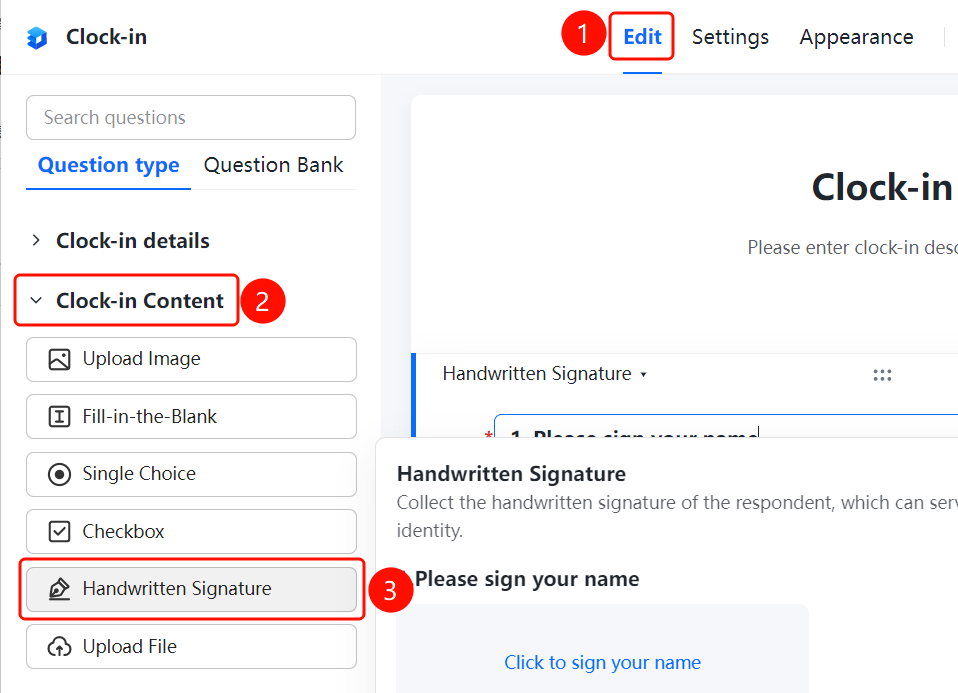
「Edit」tab → 「Question Type」 → 「Handwritten Signature」 button
- Click the top 「Edit」 tab
- Expand the 「Question Type」 area in the left panel
- Click the 「Handwritten Signature」 button to add the handwritten signature to the form
- The respondent clicks the 「Click to start handwritten signature」 area to sign
Set Add Watermark
Feature Entry
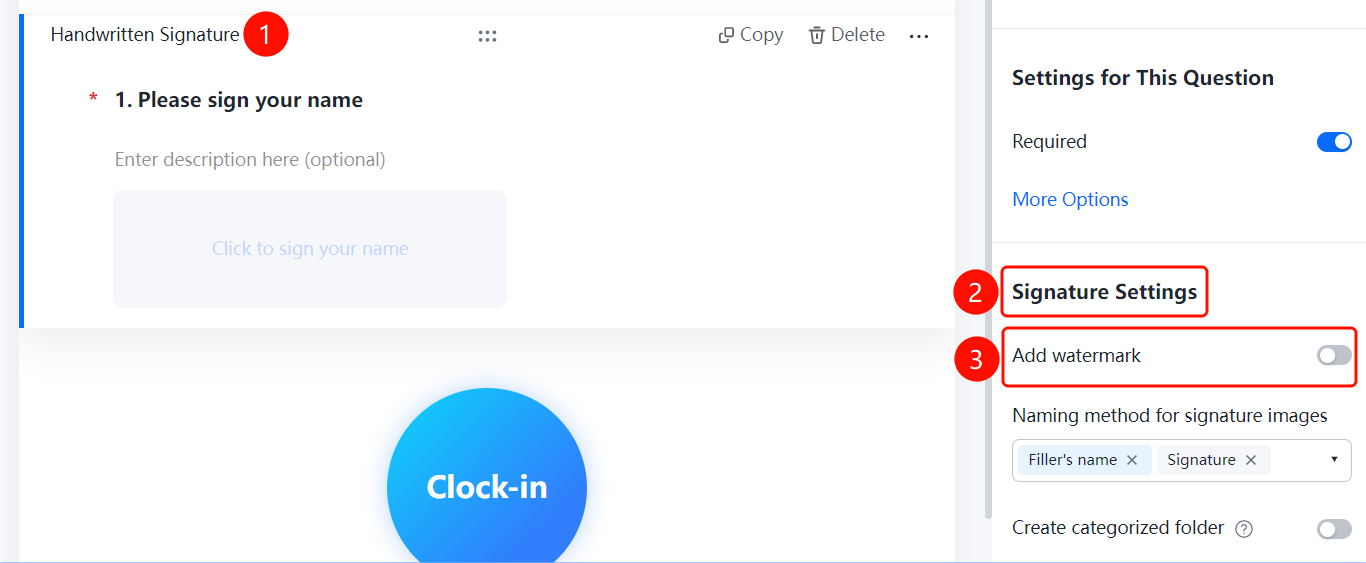
Handwritten Signature → 「Signature Settings」 → 「Add Watermark」 toggle
- Click the added handwritten signature
- In the right 「Signature Settings」 panel, enable the 「Add Watermark」 toggle
- After enabling, the signature image will automatically add watermark information
Set Signature Image Naming Method
Feature Entry
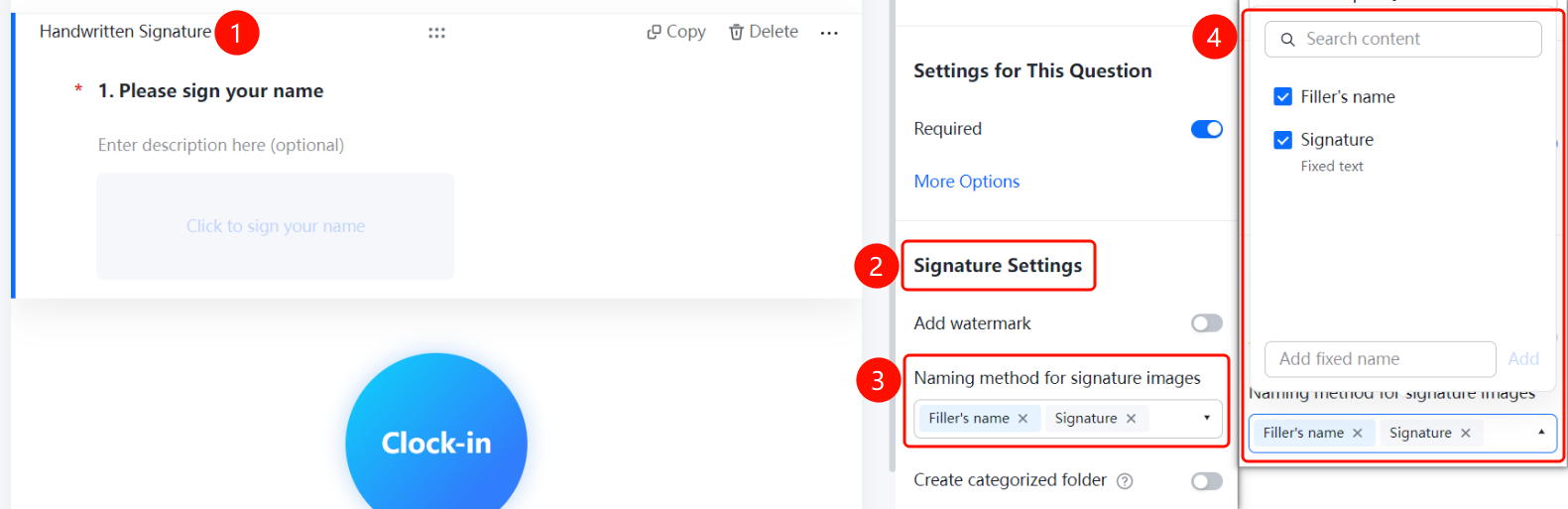
Handwritten Signature → 「Signature Settings」 → 「Signature Image Naming Method」 dropdown menu
- Click the added handwritten signature
- In the right 「Signature Settings」 panel, click the 「Signature Image Naming Method」 dropdown menu
- Select the naming method: 「Respondent Nickname」, 「Signature」, 「Fixed Text」, or 「Add custom fixed naming」
Set Create Category Folder
Feature Entry
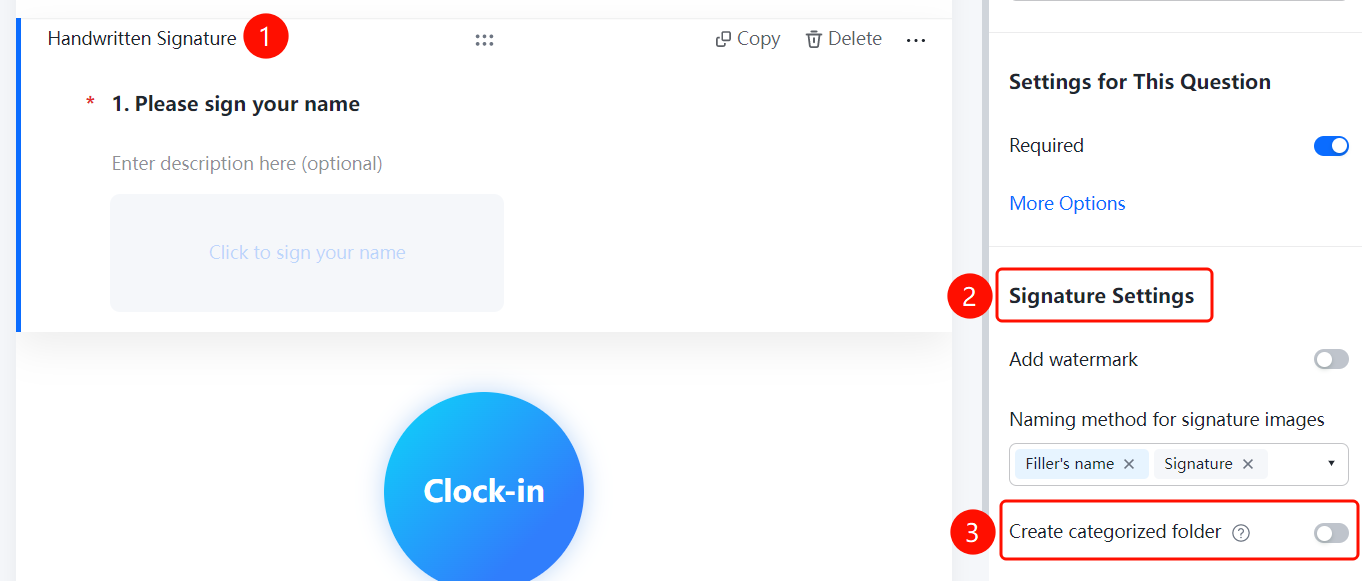
Handwritten Signature → 「Signature Settings」 → 「Create Category Folder」 toggle
- Click the added handwritten signature
- In the right 「Signature Settings」 panel, enable the 「Create Category Folder」 toggle
- After enabling, folders will be automatically created according to the folder naming method, and collected signatures will be categorized and summarized
FAQ
Q1: What scenarios are handwritten signatures suitable for?
- Solution: Handwritten signatures are suitable for scenarios where the respondent's handwritten signature needs to be collected as a confirmation credential, such as agreement confirmation, registration confirmation, check-in, etc.
Q2: How to set the naming method for signature images?
- Solution: Click the handwritten signature, then in the 「Signature Settings」 panel, click the 「Signature Image Naming Method」 dropdown menu and select respondent nickname, signature, fixed text, or custom naming.
Q3: How to categorize and manage collected signatures?
- Solution: In the 「Signature Settings」 panel, enable the 「Create Category Folder」 toggle. Folders will be automatically created according to the folder naming method, and collected signatures will be categorized and summarized.
Notes
- Handwritten signatures can serve as confirmation credentials, suitable for scenarios such as agreement confirmation and check-in
- The signature image naming method supports respondent nickname, signature, fixed text, or custom naming
- The create category folder feature can categorize and summarize collected signatures