Feature Summary
The check-in button settings are used to configure the submit button for check-in forms, supporting both single-button check-in and multi-button check-in.
Feature Description
| Feature Dimension | Description |
|---|---|
| Membership Restriction | No membership restriction |
| Version Restriction | No version restriction |
Operation Steps
Setting Up Check-in Buttons
Feature Entry
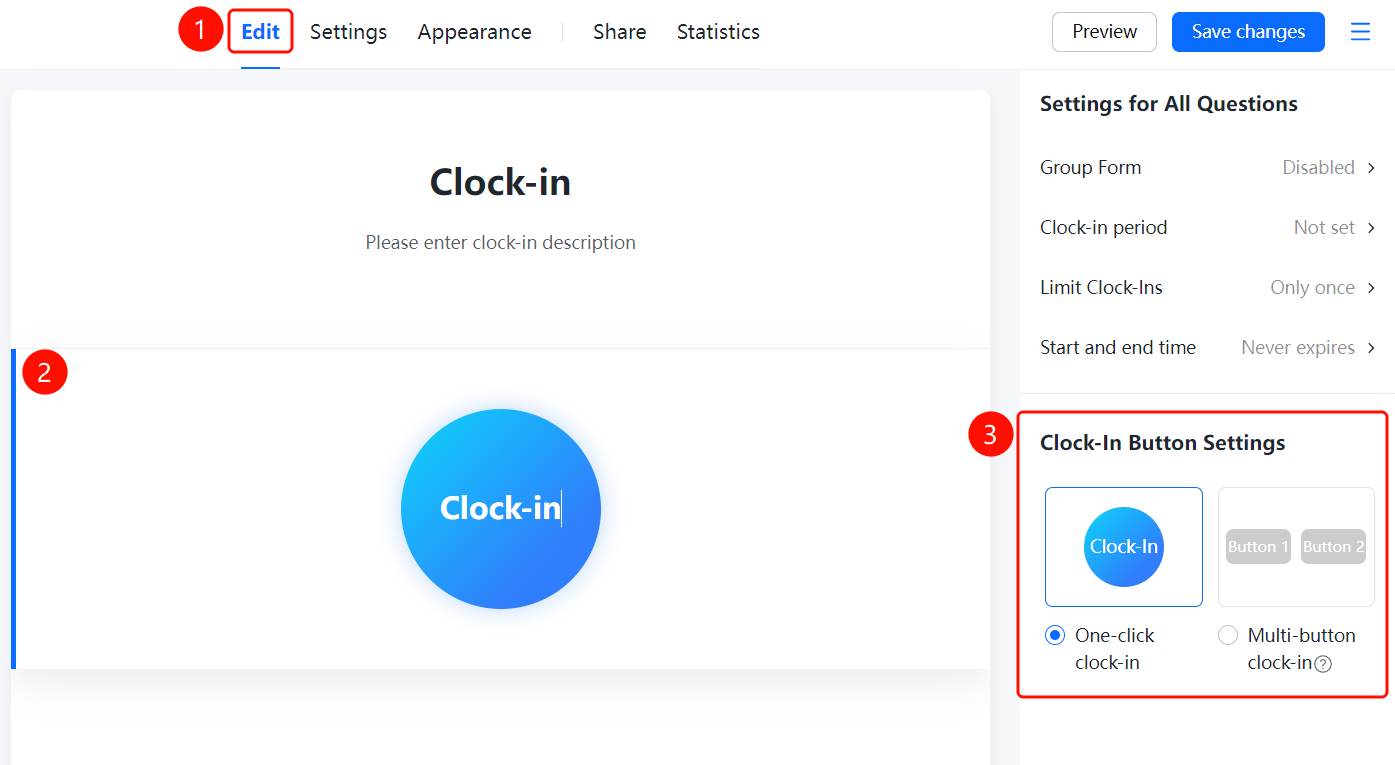
「Edit」tab → 「Check-in Button Settings」 → 「Single-Button Check-in / Multi-Button Check-in」
- Click the top 「Edit」 tab
- Click the check-in button
- Click 「Check-in Button Settings」 in the right-side menu
- Select the check-in method: 「Single-Button Check-in」 or 「Multi-Button Check-in」
- If you select multi-button check-in, you can set multiple buttons (e.g., Button 1, Button 2)
- Check-in users can click any button to submit, such as clock-in and clock-out
FAQ
Q1: What is the difference between single-button check-in and multi-button check-in?
- Solution: Single-button check-in has only one submit button; multi-button check-in allows setting multiple buttons, and check-in users can click any button to submit, such as clock-in and clock-out.
Q2: How do I set up multi-button check-in?
- Solution: Select 「Multi-Button Check-in」 in 「Check-in Button Settings」 and set the names for multiple buttons.
Q3: Can the check-in button names be customized?
- Solution: Yes. Click the button name in 「Check-in Button Settings」 to edit and modify it.
Notes
- Multi-button check-in is suitable for scenarios where different check-in contexts need to be distinguished, such as clock-in and clock-out
- Check-in users can click any button to submit
- Button names can be customized