Feature Summary
Poll Single Choice allows selecting one option from a set of poll items, commonly used for voting and selection. After submission, you can view the poll results and poll leaderboard.
Feature Description
| Feature Dimension | Description |
|---|---|
| Membership Restriction | No membership restriction |
| Version Restriction | No version restriction |
Operation Steps
Add Poll Single Choice Question
Feature Entry
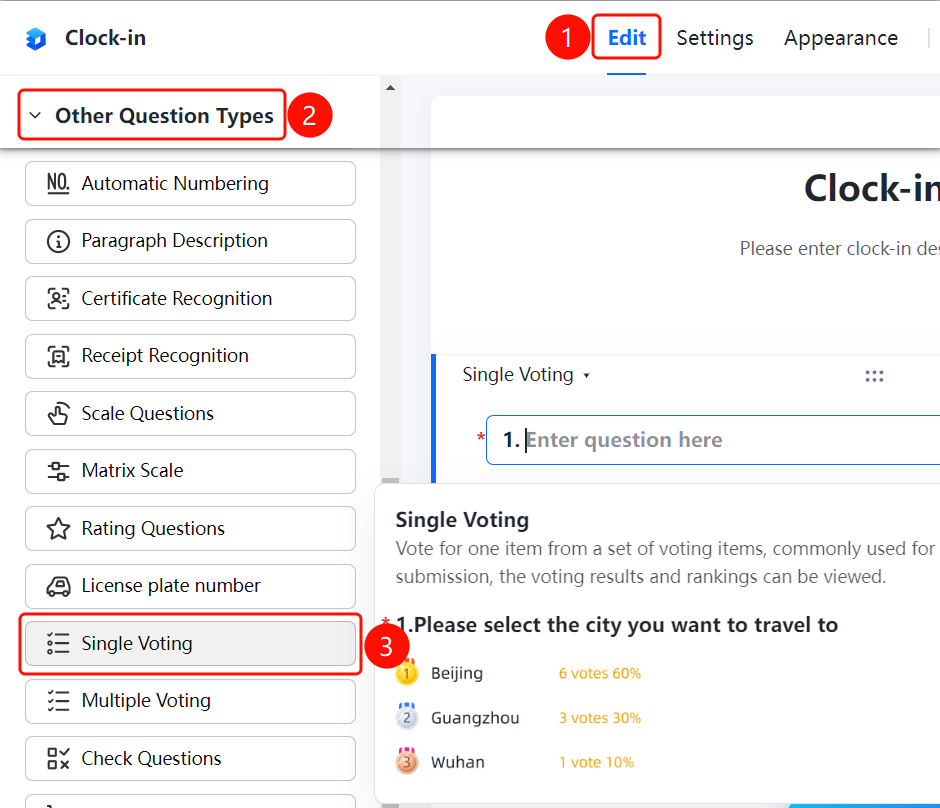
「Edit」 tab → 「Question Type」 → 「Other Question Types」 → 「Poll Single Choice」 button
- Click the top 「Edit」 tab
- Expand the 「Question Type」 area in the left panel
- Expand the 「Other Question Types」 area
- Click the 「Poll Single Choice」 button to add the poll single choice question to the form
Add Input Box After Option
Feature Entry
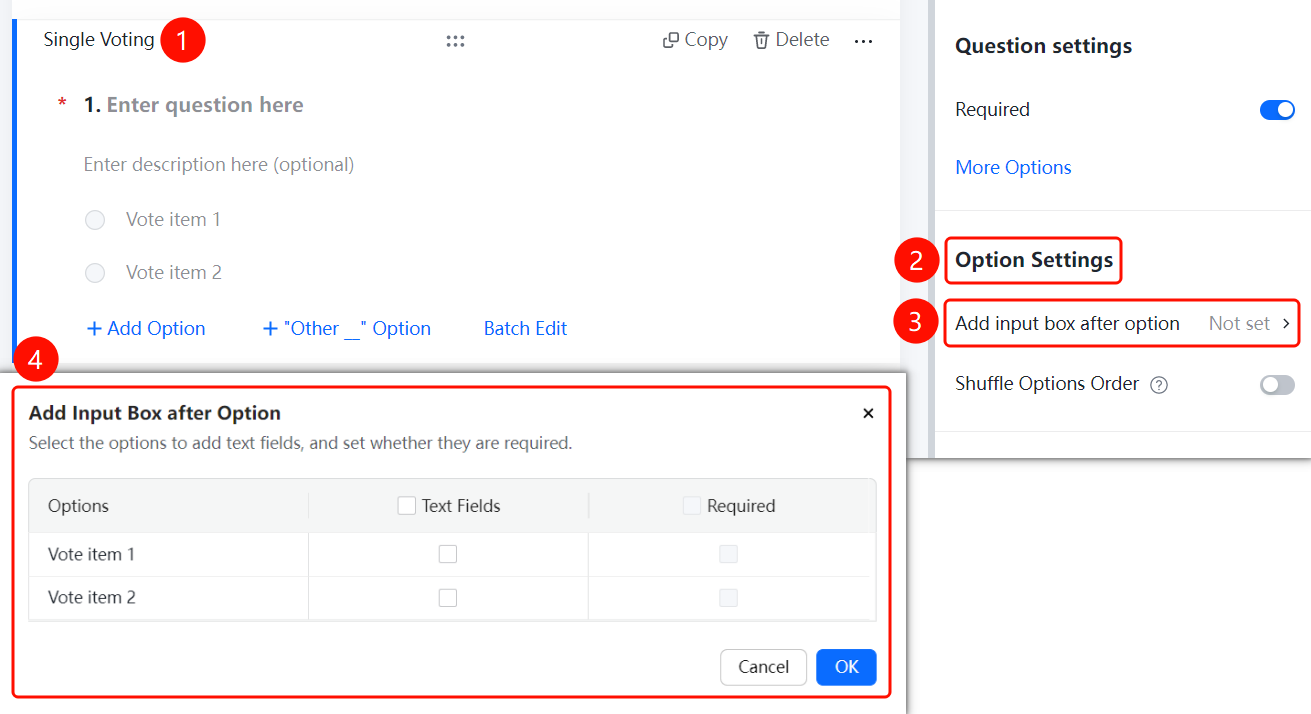
Poll Single Choice → 「Option Settings」 → 「Add Input Box After Option」 option
- Click the added poll single choice question
- In the right 「Option Settings」 panel, click the 「Add Input Box After Option」 option
- In the pop-up panel, check the poll items for which you want to add an input box
- Set whether the input box is required
- Click the 「Confirm」 button to complete the setting
Shuffle Option Order
Feature Entry
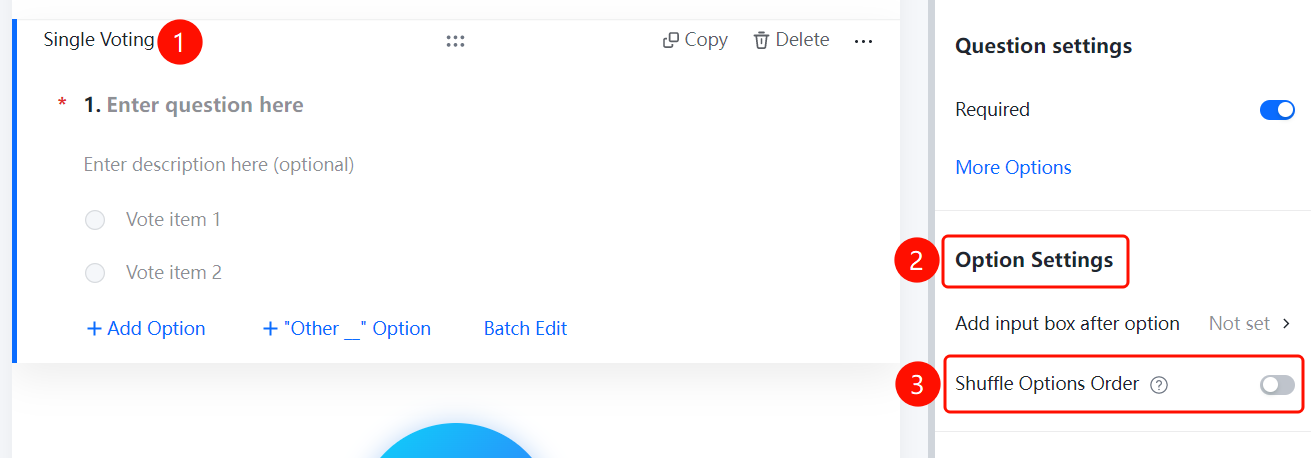
Poll Single Choice → 「Option Settings」 → 「Shuffle Option Order」 toggle
- Click the added poll single choice question
- In the right 「Option Settings」 panel, turn on the 「Shuffle Option Order」 toggle
- After enabling, respondents will see the options in a shuffled order
Set Question Association
Feature Entry
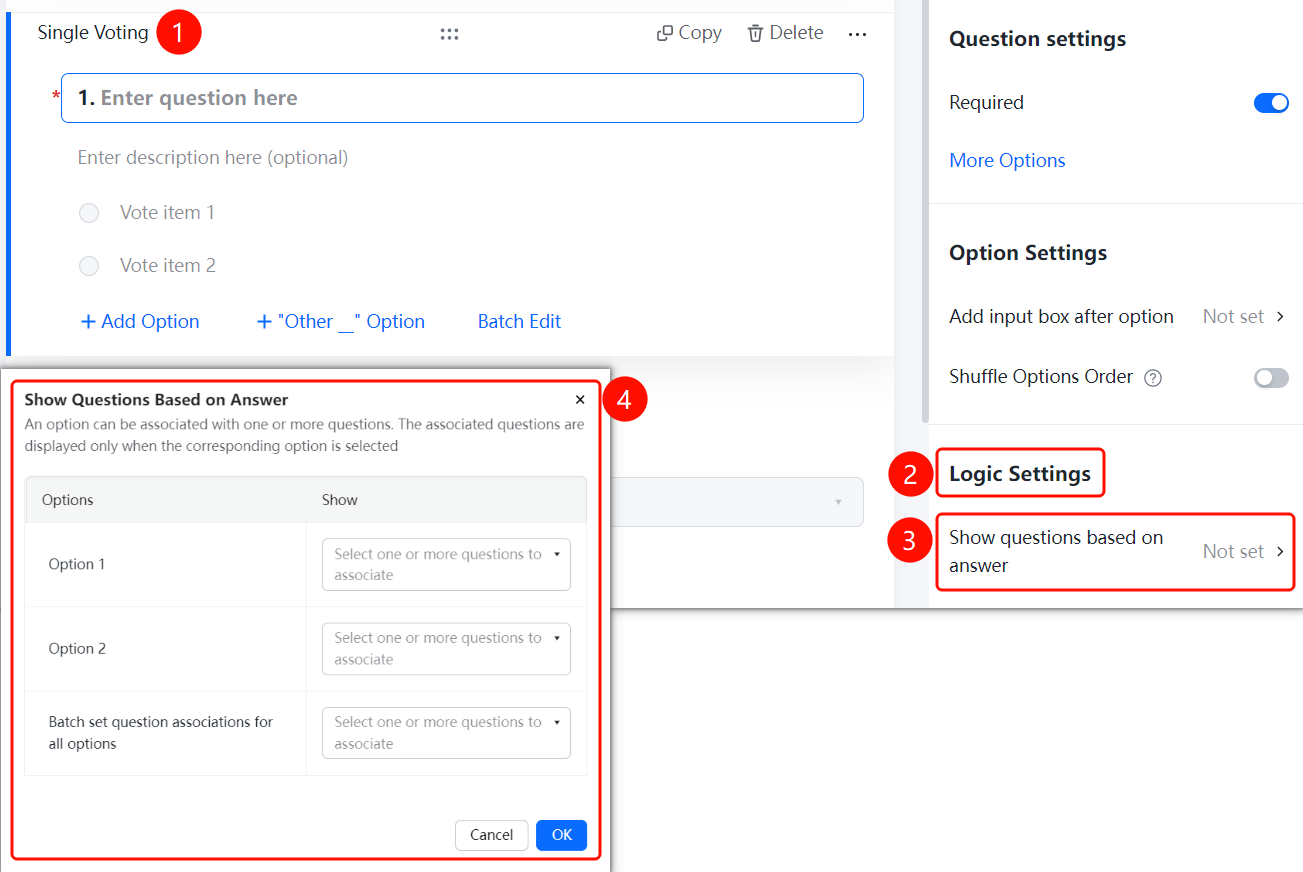
Poll Single Choice → 「Logic Settings」 → 「Question Association」 option
- Click the added poll single choice question
- In the right 「Logic Settings」 panel, click the 「Question Association」 option
- In the pop-up panel, set the associated question for each option
- When the respondent selects a specific option, the associated question will be displayed
- Click the 「Confirm」 button to complete the setting
FAQ
Q1: What is the difference between Poll Single Choice and regular Single Choice?
- Solution: Poll Single Choice is specifically designed for voting and selection scenarios. After submission, you can view the poll results and leaderboard; regular Single Choice is used for general information collection.
Q2: How to allow respondents to enter custom content after voting?
- Solution: Click the poll single choice question, click 「Add Input Box After Option」 in the 「Option Settings」 panel, check the poll items for which you want to add an input box, and set the required rule.
Q3: What is the purpose of the Question Association feature?
- Solution: The Question Association feature allows the associated question to be displayed only when the respondent selects a specific option, achieving a conditional display effect.
Notes
- Poll Single Choice is suitable for voting and selection scenarios. After submission, you can view the poll results and leaderboard.
- After enabling Shuffle Option Order, the option order seen by each respondent will be randomly arranged.
- The Question Association feature requires other questions to exist in the form before it can be set.