Feature Summary
The file upload question is used to collect files in various formats, such as documents, images, audio, and video. It supports features like file type restrictions, naming methods, folder classification, file size limits, and quantity limits.
Feature Description
| Feature Dimension | Description |
|---|---|
| Membership Restriction | No membership restriction |
| Version Restriction | No version restriction |
Operation Steps
Adding a File Upload Question
Feature Entry
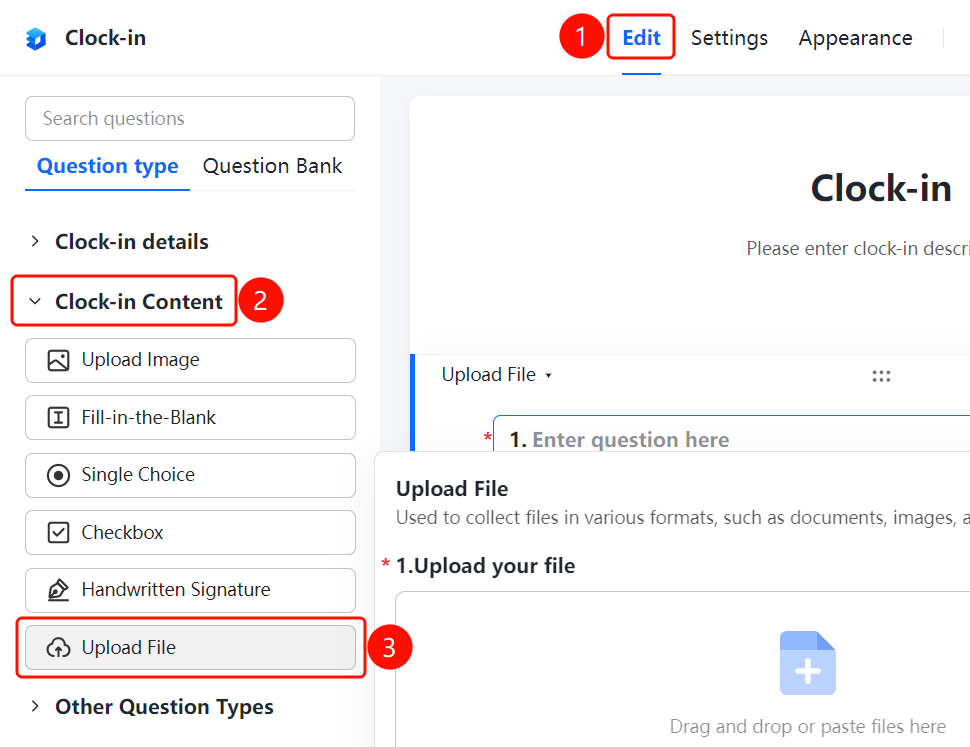
「Edit」 tab → 「Question Type」 → 「File Upload」 button
- Click the top 「Edit」 tab
- Expand the 「Question Type」 area in the left panel
- Click the 「File Upload」 button to add the file upload question to the form
Setting File Type Restrictions
Feature Entry
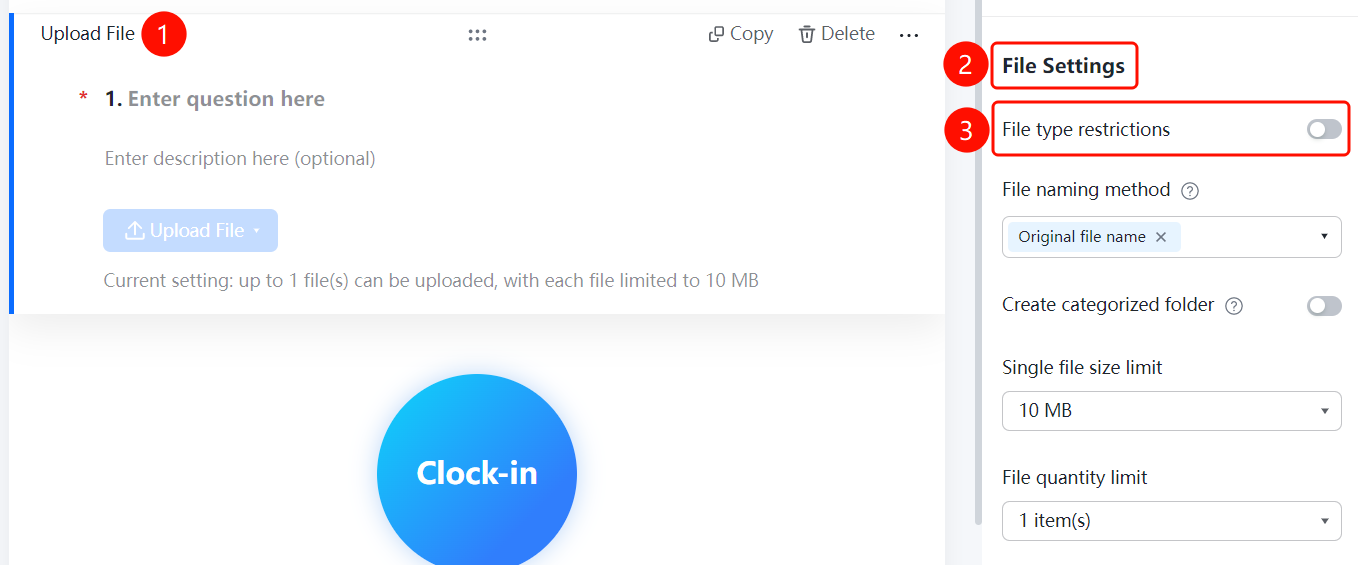
File Upload → 「File Settings」 → 「File Type Restriction」 toggle
- Click the added file upload question
- In the right 「File Settings」 panel, enable the 「File Type Restriction」 toggle
- After enabling, you can set the allowed file types
Setting File Naming Method
Feature Entry
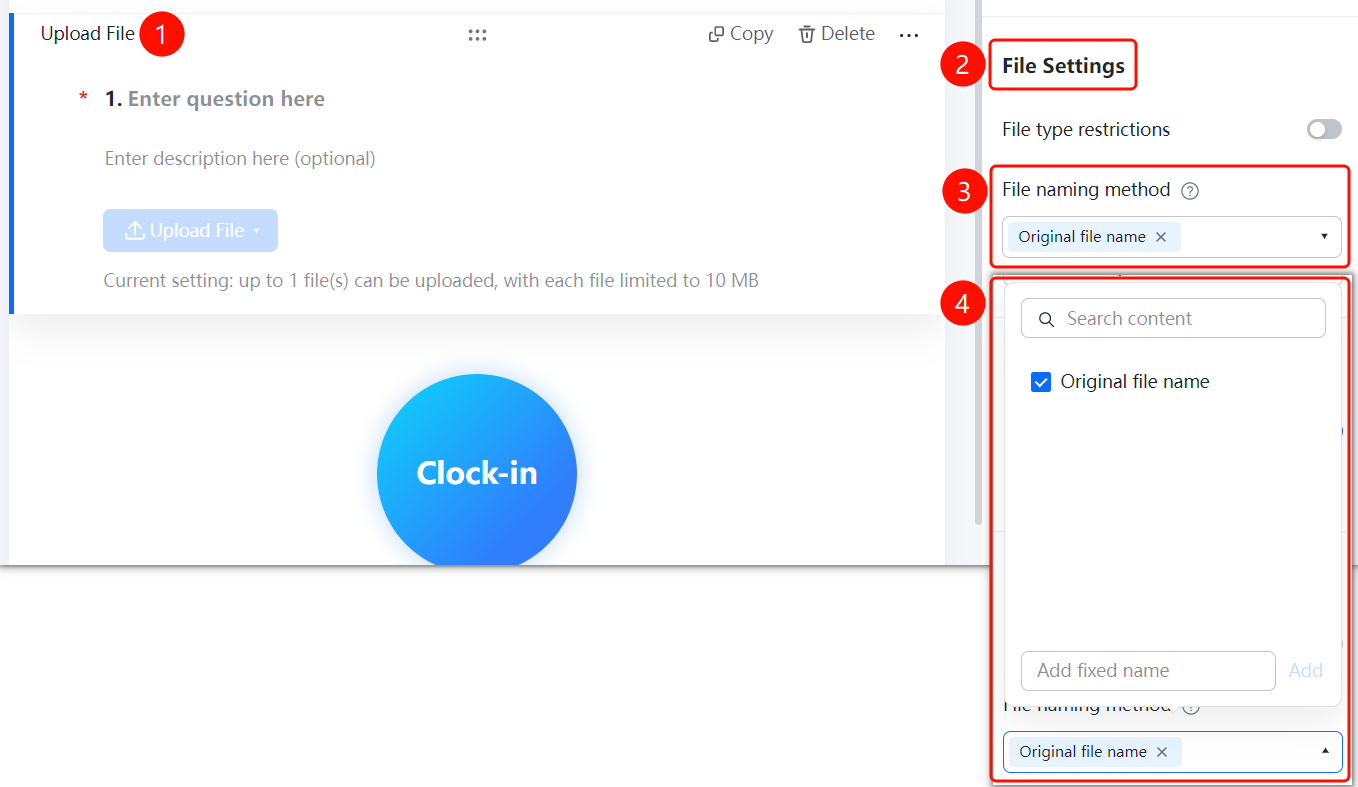
File Upload → 「File Settings」 → 「File Naming Method」 dropdown menu
- Click the added file upload question
- In the right 「File Settings」 panel, click the 「File Naming Method」 dropdown menu
- Select the naming method: 「Original File Name」 or 「Add Custom Fixed Naming」
Setting Up Category Folders
Feature Entry
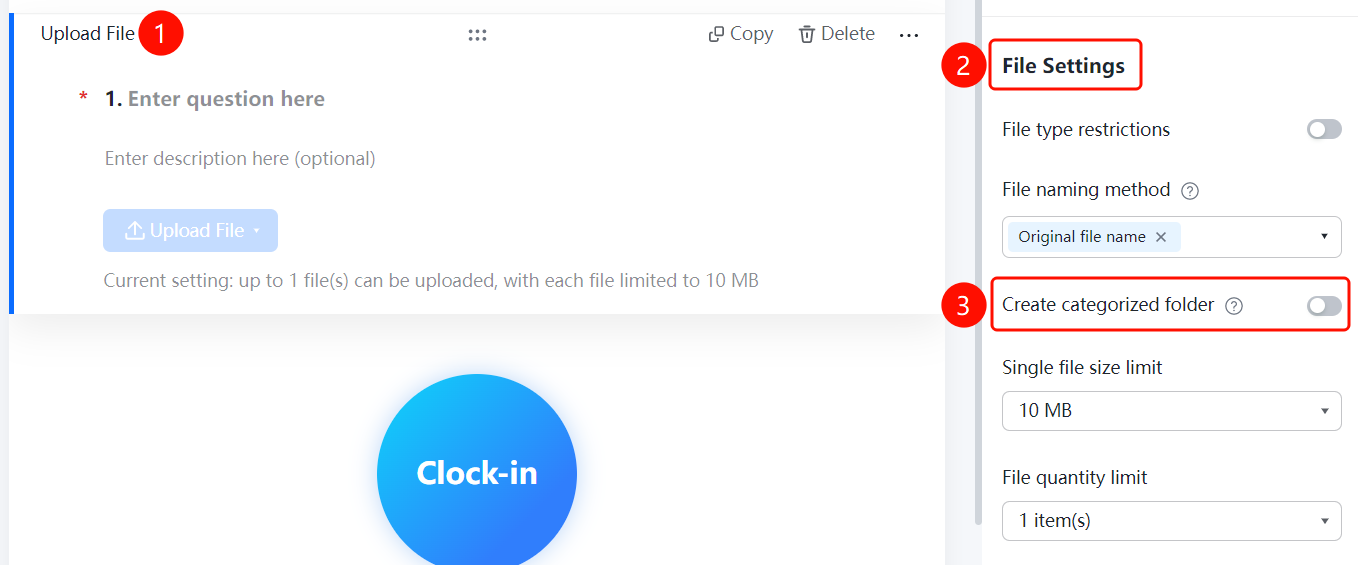
File Upload → 「File Settings」 → 「Create Category Folders」 toggle
- Click the added file upload question
- In the right 「File Settings」 panel, enable the 「Create Category Folders」 toggle
- After enabling, the system will automatically create category folders based on the respondent to store files
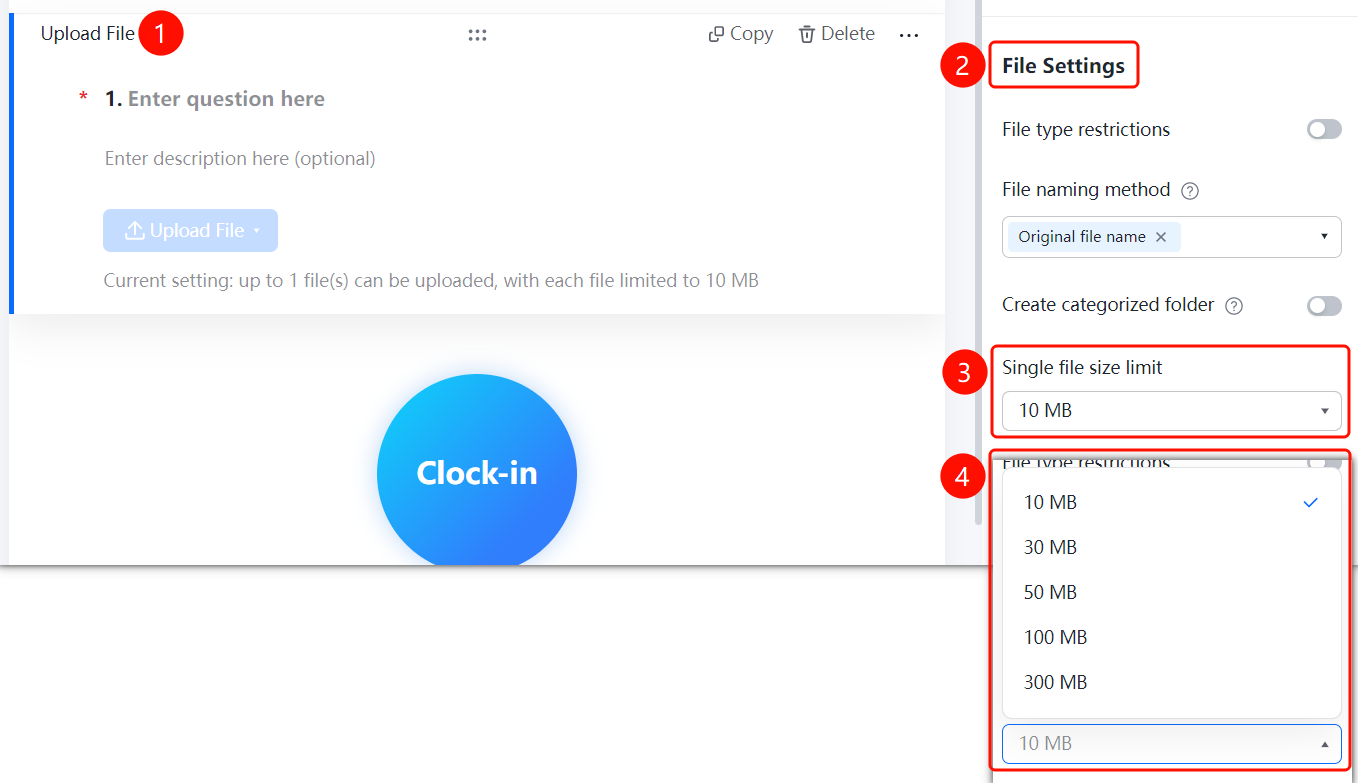
Setting Single File Size Limit
Feature Entry
File Upload → 「File Settings」 → 「Single File Size Limit」 dropdown menu
- Click the added file upload question
- In the right 「File Settings」 panel, click the 「Single File Size Limit」 dropdown menu
- Select the allowed size limit: 10M, 30M, 50M, 100M, or 300M
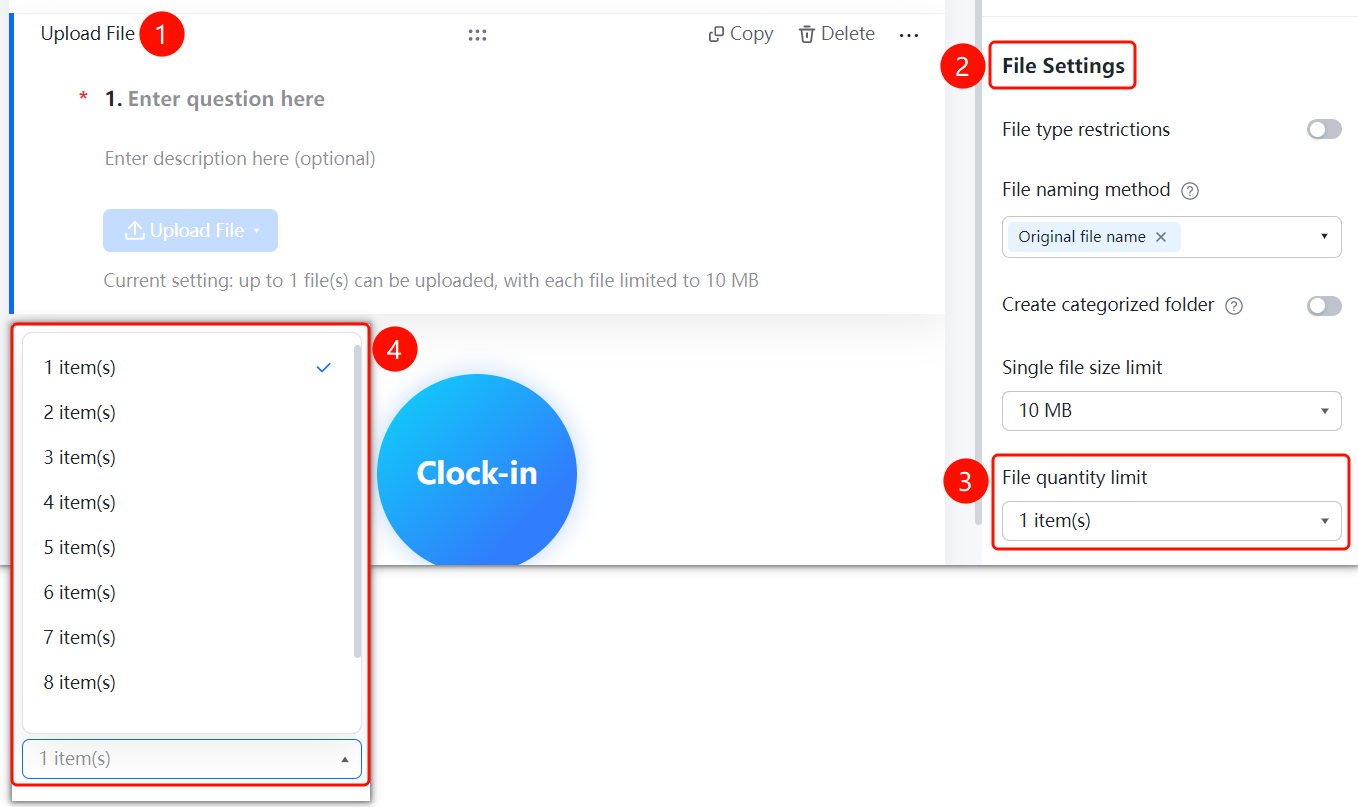
Setting File Quantity Limit
Feature Entry
File Upload → 「File Settings」 → 「File Quantity Limit」 dropdown menu
- Click the added file upload question
- In the right 「File Settings」 panel, click the 「File Quantity Limit」 dropdown menu
- Select the allowed number of files to upload
FAQ
Q1: What file formats does the file upload question support?
- Solution: The file upload question supports files in various formats, such as documents, images, audio, and video. You can set the allowed file formats through the file type restriction feature.
Q2: What is the maximum single file size that can be set?
- Solution: The maximum single file size limit can be set to 300M. You can choose an appropriate size limit based on your actual needs.
Q3: How do I allow uploading multiple files?
- Solution: Click the file upload question, then click the 「File Quantity Limit」 dropdown menu in the 「File Settings」 panel, and select the desired number of files.
Notes
- The file upload question is suitable for scenarios where you need to collect documents, images, audio, video, and other file formats
- Enabling the create category folder feature helps the Admin better manage collected files
- It is recommended to set reasonable file size and quantity limits based on actual needs to avoid insufficient storage space