Feature Summary
The message notification settings are used to configure the message notifications feature for forms, including notifying me when someone submits, reminding others to fill out the form, group bot push reminders, and allowing respondents to contact me.
Feature Description
| Feature Dimension | Description |
|---|---|
| Membership Restriction | No membership restriction |
| Version Restriction | No version restriction |
Steps
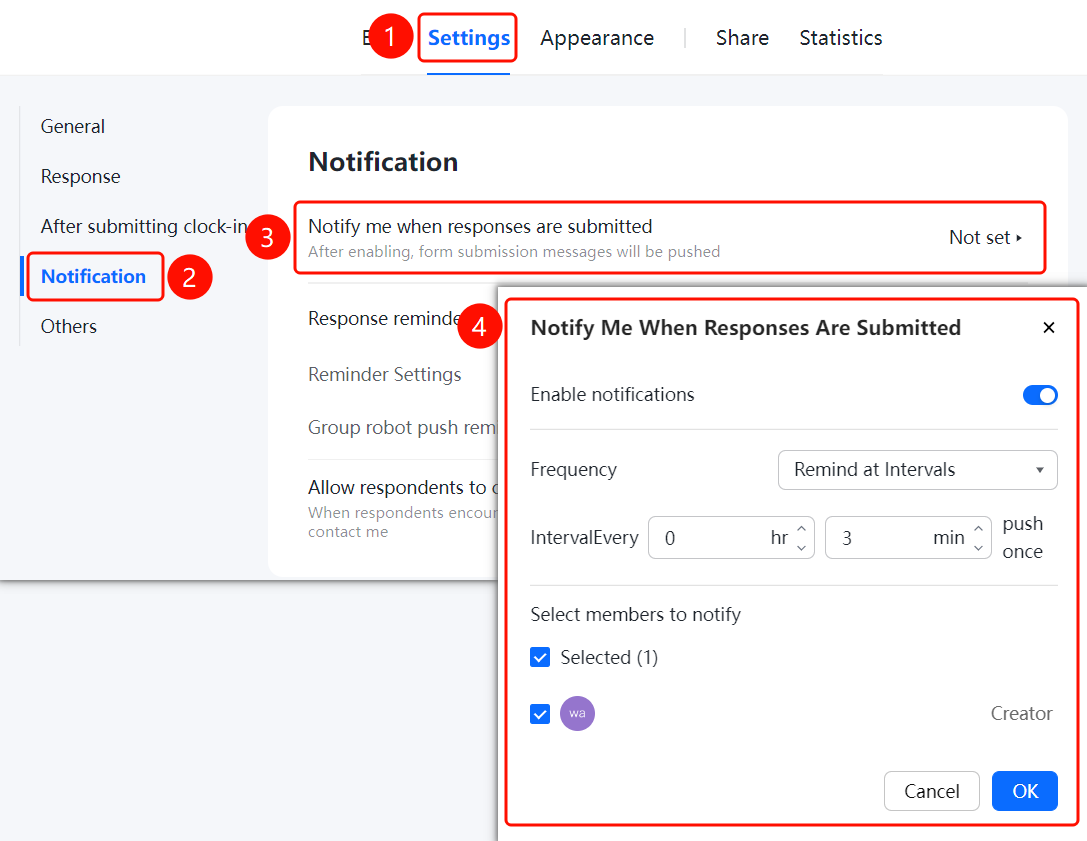
Setting Up Notify Me When Someone Submits
Feature Entry
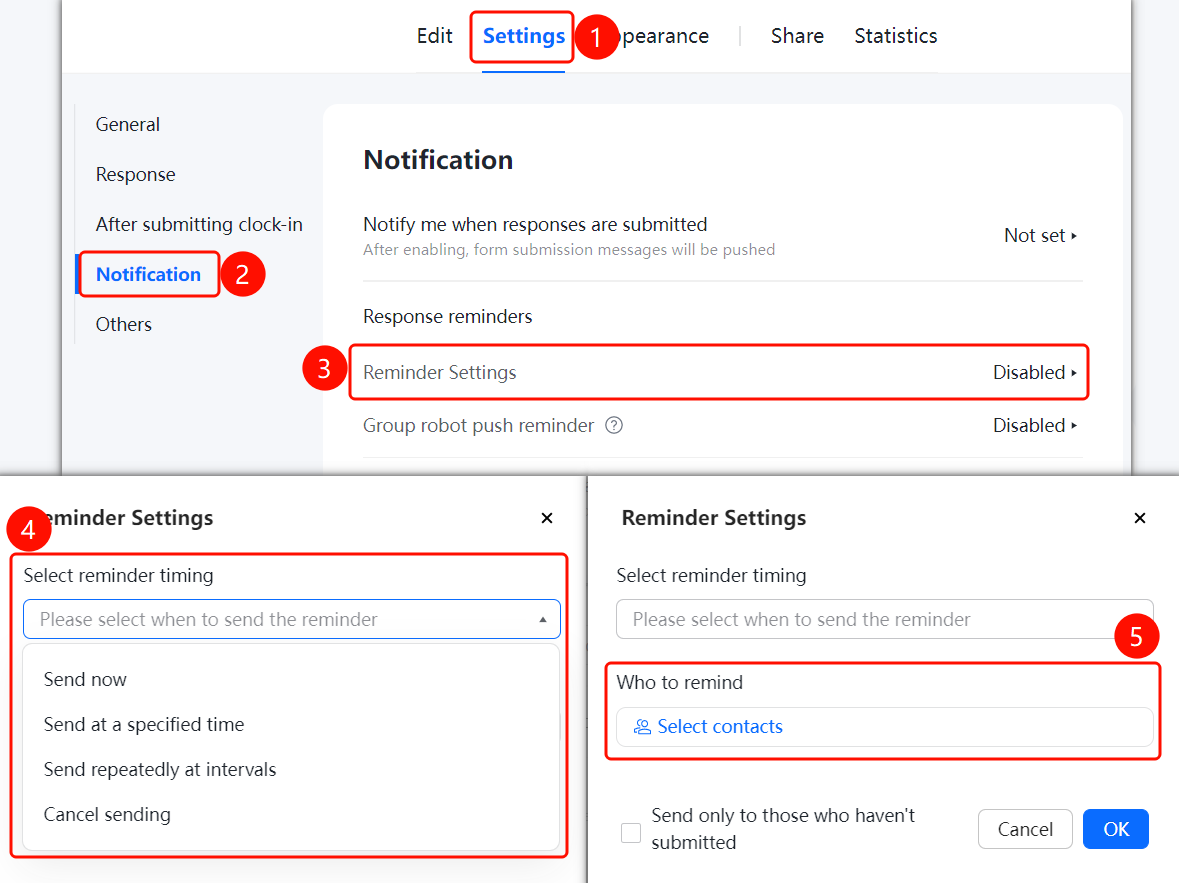
"Settings" tab → "Message Notification Settings" → "Notify Me When Someone Submits"
- Click the "Settings" tab at the top
- Click "Message Notification Settings" in the left menu
- Click the "Notify Me When Someone Submits" option
- In the pop-up panel, turn on the "Enable Notification Push" switch
- Set the push frequency: "Remind by Time Interval" or "Remind by Number of Submissions"
- Select the members to receive push notifications
- Click the "Confirm" button to save the settings
Setting Up Remind Others to Fill Out Form
Feature Entry
"Settings" tab → "Message Notification Settings" → "Remind Others to Fill Out Form"
- Click the "Settings" tab at the top
- Click "Message Notification Settings" in the left menu
- Click the "Remind Others to Fill Out Form" option
- In the pop-up panel, set "When to Send": "Send Immediately Upon Check-in Release", "Send at Specified Time", or "Send Repeatedly on a Cycle"
- Select the contacts to be reminded
- You can enable "Only Send to Contacts Who Haven't Submitted"
- Click the "Confirm" button to save the settings
Setting Up Group Bot Push Reminders
Feature Entry
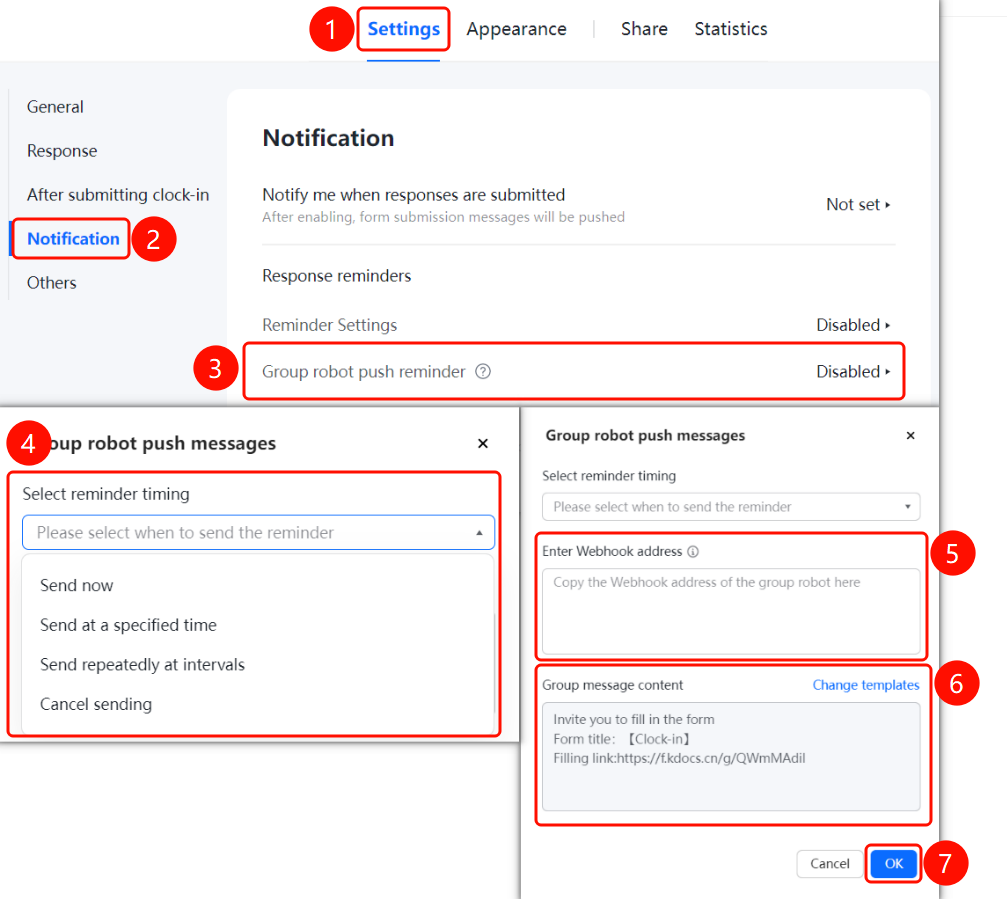
"Settings" tab → "Message Notification Settings" → "Group Bot Push Reminders"
- Click the "Settings" tab at the top
- Click "Message Notification Settings" in the left menu
- Click the "Group Bot Push Reminders" option
- In the pop-up panel, set "When to Send" reminders
- Enter the group bot's Webhook address
- You can change the group message content template
- Click the "Confirm" button to save the settings
Setting Up Allow Respondents to Contact Me
Feature Entry
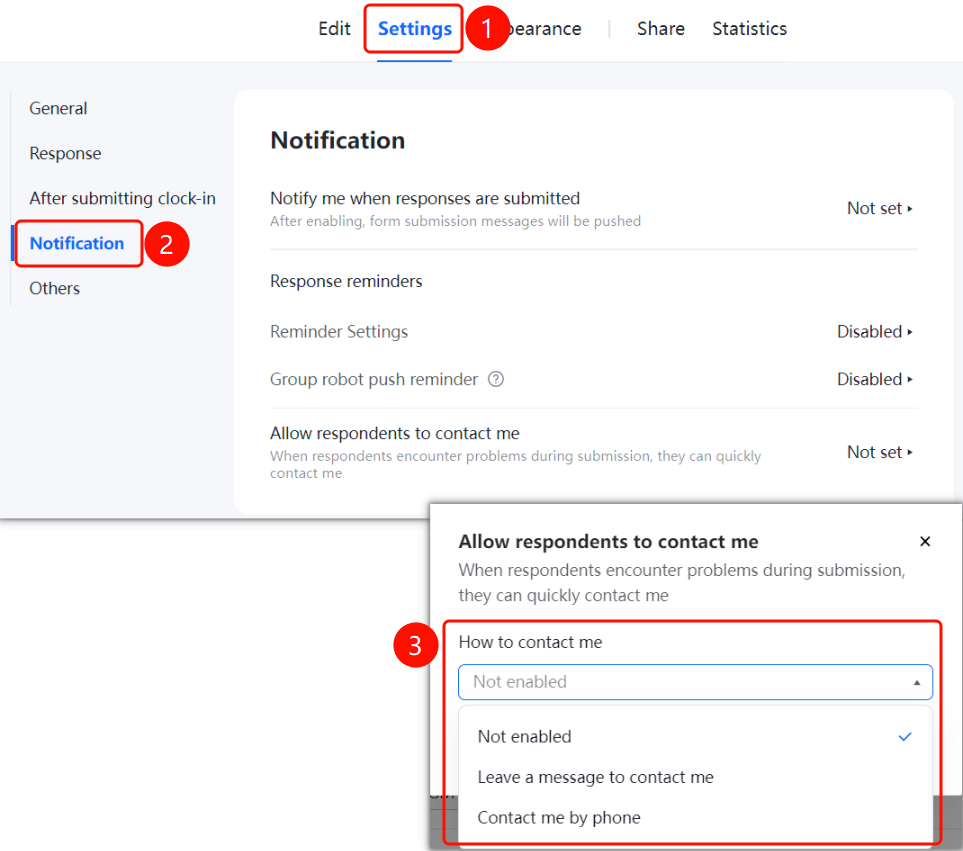
"Settings" tab → "Message Notification Settings" → "Allow Respondents to Contact Me"
- Click the "Settings" tab at the top
- Click "Message Notification Settings" in the left menu
- Click the "Allow Respondents to Contact Me" option
- In the pop-up panel, select the contact method: "Do Not Enable", "Leave a Message to Contact Me", or "Call Me"
- Click the "Confirm" button to save the settings
FAQ
Q1: How do I set up notifications when someone submits a form?
- Solution: In the message notification settings, click "Notify Me When Someone Submits", turn on the "Enable Notification Push" switch, set the push frequency, and select the members to receive push notifications.
Q2: How do I remind contacts who haven't submitted to fill out the form?
- Solution: In the message notification settings, click "Remind Others to Fill Out Form", set when to send reminders and select contacts. You can enable "Only Send to Contacts Who Haven't Submitted".
Q3: How do I push messages via a group bot?
- Solution: In the message notification settings, click "Group Bot Push Reminders", enter the group bot's Webhook address, and set the sending time.
Notes
- Notify Me When Someone Submits supports reminders by time interval or by number of submissions
- Remind Others to Fill Out Form can be set to send immediately upon check-in release, send at a specified time, or send repeatedly on a cycle
- Allow Respondents to Contact Me supports leaving a message or calling