Feature Summary
Response Details is used to view information such as submission time and submitted content for each response collected by the form, helping Admins quickly understand the respondents' answering status.
Feature Description
| Feature Dimension | Description |
|---|---|
| Membership Restriction | No membership restriction |
| Version Restriction | No version restriction |
Operation Steps
View Response Details
Feature Entry
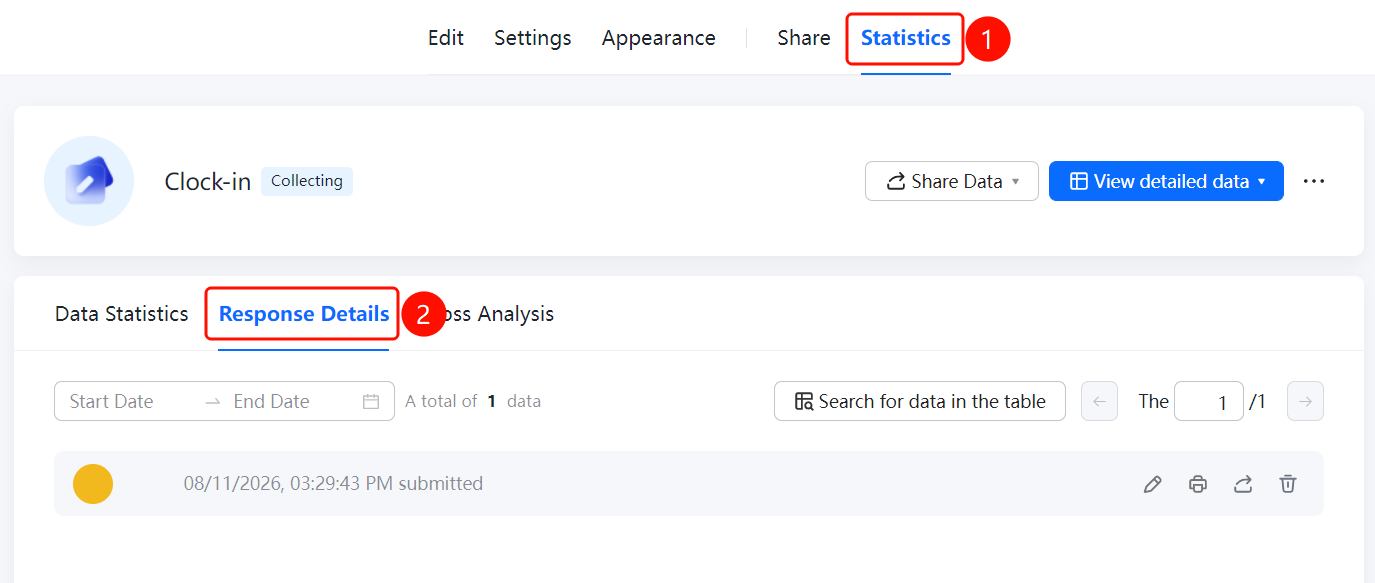
「Statistics」 tab → 「Data Statistics」 → 「Response Details」 option
- Click the top 「Statistics」 tab
- Click the 「Response Details」 option in the panel
- Set the 「Start Date」 and 「End Date」 at the top of the page to filter responses by time range
- Enter keywords in the 「Find data in Sheets」 input box to quickly search for responses
- View the submission time and answer content of each response. The total number of responses is displayed at the bottom of the page.
FAQ
Q1: How to filter responses by time range?
- Solution: Set the 「Start Date」 and 「End Date」 at the top of the 「Response Details」 page to view response data within that time period.
Q2: How to quickly find a specific response?
- Solution: Enter keywords in the 「Find data in Sheets」 input box on the 「Response Details」 page to quickly locate the relevant response.
Q3: What is the difference between Response Details and Data Statistics?
- Solution: Response Details displays the submission time and answer content of each response individually, while Data Statistics performs summary analysis on the overall data. The two can be used in combination.
Notes
- Response Details are displayed in reverse chronological order of submission time, with the most recently submitted response shown at the top
- The total number of responses is displayed at the bottom of the page for easy verification of collection progress