Feature Summary
The auto-number question automatically generates a unique number for each submission Record, such as a serial number, order number, product number, etc., eliminating the need for manual entry by the respondent and ensuring the number is unique and standardized.
Feature Description
| Feature Dimension | Description |
|---|---|
| Membership Restriction | No membership restriction |
| Version Restriction | No version restriction |
Steps
Add an Auto-Number Question
Feature Entry
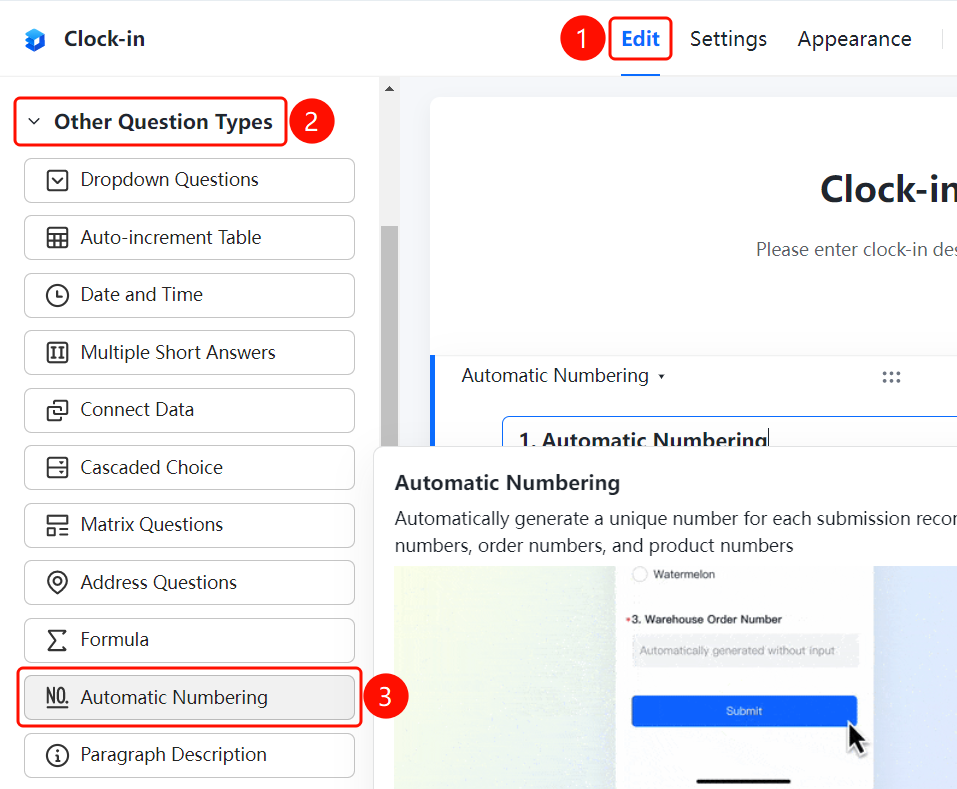
「Edit」 tab → 「Question Type」 → 「Auto-Number」 button
- Click the top 「Edit」 tab
- Expand the 「Question Type」 area in the left panel
- Click the 「Auto-Number」 button to add an auto-number question to the form
- The system automatically generates a number upon submission, requiring no input from the respondent
Set Up Auto-Counting
Feature Entry
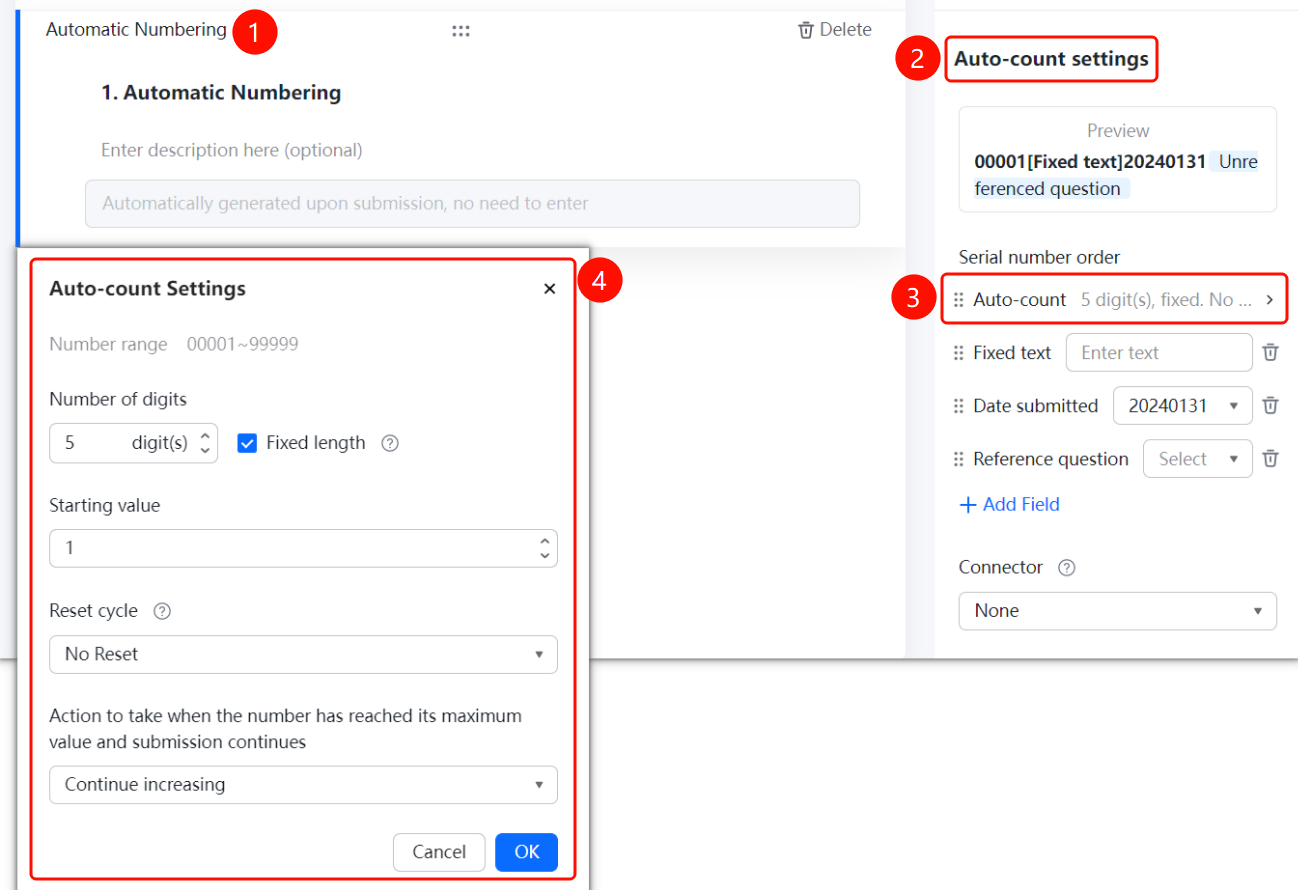
Auto-Number question → 「Auto-Number Settings」 → 「Auto-Counting Settings」 option
- Click the added auto-number question
- In the right-side 「Auto-Number Settings」 panel, click the 「Auto-Counting Settings」 option
- Set parameters such as number range, number of digits, number order, starting value, and Reset cycle
- Click the 「Confirm」 button to save the settings
Set Up Fixed Text
Feature Entry
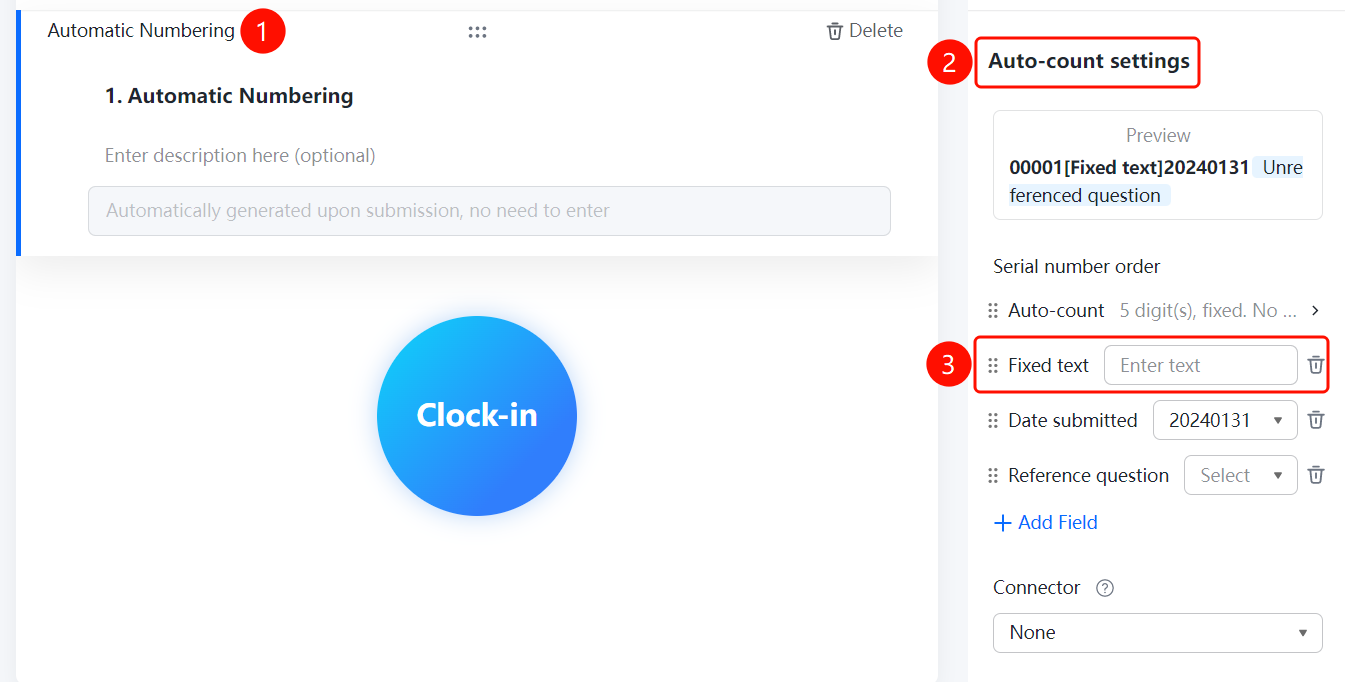
Auto-Number question → 「Auto-Number Settings」 → 「Fixed Text」 option
- Click the added auto-number question
- In the right-side 「Auto-Number Settings」 panel, click the 「Fixed Text」 option
- Enter the fixed text content in the input box to serve as a fixed prefix or suffix for the number
Set Up Submission Date
Feature Entry
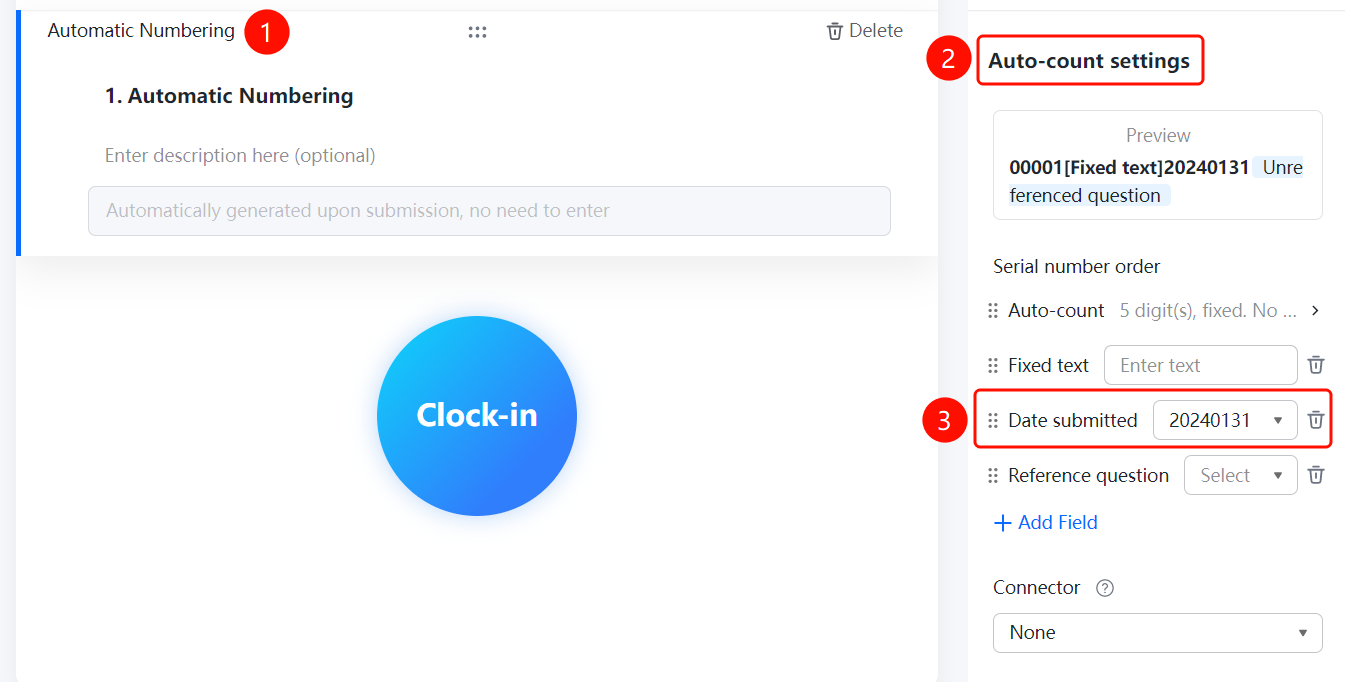
Auto-Number question → 「Auto-Number Settings」 → 「Submission Date」 option
- Click the added auto-number question
- In the right-side 「Auto-Number Settings」 panel, click the 「Submission Date」 option
- Select a date format to include the submission date as part of the number
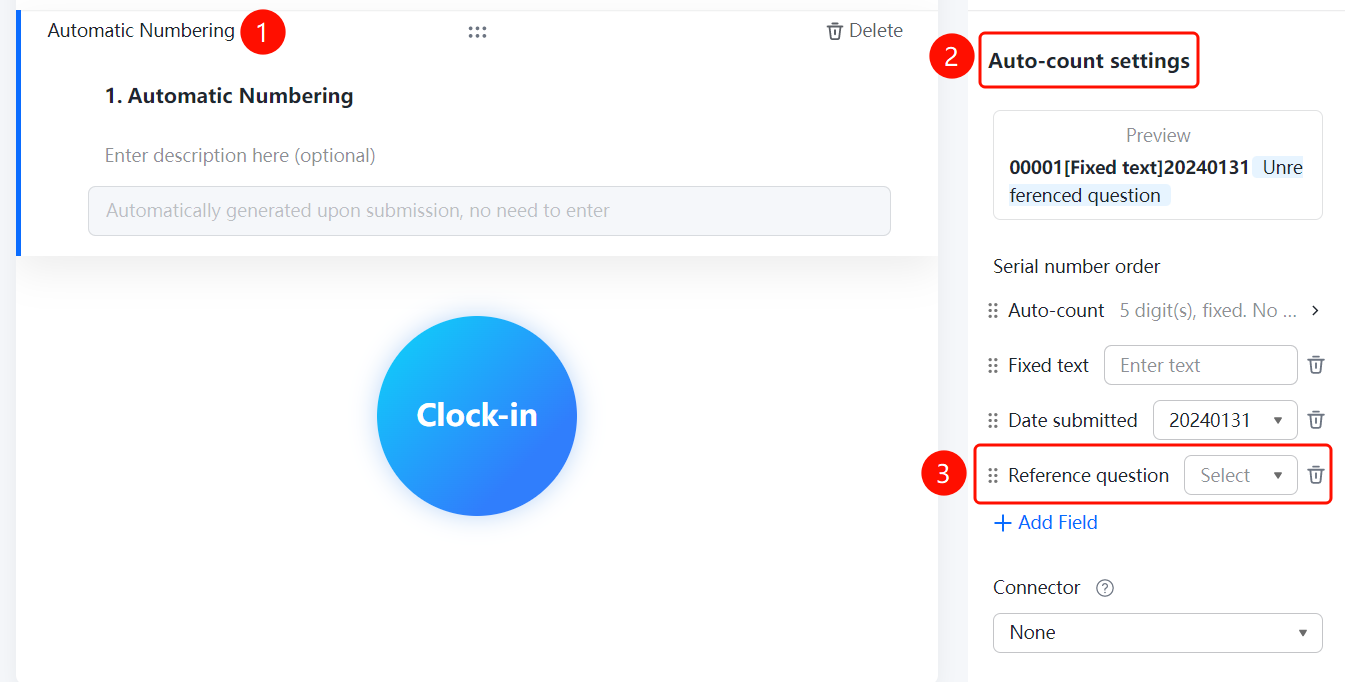
Reference Form Questions
Feature Entry
Auto-Number question → 「Auto-Number Settings」 → 「Reference Question」 option
- Click the added auto-number question
- In the right-side 「Auto-Number Settings」 panel, click the 「Reference Question」 option
- Select the question to be referenced
Set Up Connector
Feature Entry
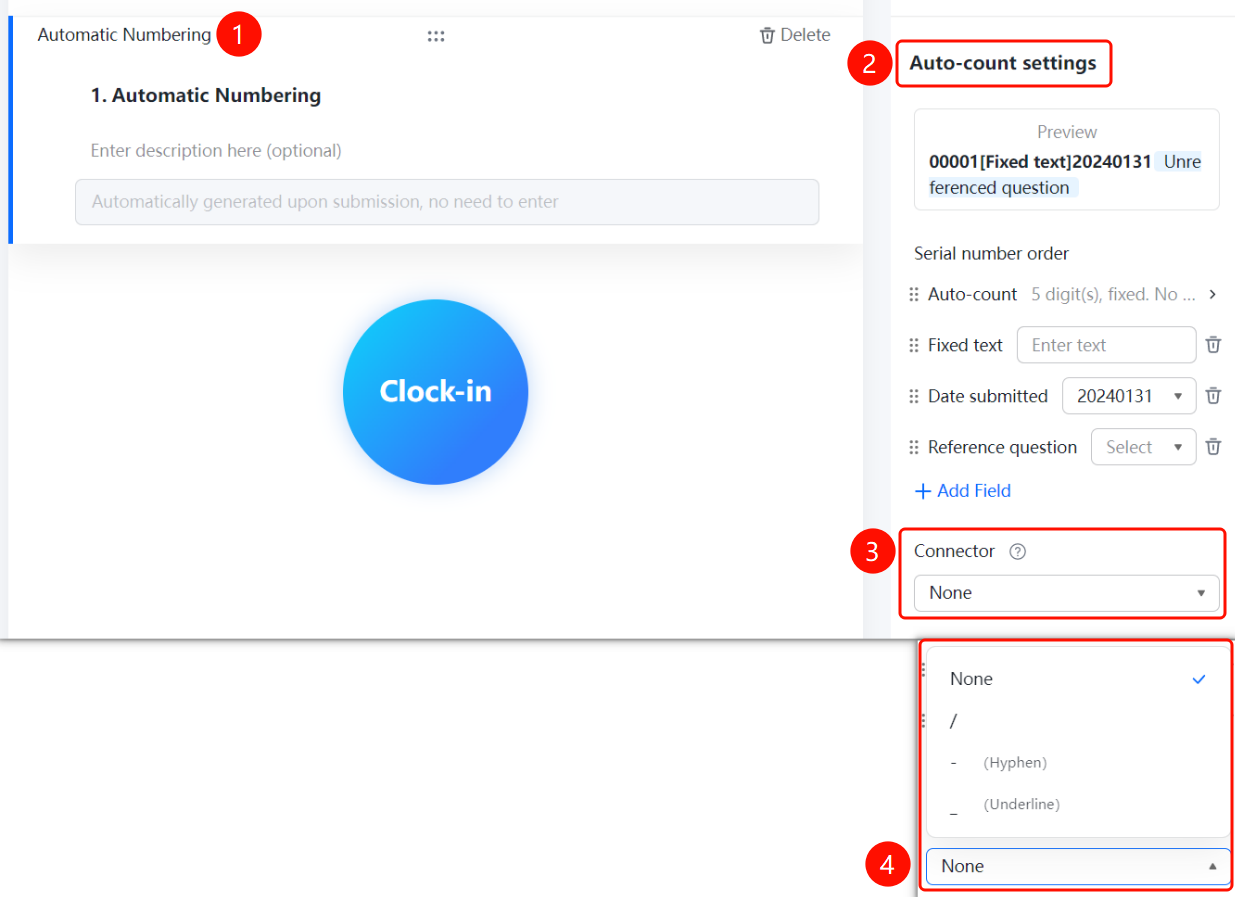
Auto-Number question → 「Auto-Number Settings」 → 「Connector」 option
- Click the added auto-number question
- In the right-side 「Auto-Number Settings」 panel, click the 「Connector」 option
- Select the connector type: 「None」, 「Slash」, 「Hyphen」, or 「Underscore」
FAQ
Question 1: How to set the number of digits for the serial number?
- Solution: Click on the auto-number field, then in the "Auto-Number Settings" panel, click "Number of Digits," select the desired number of digits, and enable "Fixed Digits."
Question 2: How to include fixed text or a date in the serial number?
- Solution: Click on the auto-number field, then in the "Auto-Number Settings" panel, set "Fixed Text" and "Submission Date" respectively to include the fixed text and submission date as part of the serial number.
Question 3: How to include content from other fields in the form in the serial number?
- Solution: Click on the auto-number field, then in the "Auto-Number Settings" panel, click "Reference Field," and click "Add Field" to select the form field you want to reference.
Question 4: How to handle when the serial number reaches its maximum value?
- Solution: In the "Auto-Count Settings," you can set the handling method when the serial number reaches its maximum value, such as continuing to increment or stopping submissions.
Notes
- The auto-number is automatically generated upon submission and does not require input from the respondent.
- You can set the serial number to reset periodically via "Reset Cycle," such as resetting daily or monthly.
- The serial number preview is displayed in real-time at the top of the "Auto-Number Settings" panel, making it easy to confirm the format.