Feature Summary
Question settings are used to personalize the configuration of questions in a form, including setting questions as required, hiding them from respondents, making them read-only for respondents, and setting question numbering, to meet the needs of different collection scenarios.
Feature Description
| Feature Dimension | Description |
|---|---|
| Membership Restriction | No membership restriction |
| Version Restriction | No version restriction |
Steps
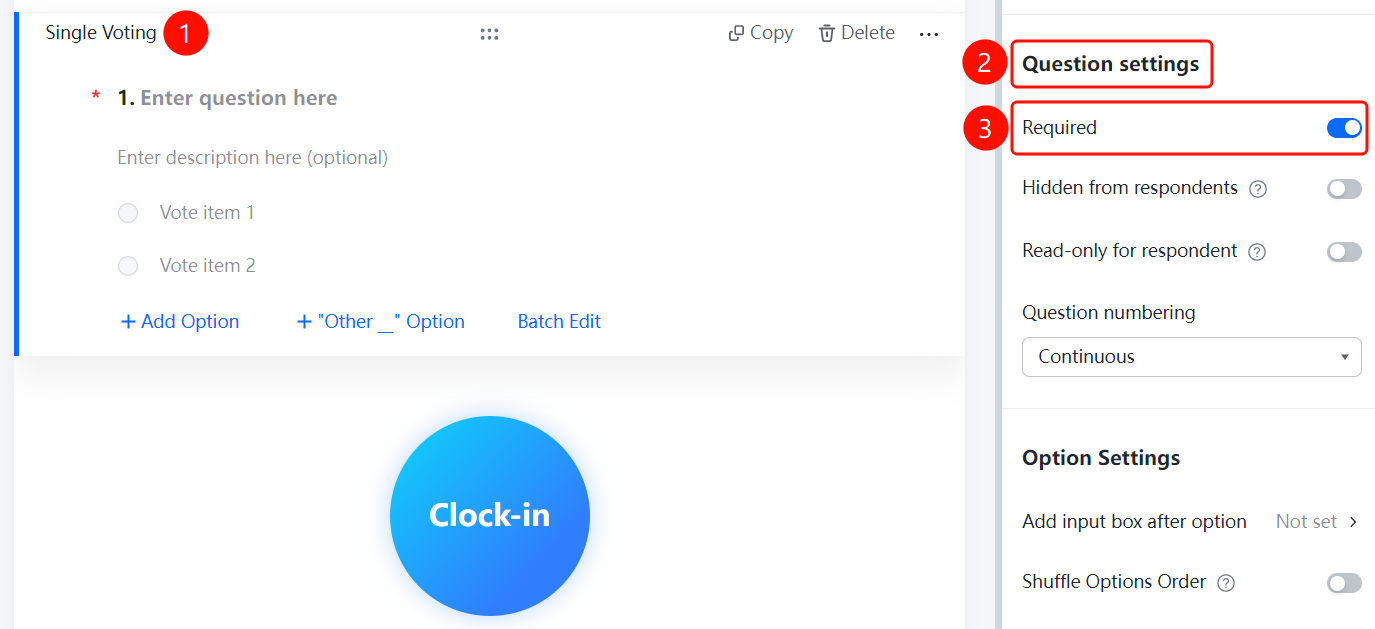
Set a Question as Required
Feature Entry
Question → "Question Settings" → "This question is required" toggle
- Click the question you want to set
- In the "Question Settings" panel on the right, turn on the "This question is required" toggle
- After enabling, respondents must fill in this question to submit the form
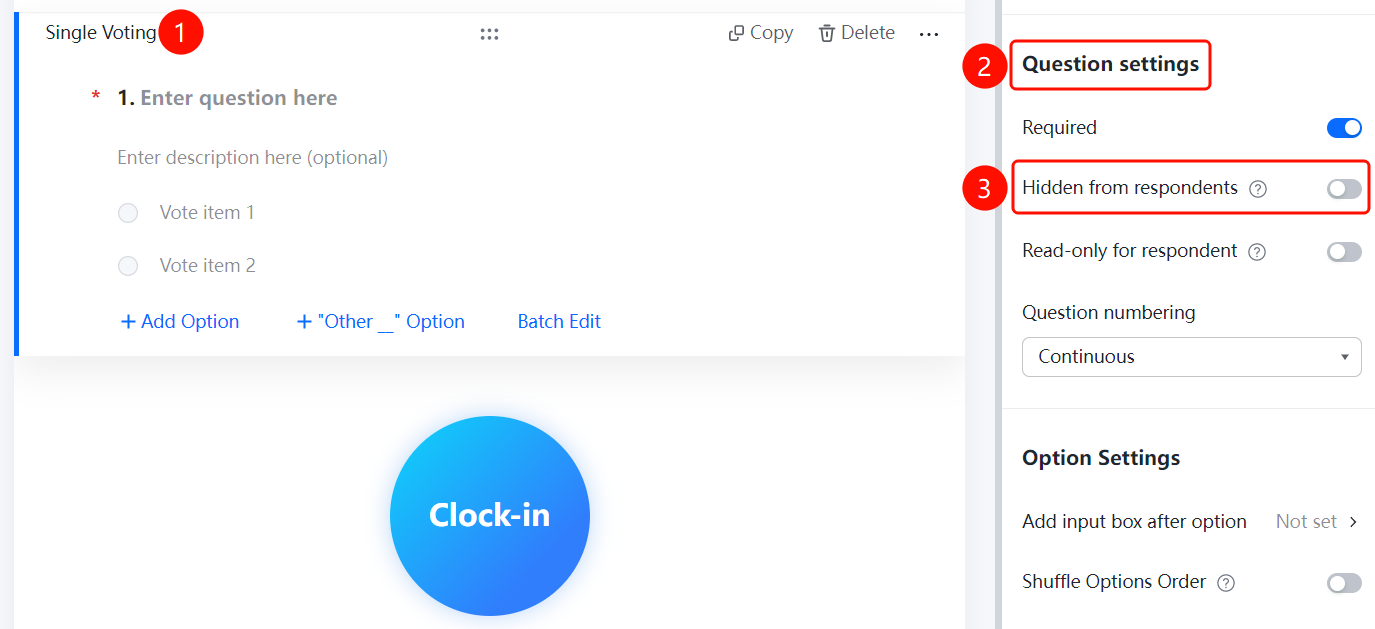
Set a Question to be Hidden from Respondents
Feature Entry
Question → "Question Settings" → "Hide this question from respondents" toggle
- Click the question you want to set
- In the "Question Settings" panel on the right, turn on the "Hide this question from respondents" toggle
- After checking, respondents cannot see this question. This is suitable for adding hidden information, such as remarks or evaluations, to submitted responses
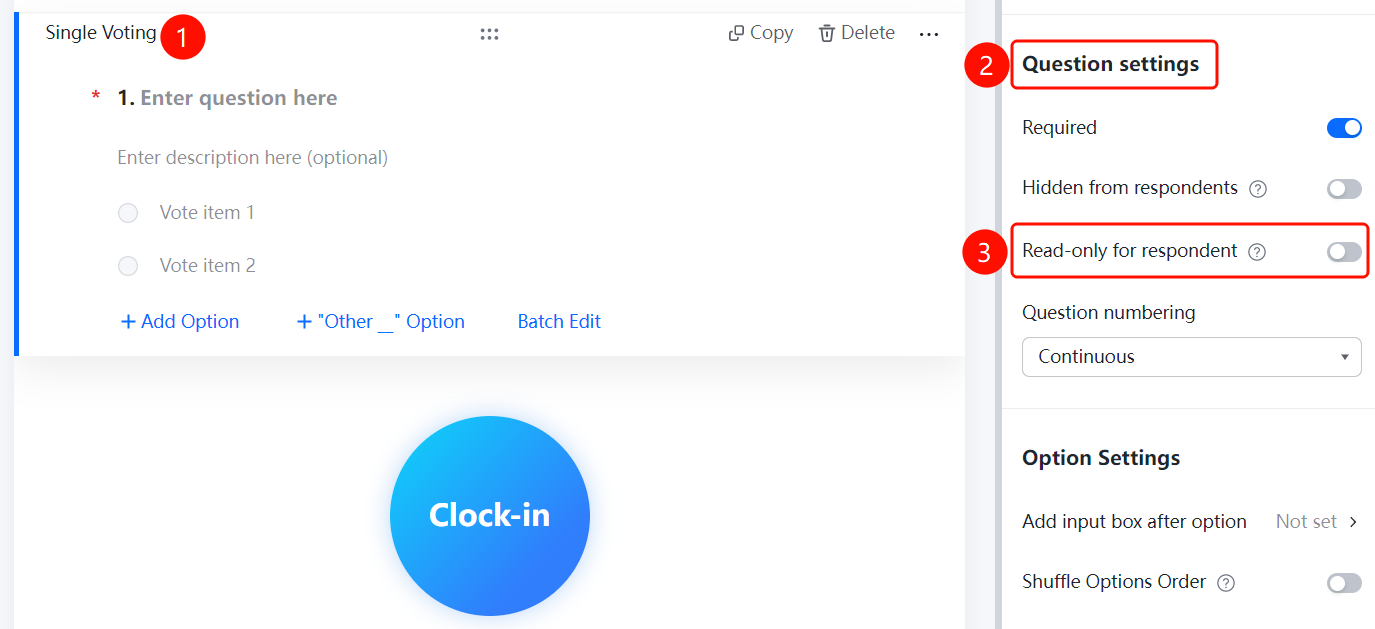
Set a Question as Read-Only for Respondents
Feature Entry
Question → "Question Settings" → "This question is read-only for respondents" toggle
- Click the question you want to set
- In the "Question Settings" panel on the right, turn on the "This question is read-only for respondents" toggle
- After checking, respondents can see but cannot fill in this question. This is suitable for adding and displaying replies to submitted responses, such as appointment results
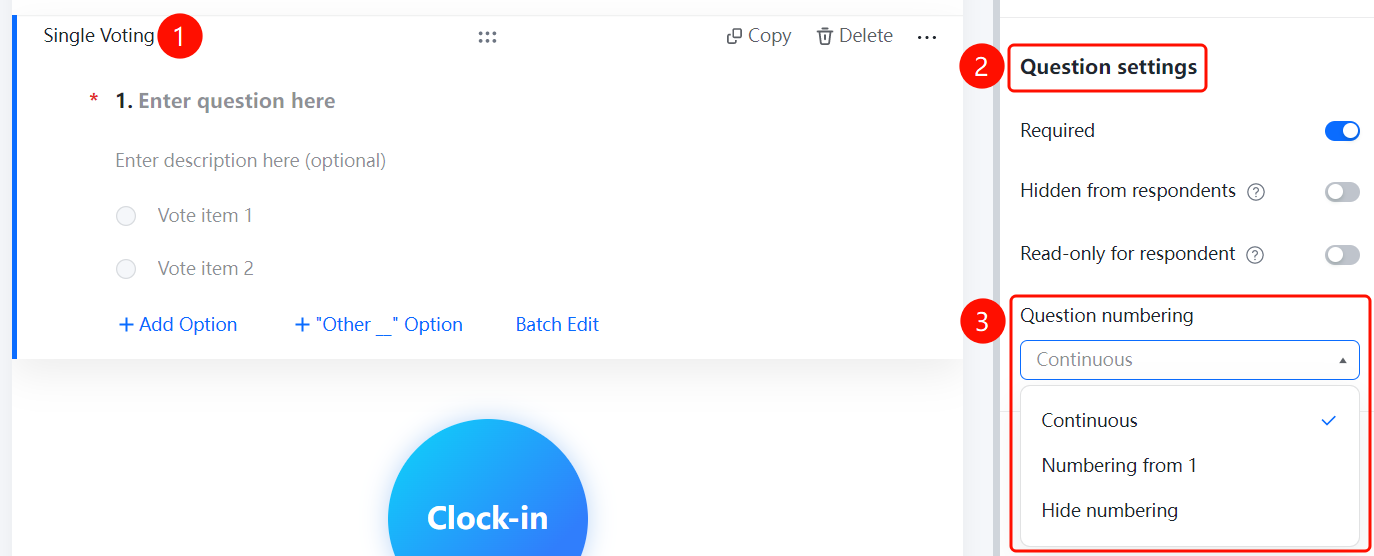
Set Question Numbering
Feature Entry
Question → "Question Settings" → "Question numbering settings" → "Continuous numbering" option
- Click the question you want to set
- In the "Question Settings" panel on the right, click the "Question numbering settings" option
- Select the numbering method: "Continuous numbering", "Start numbering from 1", or "Do not display numbering"
FAQ
Q1: How to set a question as required?
- Solution: Click the question, and in the "Question Settings" panel, turn on the "This question is required" toggle. Respondents must fill in this question to submit the form.
Q2: How to hide a question so that respondents cannot see it?
- Solution: Click the question, and in the "Question Settings" panel, turn on the "Hide this question from respondents" toggle. This is suitable for adding hidden information, such as remarks or evaluations, to submitted responses.
Q3: How to let respondents see a question but not fill it in?
- Solution: Click the question, and in the "Question Settings" panel, turn on the "This question is read-only for respondents" toggle. This is suitable for adding and displaying replies to submitted responses, such as appointment results.
Q4: How to set the numbering method for questions?
- Solution: Click the question, and in the "Question Settings" panel, click "Question numbering settings". You can select "Continuous numbering", "Start numbering from 1", or "Do not display numbering".
Notes
- "Hide this question from respondents" and "This question is read-only for respondents" are suitable for different scenarios and can be selected based on actual needs
- Question numbering settings support three methods: continuous numbering, start numbering from 1, and do not display numbering