Feature Summary
The Progress field visually displays task/project completion status in percentage form, supporting direct value input or drag adjustment of the progress bar. It is suitable for scenarios such as project management, task tracking, and work advancement.
Feature Description
| Feature Dimension | Description |
|---|---|
| Membership Restriction | No membership restriction |
| Version Restriction | No version restriction |
| Value Range | 0% - 100% |
Operation Steps
Create a New Progress Field
Feature Entry
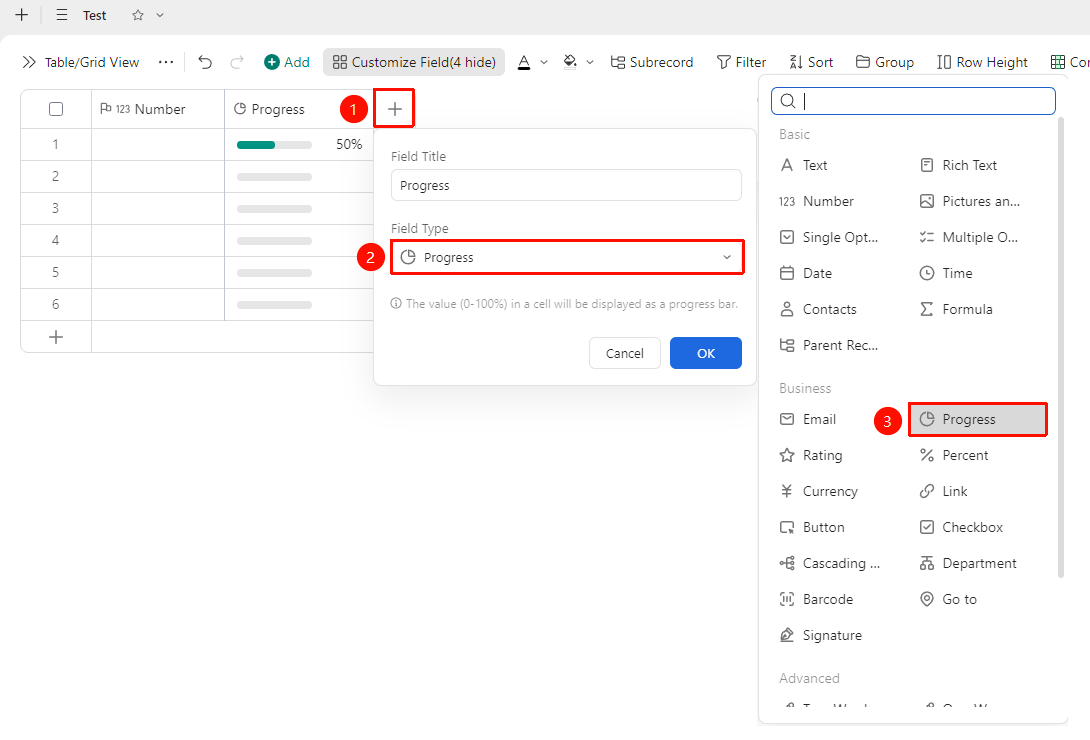
「+」button on the right side of the header → 「Field Type」 dropdown list → 「Progress」 option
- Click the 「+」 button on the right side of the header
- Select the 「Progress」 field from the pop-up field type list
- Enter the field name and click 「Confirm」 to complete creation
Set Progress Value
Feature Entry
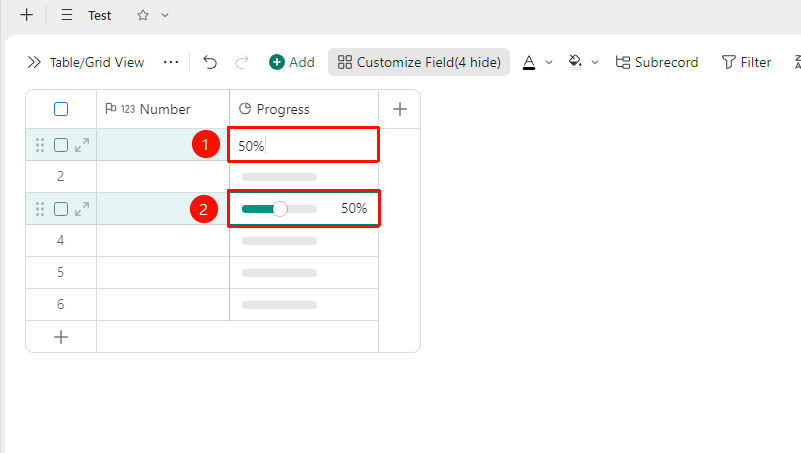
「Target Cell」 → Enter percentage or drag the progress bar
- Click the cell to directly enter a percentage value (e.g., 60%)
- You can also adjust the completion level by dragging the progress bar
- The progress bar will automatically display the fill level according to the value proportion
Frequently Asked Questions
Question 1: Can the Progress field directly calculate the average value?
- Solution: Yes. Since the Progress field stores numerical values, it can directly participate in numerical calculations such as sum and average in formulas.
Question 2: Can the Progress field be used with conditional formatting?
- Solution: Yes. Through filtering and grouping features, you can quickly view the distribution of Records with different completion levels by progress value.
Notes
- The Progress field is stored in percentage form and supports formula calculations
- In the Kanban view, you can group by the Progress field to view tasks at different stages
- It is recommended to use color coding to visually display task urgency