Feature Summary
The Email field is specifically designed for email addresses. After entry, it automatically verifies whether the format is correct, and supports clicking to directly launch the email client to send a message. It is suitable for scenarios such as customer contact management and information collection.
Feature Description
| Feature Dimension | Description |
|---|---|
| Membership Restriction | No membership restriction |
| Version Restriction | No version restriction |
| Format Validation | Automatically verifies email format correctness |
Operation Steps
Create a New Email Field
Feature Entry
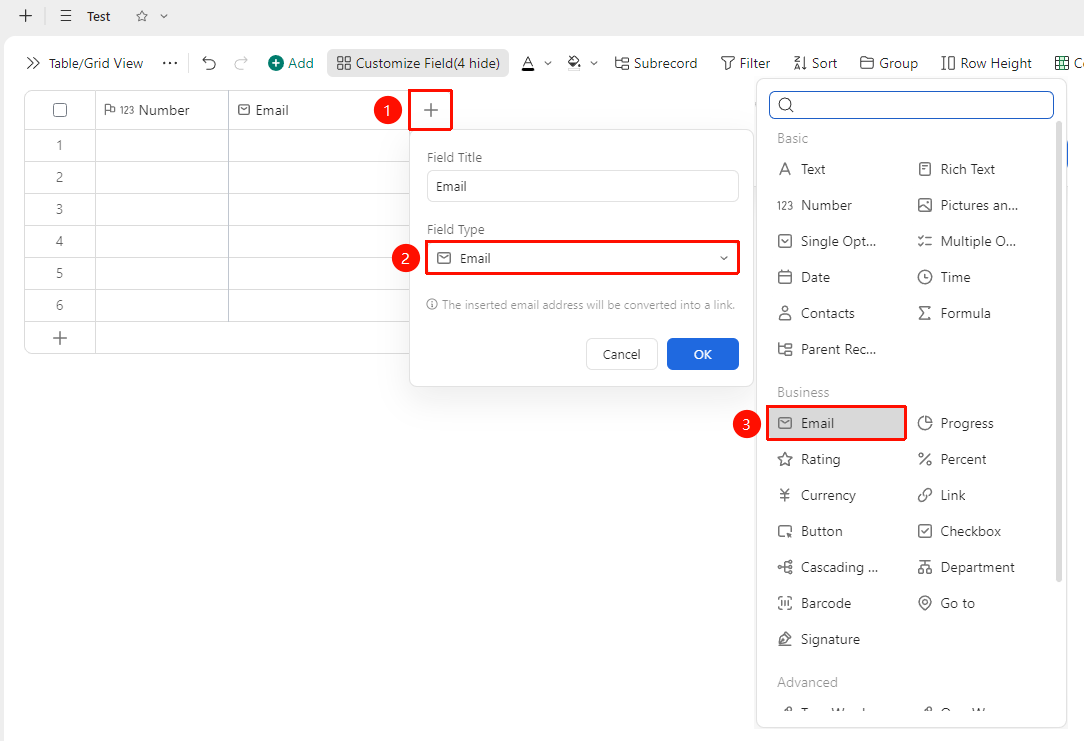
"+" button on the right side of the header → "Field Type" dropdown list → "Email" option
- Click the "+" button on the right side of the header
- Select the "Email" field from the pop-up field type list
- Enter the field name and click "Confirm" to complete creation
Fill in Email Address
Feature Entry
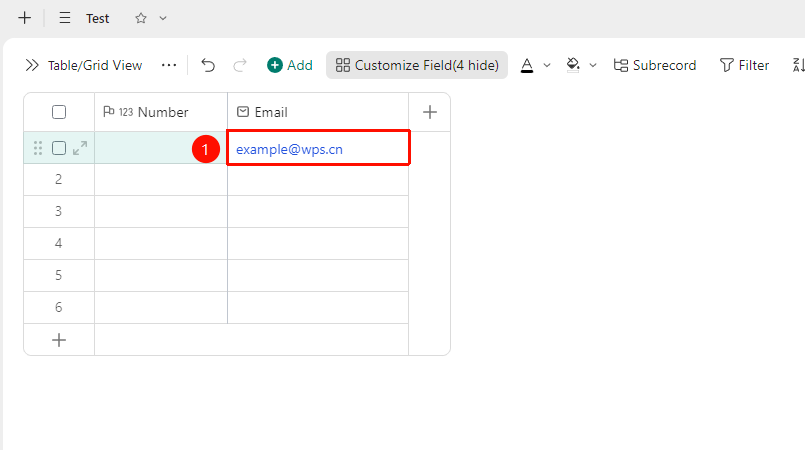
"Target cell" → Enter email address
- Click the cell and enter the email address (e.g., example@wps.cn)
- The system automatically validates the format; incorrect formats will prompt for correction
- Press
Enter(mac:↩) to confirm entry; the cell displays a clickable email address
Frequently Asked Questions
Q1: What is the difference between the Email field and the Text field?
- Solution: The Email field automatically validates the email format to ensure the entered address format is correct; the Text field does not automatically validate. It is recommended to use the Email field to collect email information to avoid format errors.
Q2: Will clicking the email address send an email directly?
- Solution: After clicking, the system's default email client will be launched and the recipient address will be automatically filled in. The email will only be sent after your confirmation; it will not be sent directly.
Notes
- The format validation of the Email field can effectively prevent collecting incorrectly formatted emails
- Clicking the email address will launch the local email client
- Suitable for collecting team member or customer information in Form View