Feature Summary
The barcode field supports scanning input and manual entry of barcode information. It can automatically generate corresponding barcodes based on content, making it suitable for efficient input scenarios such as product inventory management, ticket verification, and material scan-in for warehousing.
Feature Description
| Feature Dimension | Description |
|---|---|
| Membership Restriction | No membership restriction |
| Version Restriction | No version restriction |
| Supported Formats | Barcode / QR code |
Operation Steps
Create a New Barcode Field
Feature Entry
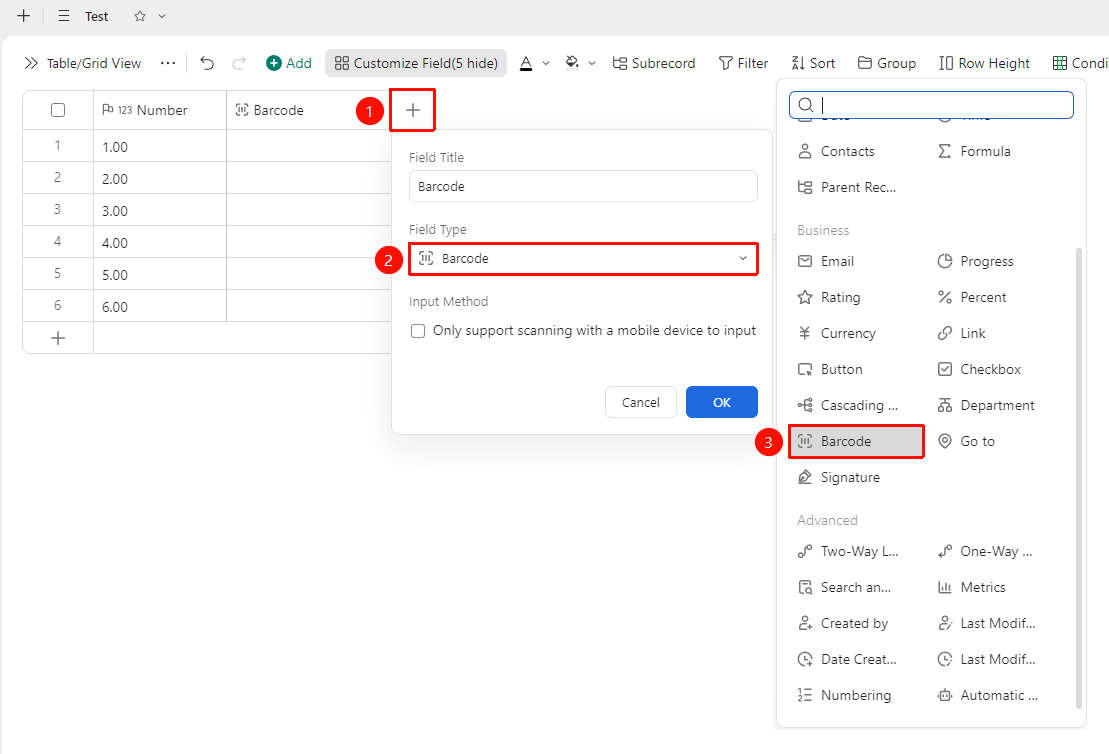
「+」button on the right side of the table header →「Field Type」dropdown list →「Barcode」option
- Click the 「+」 button on the right side of the table header
- Select the 「Barcode」 field from the pop-up field type list
- Enter the field name and click 「Confirm」 to complete the creation
Barcode Field Input Method Settings
Feature Entry
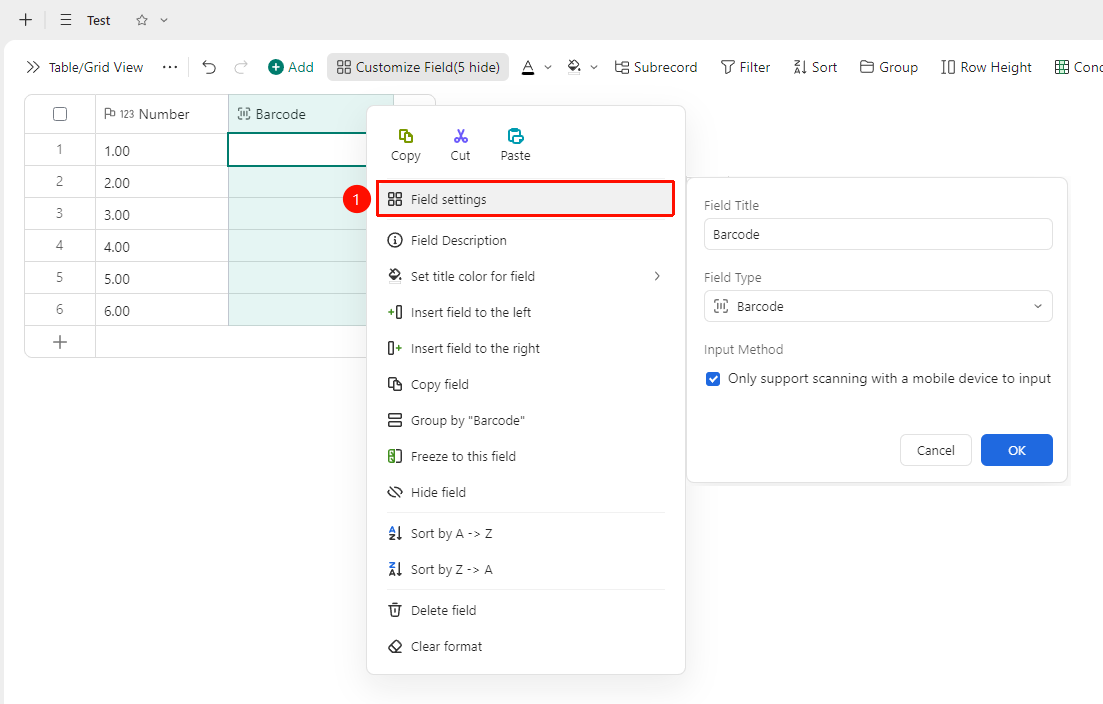
Right-click「Field Title」→「Field Settings」→「Input Method」
- Right-click the field title of this field and select 「Field Settings」
- In the Input Method area, you can check the 「Only allow input via mobile scanning」 option
- Once checked, barcode information can only be entered by scanning the barcode via mobile device; manual input is not supported
FAQ
Q1: What types of barcodes does the barcode field support?
- Solution: It supports common barcode and QR code formats, covering the encoding types commonly used in product management.
Q2: Can scanned barcode data be used in formula calculations?
- Solution: The data stored in the barcode field is in text format and cannot directly participate in numerical calculations. If calculation is needed, please use text field extraction in conjunction.
Notes
- The barcode field is suitable for scenarios requiring efficient and accurate entry of encoded data