Feature Summary
The Add Shortcut feature allows you to add a DBSheet to Favorites, frequently used locations, and more, enabling users to flexibly configure quick access entries based on different usage scenarios and achieve one-click access to frequently used DBSheets.
Feature Description
| Feature Dimension | Description |
|---|---|
| Membership Restriction | No membership restriction |
| Version Restriction | No version restriction |
Operation Steps
Add Shortcut
Feature Entry
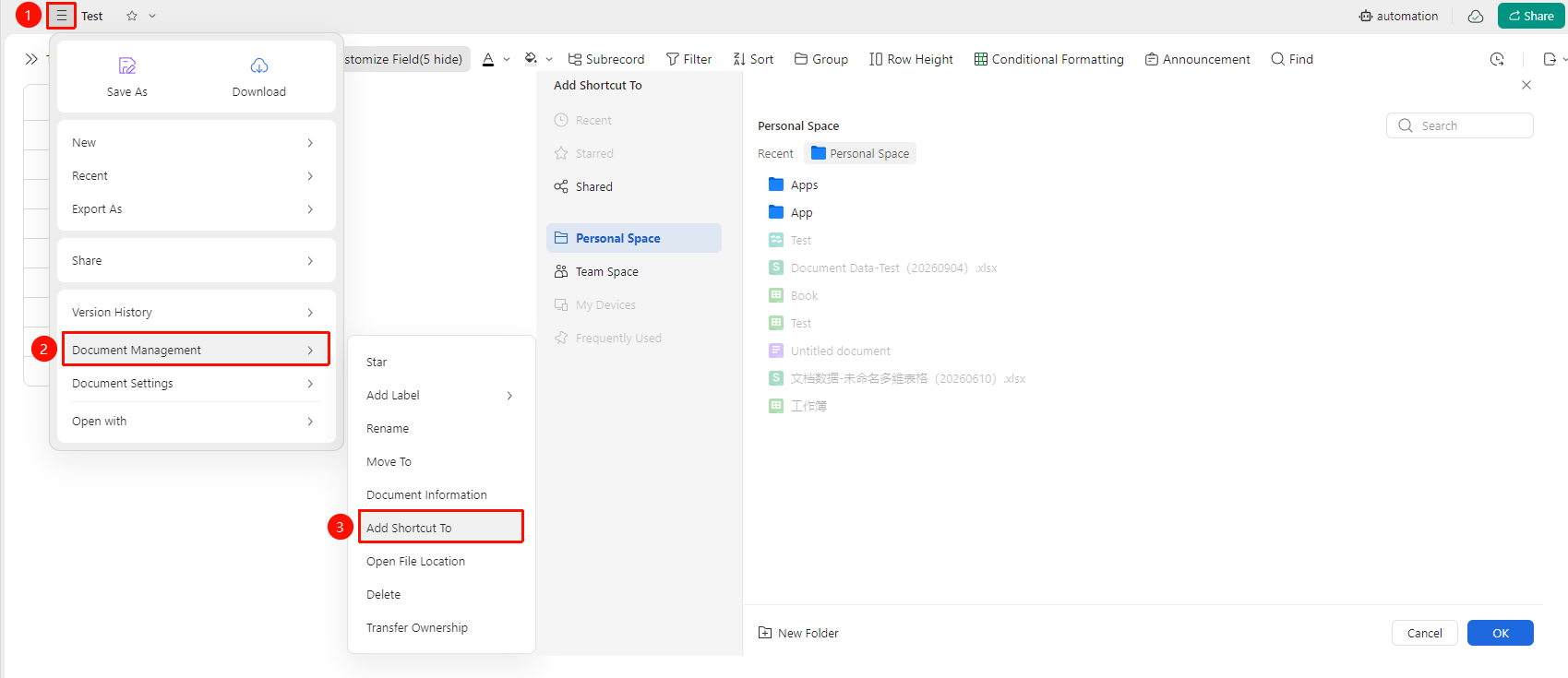
「File Operations」→「Document Management」→「Add Shortcut」
- Open the DBSheet and click the 「File Operations」 tab (☰ icon) in the top left corner
- Click 「Document Management」 → 「Add Shortcut」 in sequence
- Select the Drive path where you want to add the shortcut
- Click 「OK」 to add the shortcut to the specified path
FAQ
Q1: Where can I find the shortcut after adding it?
- Solution: Check the selected specified location.
Q2: What is the difference between a shortcut and a Favorite?
- Solution: A shortcut is a quick access entry for a file and can be placed in any folder location. Favorites add a file to a designated Favorites folder.
Q3: Will deleting a shortcut affect the original file?
- Solution: No. Deleting a shortcut only removes the quick access entry; it will not delete or affect the original Sheets file.
Notes
- It is recommended to add frequently used DBSheets as shortcuts to improve daily work efficiency
- When there are many shortcuts, you can quickly find them using the search bar on the homepage
- If the original file is deleted or permissions are revoked, the corresponding shortcut will become invalid