Feature Summary
The Locked View feature can lock configured settings such as filtering, sorting, grouping, field visibility, and row height in a view, preventing accidental modification by yourself or collaborators while not affecting normal editing of sheet data. It is an important tool for maintaining view consistency in team collaboration.
Feature Description
| Feature Dimension | Description |
|---|---|
| Membership Restriction | No membership restriction |
| Version Restriction | No version restriction |
Operation Steps
Lock a View via the View Right-Click Menu
Feature Entry
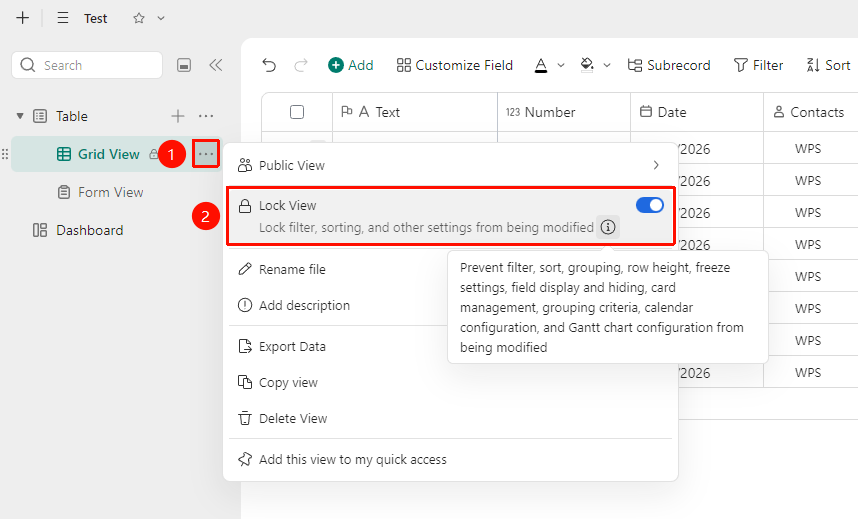
Left view list → Click the "..." button on the right side of the view → "Lock View" toggle
- Open the target DBSheet and find the data table that needs its view locked in the left data table bar.
- In the left view list, click the "..." button on the right side of the view you want to lock.
- In the pop-up menu, find the "Lock View" option and click the toggle switch on the right to turn it on.
- The switch turning blue indicates that the lock is successful, and the view configuration will not be modifiable.
- After locking, a lock indicator will appear next to the view name for quick identification.
FAQ
Q1: Can I still edit sheet data after locking a view?
- Solution: Yes. Locking a view only protects the view's display configuration (filtering, sorting, grouping, field visibility, row height, etc.) and does not restrict content editing. Collaborators with sheet editing permissions can still modify data in the view normally.
Q2: Who can set and remove a locked view?
- Solution: When advanced permissions are not enabled, all users with sheet editing permissions can set or remove a locked view. After advanced permissions are enabled, only users with view editing permissions or sheet management permissions can perform this operation.
Notes
- Locking a view only protects the view display configuration and does not affect data viewing and editing.
- Applicable scenarios include: fixing preset filtering and sorting rules in team collaboration, protecting important summary views from accidental modification, and ensuring consistent display when sharing externally.