Feature Summary
The delete feature allows users to remove unwanted data sheets, dashboards, or views from a DBSheet, helping to clean up redundant data and keep the Sheets organized.
Feature Description
| Feature Dimension | Description |
|---|---|
| Membership Restriction | No membership restriction |
| Version Restriction | No version restriction |
Operation Steps
Deleting Data Sheets, Data Sheet Views, and Dashboards
Feature Entry
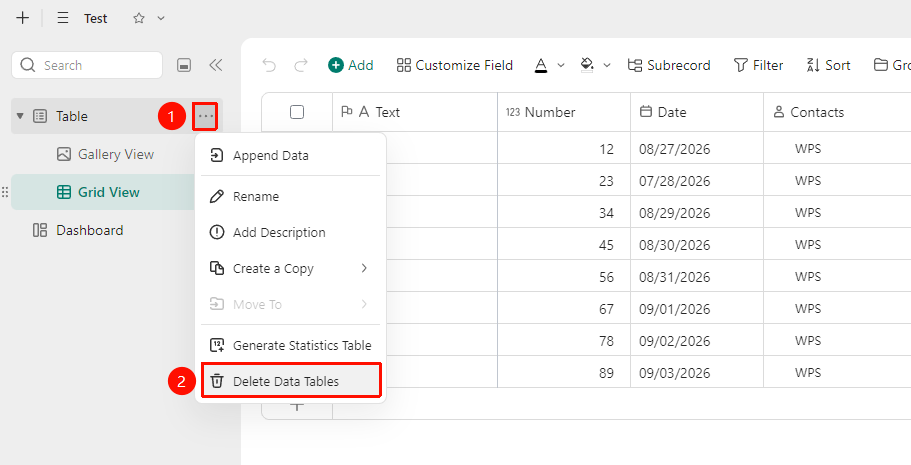
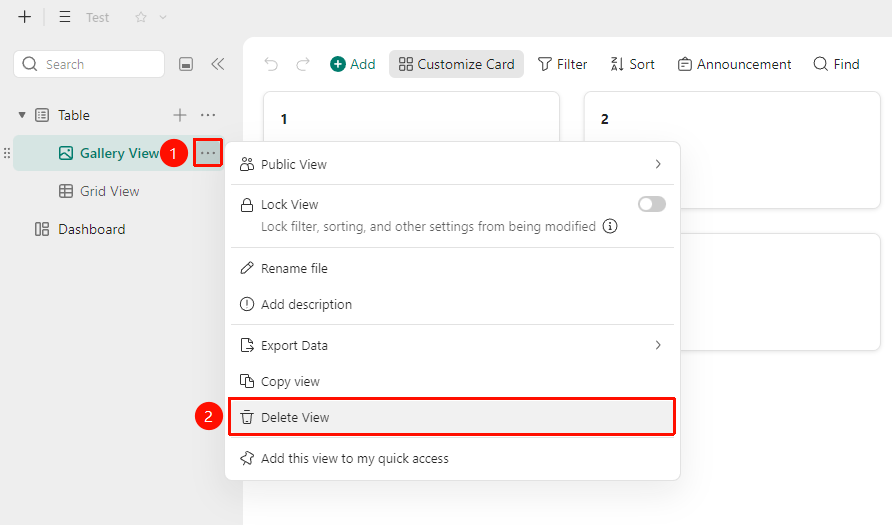
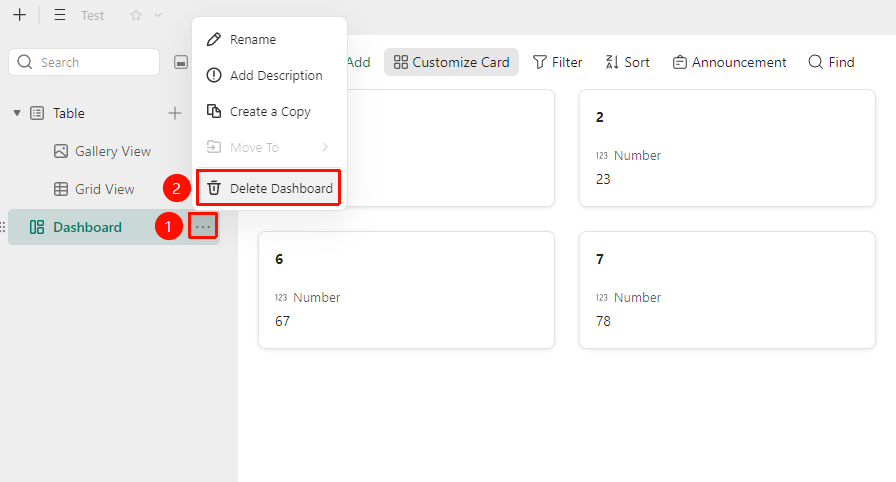
Left data sheet panel → "More Options" → "Delete Data Sheet/View/Dashboard"
- Open the target DBSheet, and locate the data sheet, data sheet view, or dashboard you want to delete in the left data sheet list panel.
- Click the "More Options" button (... icon) to the right of the data sheet, data sheet view, or dashboard name to expand the dropdown menu.
- Select "Delete Data Sheet/View/Dashboard" from the pop-up menu.
- Click "Confirm" in the confirmation dialog to complete the deletion.
FAQ
Q1: How to recover important data after accidental deletion
- Solution: You can restore to the version before deletion via the "History" feature.
Q2: Linked fields report errors after deleting a data sheet
- Solution: After deleting a data sheet, linked fields and lookup fields in other data sheets that reference the deleted sheet will become invalid. You need to manually modify or delete these linked fields.
Notes
- The deletion operation is irreversible. Please ensure your data is backed up before proceeding.
- It is recommended to confirm the current version via "History" before deletion so that you can restore it if needed.