Feature Summary
The Export and Save As feature allows you to export multidimensional table data into various file formats, making it convenient for offline viewing, backup, or integration with other systems. Core capabilities include:
- Export to standard Excel format
- Support for exporting as compressed archive files (with attachments)
Feature Description
| Feature Dimension | Description |
|---|---|
| Membership Restriction | No membership subscription required |
| Version Restriction | No version restriction |
Operation Steps
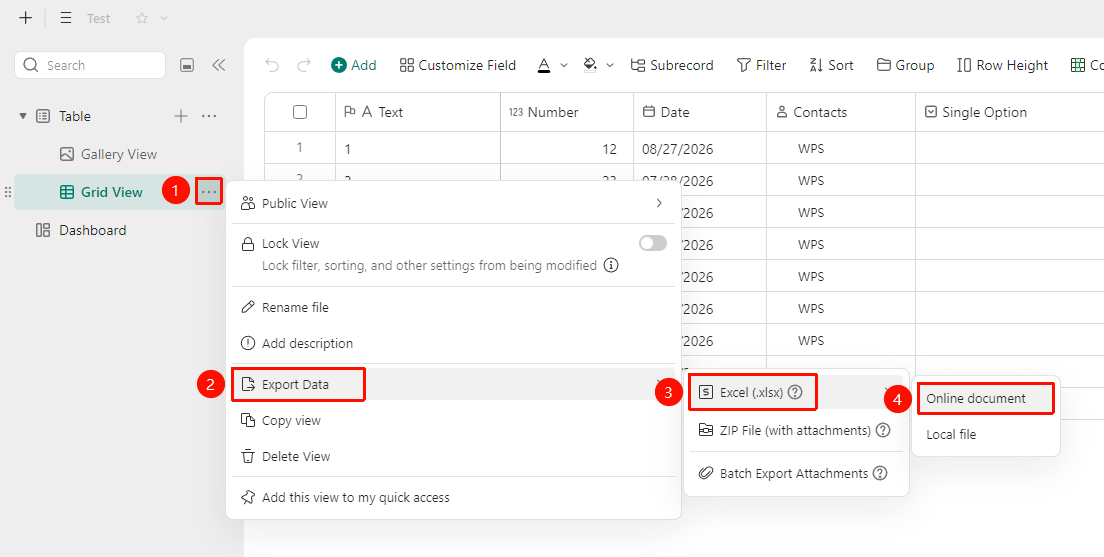
Export as Online Sheets
Feature Entry
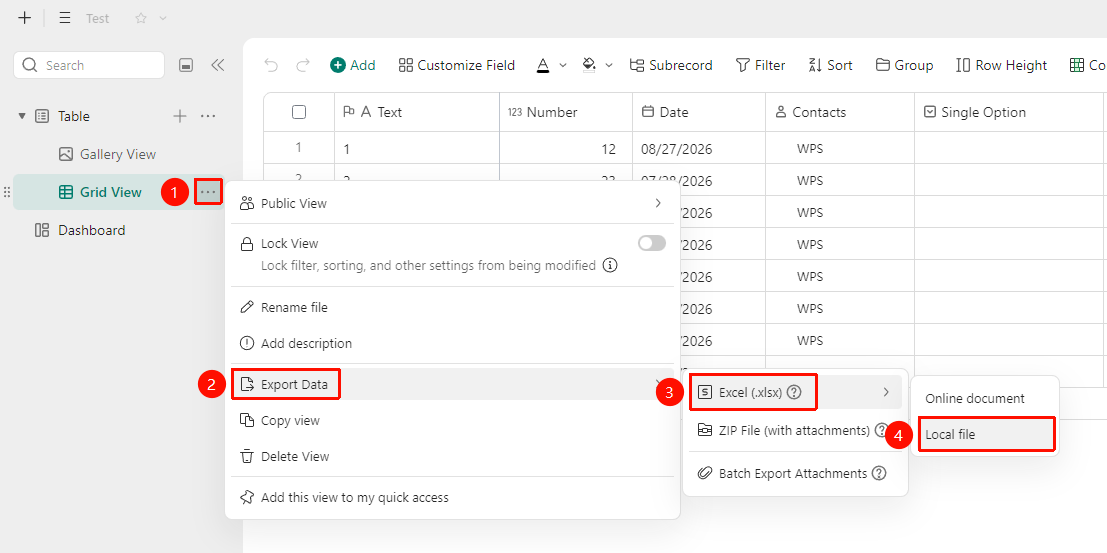
Data Table → "More Actions" button → "Export Data" option → "Sheets (xlsx)" option → Online Sheets
- Open the target multidimensional table, and click the table view you want to export in the left toolbar
- Click the More Actions button ("…" icon) on the right side of the table view
- Select Export Data from the menu
- Select the Sheets (xlsx) option
- Select the "Online Sheets" option
The exported Sheets file is saved in Personal Space by default
Export as Local Sheets
Feature Entry
Data Table → "More Actions" button → "Export Data" option → "Sheets (xlsx)" option → Local Sheets
- Open the target multidimensional table, and click the table view you want to export in the left toolbar
- Click the More Actions button ("…" icon) on the right side of the table view
- Select Export Data from the menu
- Select the Sheets (xlsx) option
- Select the "Local Sheets" option
Export as Compressed Archive
Feature Entry
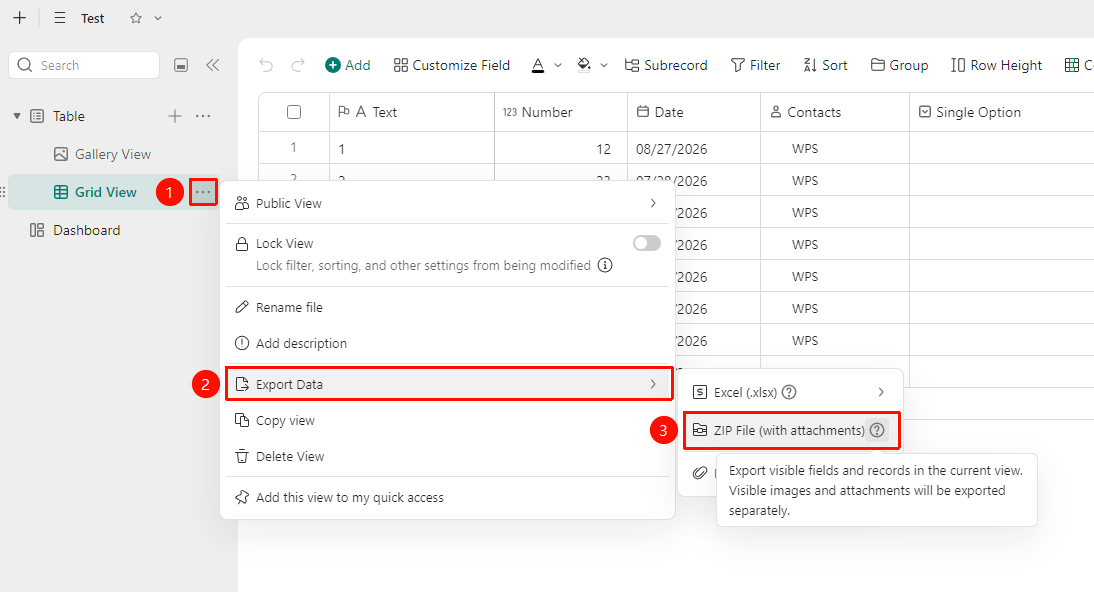
Data Table → "More Actions" button → "Export Data" option → "Compressed Archive" option
- Open the target multidimensional table, and click the table view you want to export in the left toolbar
- Click the More Actions button ("…" icon) on the right side of the table view
- Select Export Data from the menu
- Select the "Compressed Archive" option
Batch Export Attachments
Feature Entry
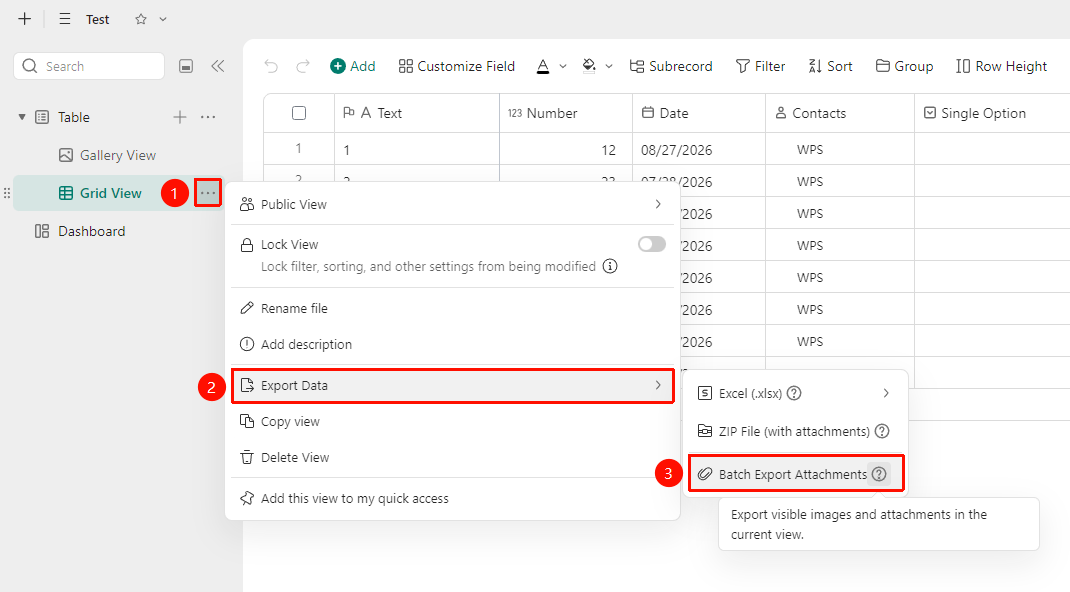
Data Table → "More Actions" button → "Export Data" option → "Batch Export Attachments" option
- Open the target multidimensional table, and click the table view you want to export in the left toolbar
- Click the More Actions button ("…" icon) on the right side of the table view
- Select Export Data from the menu
- Select the "Batch Export Attachments" option
- Export visible images and attachments in the current view
FAQ
Q1: What should I do if the content of attachment fields is lost after exporting to Excel?
- Solution: When exporting to Excel, some multidimensional table-specific fields may be exported as plain values. If there are attachment fields, it is recommended to export as a compressed archive, which will include the attachments from the table.
Q2: Does the exported data include records hidden by filters?
- Solution: No. By default, the exported data only includes the visible records in the current view. Records hidden by filters will not be exported. To export all data, please clear all filter conditions before performing the export operation.
Q3: Can I export only specific fields (columns)?
- Solution: Currently, the export feature exports all visible fields in the current view. It is not possible to select individual fields for export. It is recommended to hide the unwanted columns first through field management, and then perform the export operation.
Notes
- You can also use the 'Export Data' button in the top right corner of the table view to export data
- The exported file will not be synced and updated with the multidimensional table data
- Exporting large multidimensional tables (over 100,000 rows) may take a long time, please be patient
- It is recommended to store the exported Excel file properly locally to avoid data loss or leakage
- To export all the data from the multidimensional table, you can click the 'File Operations' button in the top left corner → 'Export As' option