Feature Summary
Field management is a core feature of multi-dimensional tables, supporting creating, editing, and deleting fields, helping users efficiently organize and manage data table structures.
Feature Description
| Feature Dimension | Description |
|---|---|
| Membership Restriction | No membership restriction |
| Version Restriction | No version restriction |
Operation Steps
Create a Field
Feature Entry
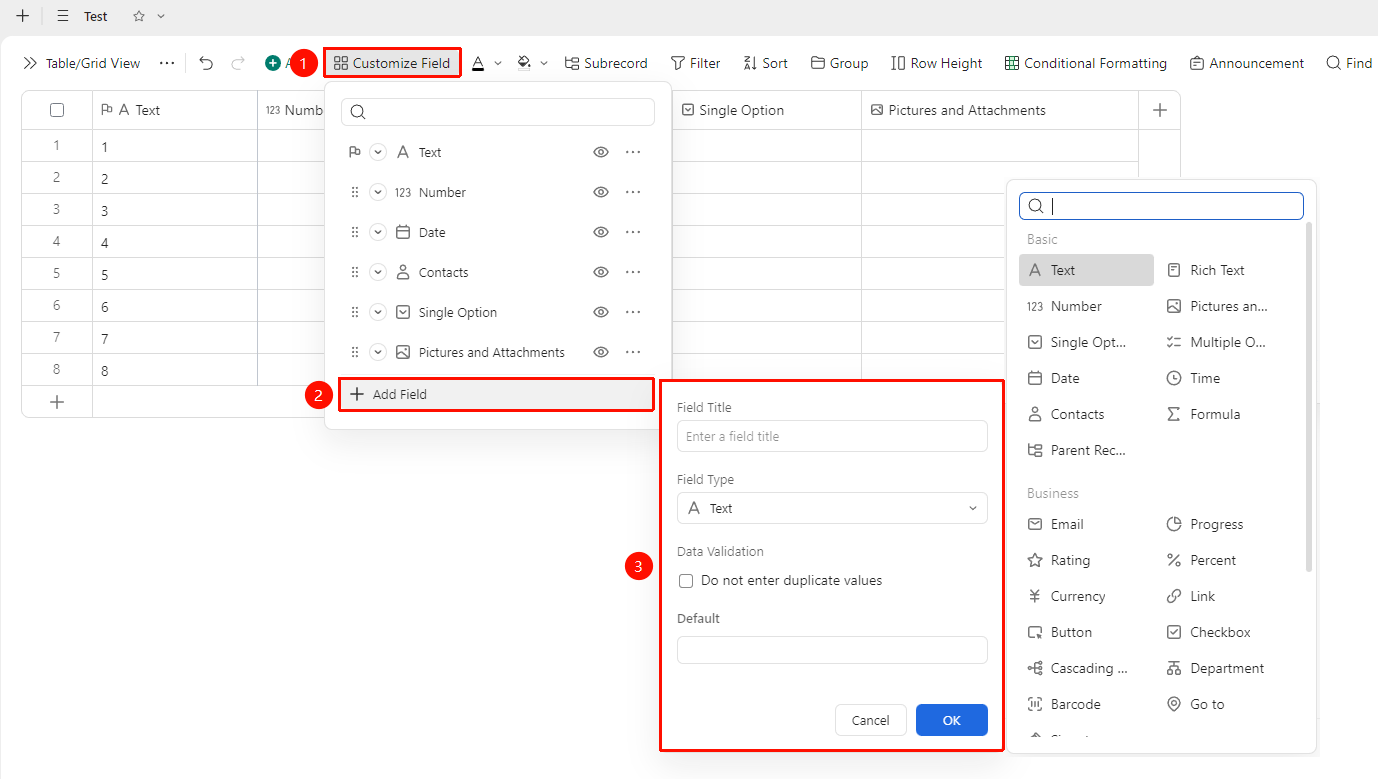
「Toolbar」→「Field Management」button →「Add Field」option
- Click the Field Management button in the toolbar
- In the pop-up panel, click the 「Add Field」 button and select the desired field type
- Customize the field name and click Confirm to complete creation
Edit an Existing Field
Feature Entry
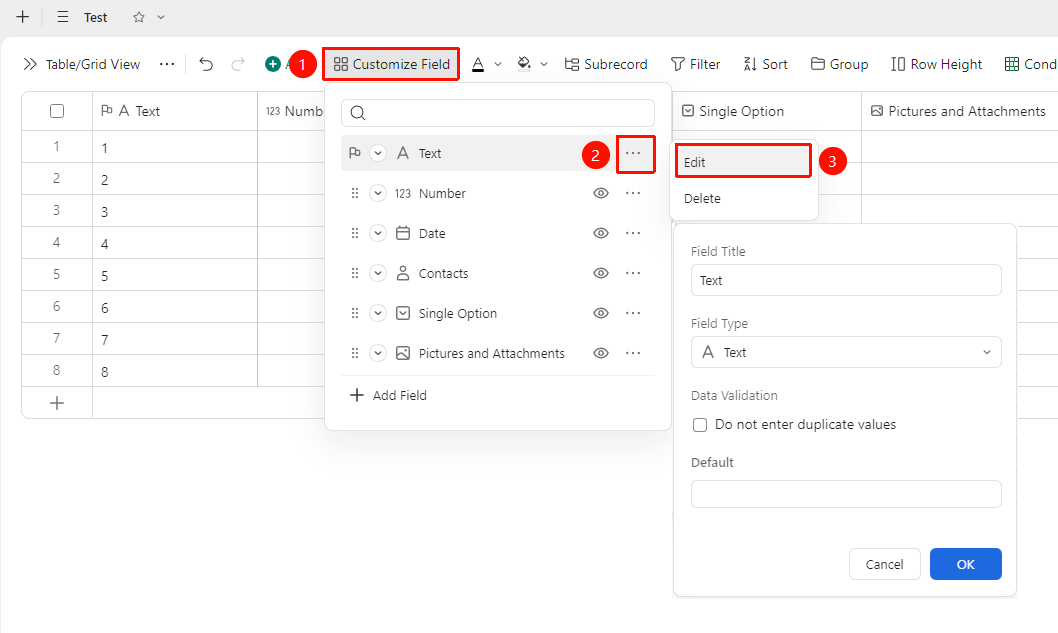
「Toolbar」→「Field Management」button →「…」icon →「Edit」button
- Click the Field Management button in the toolbar
- In the pop-up panel, find the field you need to edit
- Click the 「…」 icon on the right side of that field
- Click the 「Edit」 button
- Adjust the field settings and click Confirm to complete editing
Delete an Existing Field
Feature Entry
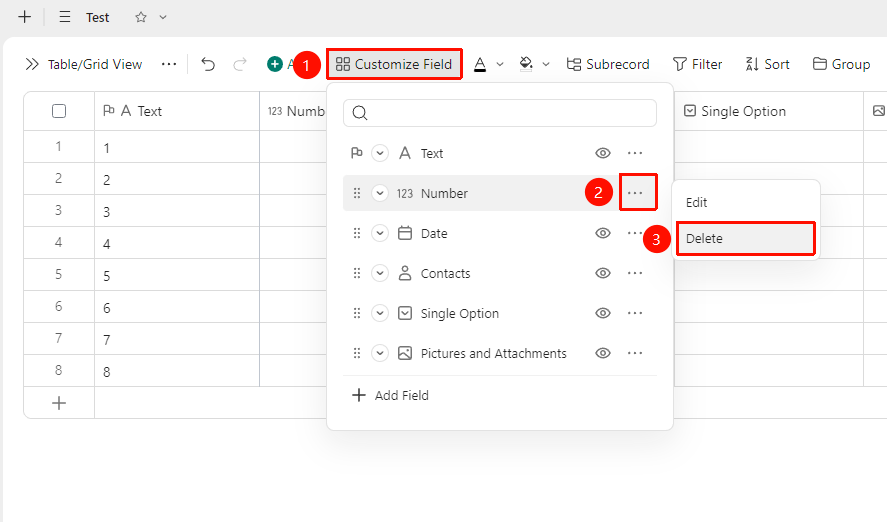
「Toolbar」→「Field Management」button →「…」icon
- Click the Field Management button in the toolbar
- In the pop-up panel, find the field you need to delete
- Click the 「…」 icon on the right side of that field
- Click the 「Delete」 button
Adjust Field Order
Feature Entry
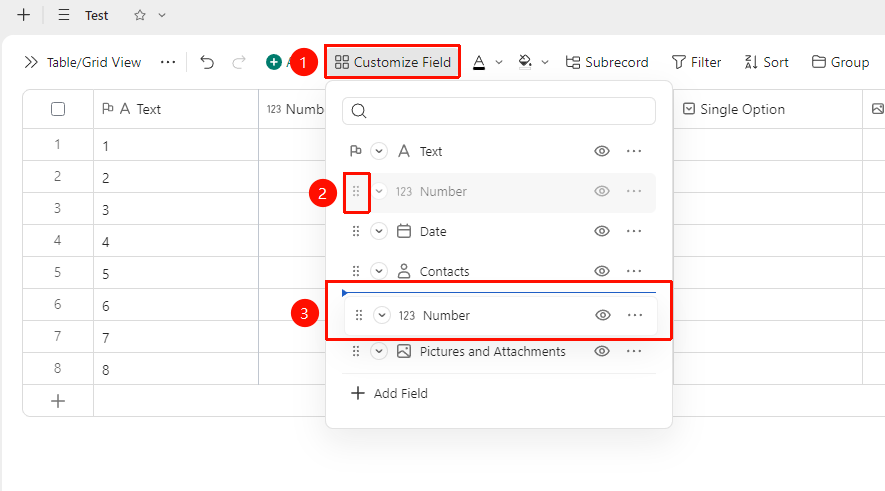
「Toolbar」→「Field Management」button →「⠿」icon
- Open the 「Field Management」 panel in the toolbar
- Hold the 「⠿」 icon in front of the field and drag to adjust the field position
- Release the mouse to complete sorting
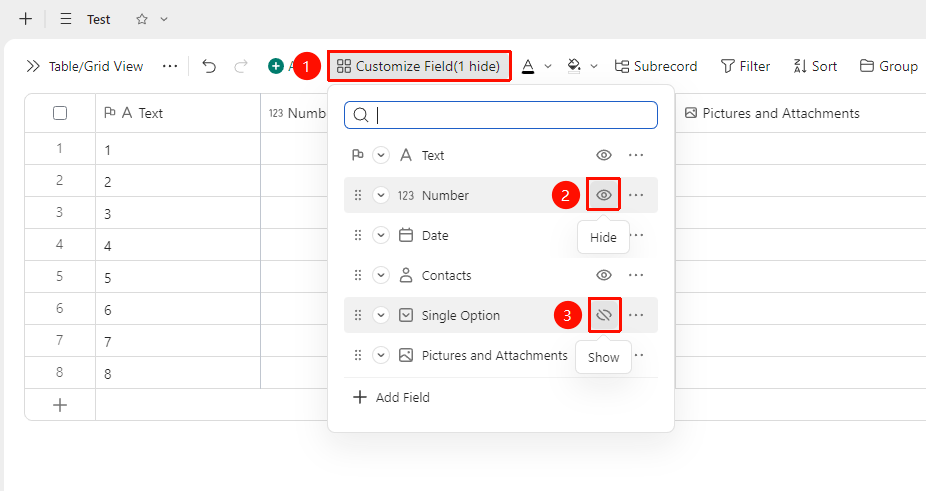
Hide/Show Fields
Feature Entry
「Toolbar」→「Field Management」button →「👁」icon
- Click the Field Management button in the toolbar
- In the pop-up panel, find the field you need to edit
- Click the 「👁」 icon on the right side of that field
- Clicking for the first time will hide the field; clicking again will restore its display
FAQ
Q1: How to modify the type of an existing field?
- Solution: Right-click the field header, select 「Field Settings」, and switch the field type in the panel. Note that switching types may cause partial data loss.
Q2: How to adjust the field order?
- Solution: Open the 「Field Management」 panel, hold the 「⠿」icon in front of the field, drag it to the target position, and release.
Q3: How to restore a hidden field?
- Solution: Open the 「Field Management」 panel, and click the 「Show」 button (eye icon) in the hidden fields list to restore its display.
Notes
- Before switching field types, please confirm data compatibility; some type conversions may cause data loss (e.g., formulas)
- Advanced fields (such as linked fields) require basic fields to be created first before they can be used