Feature Summary
Table view is the default data display mode for multidimensional sheets, presenting all Records and field information clearly in rows and columns. It is suitable for data entry, proofreading, and batch editing.
Feature Description
| Feature Dimension | Description |
|---|---|
| Membership Restriction | No membership restriction |
| Version Restriction | No version restriction |
Steps
Create a Table View
Feature Entry
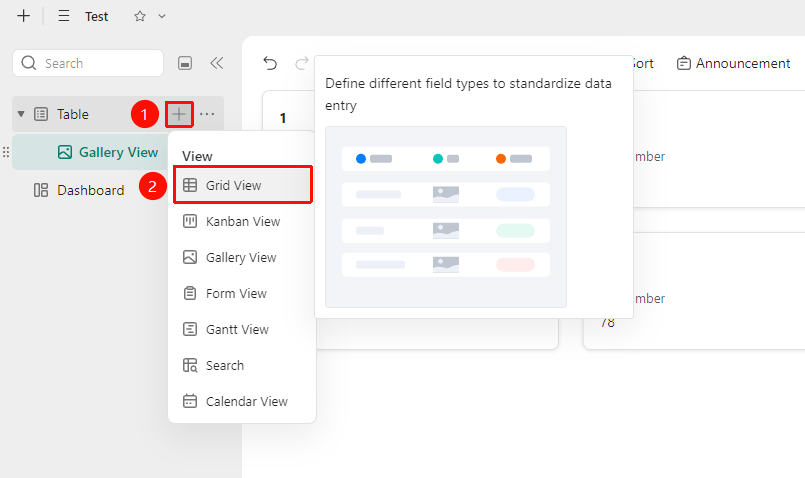
「Data Sheet」→「+」icon →「Table View」option
- Open the multidimensional sheet and click the 「+」 icon on the right side of the data sheet
- Select Table View
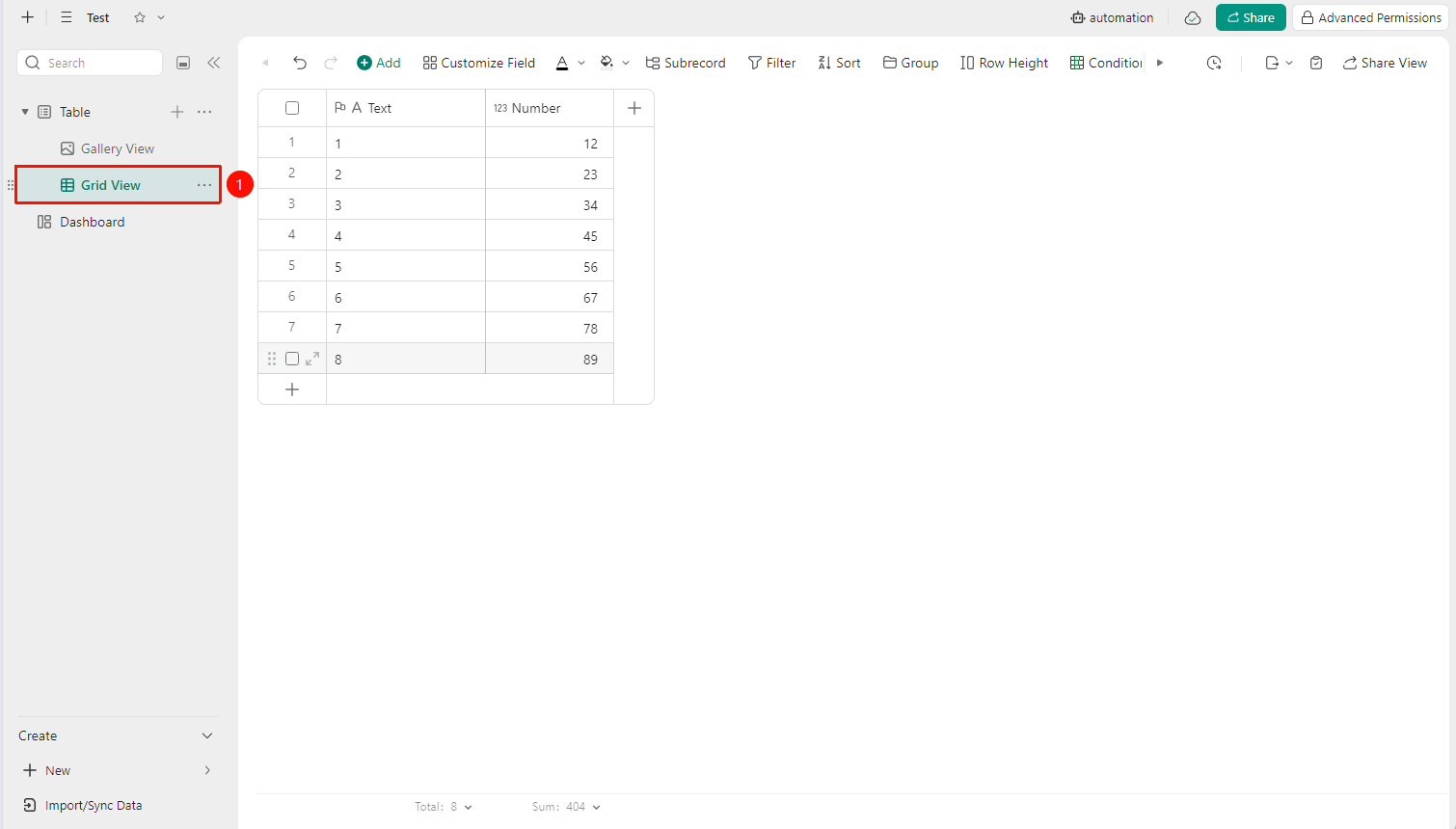
- Enter the table editing interface and input the required data
FAQ
Q1: Some fields are not displayed in the table view. How to handle this?
- Solution: Click the Field management button and check whether the field has been hidden. Click the eye icon to show the field again, or confirm whether the field exists in the current data sheet.
Q2: Does the table view support freezing columns (freezing the first column)?
- Solution: Yes. In the table view, right-click the target column and select Freeze to This Column. That column and the columns to its left will be fixed and will not scroll out of view.
Q3: Is the data the same in table view and other views?
- Solution: Yes, all views within the same data sheet display the same set of data, just in different presentation formats. Modifying data in any view will synchronously update the other views.
Notes
- Table view is suitable for rapid data entry and batch editing
- Modifications in the table are synchronized in real time to other collaborators in the Cloud
- It is recommended to create independent views for different viewing scenarios and save the field configurations