Feature Summary
The Gallery View displays image information from records in a card grid format, making it suitable for managing image-centric data scenarios such as product galleries and asset archives. Core capabilities include:
- Visually presenting records in an image grid format
- Supporting click-to-view for full card details
- Automatically adapting to image aspect ratio display
- Supporting filtering and sorting by field
Feature Description
| Feature Dimension | Description |
|---|---|
| Membership Restriction | No membership restriction |
| Version Restriction | No version restriction |
Steps
Creating a Gallery View
Entry Point
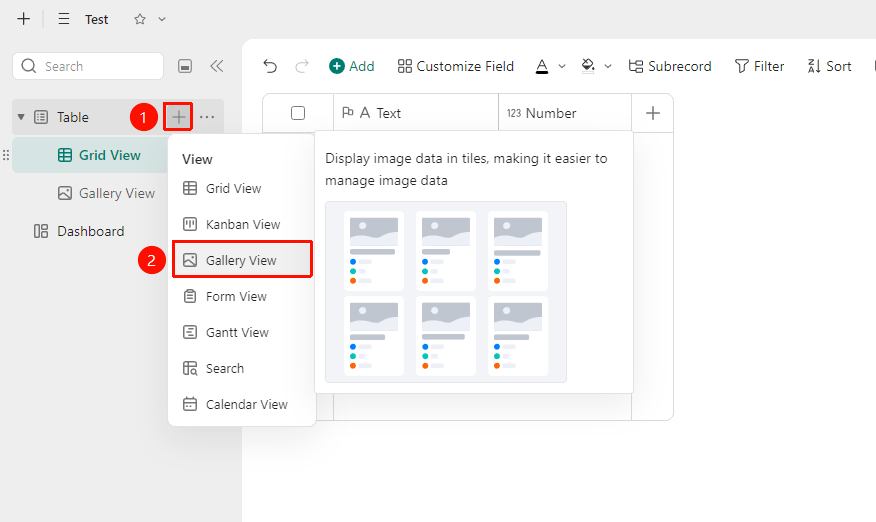
「Data Table」→「+」Icon →「Gallery View」Option
- Open the target multi-dimensional table, and click the 「+」 icon on the right side of the data table
- Select Gallery View
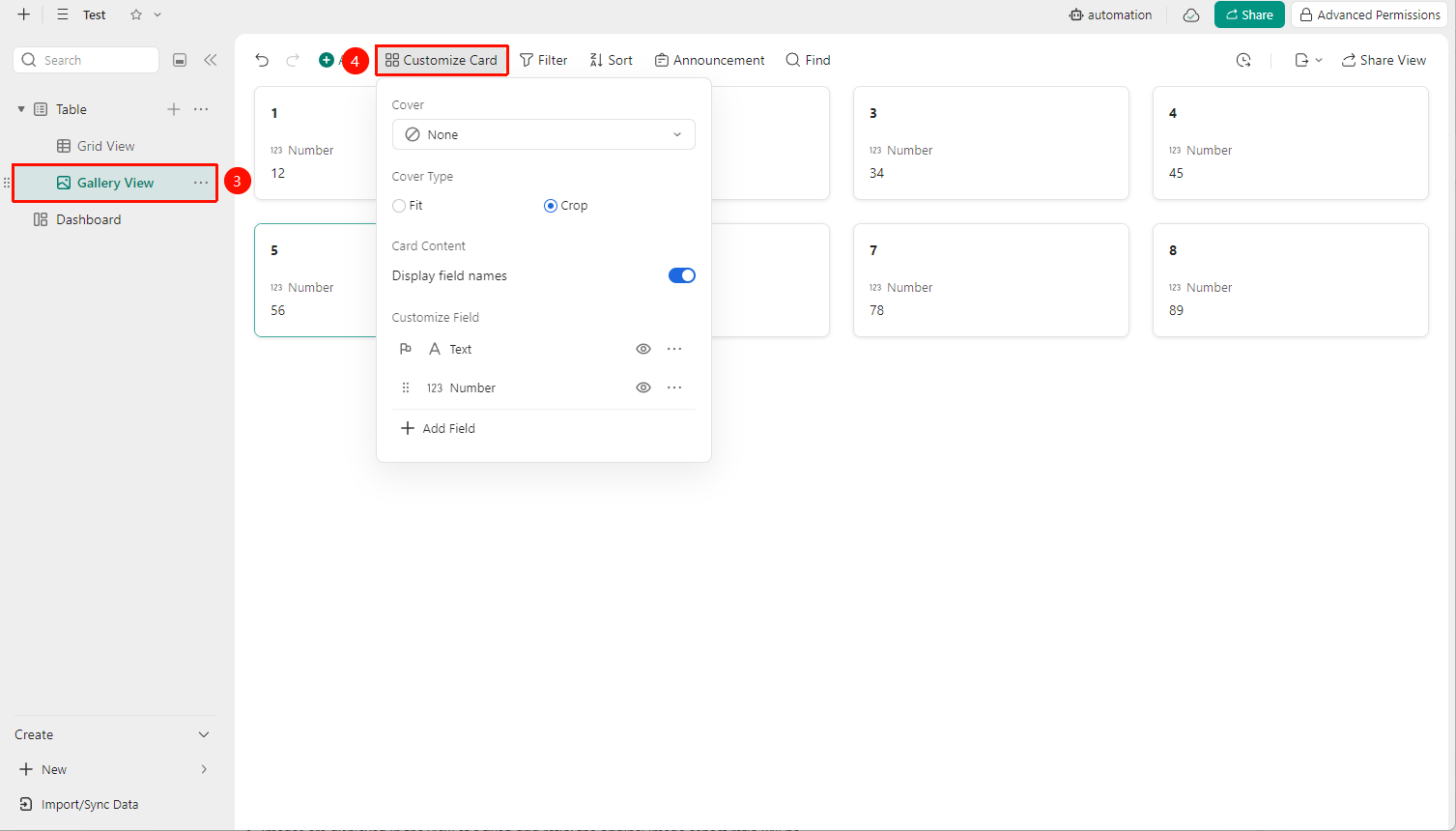
- Click the Card Management button to set the card cover and cover effects
FAQ
Q1: Images in the Gallery View appear blank?
- Solution: Please check whether images have been uploaded to the image field in the data table. The Gallery View requires an image-type field to display properly; records without images will be shown as placeholder cards.
Q2: Images load slowly?
- Solution: Image files that are too large may cause slow loading.
Notes
- The Gallery View depends on image fields; the view display effect is limited when no image field is present
- Filtering and sorting operations are supported, but grouping display is not supported
- Images are displayed in the view at a fixed grid ratio; the original image aspect ratio will be automatically cropped