Feature Summary
Query View is a data retrieval view in a multi-dimensional table, helping you quickly retrieve results that match criteria from large amounts of data and display query results independently. Core capabilities include:
- Retrieve data by criteria and display the result set
- Support cross-field combined queries
- Query results sync with source data changes in real time
Feature Description
| Feature Dimension | Description |
|---|---|
| Membership Restrictions | No membership restrictions |
| Version Restrictions | No version restrictions |
Steps
Create a Query View
Feature Entry
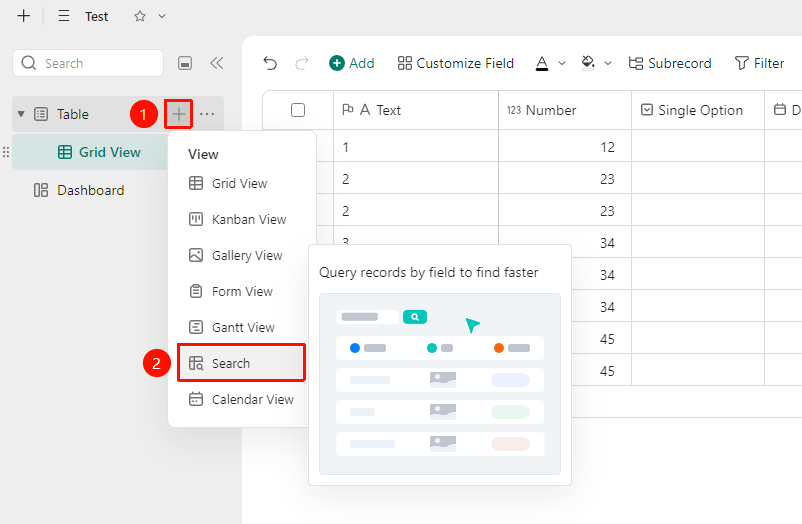
「Data Table」→「+」icon →「Query View」option
- Open the multi-dimensional table and click the 「+」 icon on the right side of the data table
- Select Query View
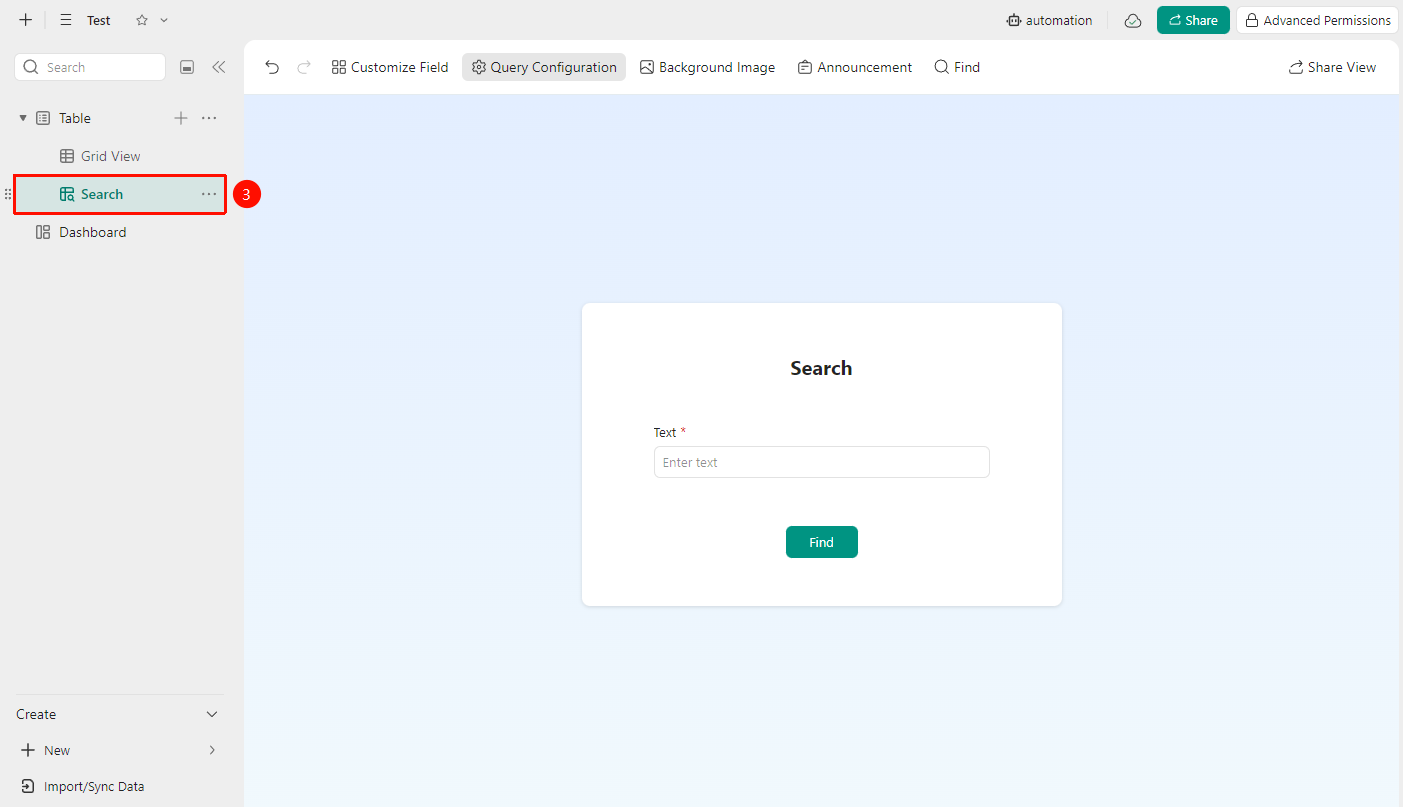
- Enter the Query View interface and input content to query
Modify Query Criteria
Feature Entry
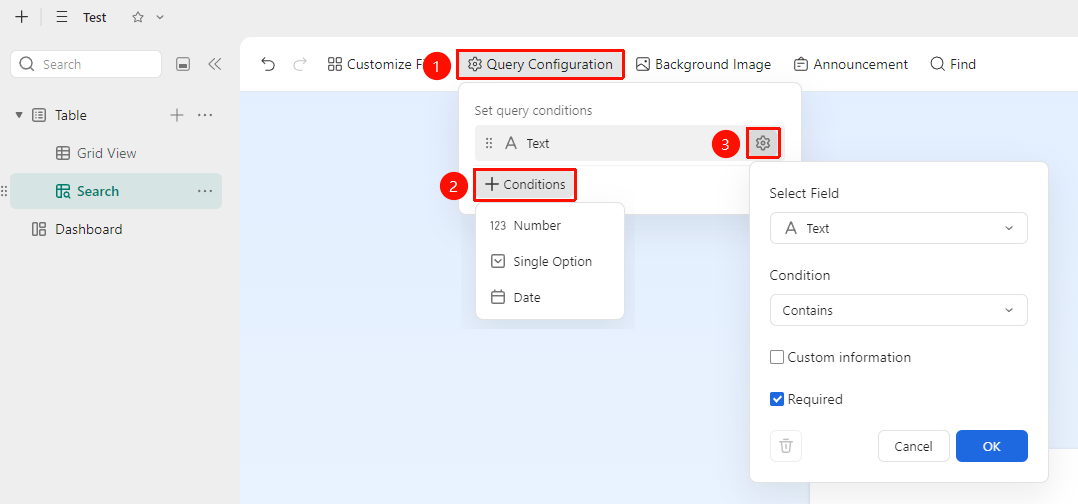
「Query View」→「Toolbar」→「Query Configuration」option
- After entering the Query View, click the 「Query Configuration」 button on the top toolbar
- Click the +Query Criteria button to add query criteria
- Click the 「⚙」 icon on the right side of an existing query criterion to manage them
FAQ
Q1: The query results are not as expected. What could be the reason?
- Solution: Please check whether the query criteria are set correctly (field type matching, accurate condition logic), and also note whether the actual content in the data table fields matches the query intent.
Q2: Can I query across multiple data tables?
- Solution: No, only fields from the current data table can be added for querying.
Notes
- Queries with complex criteria may take longer to process. Please be patient when the data volume is large.
- Modifying data in the Query View will synchronously update the source data table.
- It is recommended to use condition combinations reasonably and avoid setting overly complex rules that affect query efficiency.