Feature Summary
The single-select field is one of the fundamental field types in Multi-Dimensional Sheets. It is used to select one item from a preset range of options to fill into a cell, making it suitable for scenarios requiring categorical constraints, such as project status, affiliated team, or regional classification.
Feature Description
| Feature Dimension | Description |
|---|---|
| Membership Restrictions | No membership restrictions |
| Version Restrictions | No version restrictions |
Operation Steps
Create a Single-Select Field
Feature Entry
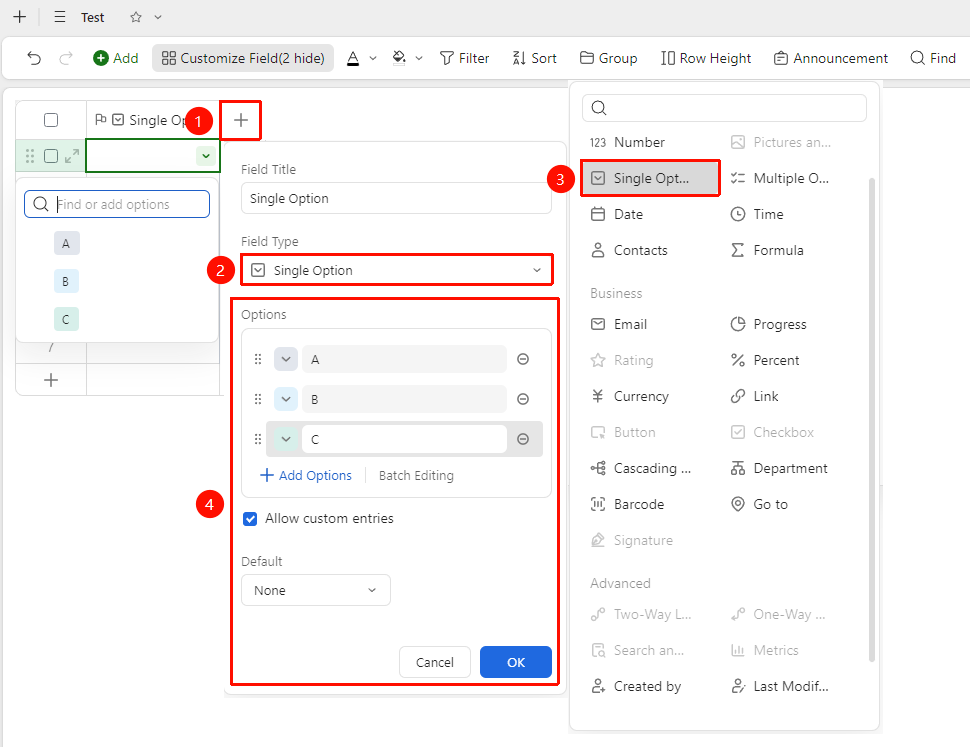
「+」 button on the right side of the header → 「Single-Select」 option
- Click the 「+」 button on the right side of the header
- Select 「Single-Select」 from the pop-up field type list
- Settings options, enter the field name and click 「Confirm」 to complete creation
Add and Edit Options
Feature Entry
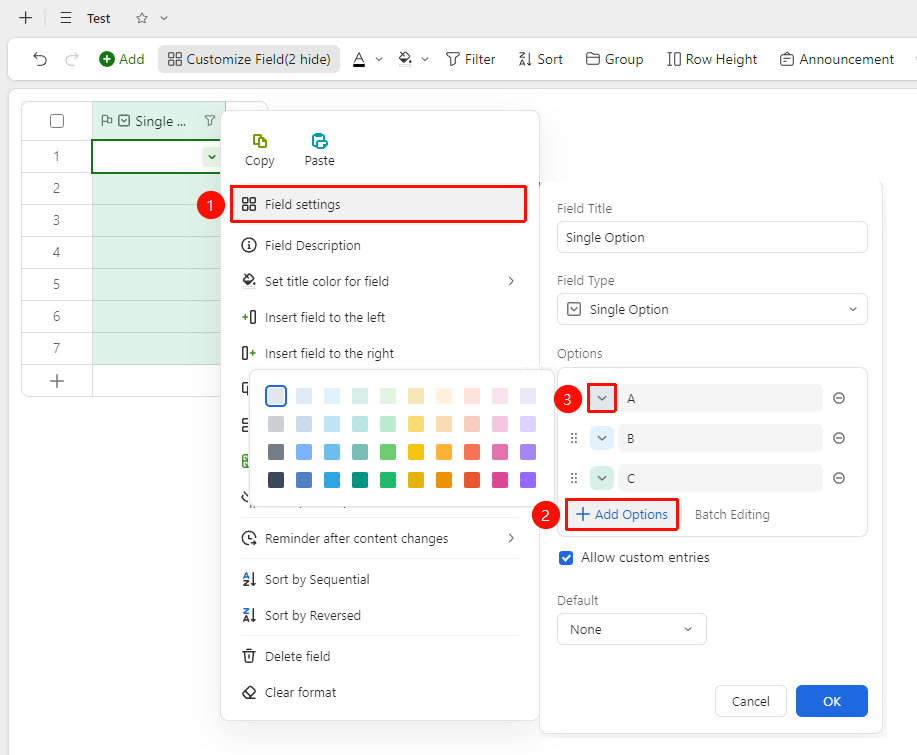
Right-click 「Field Title」 → 「Field Settings」 → 「Option List」 area
- Right-click the single-select field title and select 「Field Settings」
- Click 「+ Add Option」 in the option list area to add a new option
- The Sheets will automatically assign distinguishing colors to different options
- Click the square button in front of an option to modify its display color
Batch Edit Options
Feature Entry
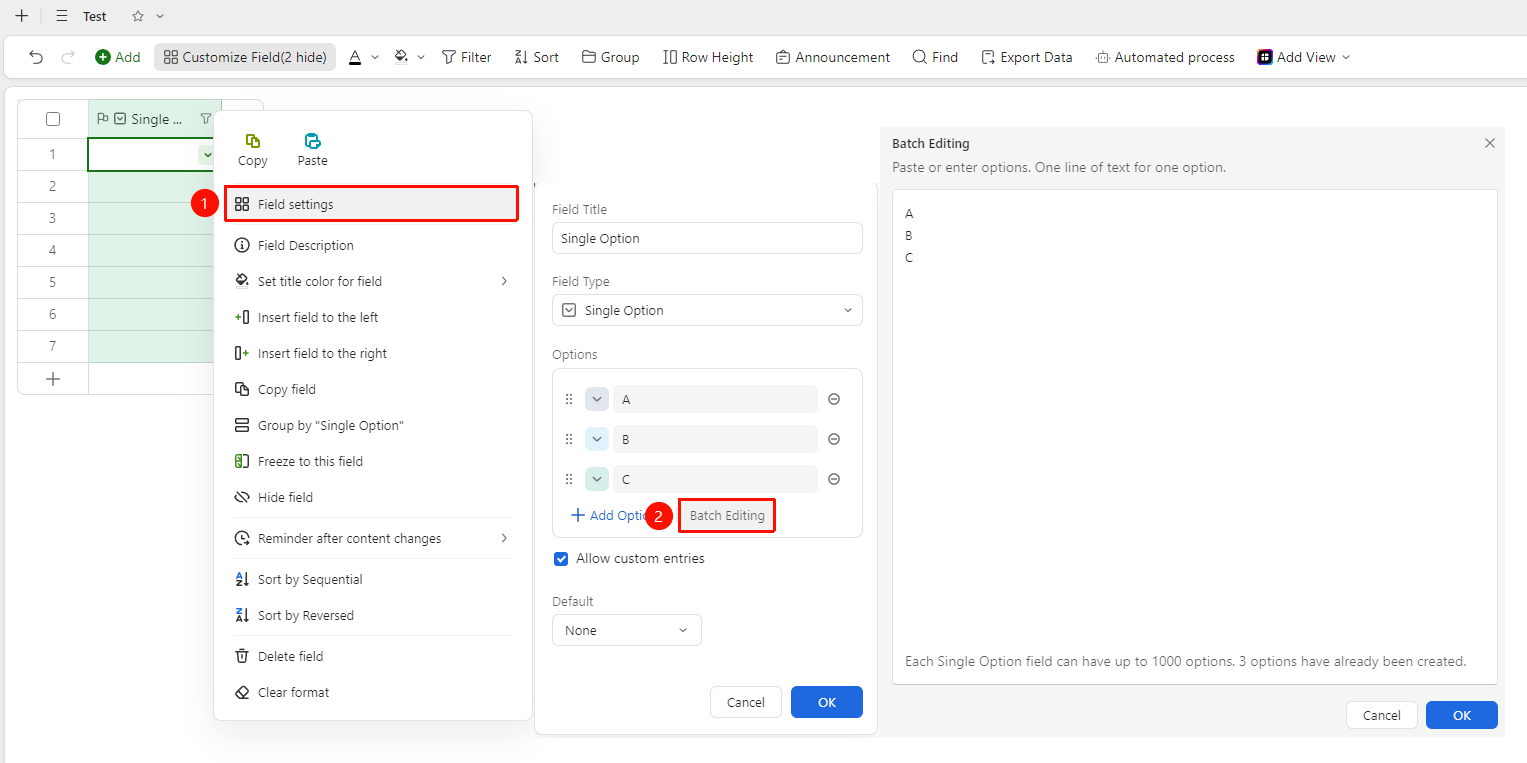
Right-click 「Field Title」 → 「Field Settings」 → 「Batch Edit」 button
- Right-click the single-select field title and select 「Field Settings」
- Click the 「Batch Edit」 button in the option list
- Enter one option name per line in the text box; pasting will Batch Generate options
- After confirming, click 「Confirm」 to save
Set Allow Adding Options During Entry
Feature Entry
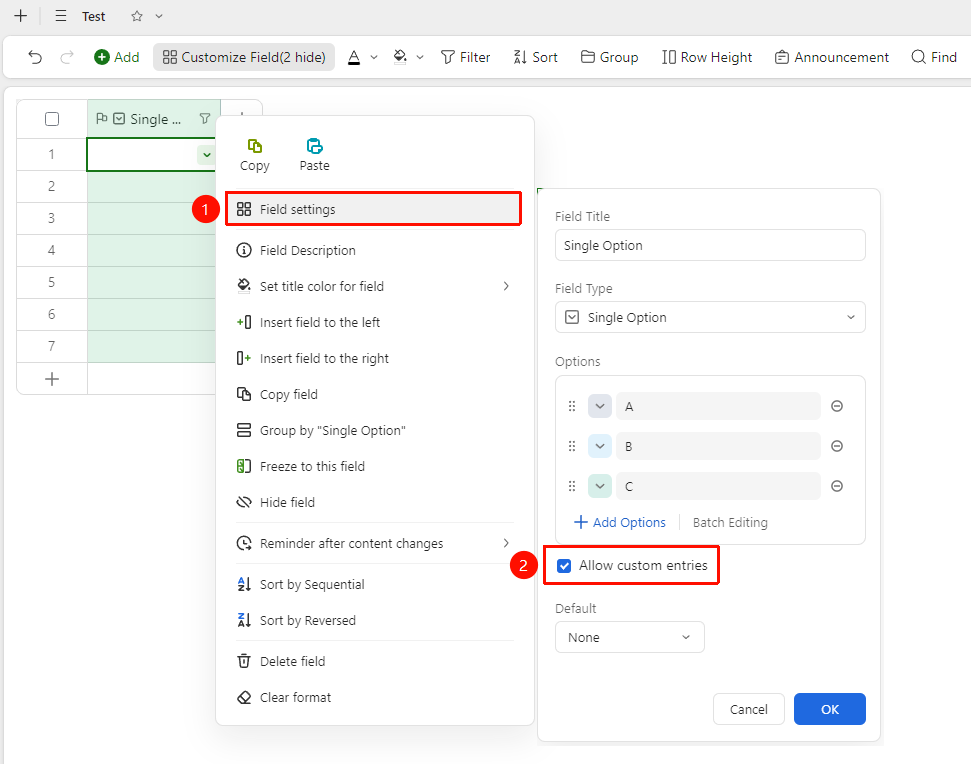
Right-click 「Field Title」 → 「Field Settings」 → 「Allow adding options during entry」 toggle
- Right-click the single-select field title and select 「Field Settings」
- Turn on the 「Allow adding options during entry」 toggle
- During entry, if the entered content does not exist in the preset options, you can add it as a new option with one click
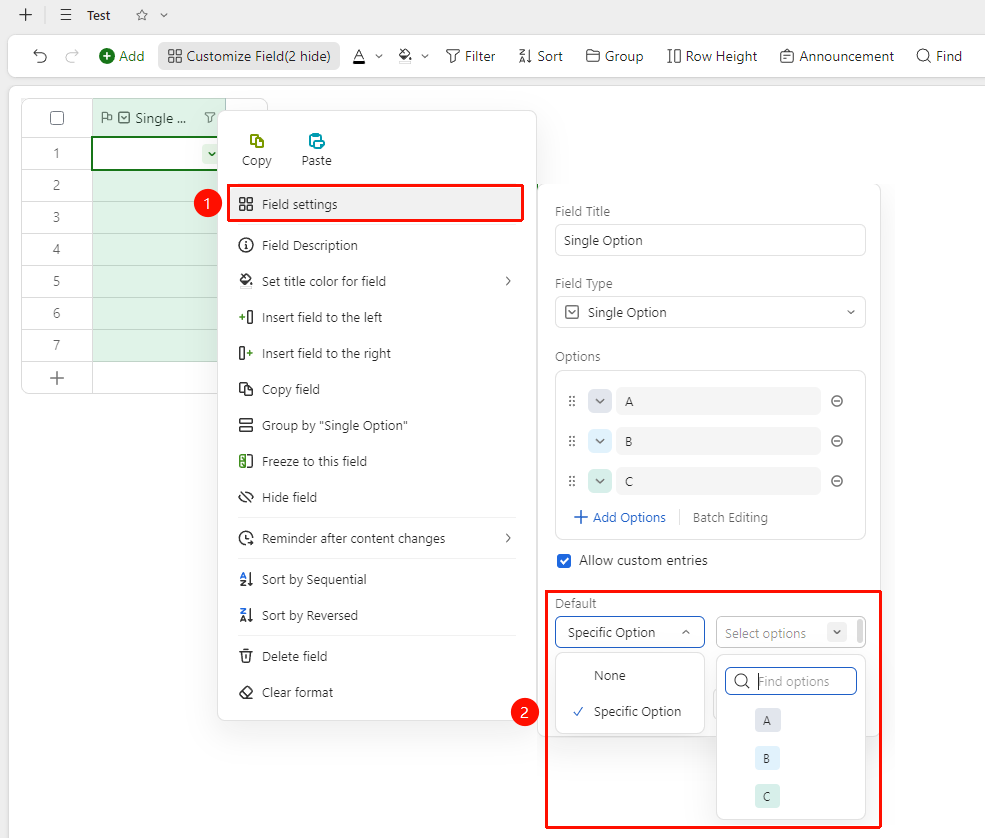
Set Default Value
Feature Entry
Right-click 「Field Title」 → 「Field Settings」 → 「Default Value」 option
- Right-click the single-select field title and select 「Field Settings」
- Select an option from the 「Default Value」 dropdown list
- When adding a new Record, this default option will be automatically filled in
Frequently Asked Questions
Question 1: How to quickly delete unwanted options?
- Solution: Right-click the field title, select 「Field Settings」, and click the trash can icon on the right side of the corresponding option in the option list to delete it.
Question 2: How to search for existing options during entry?
- Solution: After clicking a cell to open the option list, enter keywords in the search box at the top to quickly search and narrow down the option range.
Question 3: Can a single-select field support multiple selections?
- Solution: The single-select field only supports selecting one option. If you need to select multiple options simultaneously, please create a new field of the 「Multi-Select」 type.
Notes
- The single-select field only supports selecting one option. If you need multiple selections, please use the multi-select field
- When deleting an existing option, the value in Records that have selected that option will be cleared
- Color settings only affect visual display and do not affect data statistics or filtering