Feature Summary
The dashboard title is the header information area of the dashboard view, used to add a dashboard title, description, and notes, helping viewers quickly understand the purpose and content scope of the dashboard. Core capabilities include:
- Adding a main title and subtitle to the dashboard
- Supporting rich text formatting and descriptive Docs
- Displaying the title in a prominent position at the top of the dashboard
- Allowing the title to be shown or hidden
Feature Description
| Feature Dimension | Description |
|---|---|
| Membership Restriction | No membership restriction |
| Version Restriction | No version restriction |
Steps
Adding a Dashboard Title
Feature Entry
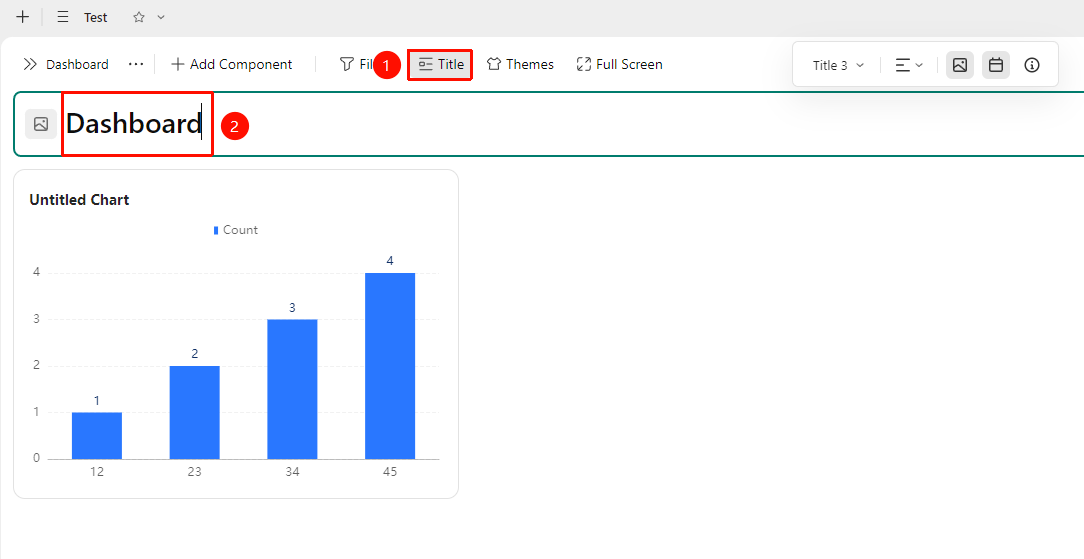
「Dashboard」→「Title」button → Edit text directly
- Open the dashboard view and click the Title button at the top
- Click the input box and directly enter the title name
- The settings are automatically saved once completed
Setting Title Style
Feature Entry
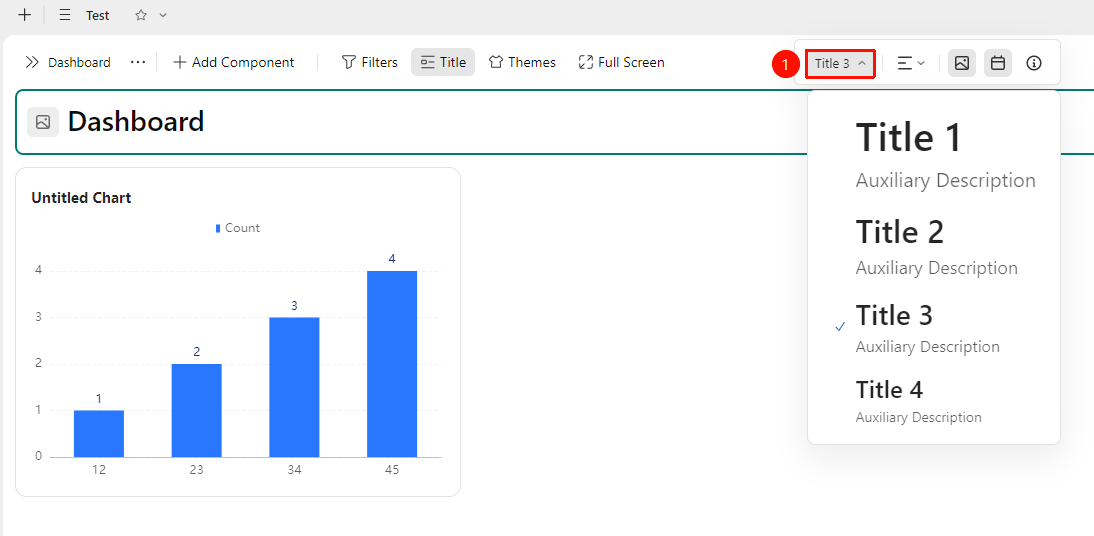
「Title」input box →「Title Style」dropdown menu
- Click the title area
- Click the Title Style dropdown menu at the top
- Options include:
- Heading 1
- Heading 2
- Heading 3
- Heading 4
Setting Title Alignment
Feature Entry
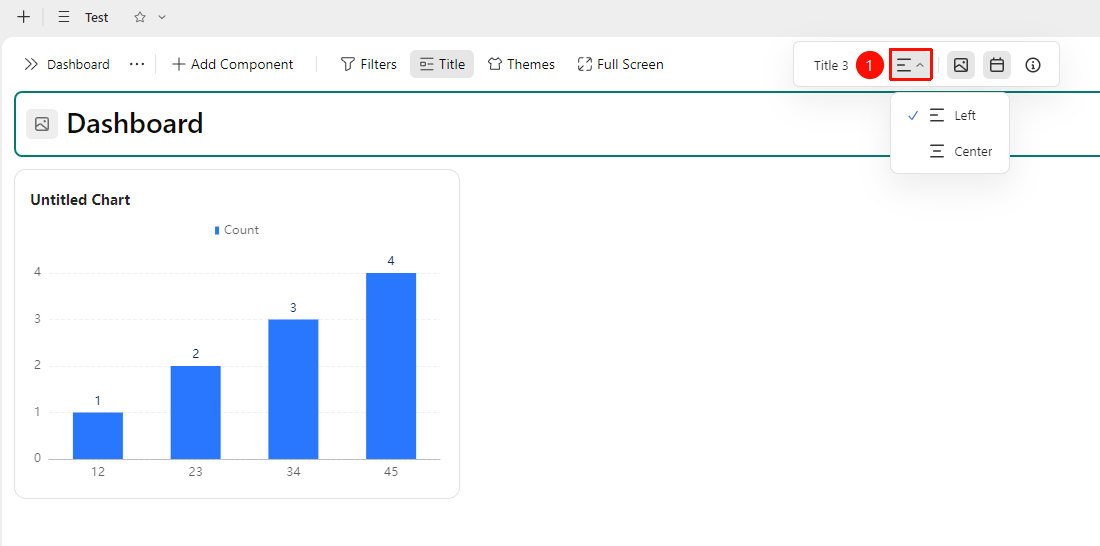
「Title」input box →「Alignment」dropdown menu
- Click the title area
- Click the Alignment dropdown menu at the top
- Select Align Left or Align Center
Inserting a Title Image
Feature Entry
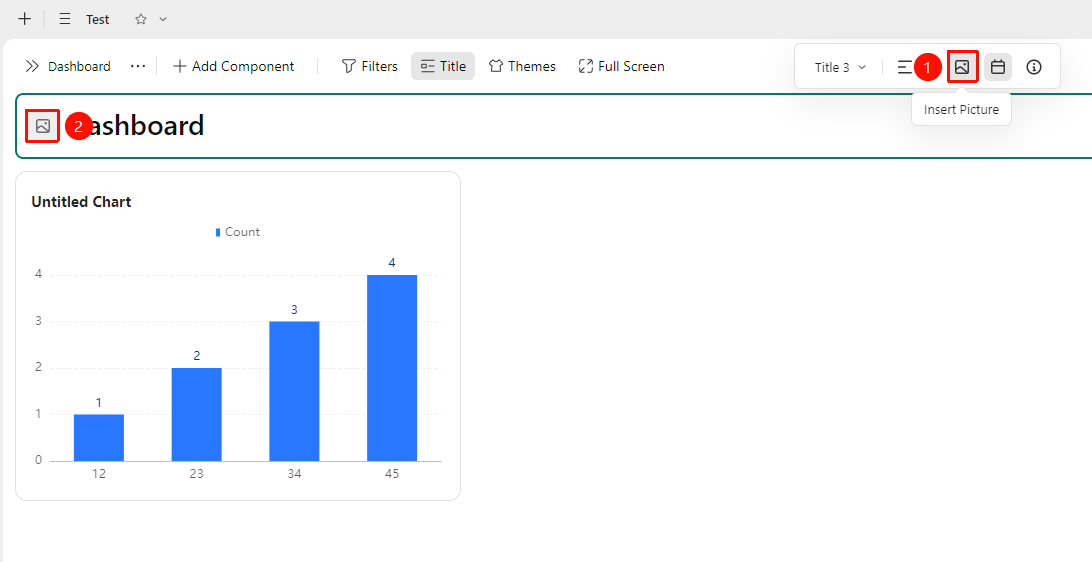
「Title」input box →「Insert Image」button
- Click the title area
- Click the Insert Image button at the top
- After clicking, in the title input box, you can click the image icon to insert a local image
- Click the button again to hide the title image
Inserting a Title Date
Feature Entry
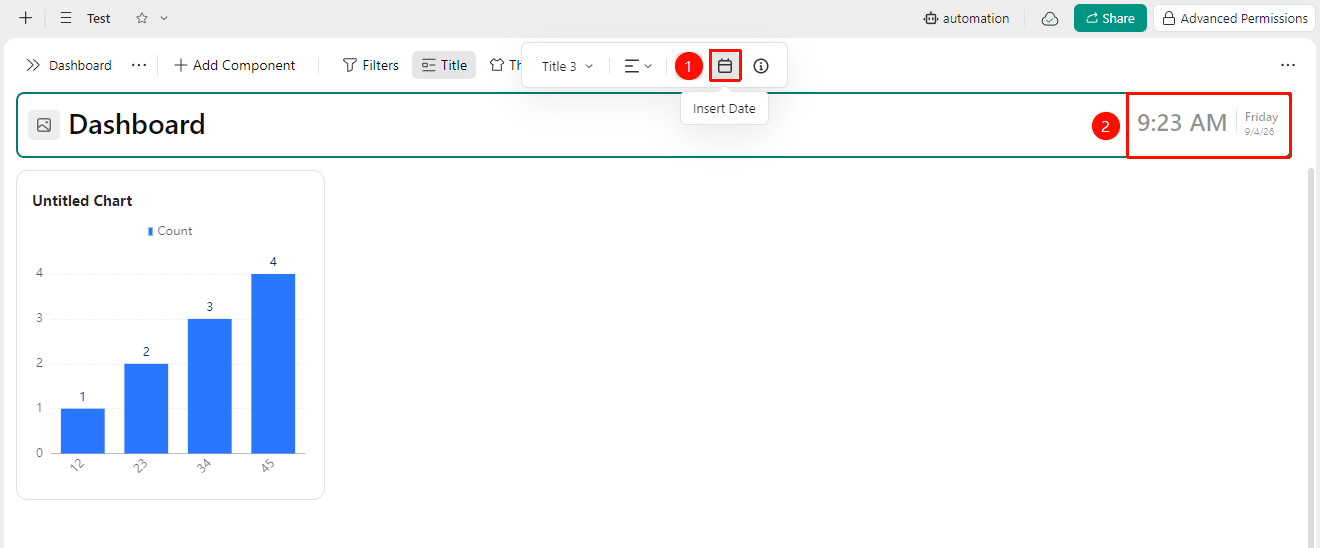
「Title」input box →「Insert Date」button
- Click the title area
- Click the Insert Date button at the top
- After clicking, the current date and time will be displayed on the right side of the title bar
- Click again to hide the date
Inserting a Title Description
Feature Entry
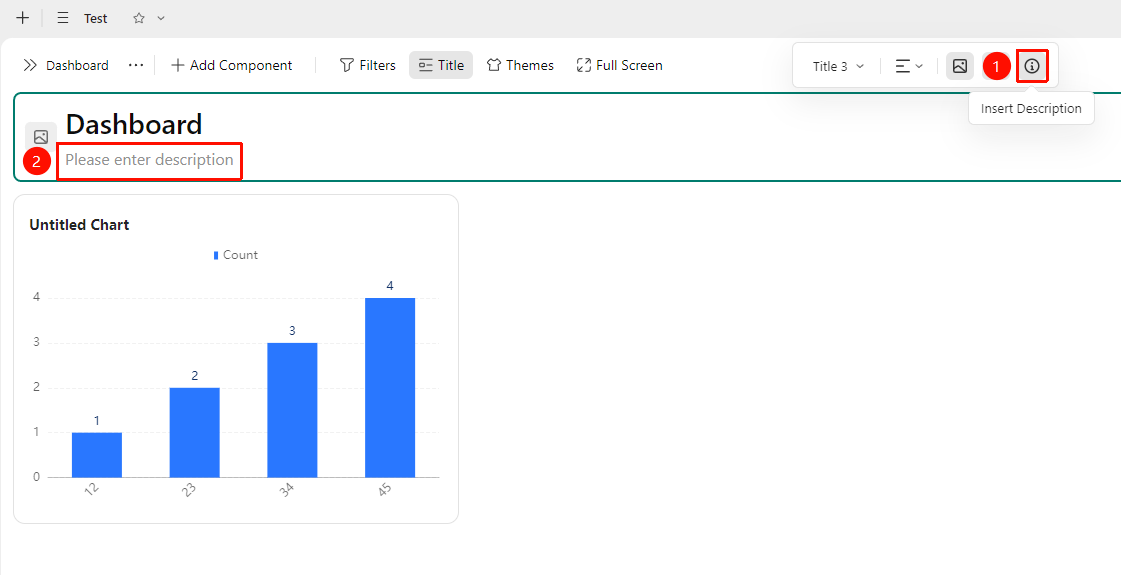
「Title」input box →「Insert Description」button
- Click the title area
- Click the Insert Description button at the top
- After clicking, a new title description input box is added below the title
- Click again to hide the description
FAQ
Q1: Can the dashboard title be hidden?
- Solution: Hiding the title area is supported. You can click Title again on the dashboard to hide it.
Q2: Is there a character limit for the title?
- Solution: It is recommended that the title not exceed 100 characters. An excessively long title will affect the overall layout and display of the dashboard.
Notes
- Title information will be displayed externally in the dashboard sharing link, so pay attention to the standardization of the title
- It is recommended to use clearly distinct titles for different dashboards to avoid confusion when searching
- The title description can be used to explain the data scope and statistical caliber (e.g., data as of time, etc.)