Feature Summary
Pie charts are used to display data proportions as circular sectors on a dashboard, suitable for showing the ratio of each part to the whole.
Feature Description
| Feature Dimension | Description |
|---|---|
| Membership Restriction | No membership restriction |
| Version Restriction | No version restriction |
Steps
Adding a Pie Chart Component to the Dashboard
Feature Entry
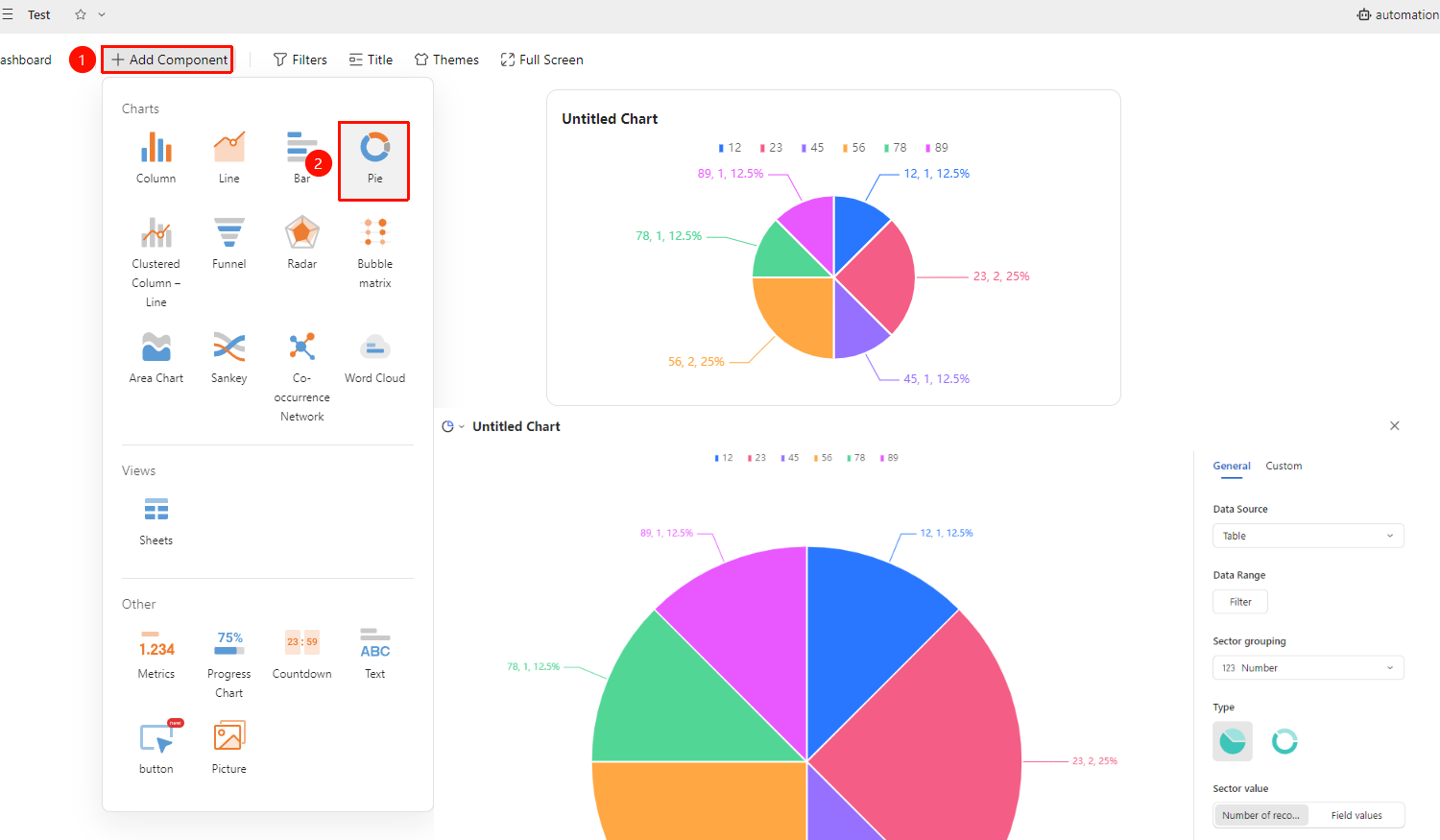
Dashboard interface → 「+ Add Component」 → Chart → 「Pie Chart」
- Enter the dashboard interface and click the 「+ Add Component」 button in the upper left corner
- In the pop-up component panel, find the 「Pie Chart」 icon under the 「Chart」 category
- Click the component to enter Read Mode and configure data as needed
- A Pie Chart will be automatically generated after confirmation
Editing/Exporting Charts
Feature Entry
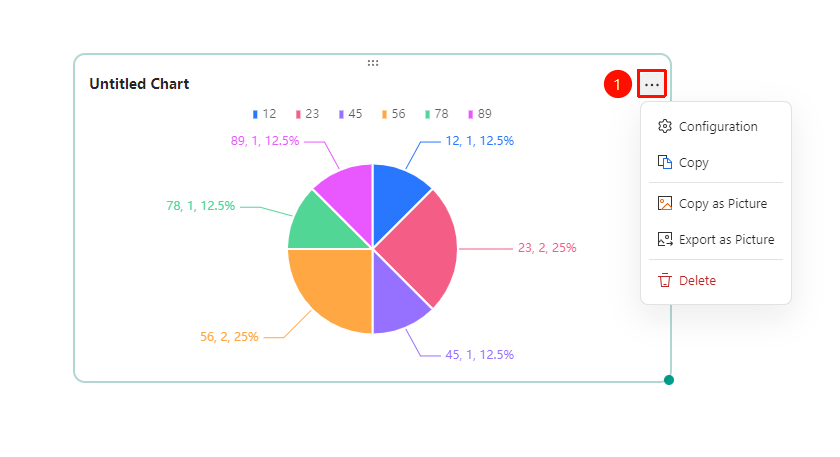
Click the added chart → 「...」 icon in the upper right corner
- Click the added chart, then click the 「...」 icon in the upper right corner to expand the edit chart dropdown menu
- Select the following options from the expanded dropdown menu:
- Configuration : Reconfigure chart data/style settings
- Copy : Copy the chart
- Copy as Image : Copy this chart as an image
- Export as Image : Export this chart in image format
- Delete : Delete the chart
General Settings
Feature Entry
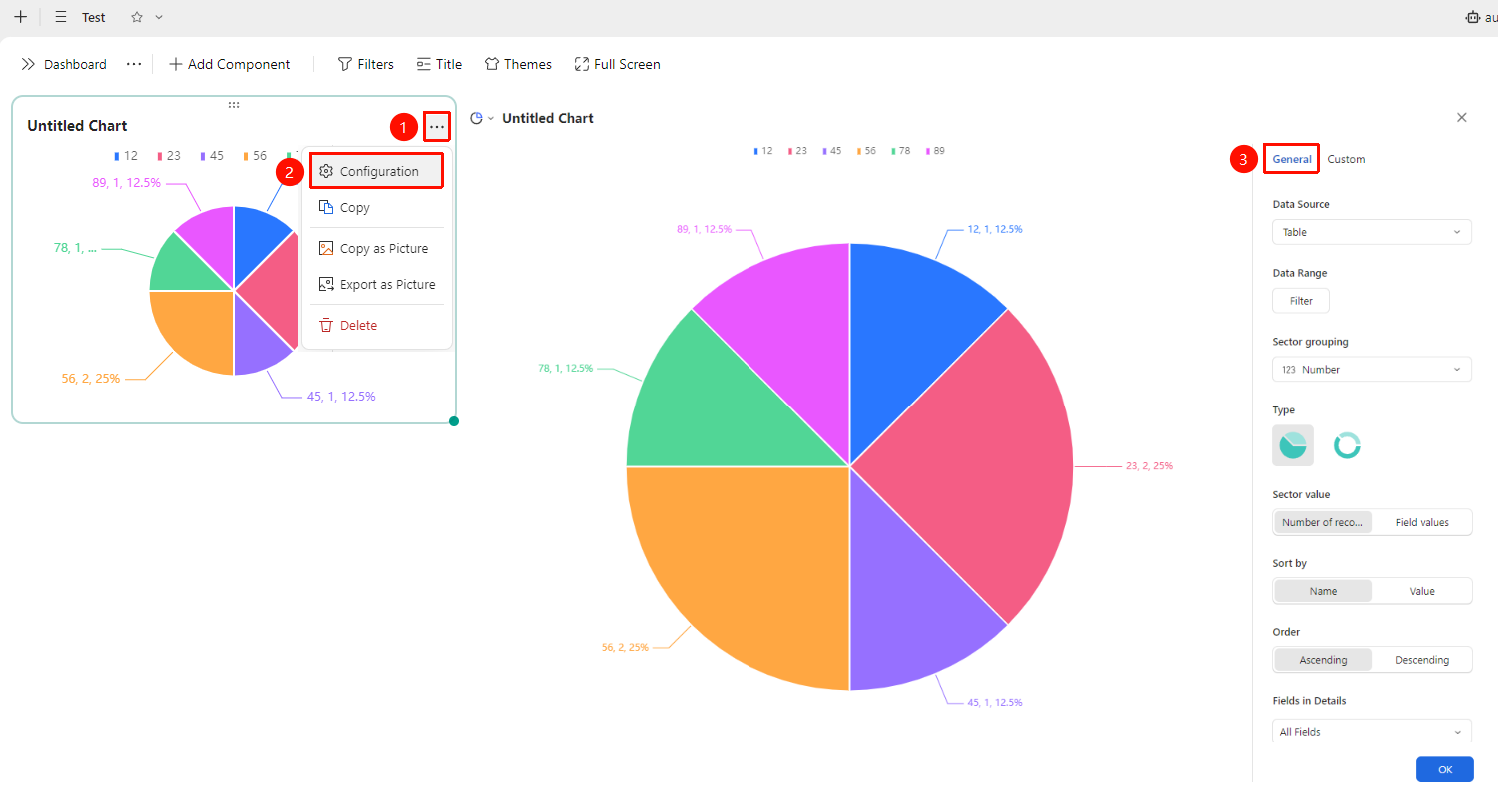
Click the added chart → 「...」 icon in the upper right corner →「Configuration」 → 「General」 tab
- Click the added chart, then click the 「...」 icon in the upper right corner to expand the edit chart dropdown menu
- Select the 「Configuration」 option from the expanded dropdown menu
- Switch to the 「General」 tab to edit the following chart configurations:
- Data Source: Select the data table to use
- Data Range: Click 「Modify Range」 to select the data source range.
- Sector Grouping: Select the field for sector grouping
- Type: Select the pie chart style (Pie/Doughnut)
- Series Settings: Configure series sorting and visibility
- Sort By: Select 「By Horizontal Axis」 or 「By Vertical Axis」
- Sort Order: Select 「Ascending」 or 「Descending」
- Row and Column Display: Toggle the row and column display mode
- Show/Show Data in Hidden Rows and Columns: Hides/shows hidden fields in the data source
After switching setting options, you can preview the effect in the left preview pane, click 「Confirm」 to apply the settings
Custom Settings
Feature Entry
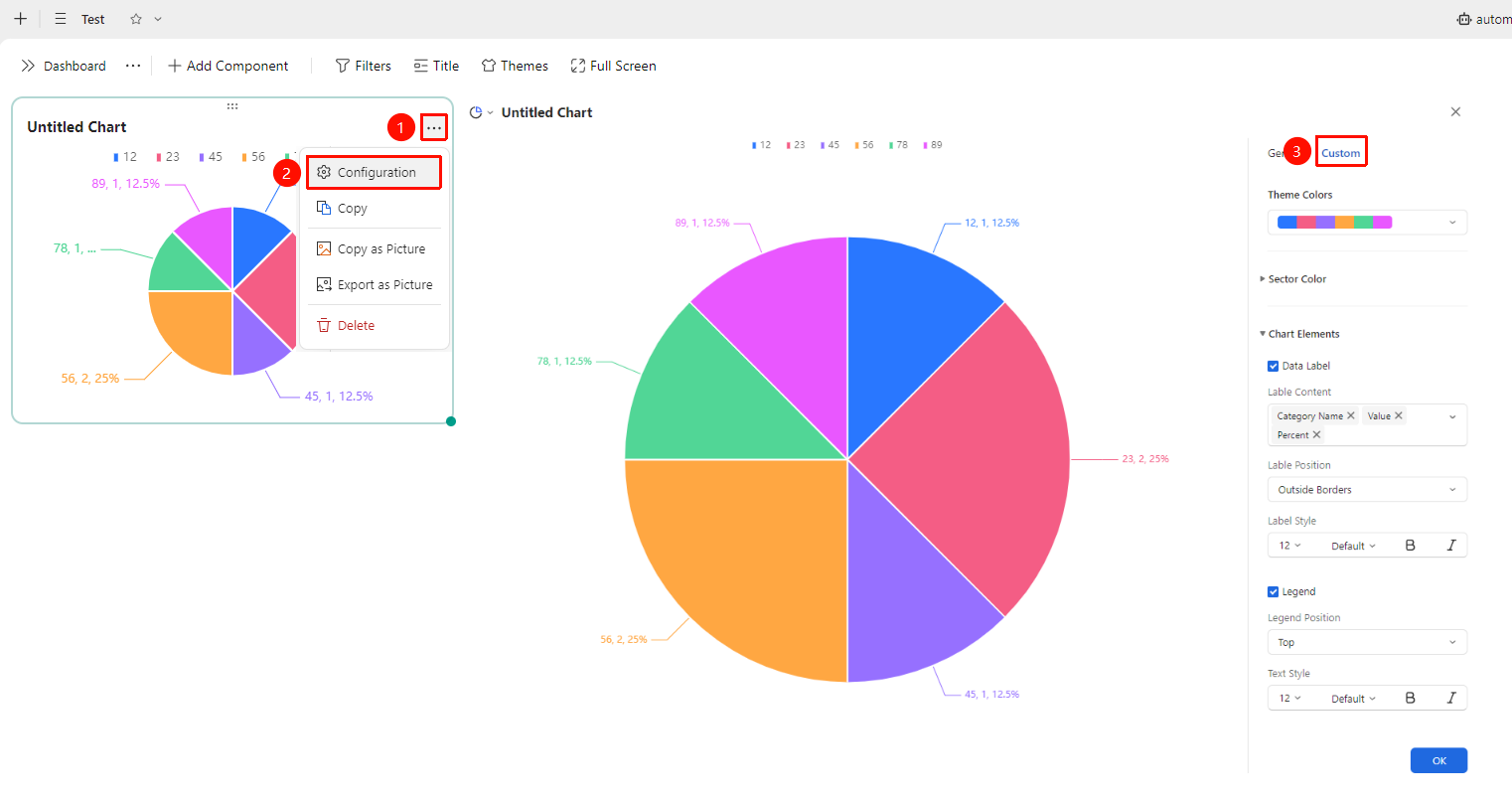
Click the added chart → 「...」 icon in the upper right corner →「Configuration」 →「Custom」 tab
- Click the added chart, then click the 「...」 icon in the upper right corner to expand the edit chart dropdown menu
- Select the 「Configuration」 option from the expanded dropdown menu
- Switch to the 「Custom」 tab to edit the following chart configurations:
- Theme Color: Preset color scheme, click the color bar to switch via dropdown
- Series Color: Expand to customize the color of each data series
- Chart Elements: Expand to set label content, legend, etc.
After switching setting options, you can preview the effect in the left preview pane, click 「Confirm」 to apply the settings
FAQ
Q1: What is the difference between a pie chart and a bar chart?
- Solution: The pie chart is circular, showing the proportion of each part to the whole; the bar chart is horizontal columns, showing the comparison of numerical values, suitable for use when there are many categories.
Q2: Does the amount of data affect the display of the pie chart?
- Solution: Yes. When there are too many categories, the sectors will become smaller. It is recommended to keep it within 10. If there are too many, consider switching to a bar chart.
Notes
- Before creating, ensure that there are suitable category fields in the data table for dimensions
- After modifying the pie chart configuration, the effect will be previewed in real time