Feature Summary
The matrix bubble chart is used to display data relationships in a dashboard through bubble size and position, making it suitable for multi-dimensional data analysis.
Feature Description
| Feature Dimension | Description |
|---|---|
| Membership Restriction | No membership restriction |
| Version Restriction | No version restriction |
Operation Steps
Add a Matrix Bubble Chart Component to the Dashboard
Feature Entry
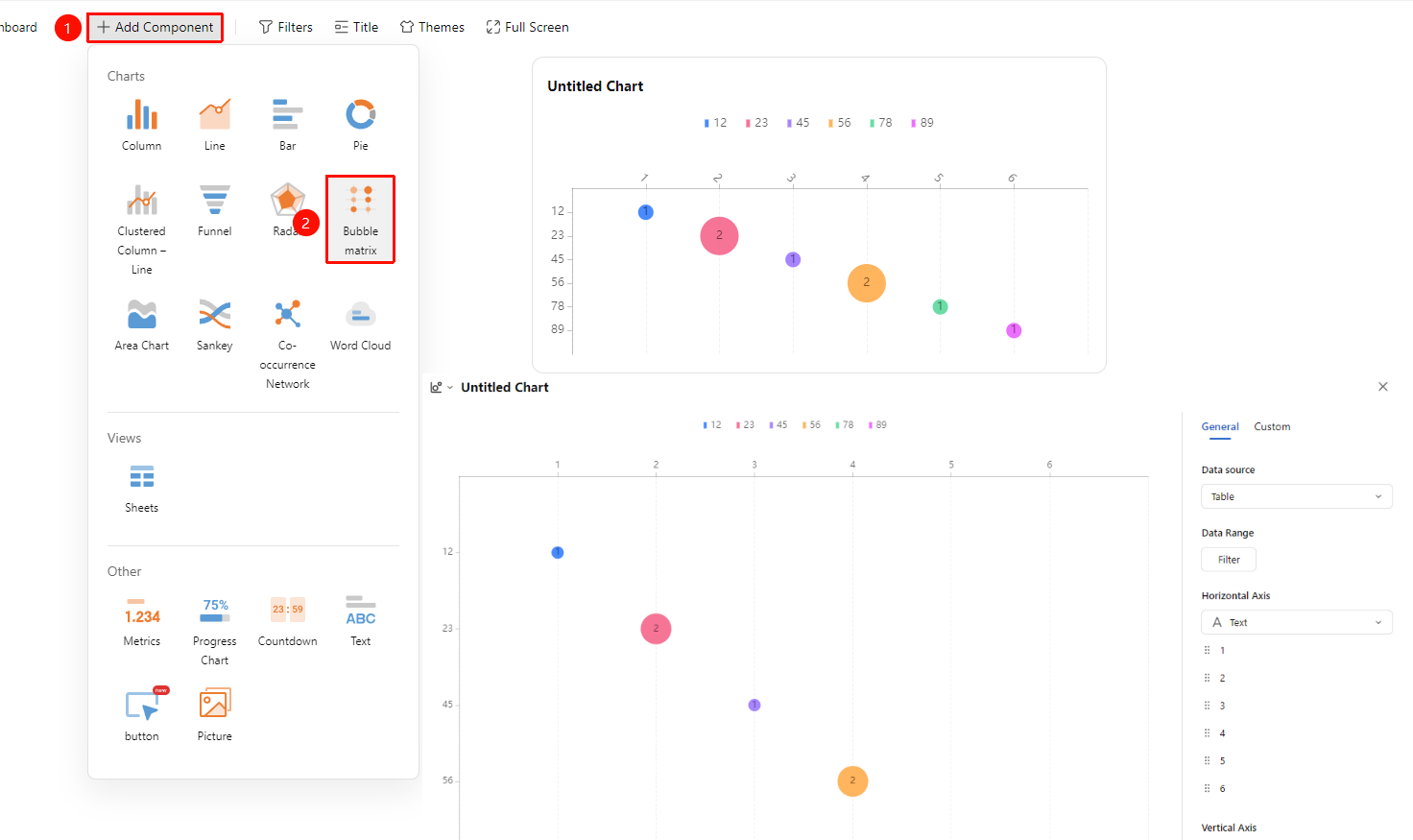
Dashboard interface → 「+ Add Component」 → Chart → 「Matrix Bubble Chart」
- Enter the dashboard interface and click the 「+ Add Component」 button in the upper left corner
- In the pop-up component panel, find the 「Matrix Bubble Chart」 icon under the 「Chart」 category
- Click the component to enter Read Mode and configure data as needed
- A Matrix Bubble Chart will be automatically generated after confirmation
Edit/Export Chart
Feature Entry
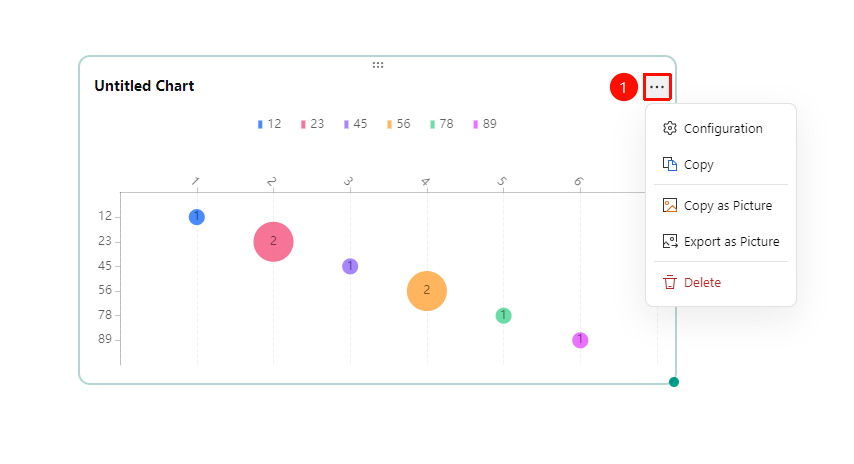
Click the added chart → 「...」 icon in the upper right corner
- Click the added chart, then click the 「...」 icon in the upper right corner to expand the edit chart dropdown menu
- Select the following options from the expanded dropdown menu:
- Configuration : Reconfigure chart data/style settings
- Copy : Copy the chart
- Copy as Image : Copy this chart as an image
- Export as Image : Export this chart in image format
- Delete : Delete the chart
General Settings
Feature Entry
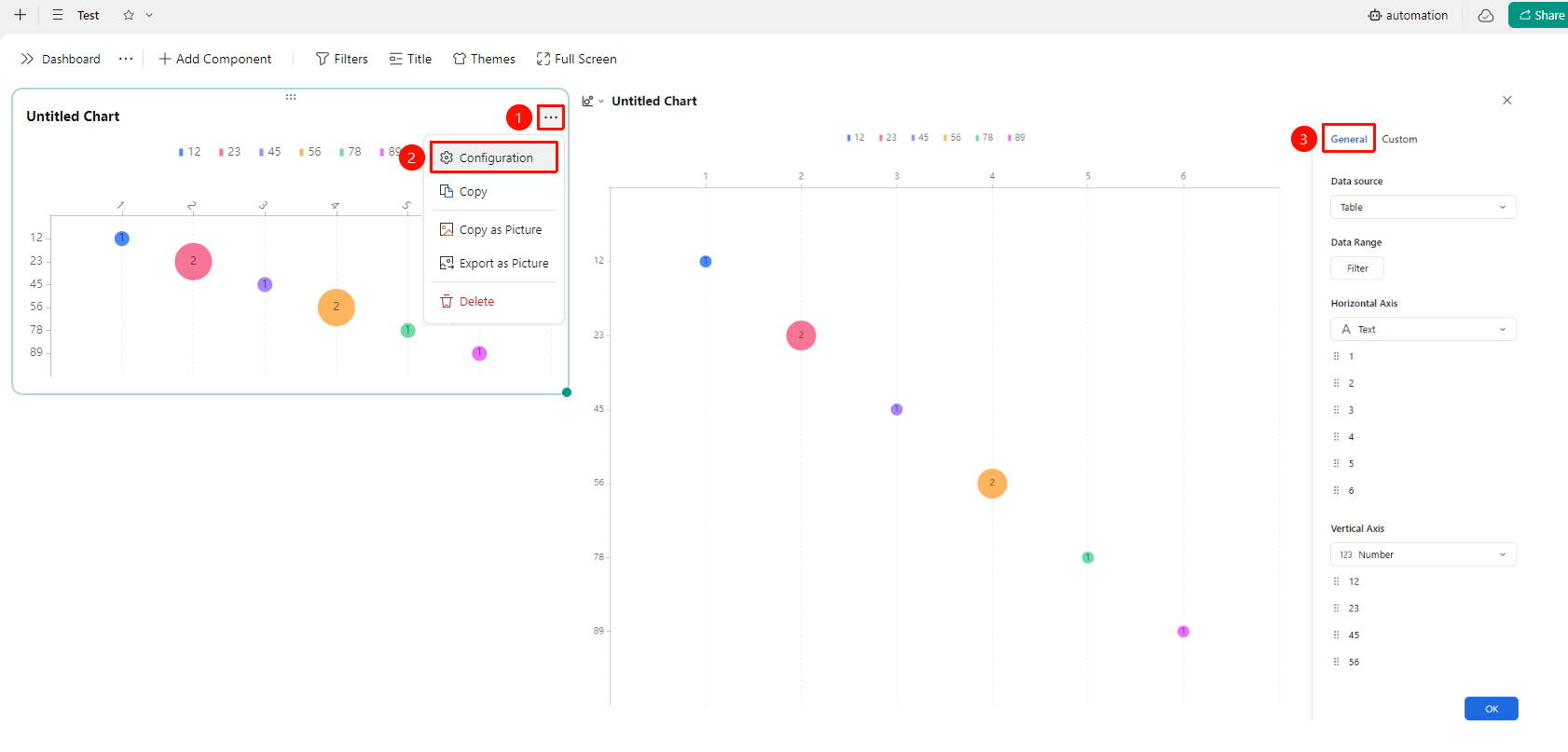
Click the added chart → 「...」 icon in the upper right corner →「Configuration」 → 「General」 tab
- Click the added chart, then click the 「...」 icon in the upper right corner to expand the edit chart dropdown menu
- Select the 「Configuration」 option from the expanded dropdown menu
- Switch to the 「General」 tab to edit the following chart configurations:
- Data Source: Select the data table to use
- Data Range: Click 「Data Filter」 to set filter conditions
- Dimension (X-axis): Select the horizontal axis field
- Dimension (Y-axis): Select the vertical axis field
- Bubble Size: Select the field that determines bubble size; larger values result in larger bubbles
- Fields Displayed in Detail Data : Hide/Show all fields in the data source
After switching settings, you can preview the effect in the left preview pane; click 「Confirm」 to apply the settings
Custom Settings
Feature Entry
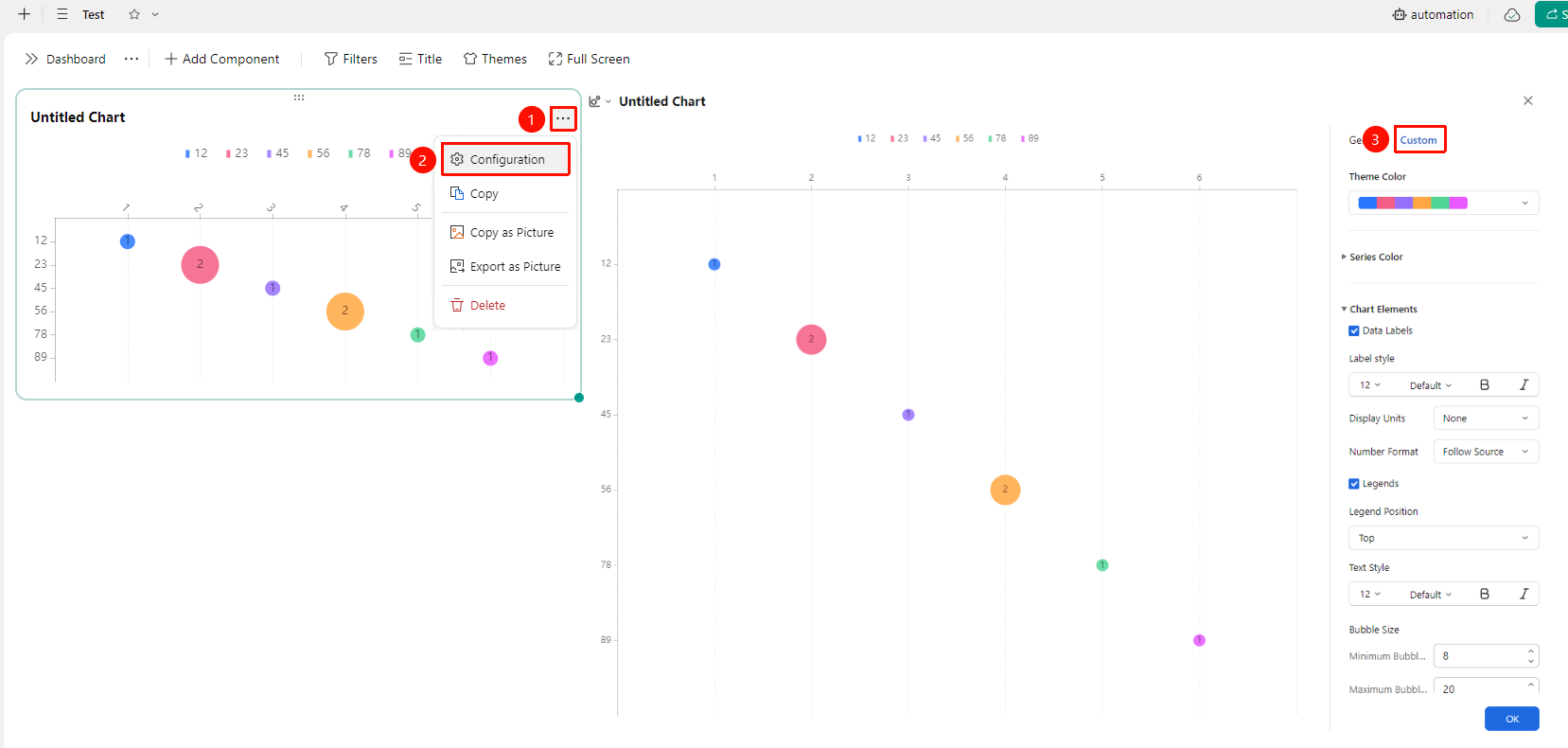
Click the added chart → 「...」 icon in the upper right corner →「Configuration」 →「Custom」 tab
- Click the added chart, then click the 「...」 icon in the upper right corner to expand the edit chart dropdown menu
- Select the 「Configuration」 option from the expanded dropdown menu
- Switch to the 「Custom」 tab to edit the following chart configurations:
- Theme Color: Preset color schemes; click the color bar dropdown to switch
- Series Color: Expand to custom the color of each data series
- Chart Elements: Expand to set display units, number format, bubble size, etc.
After switching settings, you can preview the effect in the left preview pane; click 「Confirm」 to apply the settings
FAQ
Q1: What scenarios is the Matrix Bubble Chart suitable for analyzing?
- Solution: The Matrix Bubble Chart is suitable for analyzing the distribution and correlation of multi-dimensional data, such as using the X-axis and Y-axis to represent two dimensions respectively, bubble size to represent key values, and color to represent category grouping.
Q2: What determines the bubble size?
- Solution: Bubble size is usually determined by statistical values; larger values result in larger bubbles. You can select different fields as the basis for bubble size in the configuration panel.
Q3: How to distinguish overlapping bubbles?
- Solution: They can be distinguished by setting different color groupings.
Notes
- It is recommended to select numeric type fields for the X-axis and Y-axis to obtain accurate bubble positions
- Bubbles may be too dense when the data volume is too large; it is recommended to use filter conditions to control the data volume
- Color configuration will affect the distinguishability of bubbles