Feature Summary
The Sheets component is used to display detailed data in a tabular format on the dashboard, suitable for viewing and analyzing complete Record information.
Feature Description
| Feature Dimension | Description |
|---|---|
| Membership Restriction | No membership restriction |
| Version Restriction | No version restriction |
Operation Steps
Adding a Sheet Component to the Dashboard
Feature Entry
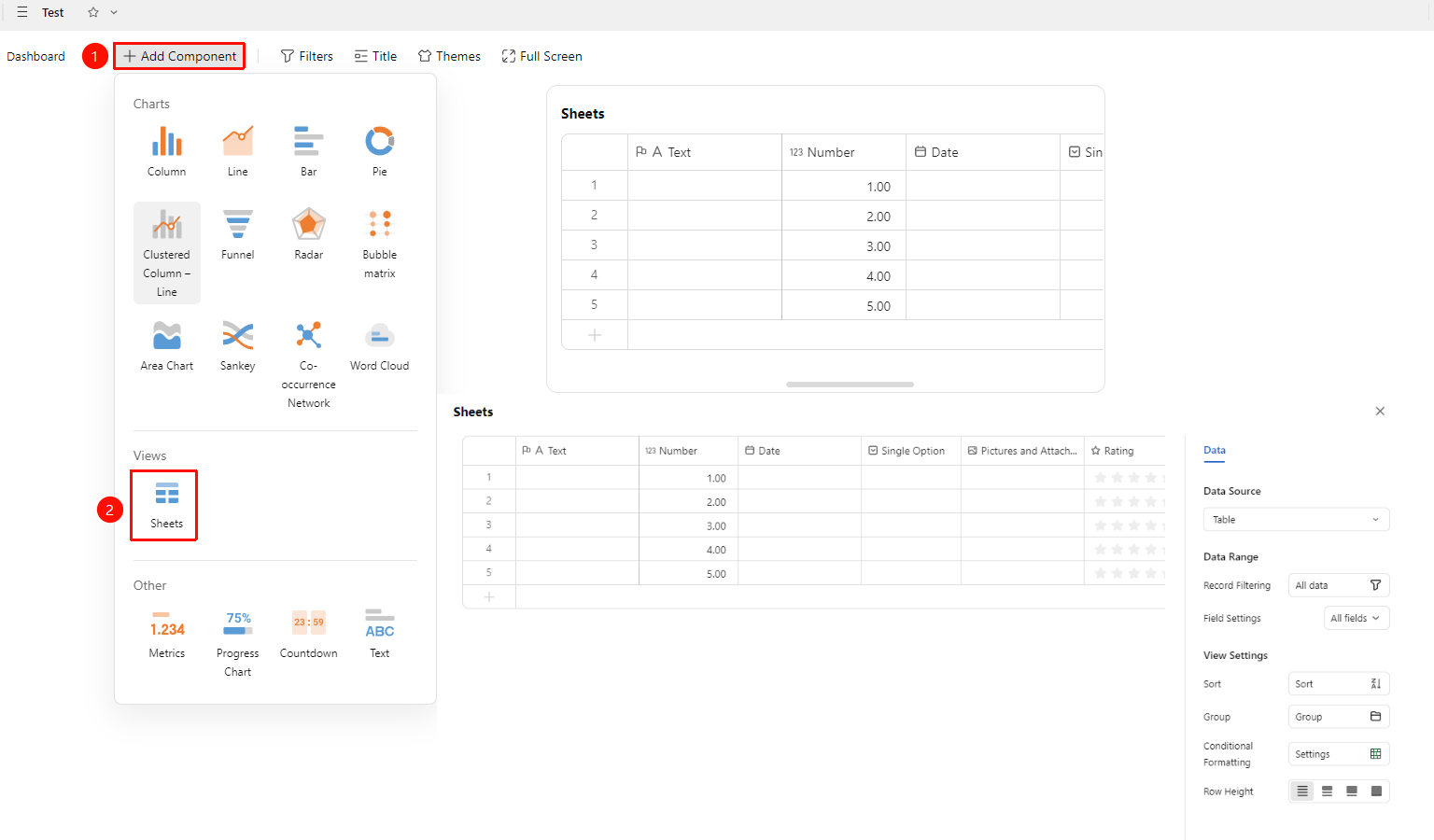
Dashboard interface → 「+ Add Component」 → View → 「Sheets」
- Enter the dashboard interface and click the 「+ Add Component」 button in the upper left corner
- In the pop-up component panel, find the 「Sheets」 icon under the 「View」 category
- Click the component to enter Read Mode and configure data as needed
- A Sheet Component will be automatically generated after confirmation
Editing/Deleting a Sheet
Feature Entry
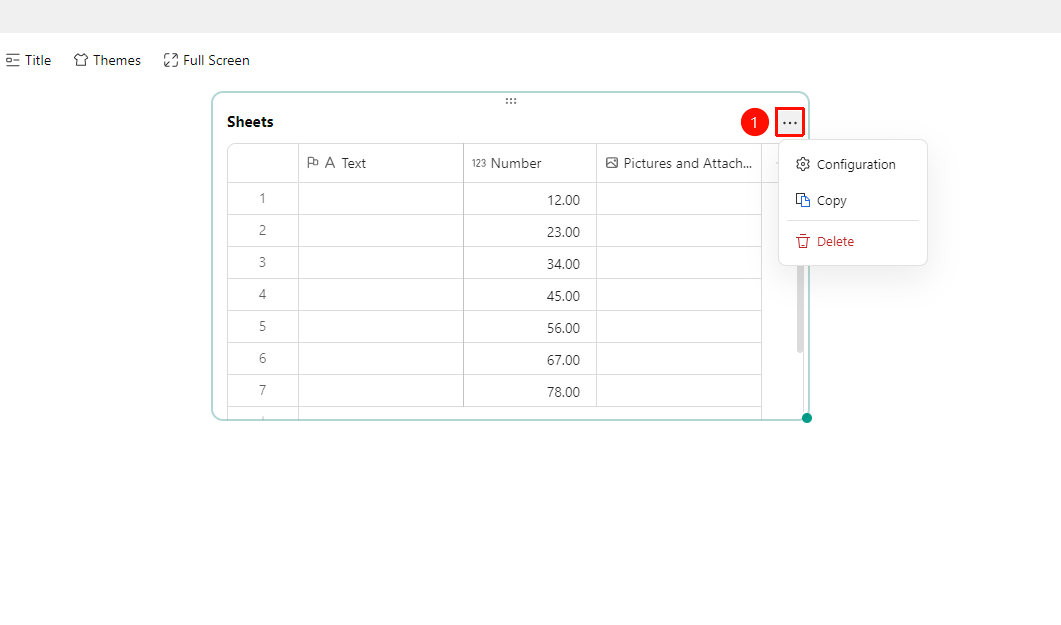
Click an added Sheet → 「...」 icon in the upper right corner
- Click an added Sheet, then click the 「...」 icon in the upper right corner to expand the Edit Sheet dropdown menu
- Select the following options from the expanded dropdown menu:
- Configuration : Reconfigure Sheet data/style settings
- Copy : Copy the Sheet
- Delete : Delete the Sheet
Data Settings
Feature Entry
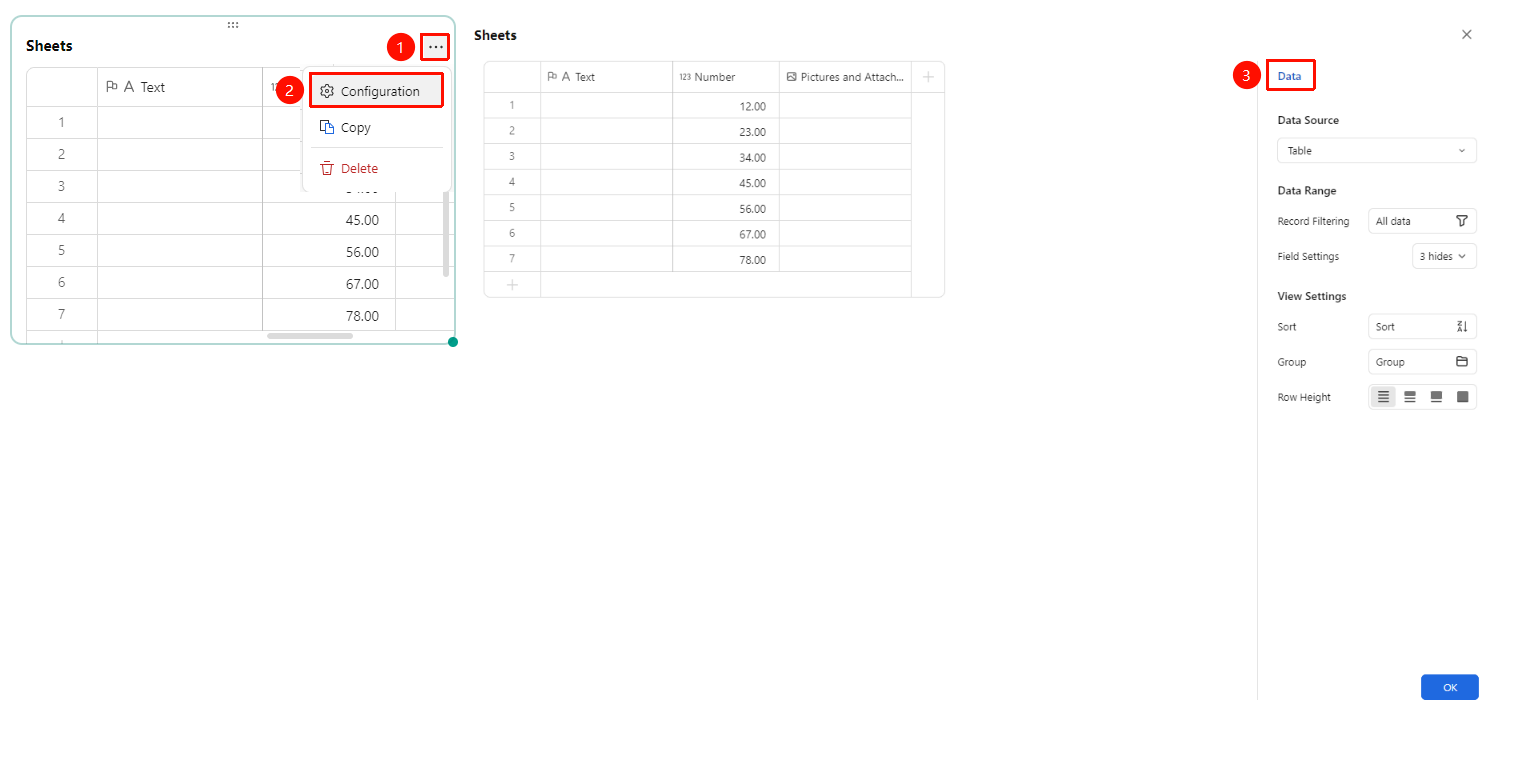
Click the added chart → 「...」 icon in the upper right corner →「Configuration」 → 「Data」 tab
- Click the added chart, then click the 「...」 icon in the upper right corner to expand the edit chart dropdown menu
- Select the 「Configuration」 option from the expanded dropdown menu to edit the following chart configurations:
- Data Source: Select the data table to use
- Record Filtering: Set filter conditions
- Field Settings: Select the fields to display in the Sheet
- Sorting: Set the data sorting method
- Grouping: Set the data grouping method
- Row Height: Switch the row height display style
After switching setting options, you can preview the effect in the left preview pane. Click 「Confirm」 to apply the settings
FAQ
Q1: What is the difference between a Sheet and a chart?
- Solution: Sheets display complete data details, suitable for detailed viewing; charts are suitable for intuitively displaying trends and proportions. The two can be used together, with Sheets supplementing the details not shown in the analysis charts.
Q2: Can filter conditions be set for a Sheet?
- Solution: Yes. Set filter conditions in the 'Data Range' of the Sheet editing panel to display only Records that meet the conditions.
Q3: Can Sheet data be sorted?
- Solution: Yes. Set it in the Sheet editing panel.
Notes
- Sheets are suitable for scenarios with a moderate amount of data; too much data will affect the reading experience
- It is recommended to select only the fields you need to focus on to avoid information overload
- You can control the data range displayed in the Sheet through filter conditions