Feature Summary
The Metrics component is used to display the aggregate value of key metrics in a large number format on the dashboard, suitable for highlighting core business data.
Feature Description
| Feature Dimension | Description |
|---|---|
| Membership Restriction | No membership restriction |
| Version Restriction | No version restriction |
Operation Steps
Add Metrics Component
Feature Entry
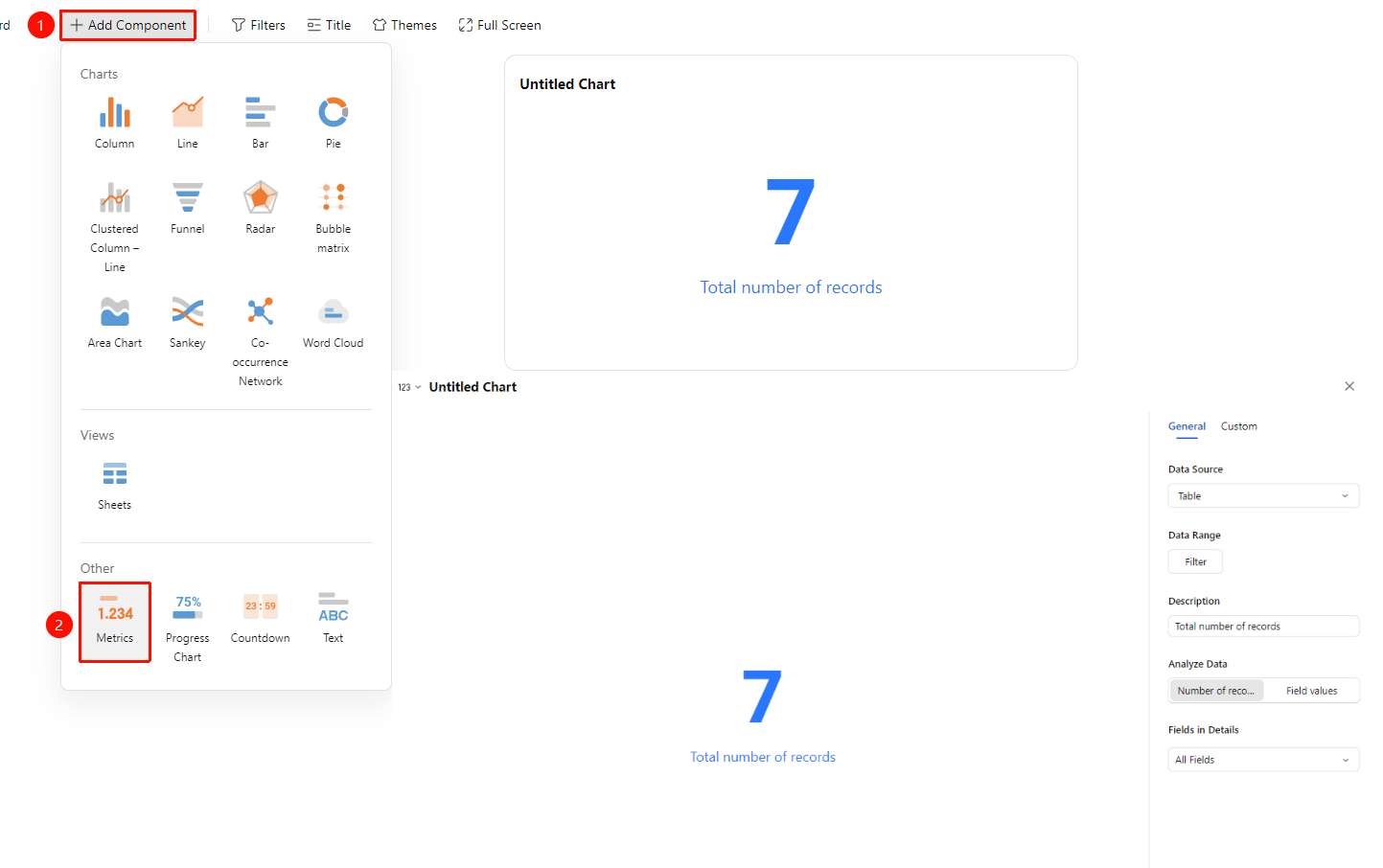
Dashboard interface → 「+ Add Component」 → Others → 「Metrics」
- Enter the dashboard interface and click the 「+ Add Component」 button in the upper left corner
- In the pop-up component panel, find the 「Metrics」 icon under the 「Others」 category
- Click the component to enter Read Mode and configure data as needed
- A Metrics component will be automatically generated after confirmation
Edit/Export Component
Feature Entry
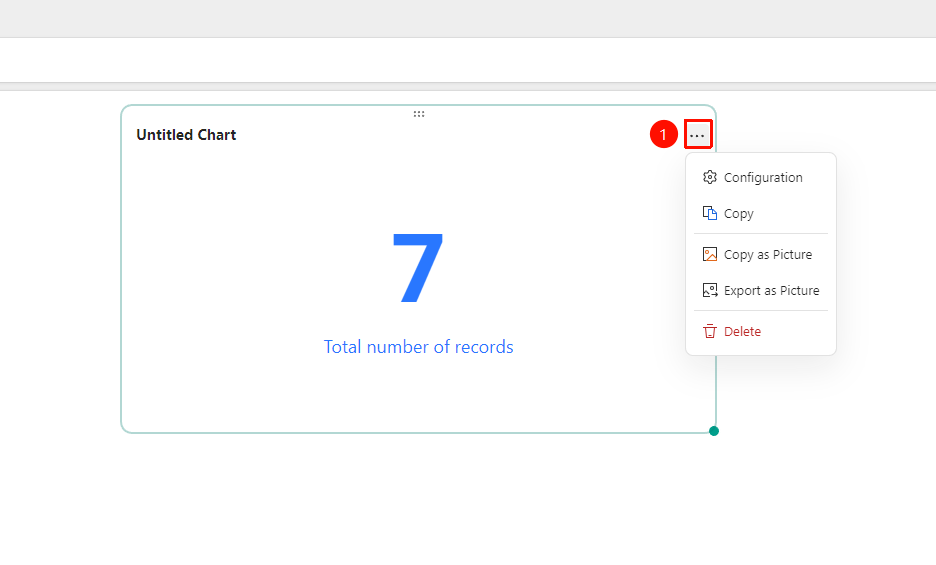
Click the added chart → 「...」 icon in the upper right corner
- Click the added chart, then click the 「...」 icon in the upper right corner to expand the edit chart dropdown menu
- Select the following options from the expanded dropdown menu:
- Configure : Reconfigure component data/style settings
- Copy : Copy the component
- Copy as Image : Copy this component as an image
- Export as Image : Export this component in image format
- Delete : Delete the component
General Settings
Feature Entry
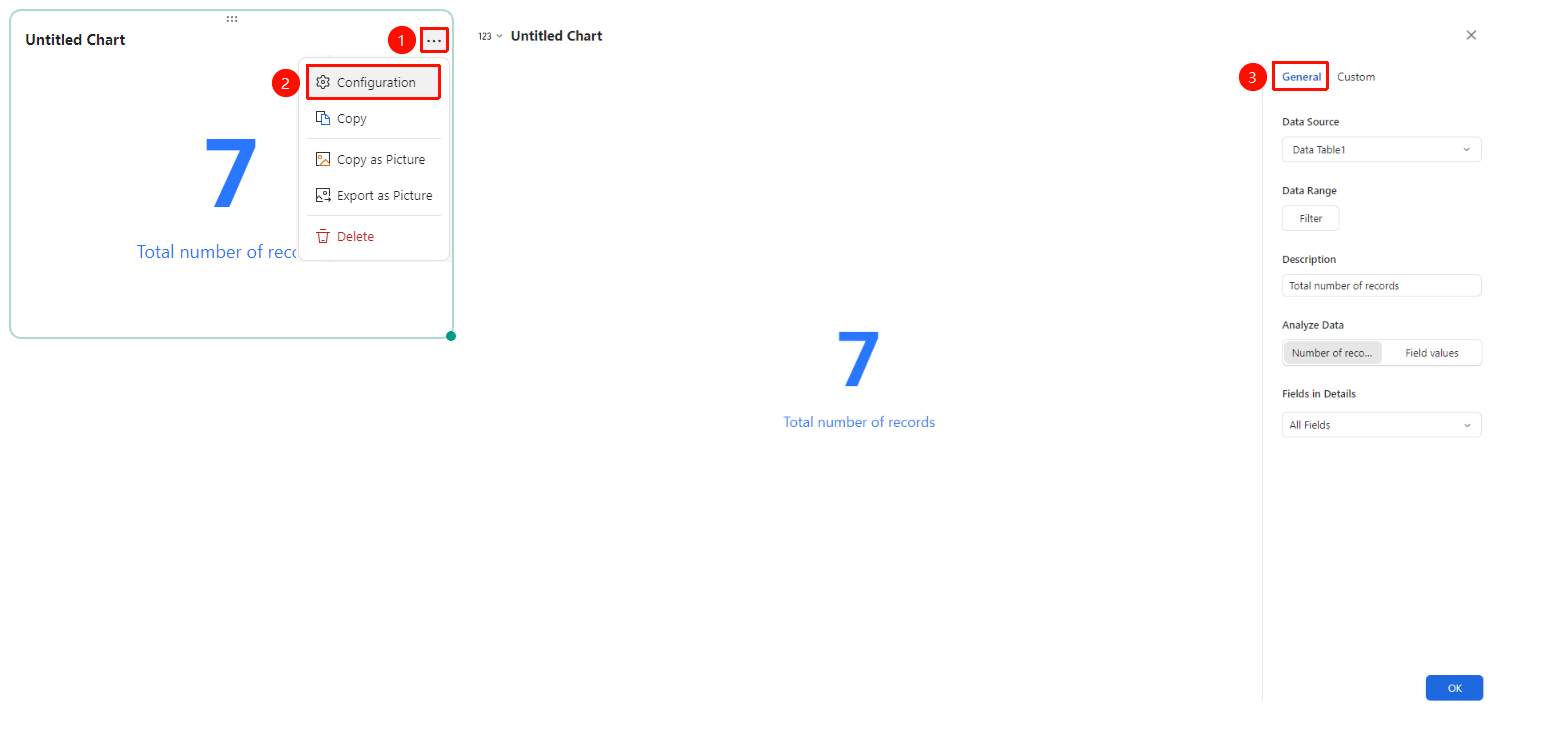
Click the added chart → 「...」 icon in the upper right corner →「Configuration」 → 「General」 tab
- Click the added chart, then click the 「...」 icon in the upper right corner to expand the edit chart dropdown menu
- Select the 「Configuration」 option from the expanded dropdown menu
- Switch to the 「General」 tab to edit the following chart configurations:
- Data Source: Select the data Sheets to use
- Data Range: Click 「Data Filter」 to set filter conditions
- Statistic Value Description: Add a description for the statistic value
- Statistic Method: Select 「Count Total Records」 or 「Count Specified Field」
- Fields Displayed in Detail Data : Hide/Show all fields in the data source
After switching setting options, you can preview the effect in the left preview pane. Click 「Confirm」 to apply the settings
Custom Settings
Feature Entry
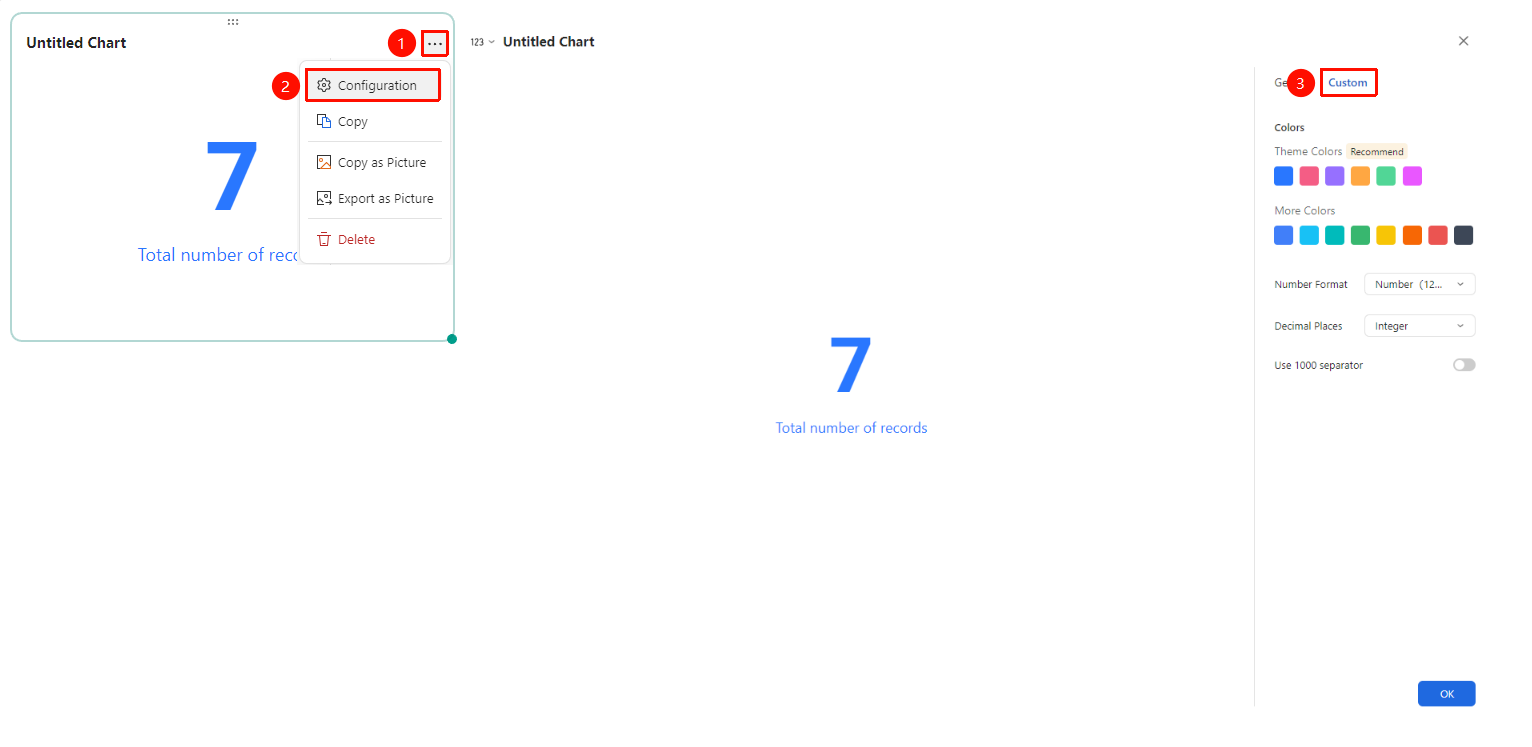
Click the added chart → 「...」 icon in the upper right corner →「Configuration」 →「Custom」 tab
- Click the added chart, then click the 「...」 icon in the upper right corner to expand the edit chart dropdown menu
- Select the 「Configuration」 option from the expanded dropdown menu
- Switch to the 「Custom」 tab to edit the following chart configurations:
- Theme Color: Preset color scheme, click the color bar dropdown to switch
- Statistic Value Format: Switch the display format/unit of the statistic value
- Decimal Places: Switch the number of decimal places for the statistic value
- Use 1000 separator:Turn thousands separator on/off
After switching setting options, you can preview the effect in the left preview pane. Click 「Confirm」 to apply the settings
FAQ
Q1: Does the Metrics display real-time data?
- Solution: Yes, the Statistic Number will automatically update the displayed value based on real-time changes in the data source.
Q2: What are the available Metrics?
- Solution: Supports Count, Sum, Average, Maximum, Minimum, and other statistic methods, selectable based on the data type.
Notes
- Choose the appropriate statistic method; numeric fields can use Sum/Average, etc., while text fields only support Count
- The Statistic Number is suitable for displaying a single core metric; for multiple metrics, it is recommended to use multiple components to display them separately
- Filter conditions will affect the statistic results; verify data accuracy after setting