Feature Summary
The countdown component is used to display the remaining time until a target time on the dashboard, suitable for scenarios such as event countdowns and deadline reminders.
Feature Description
| Feature Dimension | Description |
|---|---|
| Membership Restriction | No membership restriction |
| Version Restriction | No version restriction |
Operation Steps
Adding a Countdown Component
Feature Entry
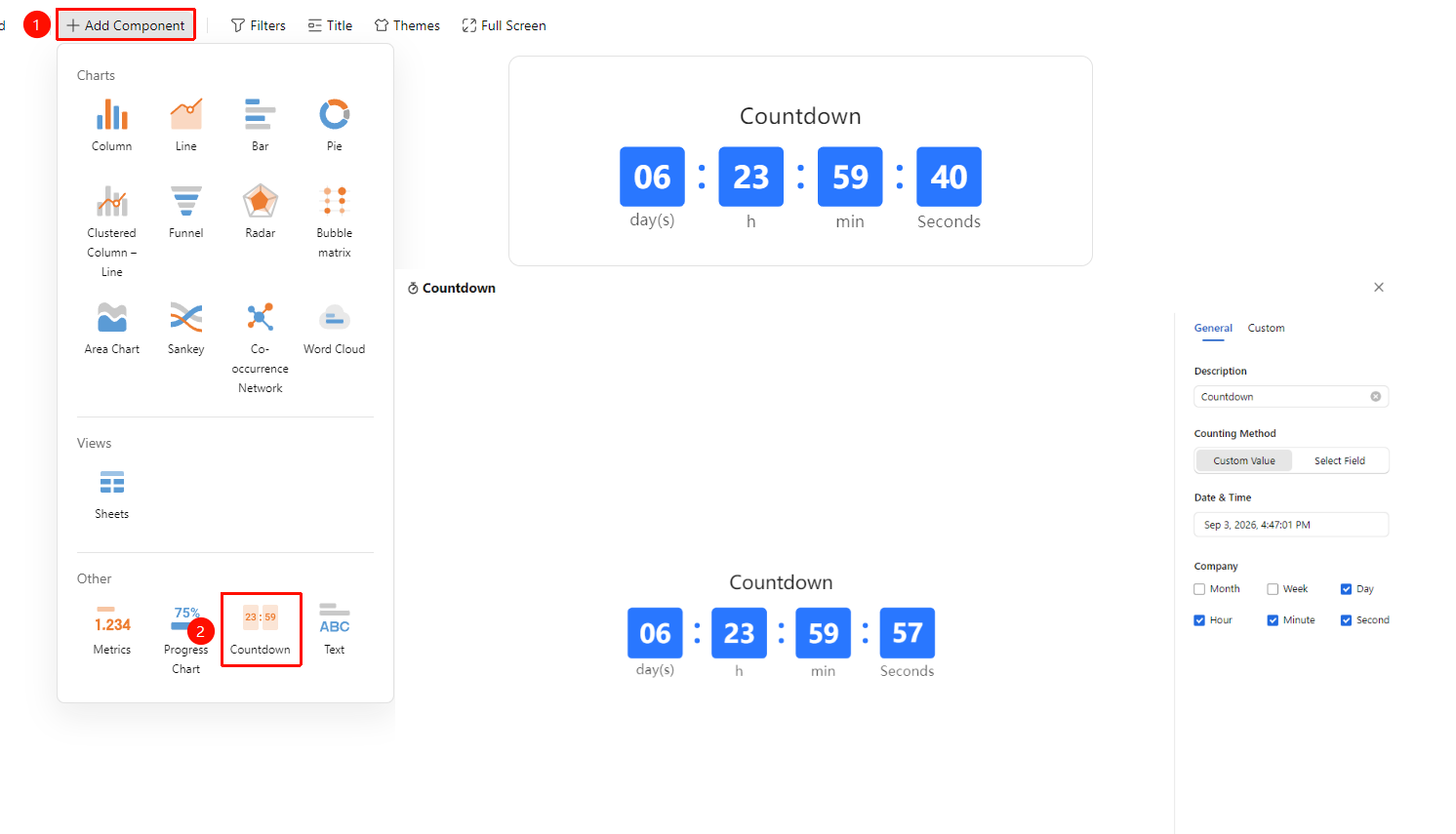
Dashboard interface → 「+ Add Component」 → Others → 「Countdown」
- Enter the dashboard interface and click the 「+ Add Component」 button in the upper left corner
- In the pop-up component panel, find the 「Countdown」 icon under the 「Others」 category
- Click the component to enter Read Mode and configure data as needed
- After confirmation, a countdown componentis automatically generated
Editing / Exporting Charts
Feature Entry
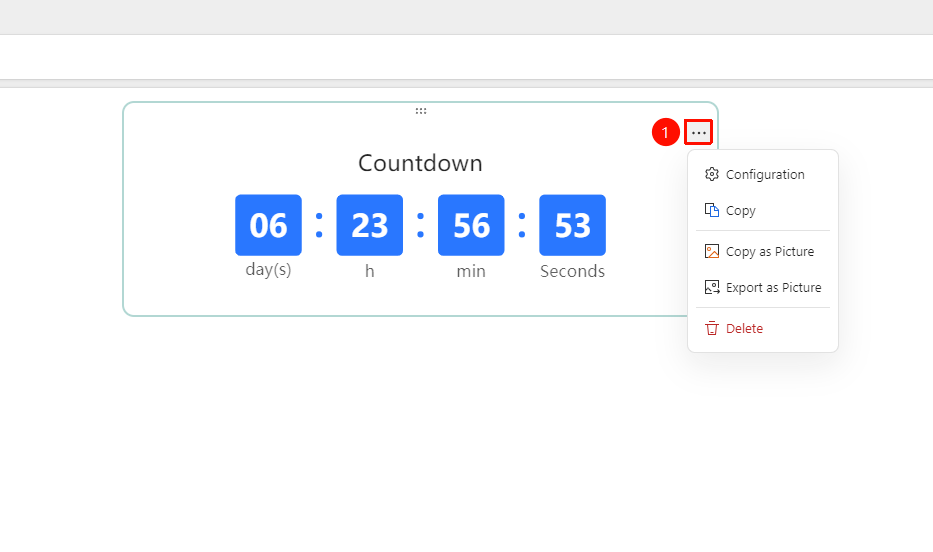
Click an added chart → 「...」 icon in the upper right corner
- Click an added chart, then click the 「...」 icon in the upper right corner to expand the edit chart dropdown menu
- Select the following options from the expanded dropdown menu:
- Configuration : Reconfigure chart data/style settings
- Copy : Copy the chart
- Copy as Image : Copy this chart as an image
- Export as Image : Export this chart in image format
- Delete : Delete the chart
General Settings
Feature Entry
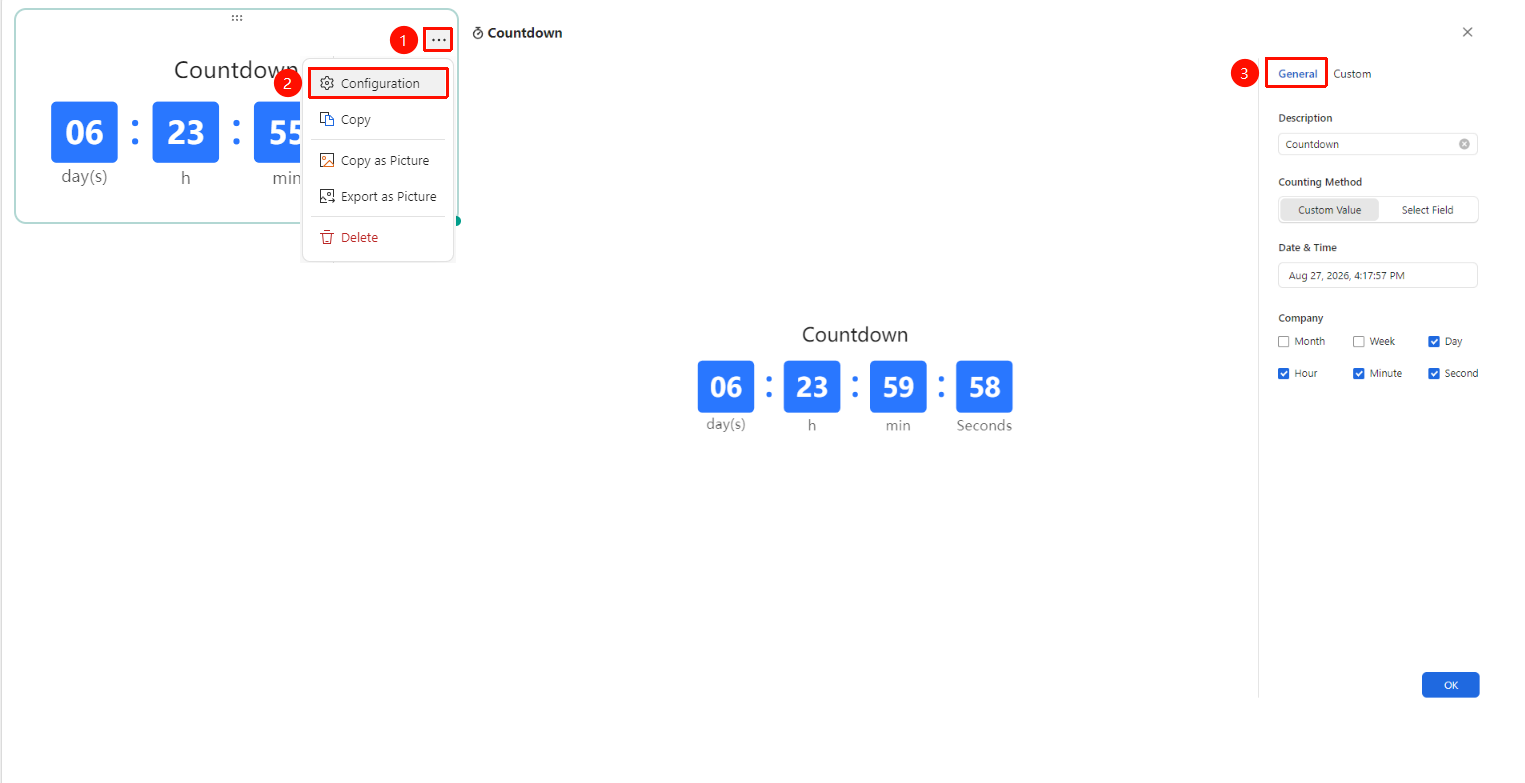
Click on an added chart → 「...」 icon in the upper right corner → 「Configuration」 → 「General」 tab
- Click on an added chart, then click the 「...」 icon in the upper right corner to expand the edit chart dropdown menu
- Select the 「Configuration」 option from the expanded dropdown menu to enter the configuration interface
- Switch to the 「General」 tab to edit the following chart configurations:
- Description: Countdown name
- Count Method: Switch between Custom Value / Select Field
- Date and Time: Set the countdown target time and the current time
- Unit: Set countdown timer unit
After switching setting options, you can preview the effect in the left preview pane. Click 「Confirm」 to apply the settings
Custom Settings
Feature Entry
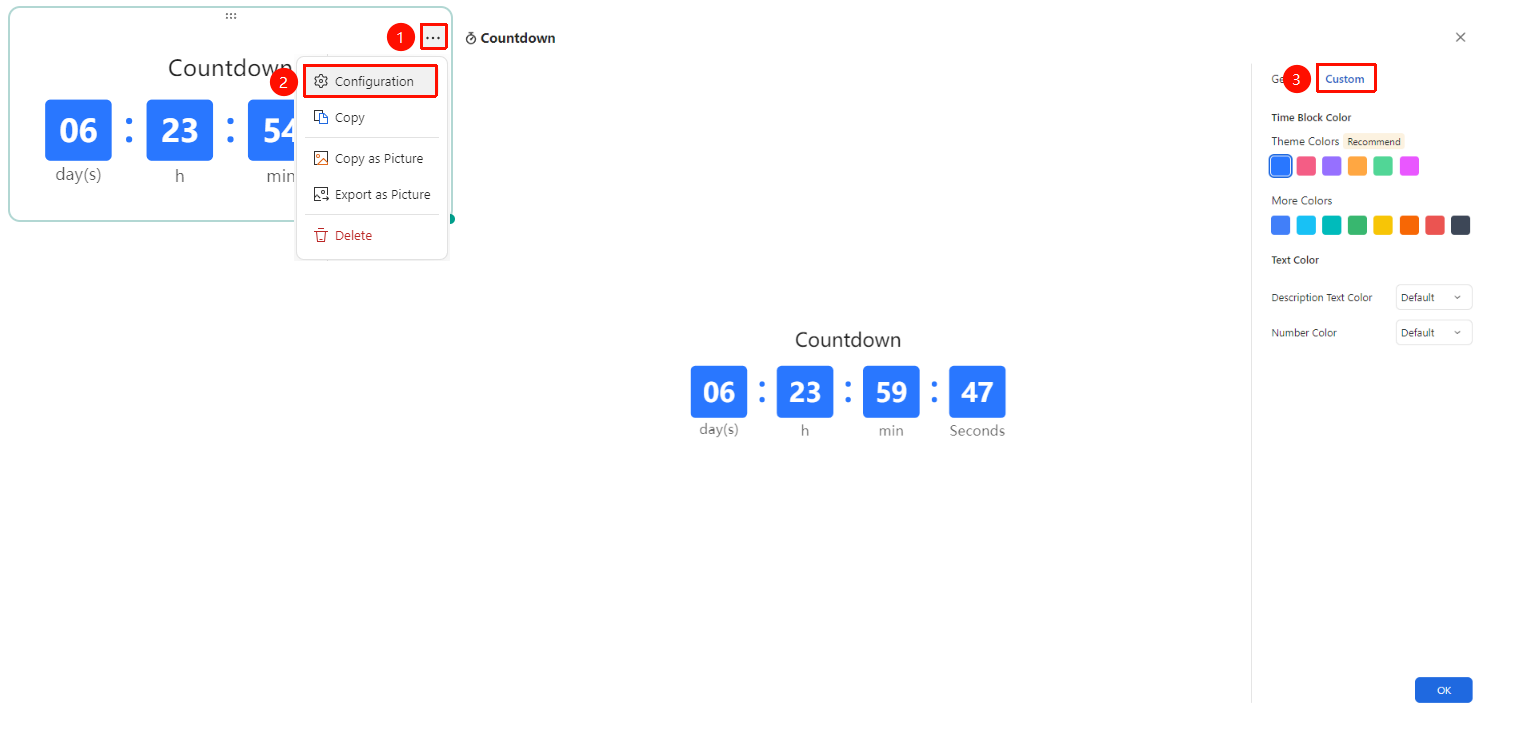
Click on an added chart → 「...」 icon in the upper right corner → 「Configuration」 → 「Custom Configuration」 tab
- Click on an added chart, then click the 「...」 icon in the upper right corner to expand the edit chart dropdown menu
- Select the 「Configuration」 option from the expanded dropdown menu to enter the configuration interface
- Switch to the 「Custom 」 tab to edit the following chart configurations:
- Time Block Color: Preset color schemes, click theme color / more colors to switch
- Text Color: Set Description Text Color and Number Color
After switching setting options, you can preview the effect in the left preview pane. Click 「Confirm」 to apply the settings
FAQ
Q1: What happens when the countdown reaches 0?
- Solution: When the countdown reaches 0, it will display 00:00:00:00. You can reset the target time to continue using it.
Q2: Can multiple countdowns be displayed?
- Solution: Yes. Add multiple countdown components to the dashboard and set different target times for each.
Q3: What formats are supported for the target time?
- Solution: Time settings accurate to the second are supported.
Notes
- The countdown updates automatically based on system time, no manual refresh required
- If the target time is set to a past time, the countdown will display 00:00:00:00
- Arrange the countdown component position reasonably to avoid confusion with other data