Feature Summary
The export dashboard feature supports exporting dashboard data as images or data files for easy sharing and archiving.
Feature Description
| Feature Dimension | Description |
|---|---|
| Membership Restriction | No membership restriction |
| Version Restriction | No version restriction |
Steps
Export Dashboard
Feature Entry
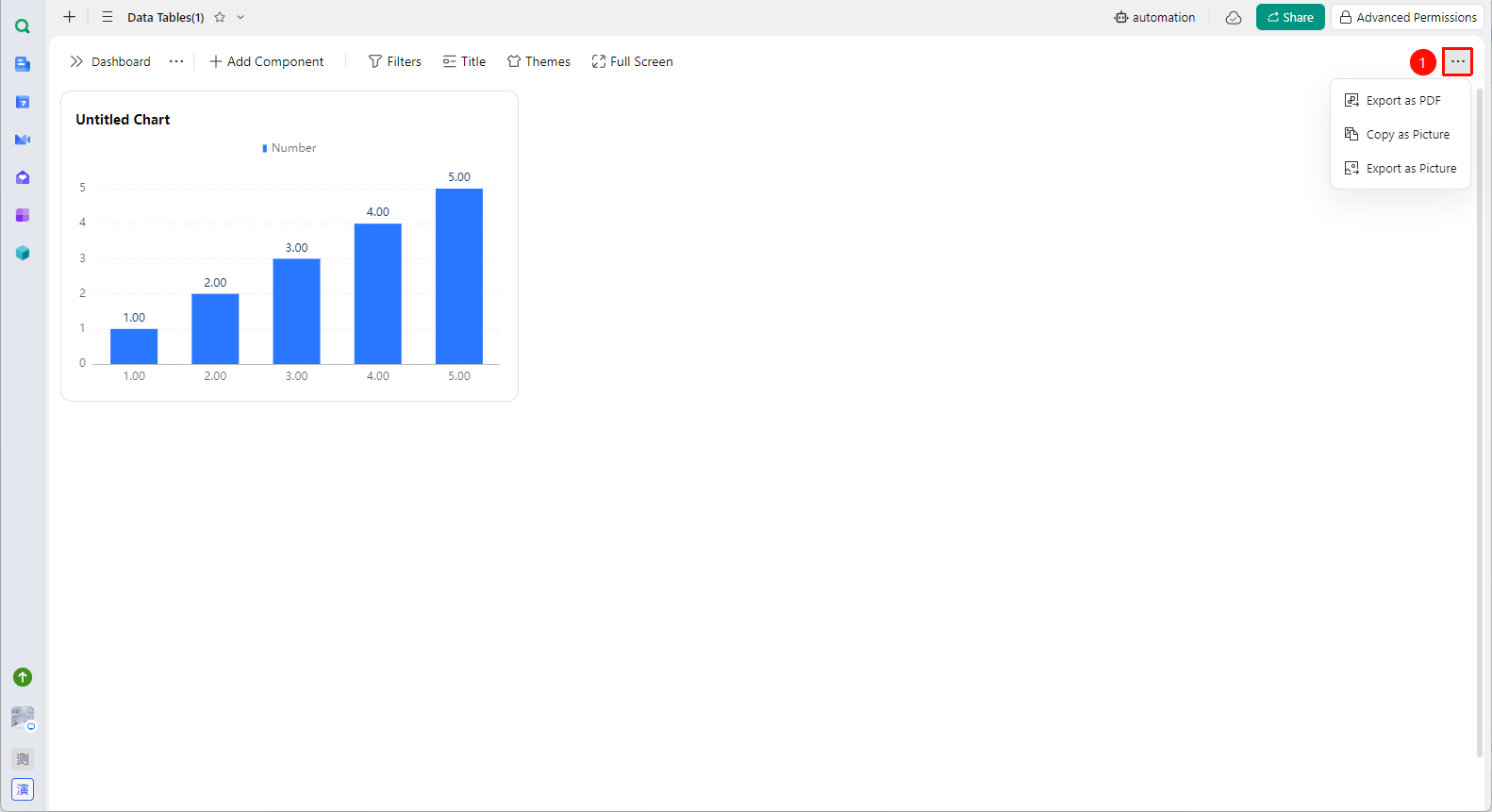
Dashboard interface → "..." menu in the upper right corner → "Export Data"
- Open the target AirSheet and switch to the dashboard view
- Click the "..." more menu button in the upper right corner to expand the dropdown menu
- Select one of the following export methods:
- Export as PDF: Export the dashboard snapshot as a PDF
- Copy as Image: Copy the dashboard snapshot as an image for easy pasting anytime
- Export as Image: Export the dashboard snapshot as an image, preserving the visual display effect
FAQ
Q1: Is the exported data real-time?
- Solution: The latest data at the time of export will be exported. Data will not be updated after export. If you need the latest data, you must re-export.
Notes
- Please ensure sensitive data is desensitized before sharing.