Feature Summary
The Date Created field is used to automatically display the generation time of each row record. All content is automatically populated by the system and does not support manual editing. It is suitable for timestamp scenarios such as approval workflows, work order tracing, and log recording.
Feature Description
| Feature Dimension | Description |
|---|---|
| Membership Restrictions | No membership restrictions |
| Version Restrictions | No version restrictions |
Operation Steps
Creating a New Date Created Field
Feature Entry
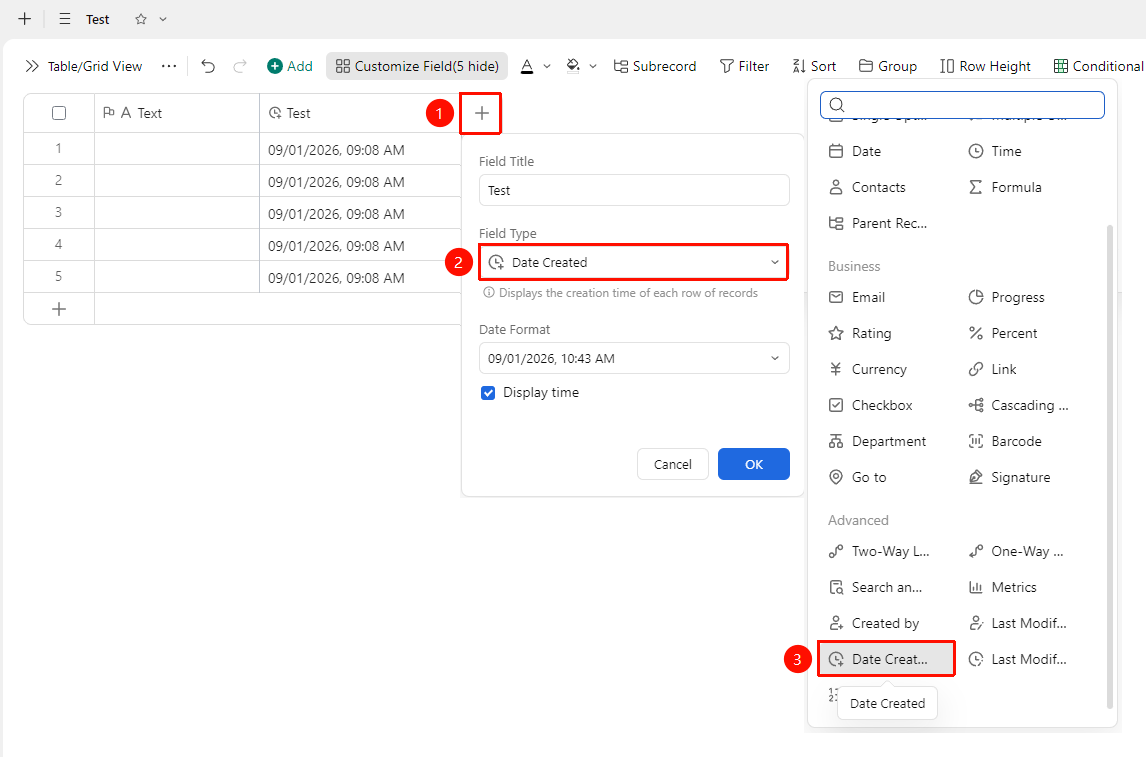
「+」button on the right side of the header → 「Field Type」drop-down list → 「Date Created 」option
- Click the 「+」 button on the right side of the header
- Select the 「Date Created」 field from the pop-up field type list
- Enter the field name and click 「Confirm」 to complete the creation
Setting the Time Display Format
Feature Entry
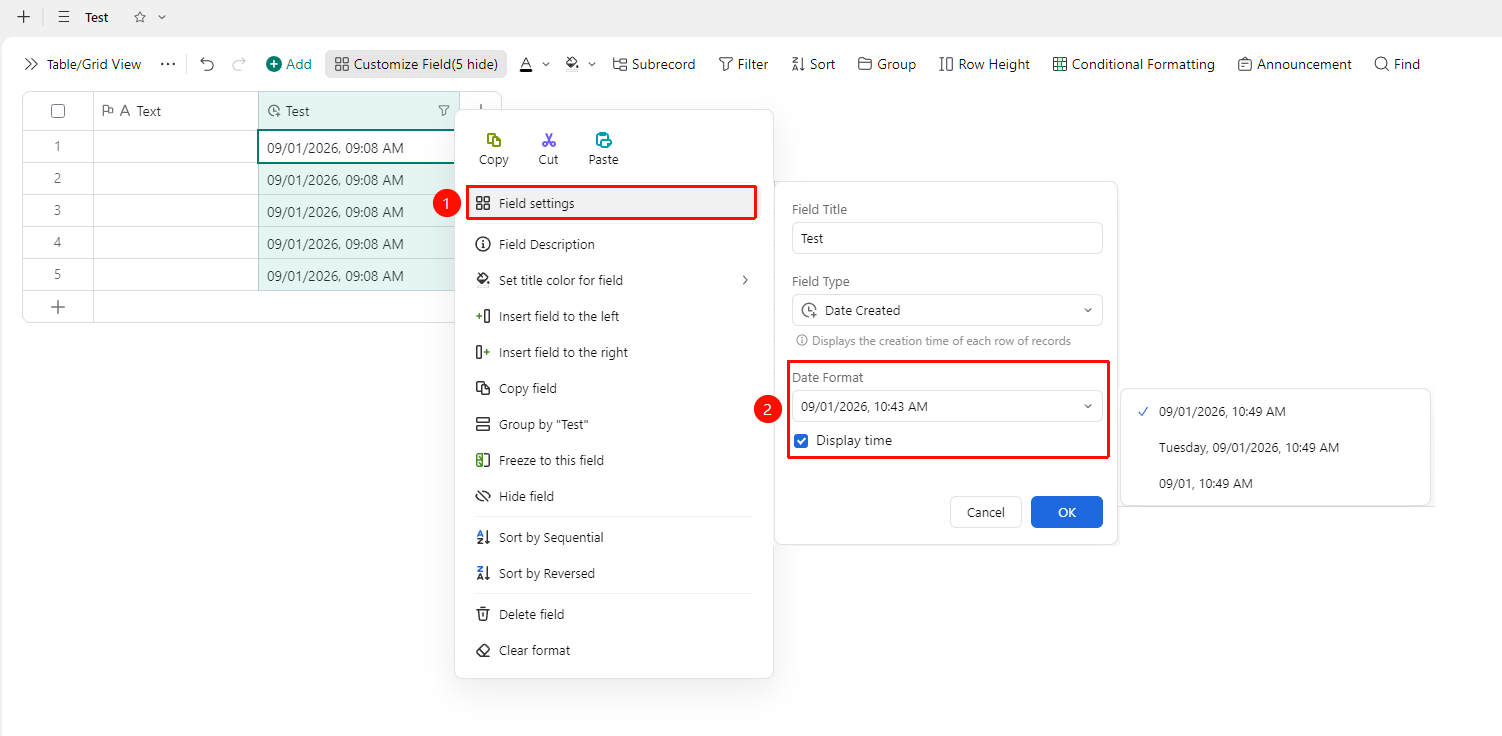
Right-click 「Field Title」→ 「Field Settings」→ 「Date Format」option
- Right-click the title of the Created Time field and select 「Field Settings」
- Select the time display format in the settings panel:
- Supports multiple formats such as
yyyy/mm/dd HH:mm,yyyy-mm-dd HH:mm - After selection, the time for all records will automatically update to the new format
Frequently Asked Questions
Question 1: Can the Date Created field be manually modified?
- Solution: No. The Created Time is automatically recorded by the system at the exact moment of creation and does not support manual modification.
Question 2: Will existing records display the Created Time?
- Solution: After adding the Created Time field, the system will automatically backfill the creation time for existing records, with no need for manual entry.
Notes
- Even if the Date Created field is not added, the creation time information is automatically retained in the system
- Supports multiple date and time display formats, which can be selected based on scenario requirements
- Suitable for audit tracing and work order processing time statistics