Summary
The automated task field is used to automatically trigger subsequent actions when specified conditions are met, such as sending notifications, updating field values, and creating subtasks. It is suitable for automated collaboration scenarios such as project management and workflow approval.
Feature Description
| Feature Dimension | Description |
|---|---|
| Membership Restriction | No membership restriction |
| Version Restriction | No version restriction |
Steps
Create a New Field
Feature Entry
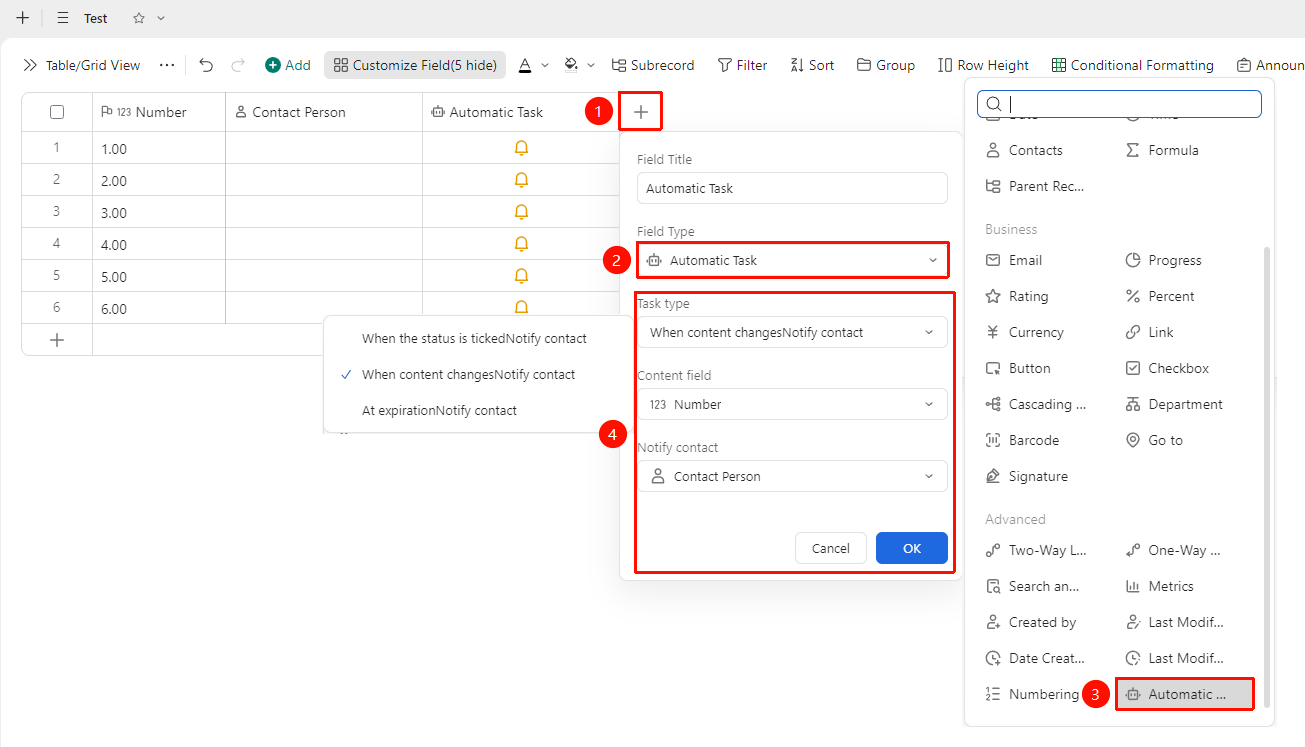
「+」 button on the right side of the table header → 「Automated Task」 option
- Click the 「+」 button on the right side of the table header
- In the field type list, select the 「Automated Task」 field
- Enter the field name, select the task type and add subsequent configurations, click 「OK」 to complete the creation
Configure Field Properties
Feature Entry
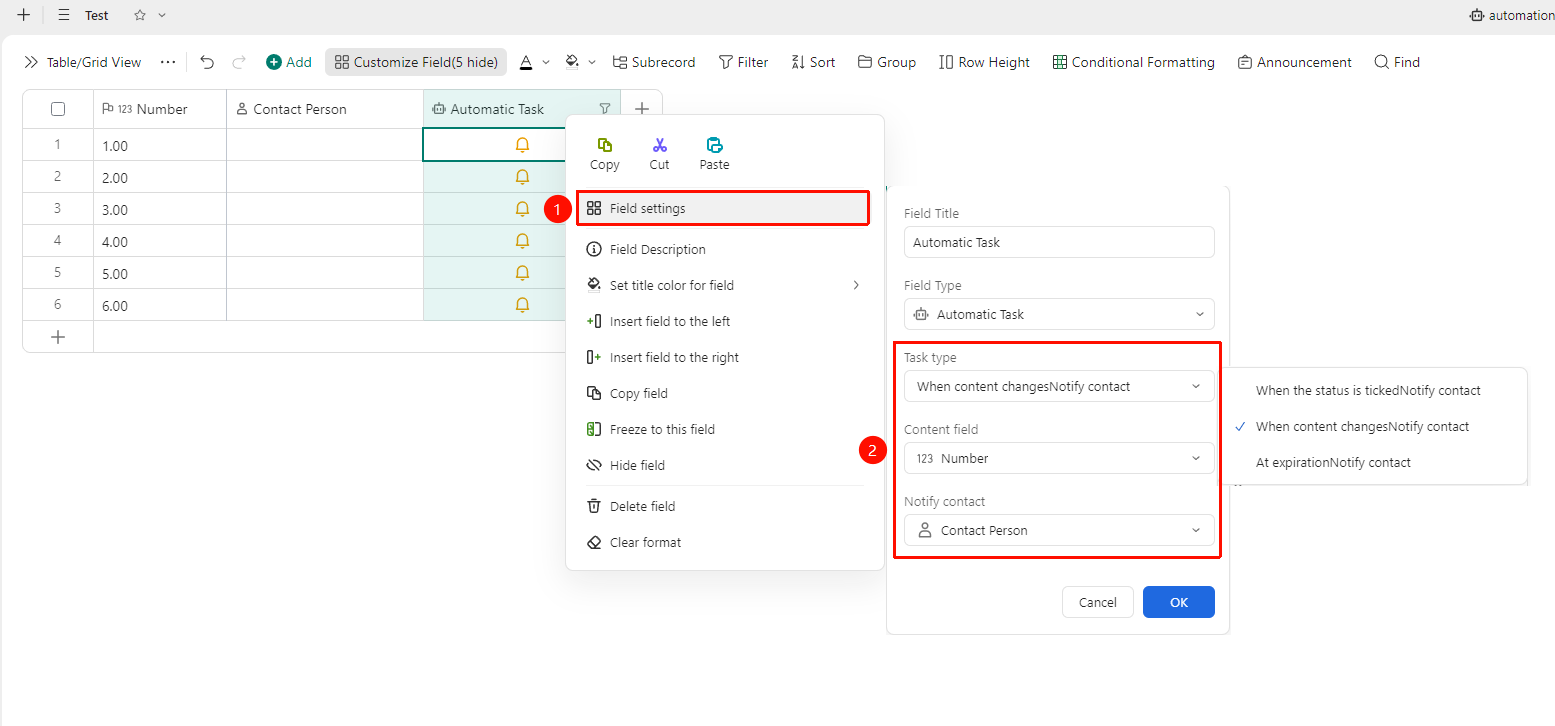
Right-click the 「Field Title」 → 「Field Settings」
- Right-click the field title of this field and select 「Field Settings」
- Configure the automated task in the settings panel. Options include:
- Task Type: Notify contacts when status is checked, Notify contacts when content changes, and Notify contacts when due
- Status Field: A checkbox field must be selected to determine the status. If there is no checkbox field, you can click to directly create a checkbox field
- Notify Contacts: A contact field must be selected to determine which contact to notify. If there is no contact field, you can click to directly create a contact field
Notes
- After the automated task field is created, related parameters can be modified in the field settings
- This field supports use with lookup & reference and statistics fields