Feature Summary
Basic Settings is used to configure basic settings for questions in exam forms, including setting questions as required, hiding them from candidates, making them unfillable, setting question numbers, and automatically prefilling previous answers.
Feature Description
| Feature Dimension | Description |
|---|---|
| Premium Limitation | No premium limitation |
| Version Limitation | No version limitation |
Steps
Set Exam to Require Sign-In
Feature Entry
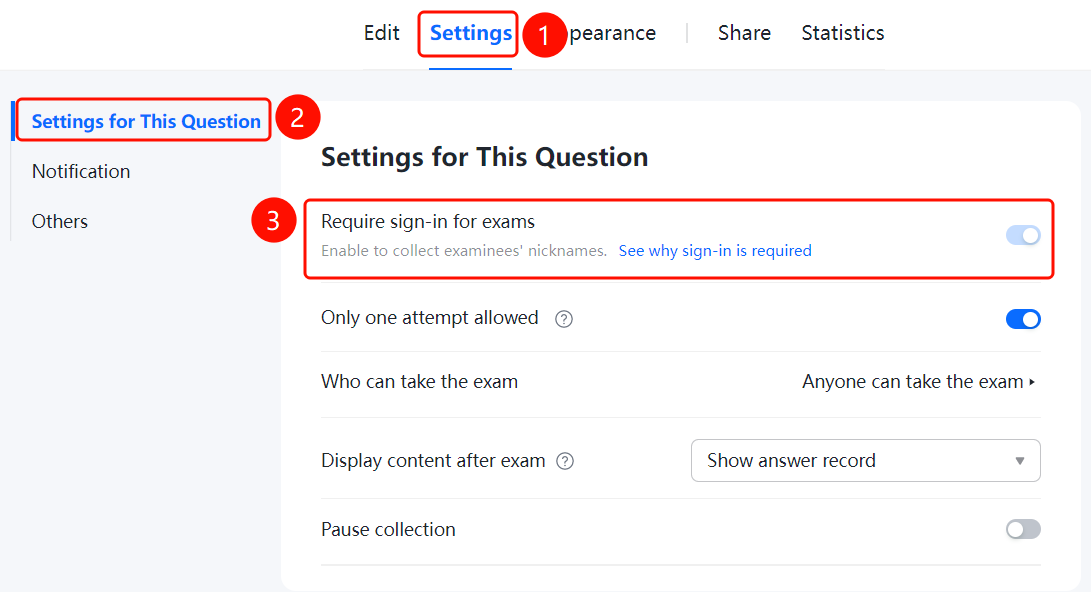
Settings tab > Basic Settings > Require Sign-In switch
- Click the Settings tab at the top.
- Click Basic Settings in the left menu.
- Turn on the Require Sign-In switch.
- Once enabled, candidate nicknames can be collected. You can click View Reason for Requiring Sign-In to learn more.
Set to Allow Only One Attempt
Feature Entry
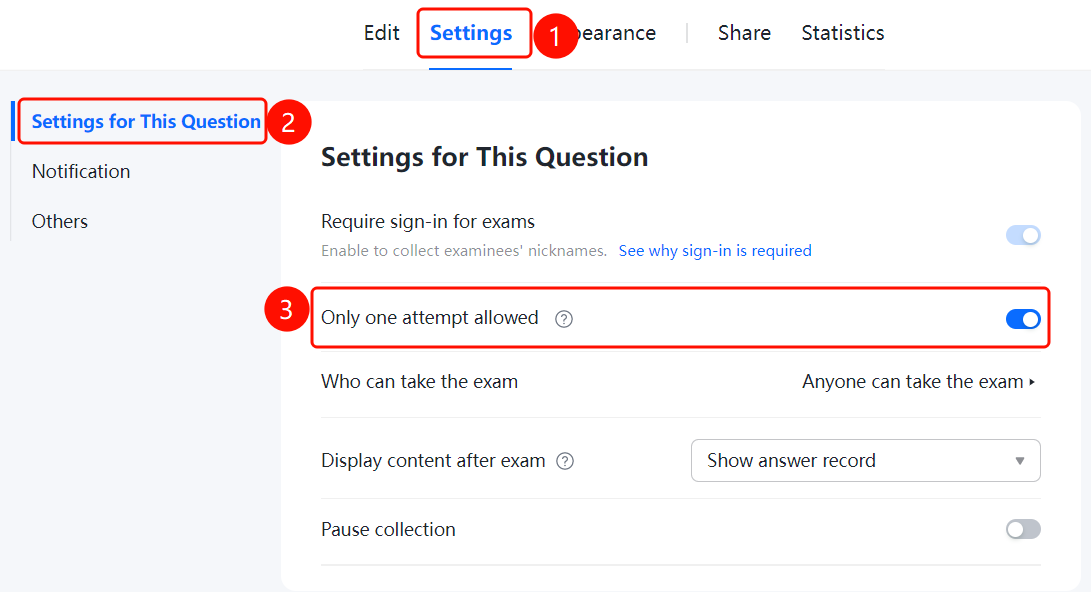
Settings tab > Basic Settings > Allow Only One Attempt switch
- Click the Settings tab at the top.
- Click Basic Settings in the left menu.
- Turn on the Allow Only One Attempt switch.
- Once enabled, candidates must sign in to take the exam, and each candidate can only take it once.
Set Who Can Take the Exam
Feature Entry
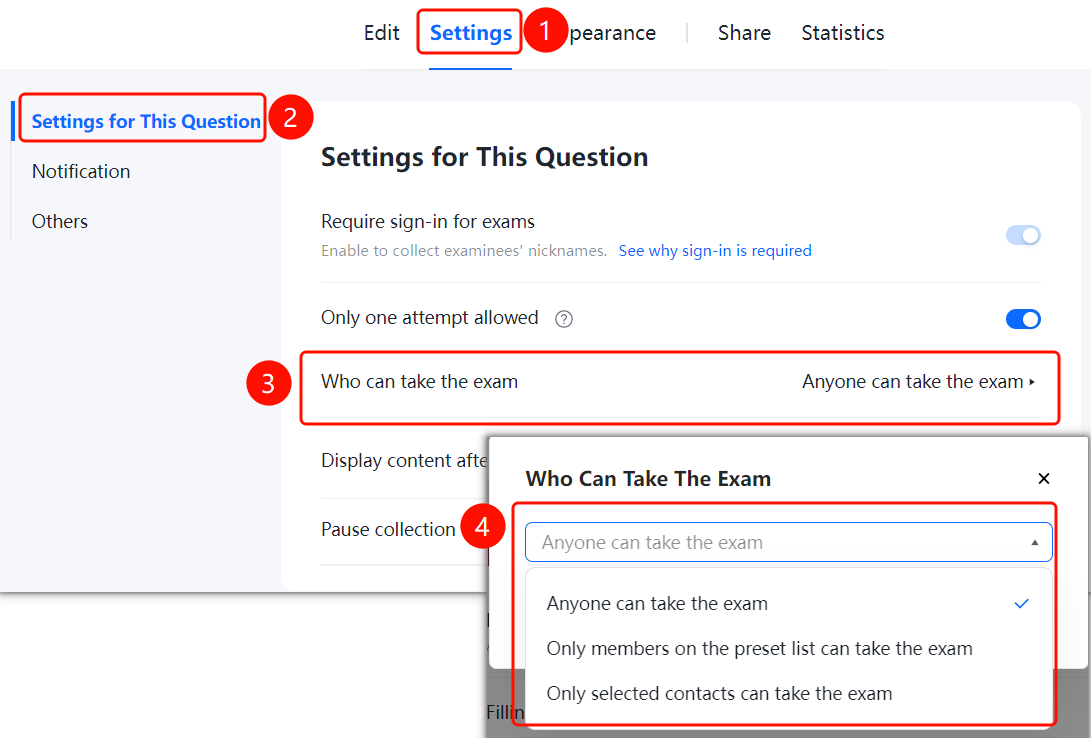
Settings tab > Basic Settings > Who Can Take Exam drop-down list
- Click the Settings tab at the top.
- Click Basic Settings in the left menu.
- Click Who Can Take Exam (currently set to Anyone).
- Select exam permissions: Anyone, Only members on the preset list, or Only selected contacts.
Set Content to Display After Exam
Feature Entry
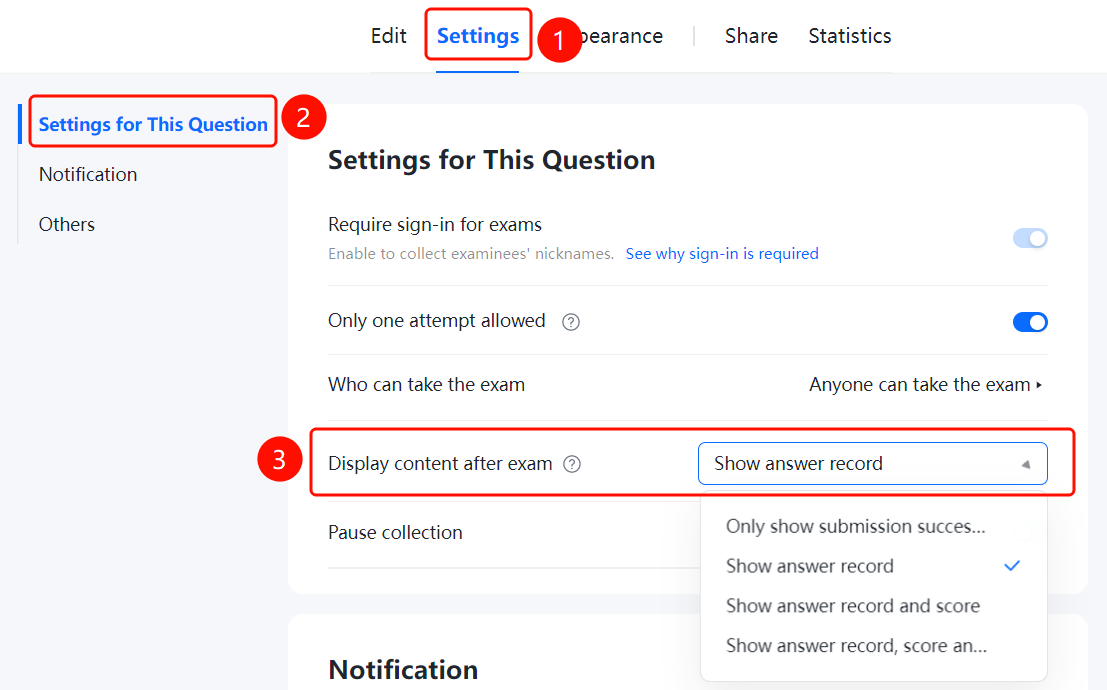
Settings tab > Basic Settings > Content to Display After Exam drop-down list
Click the Settings tab at the top.
Click Basic Settings in the left menu.
Click Content to Display After Exam and select a display option:
- Only display submission success note
- Display answer records
- Display answer records and scores
- Display answer records, scores, and grading details
Candidates can view scores, answers, and explanations after the exam. If there are manually graded questions, the total score will not be displayed until manual grading is complete.
FAQ
Q1: How do I set a question as required?
- Solution: Click the question, and turn on the "Required" switch in the "Basic Settings" panel.
Q2: How do I hide a question from candidates?
- Solution: Click the question, and turn on the "Hide from respondents" switch in the "Basic Settings" panel.
Q3: How do I set question numbers?
- Solution: Click the question, click "Question Number Settings" in the "Basic Settings" panel, and select a numbering method.
Notes
- Options in Basic Settings apply to all question types.
- We recommend setting question numbers in exam forms for candidates to view easily.