Feature Summary
Multi-level selection questions are commonly used for hierarchical selections, such as selecting "Province-City-District" or "Level 1 Department-Level 2 Department-Level 3 Department". They support up to four levels of options, making it convenient for examinees to select step by step.
Feature Description
| Feature Dimension | Description |
|---|---|
| Membership Restriction | No membership restriction |
| Version Restriction | No version restriction |
Operation Steps
Adding a Multi-Level Selection Question
Feature Entry
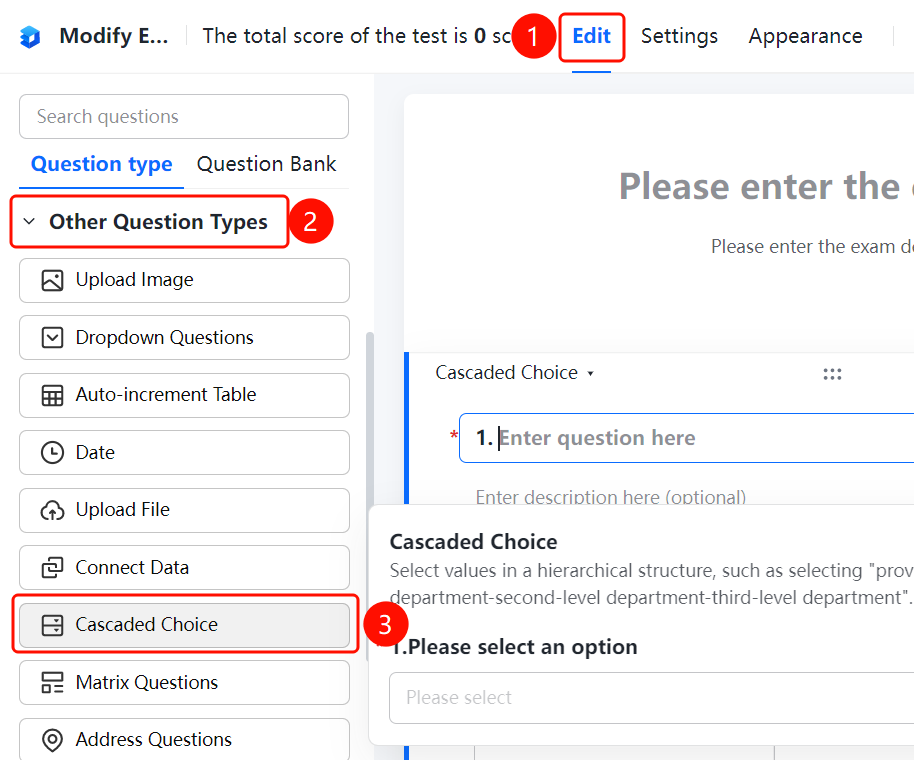
"Edit" tab → "Other types of questions" → "Multi-Level Selection" button
- Click the "Edit" tab at the top
- Expand the "Other types of questions" area in the left panel
- Click the "Multi-Level Selection" button to add it to the form
Setting Preset Answers
Feature Entry
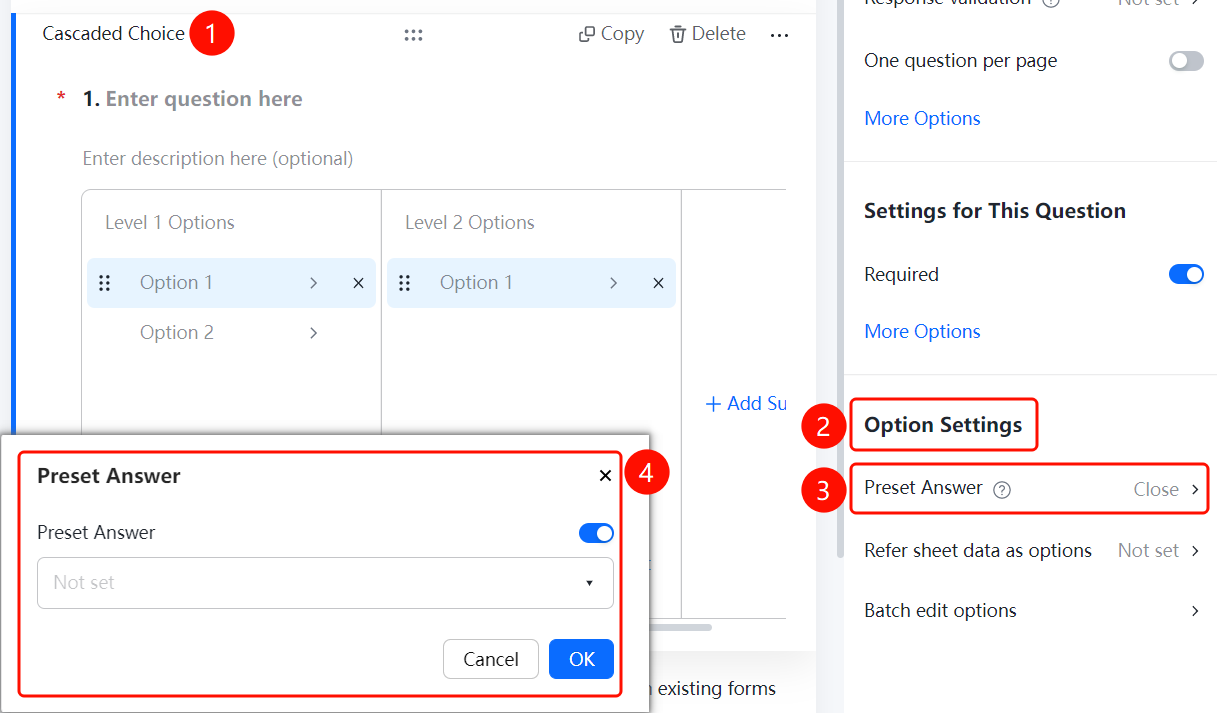
Multi-Level Selection question → "Option Settings" → "Preset Answer" option
- Click the added multi-level selection question
- In the "Option Settings" panel on the right, click the "Preset Answer" option
- Enable preset answers and set the default value
Referencing Sheets Data as Options
Feature Entry
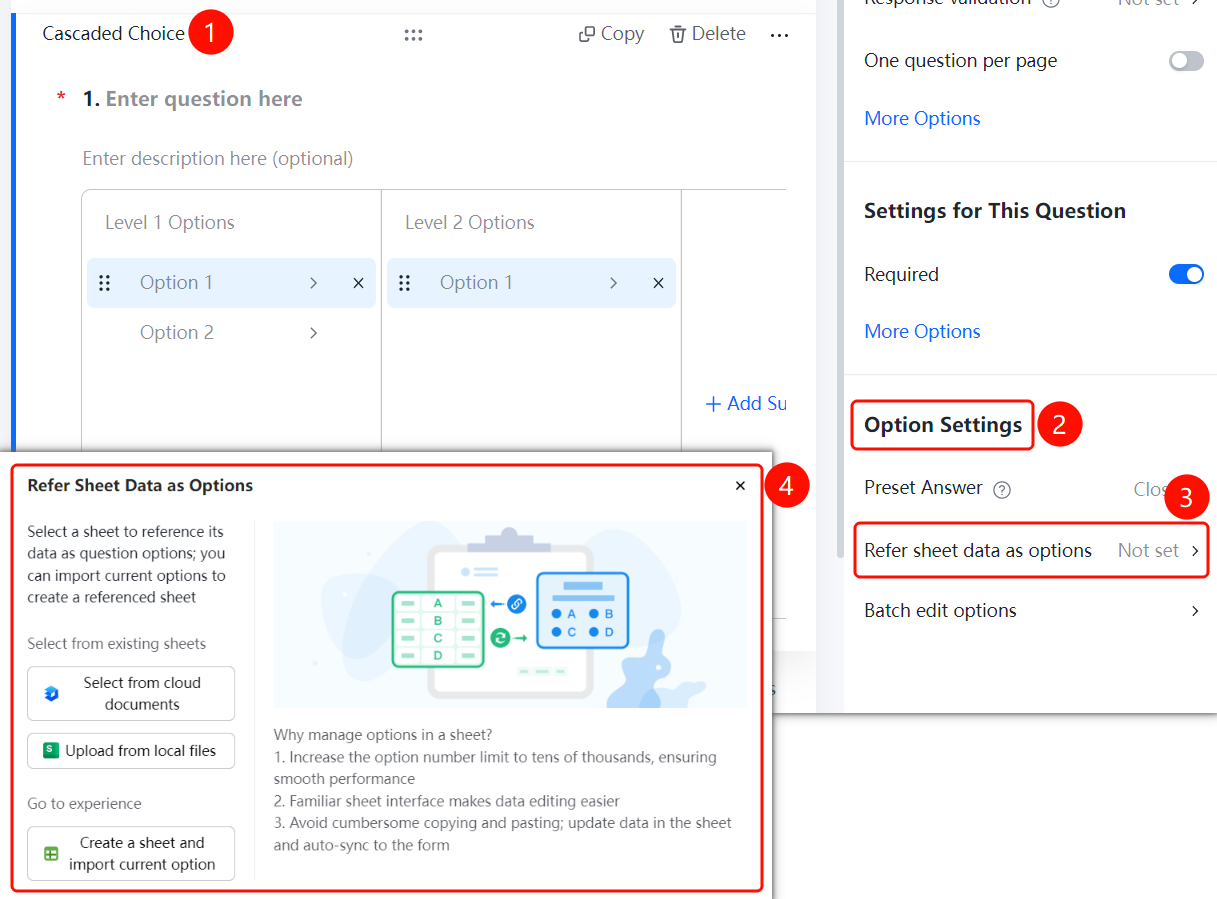
Multi-Level Selection question → "Option Settings" → "Reference Sheets Data as Options" option
- Click the added multi-level selection question
- In the "Option Settings" panel on the right, click the "Reference Sheets Data as Options" option
- Select source: Choose from cloud document / Upload from local file
Batch Editing Options Overall
Feature Entry
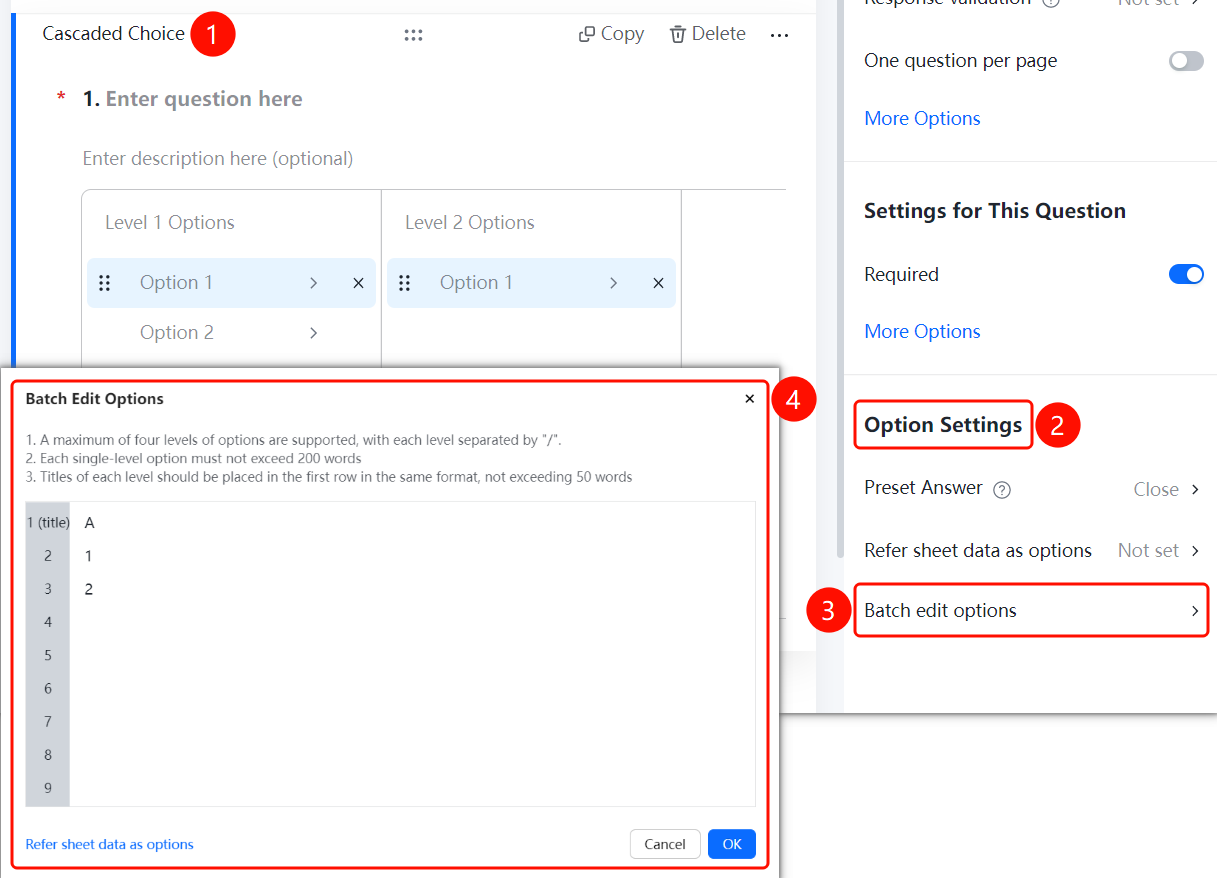
Multi-Level Selection question → "Option Settings" → "Batch Edit Options Overall" option
- Click the added multi-level selection question
- In the "Option Settings" panel on the right, click the "Batch Edit Options Overall" option
- Enter the title in the first line, and enter the option content in each subsequent line
FAQ
Q1: How many levels of options does multi-level selection support?
- Solution: Multi-level selection supports up to four levels of options, with each option separated by "/".
Q2: How to batch edit options for multi-level selection?
- Solution: Click the multi-level selection question, click "Batch Edit Options Overall" in "Option Settings", enter the title in the first line, and enter the option content in each subsequent line.
Q3: Can I reference Sheets data as options?
- Solution: Yes. Click the multi-level selection question, and click "Reference Sheets Data as Options" in "Option Settings".
Notes
- Supports up to four levels of options
- After referencing Sheets data, updates to the data in Sheets will automatically sync to the form