Feature Summary
Short answer questions are used to set up open-ended questions. Candidates enter text in the answer area to respond. This is suitable for questions that require candidates to express themselves freely and supports manual grading.
Feature Details
| Feature Dimension | Description |
|---|---|
| Subscription Limit | No subscription limit |
| Version Limit | No version limit |
Steps
Add a Short Answer Question
Feature Entry
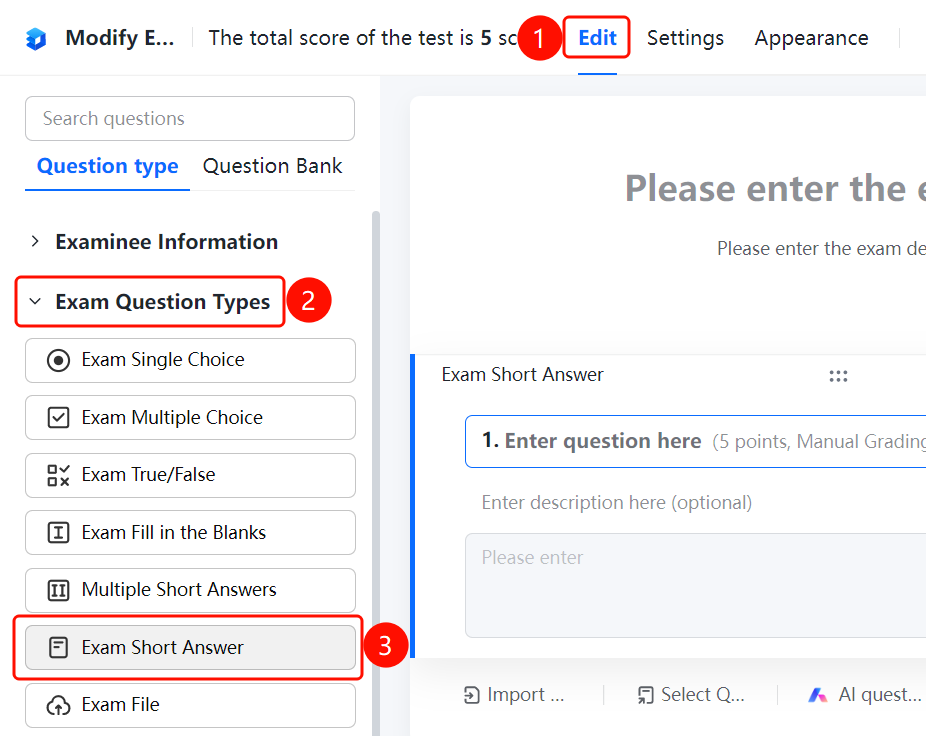
Edit tab > Exam Question Types > Short Answer button
- Click the Edit tab at the top.
- Expand the Exam Question Types area in the left panel.
- Click the Short Answer button to add it to the form.
- Enter the question content.
Set Up a Reference Answer
Feature Entry
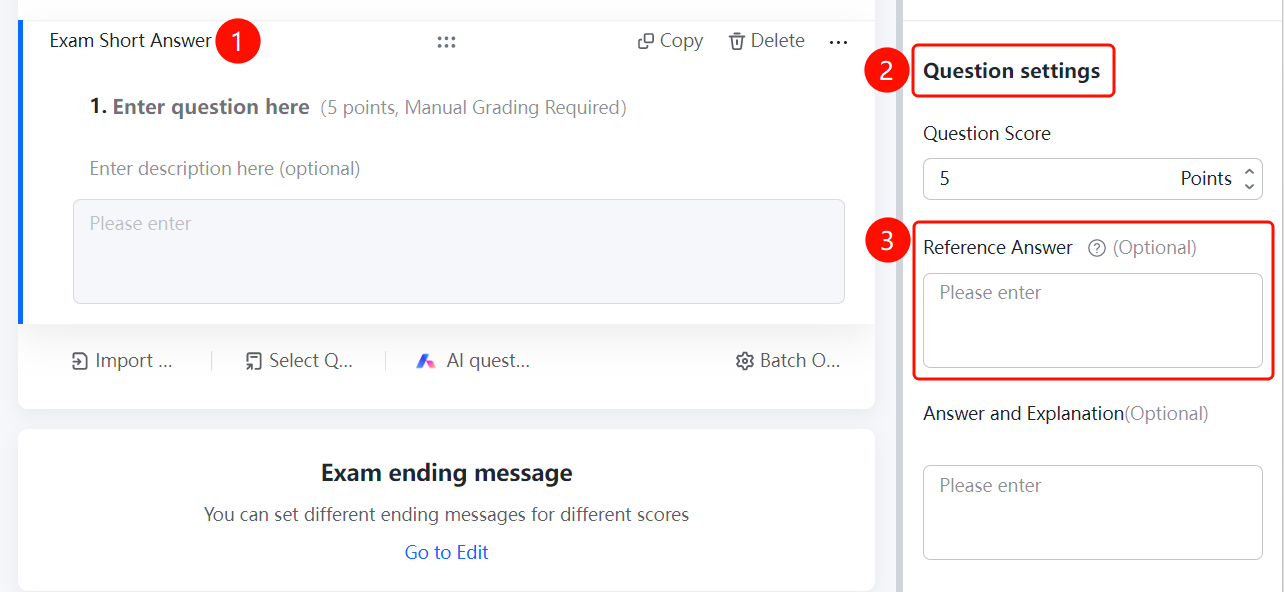
Short answer question > Question Settings > Set Up Reference Answer
- Click the added short answer question.
- Enter the reference answer in the right panel.
- The reference answer is for grading reference.
Set Up Score
Feature Entry
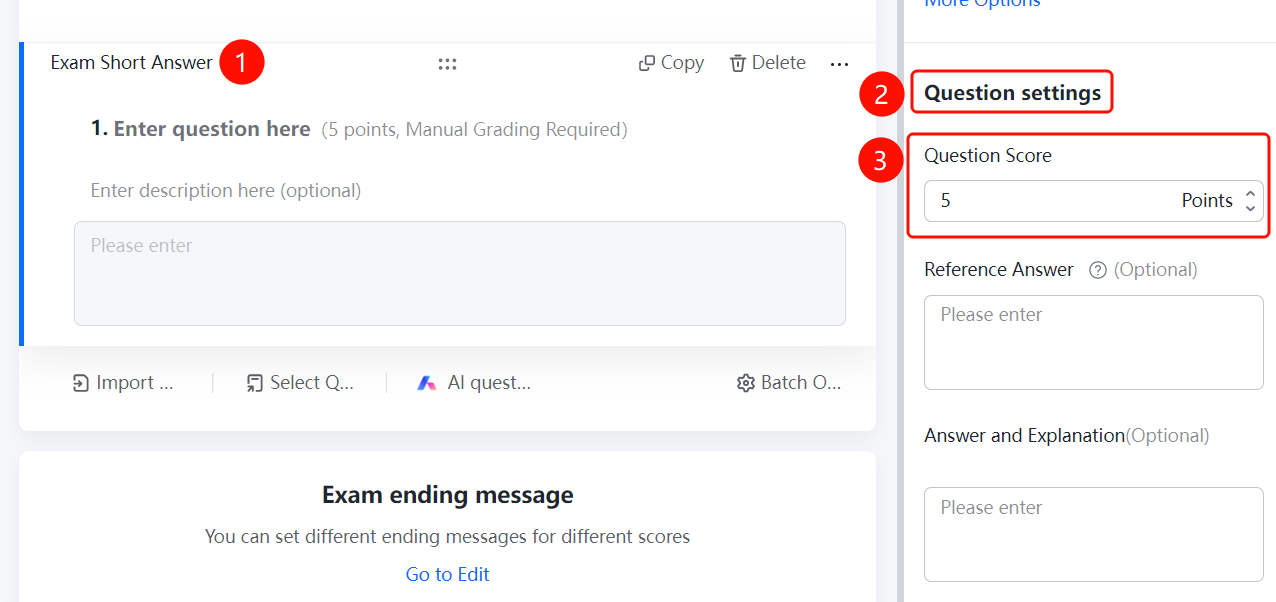
Short answer question > Question Settings > Question Score
- Click the added short answer question.
- Locate the Question Settings panel on the right.
- Click Question Score to set the score for the question.
FAQ
Question 1: How are short answer questions graded?
- Solution: Short answer questions require manual grading. You can view candidates' answers and grade them manually on the Grading page.
Question 2: How do I set up a reference answer for a short answer question?
- Solution: Click the short answer question and enter the reference answer in the right panel for grading reference.
Question 3: How do I limit the number of words candidates can enter?
- Solution: Click the short answer question and set up input limits under Basic Settings to limit the word count.
Notes
- Short answer questions require manual grading.
- Setting up a reference answer helps make quick judgments during grading.