Feature Summary
The auto-numbering question automatically generates a unique number for each submission record, such as a serial number or order number, without requiring manual input from the respondent, ensuring uniqueness and standardization.
Feature Description
| Feature Dimension | Description |
|---|---|
| Membership Restriction | No membership restriction |
| Version Restriction | No version restriction |
Steps
Adding an Auto-Numbering Question
Feature Entry
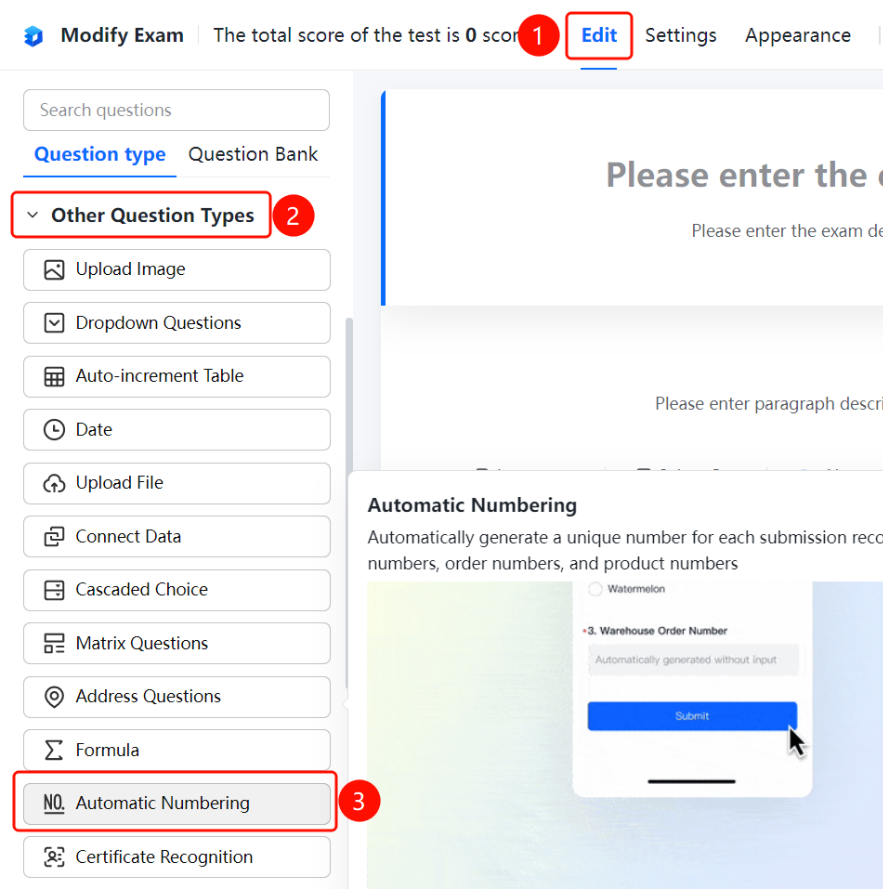
「Edit」 tab → 「Other types of questions」 → 「Auto-Number」 button
- Click the 「Edit」 tab at the top
- Expand the 「Other types of questions」 area in the left panel
- Click the 「Auto-Number」 button to add it to the form
Setting Auto-Counting
Feature Entry
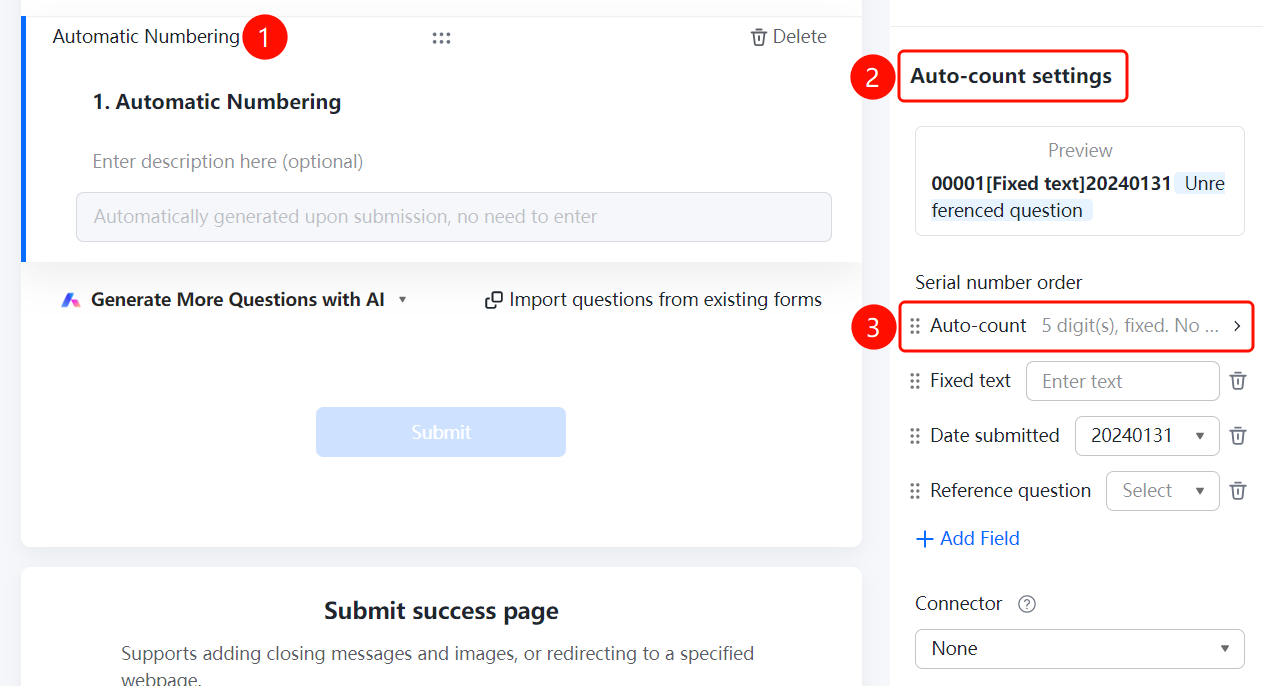
Auto-Numbering question → 「Auto-Number Settings」 → 「Auto-Count Settings」 option
- Click the added auto-numbering question
- In the 「Auto-Number Settings」 panel on the right, click the 「Auto-Count Settings」 option
Setting Fixed Text
Feature Entry
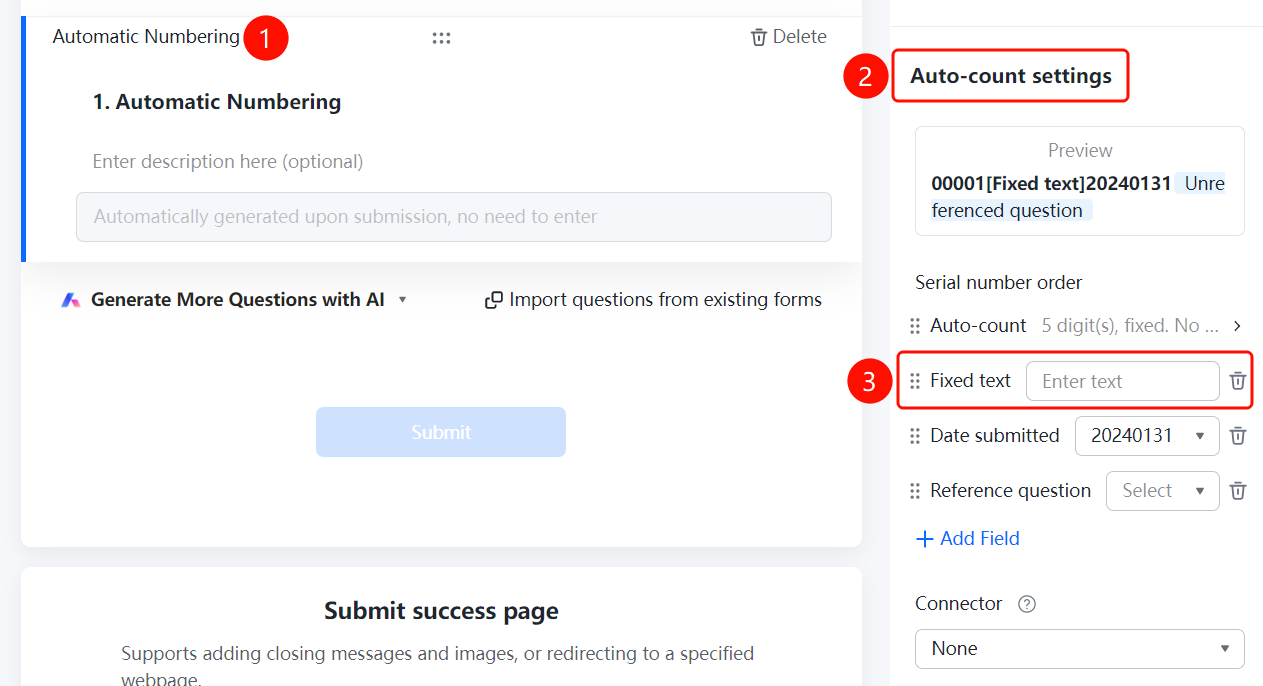
Auto-Numbering question → 「Auto-Number Settings」 → 「Fixed Text」 option
- Click the added auto-numbering question
- In the 「Auto-Number Settings」 panel on the right, click the 「Fixed Text」 option
Setting Submission Date
Feature Entry
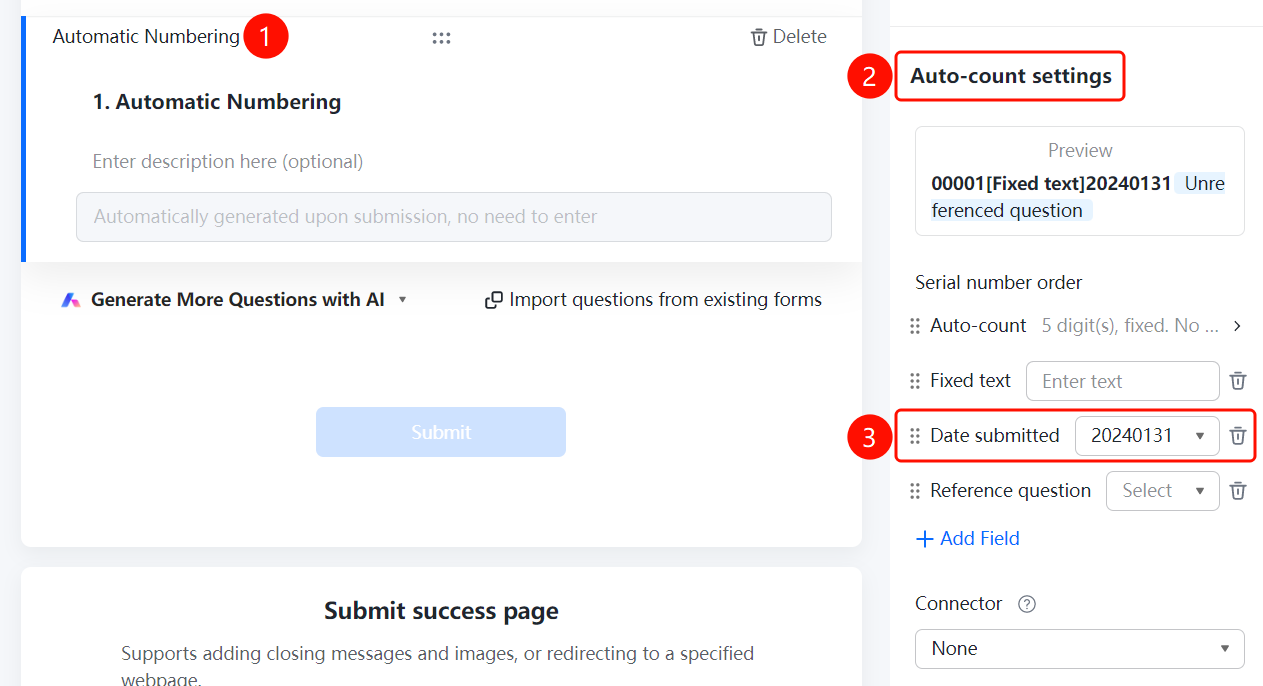
Auto-Numbering question → 「Auto-Number Settings」 → 「Submission Date」 option
- Click the added auto-numbering question
- In the 「Auto-Number Settings」 panel on the right, click the 「Submission Date」 option
Referencing Form Questions
Feature Entry
Auto-Numbering question → 「Auto-Number Settings」 → 「Reference Question」 option
- Click the added auto-numbering question
- In the 「Auto-Number Settings」 panel on the right, click the 「Reference Question」 option
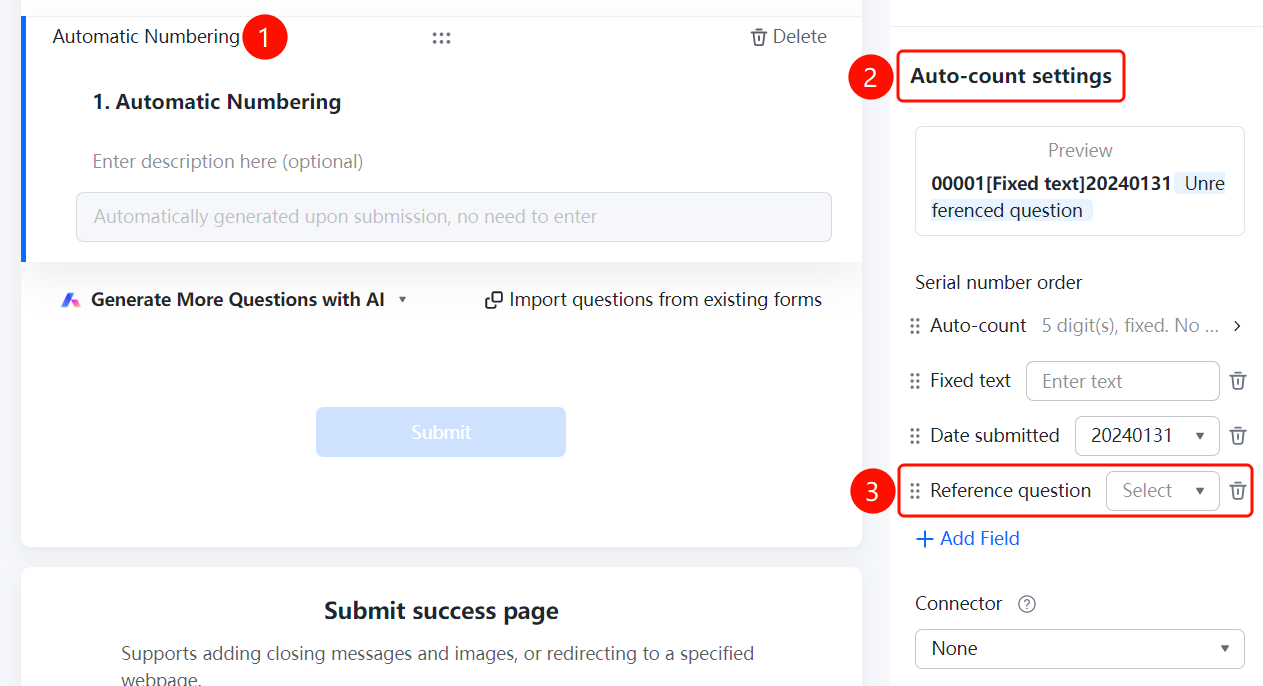
Setting Connectors
Feature Entry
Auto-Numbering question → 「Auto-Number Settings」 → 「Connector」 option
- Click the added auto-numbering question
- In the 「Auto-Number Settings」 panel on the right, click the 「Connector」 option
- Select: None / Hyphen / Underscore
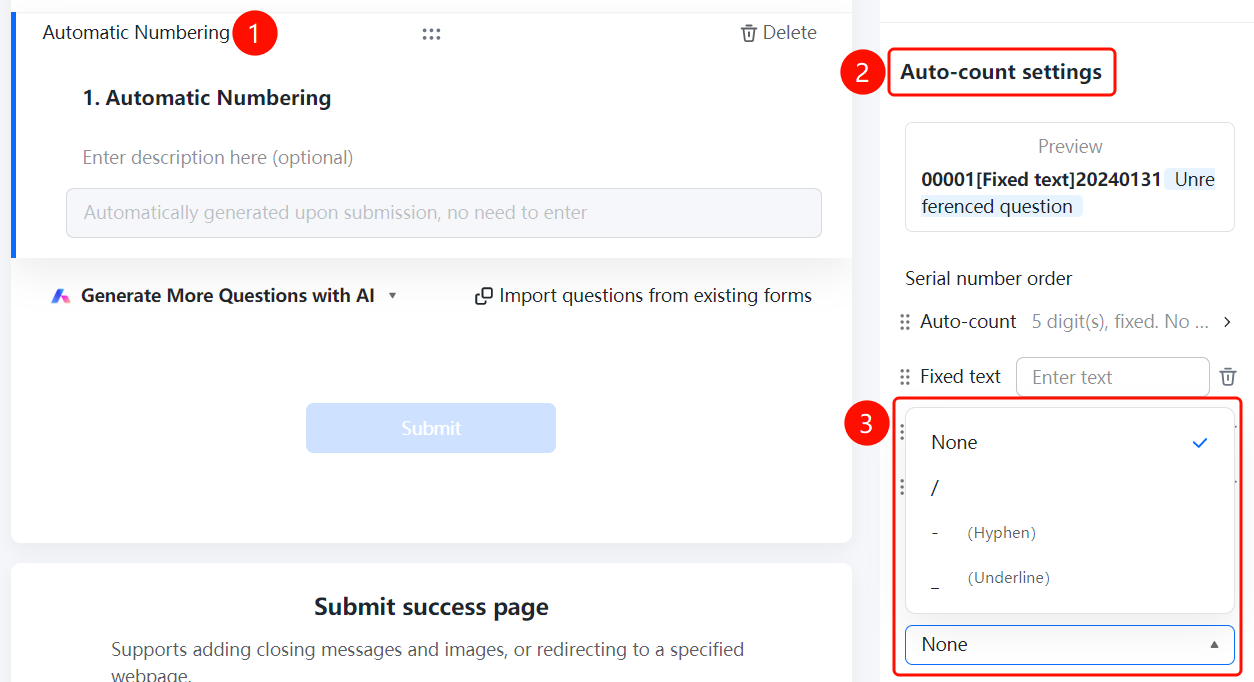
FAQ
Q1: How to set the number of digits?
- Solution: Click the auto-numbering question, click 「Number Digits」 in 「Auto-Number Settings」, select the number of digits and enable fixed digits.
Q2: How to include fixed text or date in the number?
- Solution: Click the auto-numbering question, and set 「Fixed Text」 and 「Submission Date」 respectively in 「Auto-Number Settings」.
Q3: How to include content from other questions in the form in the number?
- Solution: Click the auto-numbering question, click 「Reference Question」 in 「Auto-Number Settings」, click 「Add Field」 and select the reference question.
Notes
- Auto-numbering is automatically generated upon submission, no respondent input required
- You can set the number to reset periodically via 「Reset Cycle」