Feature Summary
The auto-add sheets question is used to collect multiple pieces of information uploaded by each candidate, and the number of entries may vary per candidate. Candidates can add or delete record rows as needed.
Feature Description
| Feature Dimension | Description |
|---|---|
| Membership Restriction | No membership restriction |
| Version Restriction | No version restriction |
Operation Steps
Adding an Auto-Add Sheets Question
Feature Entry
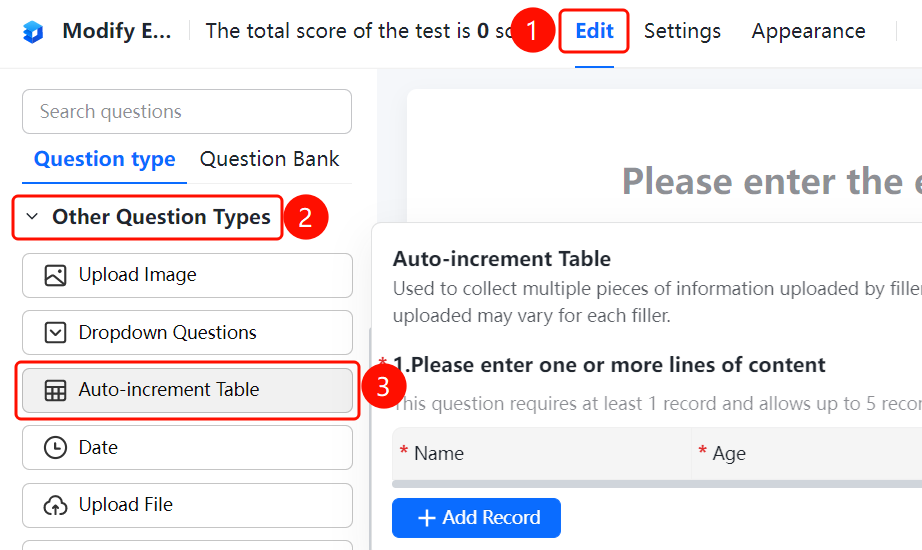
「Edit」 tab → 「Other types of questions」 → 「Auto-Add Sheets」 button
- Click the top 「Edit」 tab
- Expand the 「Other types of questions」 area in the left panel
- Click the 「Auto-Add Sheets」 button to add it to the form
Setting the Fill-in Row Range
Feature Entry
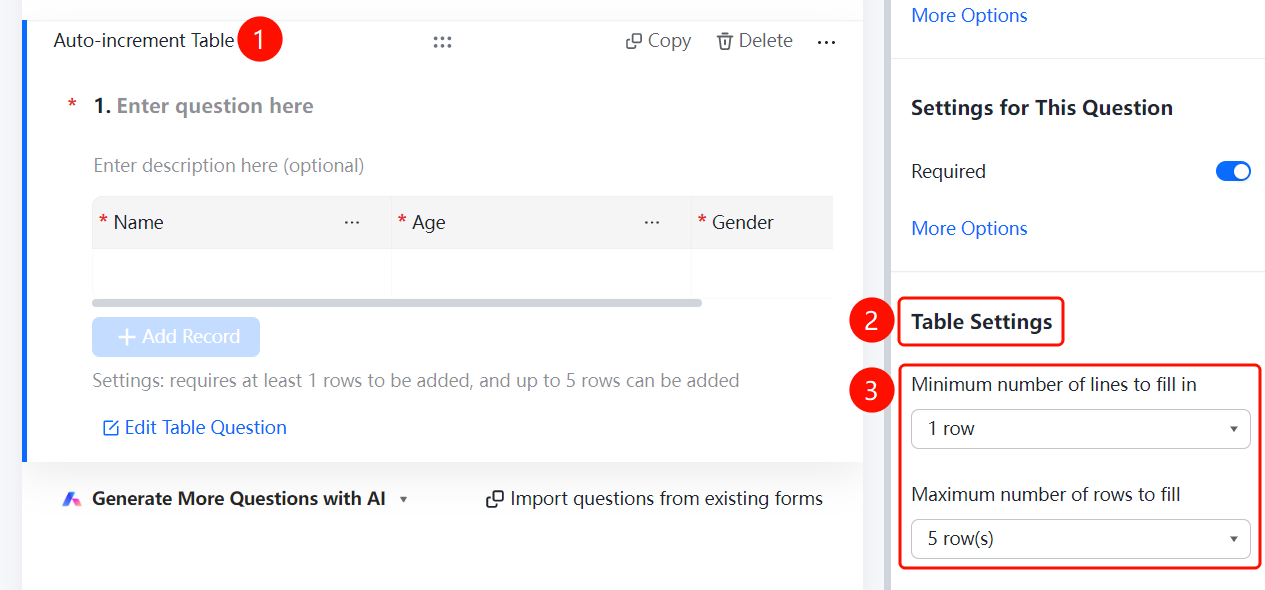
Auto-Add Sheets question → 「Sheet Settings」 → 「Minimum Fill-in Rows」 / 「Maximum Fill-in Rows」 options
- Click the added auto-add sheets question
- In the right-side 「Sheet Settings」 panel, set 「Minimum Fill-in Rows」 and 「Maximum Fill-in Rows」
FAQ
Q1: How to limit the minimum and maximum number of rows a candidate can fill in?
- Solution: Click the auto-add sheets question, and set 「Minimum Fill-in Rows」 and 「Maximum Fill-in Rows」 in the 「Sheet Settings」 panel.
Q2: How to set the column fields of the auto-add sheets?
- Solution: Click the auto-add sheets question, then click 「Edit Sheets Question」 to add, modify, or delete the column fields of the sheet.
Q3: Can candidates add record rows by themselves?
- Solution: Yes. Candidates can click 「Add a Record」 to add a new record row.
Notes
- Auto-add sheets are suitable for scenarios where the number of information entries uploaded by each candidate may vary.
- The current settings will be displayed below the question.