Feature Summary
The grading feature allows you to view each examinee's answer score and detailed responses. It supports filtering by time range, helping teachers quickly grade exam answers.
Feature Description
| Feature Dimension | Description |
|---|---|
| Membership Restriction | No membership restriction |
| Version Restriction | No version restriction |
Operation Steps
View Grading
Feature Entry
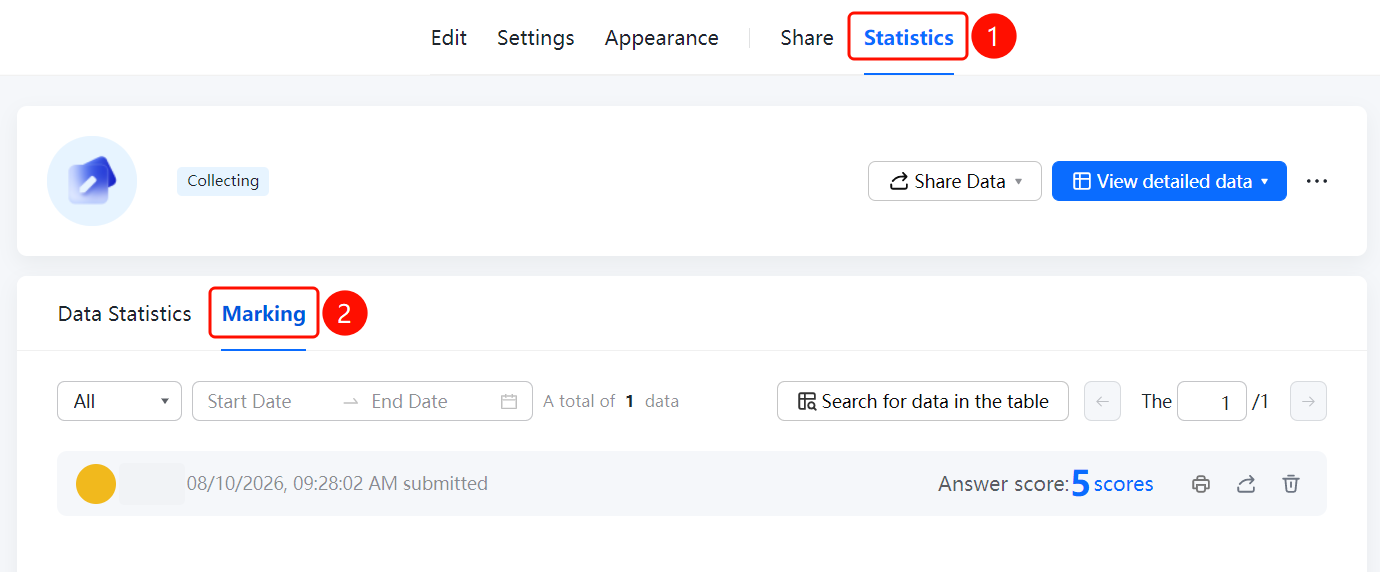
「Statistics」 tab → 「Grading」 option
- Click the 「Statistics」 tab at the top
- Click the 「Grading」 option in the left panel
- Set the 「Start Date」 and 「End Date」 at the top of the page to filter the answer range
- View the score of each answer sheet, e.g., "Score: 5 points"
- Expand the answer sheet to view the response status and correct answer for each question
FAQ
Q1: How to view each examinee's score?
- Solution: On the 「Grading」 page, each answer sheet displays its score. Click to expand and view the detailed response for each question.
Q2: How to view the correct answers?
- Solution: In the grading details, each question displays the examinee's response and the correct answer. The correct answer is marked in green.
Q3: How to filter answer sheets by time range?
- Solution: Set the 「Start Date」 and 「End Date」 at the top of the 「Grading」 page to filter answer sheets from a specific time period.
Notes
- The grading feature is applicable to exam forms, helping teachers quickly grade answer sheets
- Answer sheets are sorted in reverse chronological order by default