Feature Summary
This question type is useful when there are many options. The dropdown menu is collapsed by default and expands when clicked, which prevents too many options from taking up excessive space, keeping the layout clean and elegant.
Feature Specifications
| Dimension | Description |
|---|---|
| Member Limit | No member limit |
| Version Limit | No version limit |
Operating Steps
Add a Dropdown Question
Feature Entry
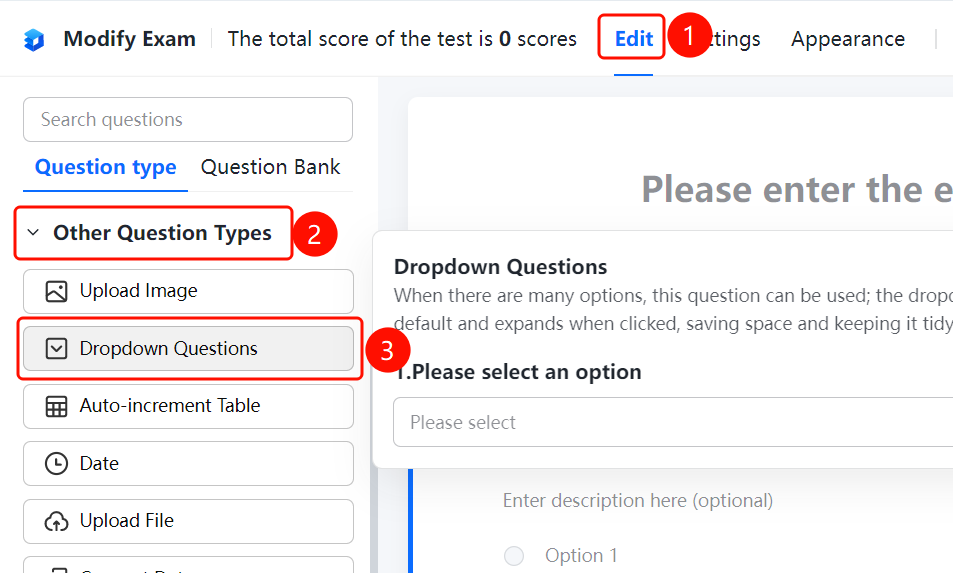
"Edit" tab -> "Other Question Types" -> "Dropdown" button
- Click the "Edit" tab at the top.
- In the left panel, expand the "Other Question Types" area.
- Click the "Dropdown" button to add a dropdown question to the exam.
Set Preset Answers
Feature Entry
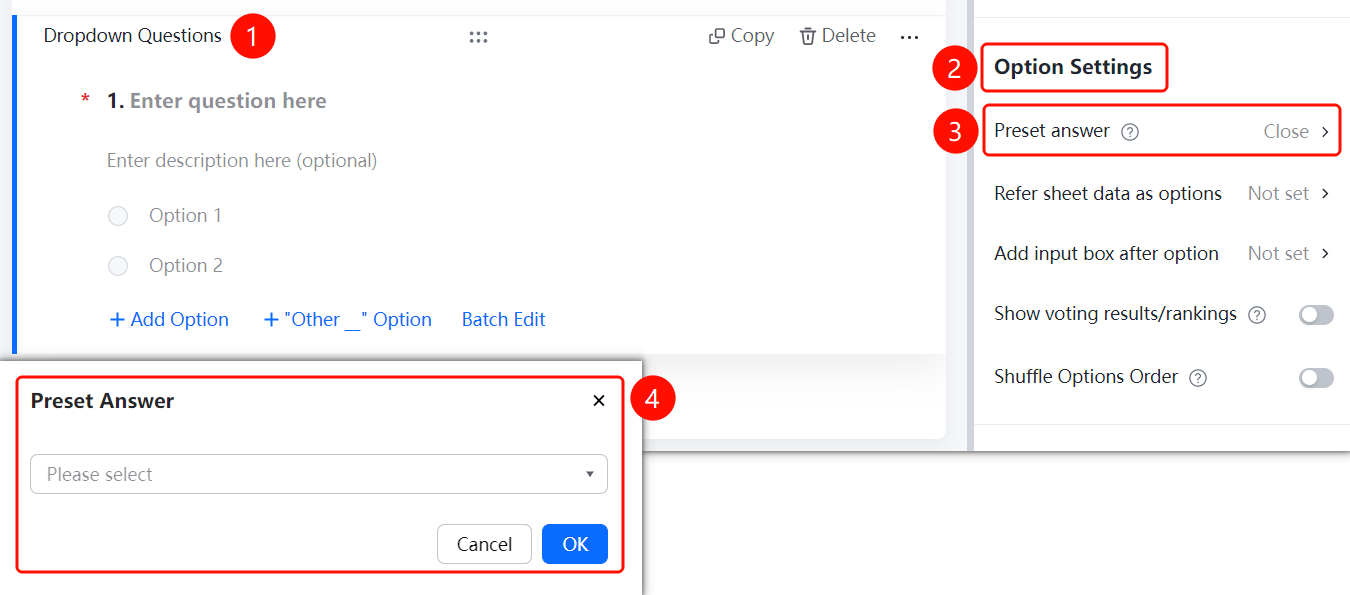
Dropdown question -> "Option Settings" -> "Preset Answers" option
- Click the added dropdown question.
- In the "Option Settings" panel on the right, click "Preset Answers" (currently set to "Off").
- In the pop-up dropdown list, you can select a default answer, such as "Option 1" or "Option 2", and click "OK" to save.
Reference Table Data as Options
Feature Entry
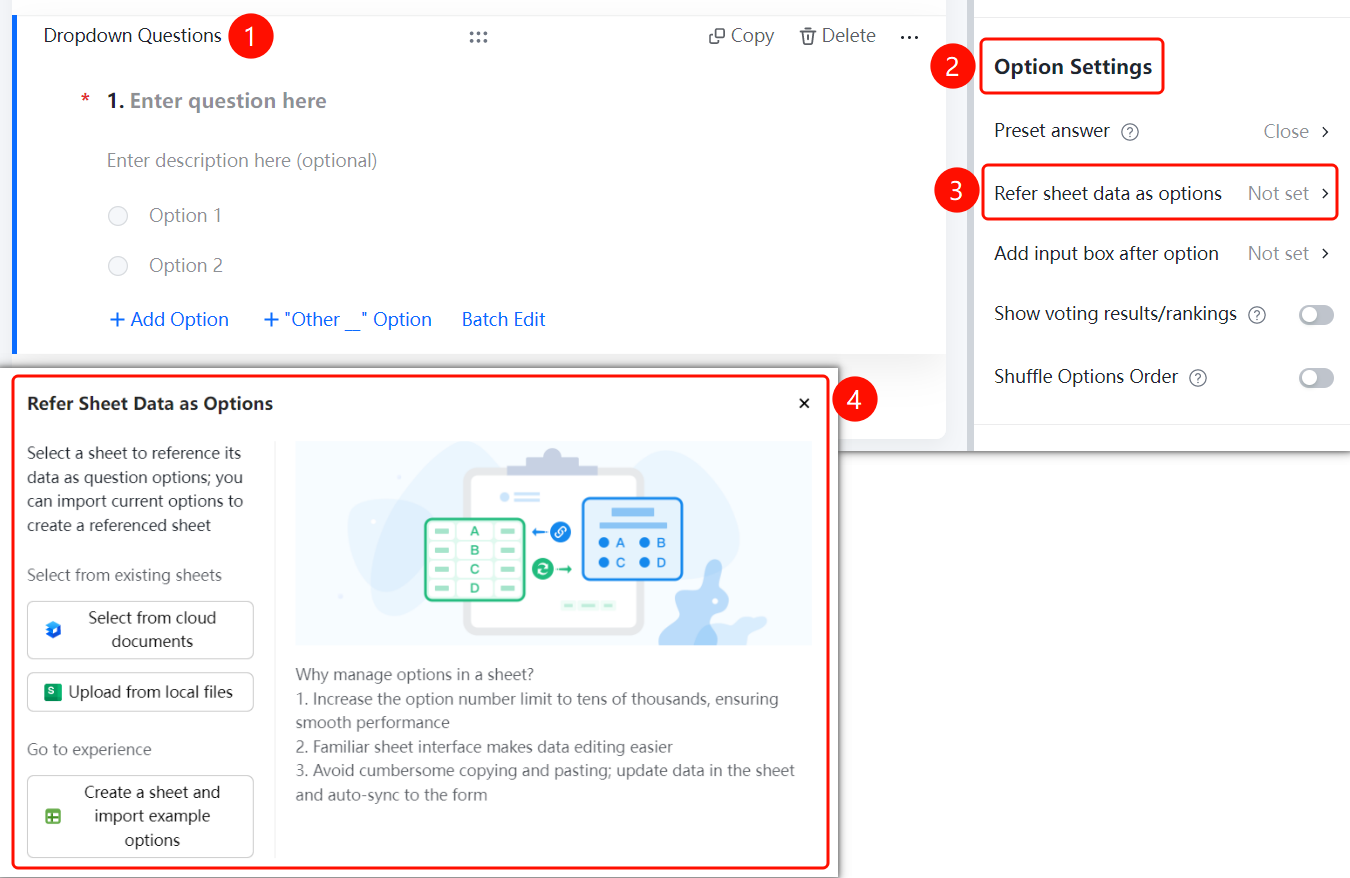
Dropdown question -> "Option Settings" -> "Reference Table Data as Options" option
- Click the added dropdown question.
- In the "Option Settings" panel on the right, click "Reference Table Data as Options" (currently set to "Not Set").
- Select a data source: "Select from Cloud Document", "Upload from Local File", or "Create Table and Import Sample Options".
- After selecting the table file, the table data will be automatically synchronized to the form.
Add Text Box After Option
Feature Entry
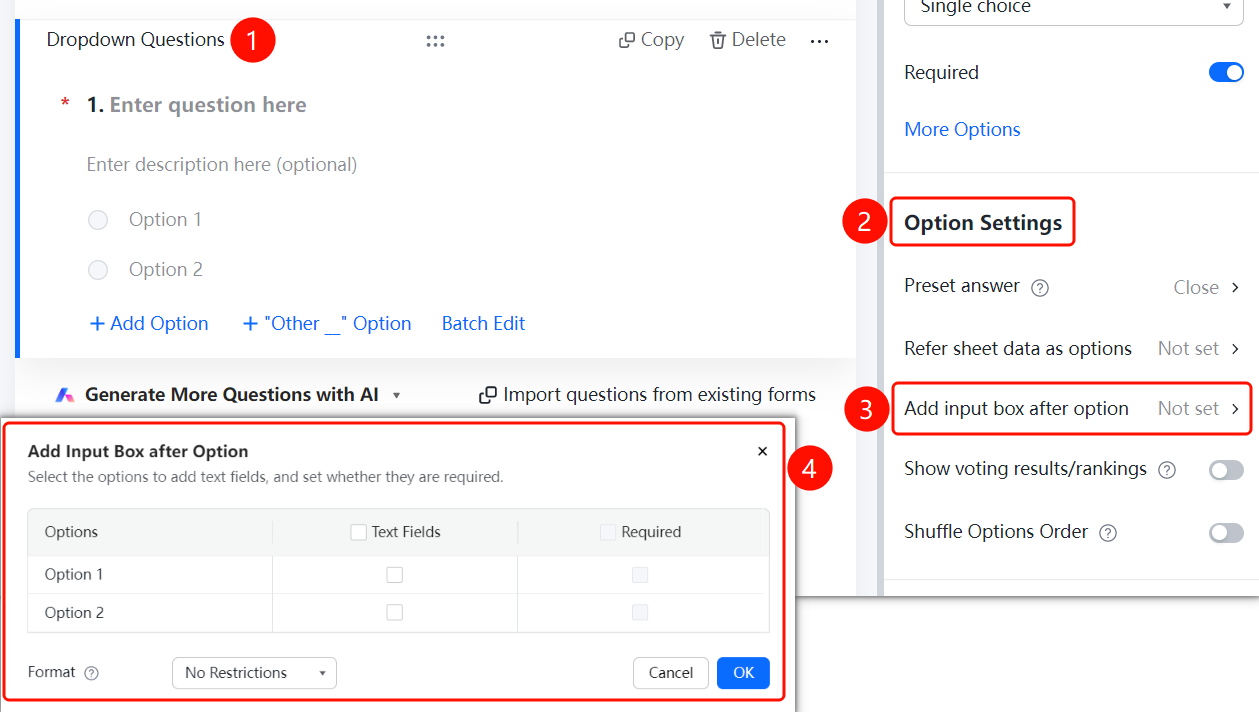
Dropdown question -> "Option Settings" -> "Add Text Box After Option" option
- Click the added dropdown question.
- In the "Option Settings" panel on the right, click "Add Text Box After Option" (currently set to "Not Set").
- In the pop-up panel, select the options that require a text box (such as "Option 1" or "Option 2").
- Set "Required Field" and "Input Format Limit" (such as "No Limit").
- Click "OK" to save.
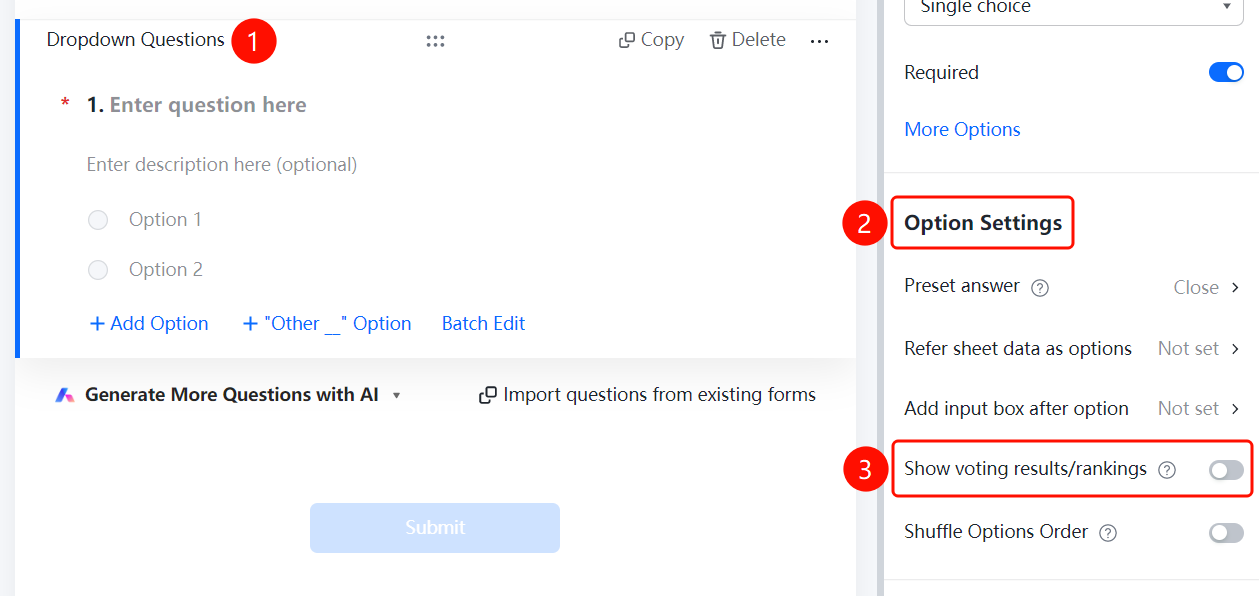
Display Vote Results/Leaderboard
Feature Entry
Dropdown question -> "Option Settings" -> "Display Vote Results/Leaderboard" switch
- Click the added dropdown question.
- In the "Option Settings" panel on the right, turn on the "Display Vote Results/Leaderboard" switch.
Shuffle Option Order
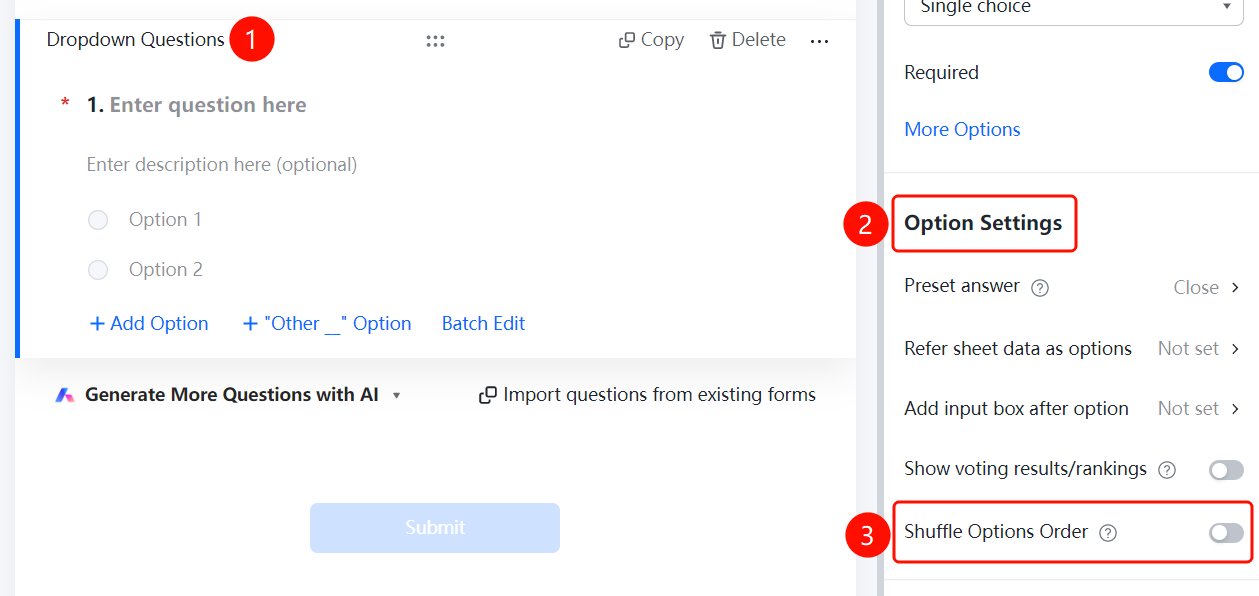
Feature Entry
Dropdown question -> "Option Settings" -> "Shuffle Option Order" switch
- Click the added dropdown question.
- In the "Option Settings" panel on the right, turn on the "Shuffle Option Order" switch.
FAQ
Q1: How do I set a default option for a dropdown question?
- Solution: Click the dropdown question, click "Preset Answers" in the "Option Settings" panel, and select the default option in the pop-up dropdown list.
Q2: Can a dropdown question reference table data as options?
- Solution: Yes. Click the dropdown question, click "Reference Table Data as Options" in the "Option Settings" panel, and select from cloud documents or upload from local files.
Q3: How do I allow respondents to enter custom content after selecting an option?
- Solution: Click the dropdown question, click "Add Text Box After Option" in the "Option Settings" panel, select the options that require a text box, and set the required rules.
Notes
- Dropdown questions support adding multiple options, which can be managed via "Add Option", "Batch Edit", or the "Other" option.
- After enabling "Shuffle Option Order", the order of options seen by each respondent will be randomized.