Feature Summary
Global settings are used to configure the global parameters of exam forms, including settings for making all questions required, exam validity period, answer time limits, who can take the exam, batch setting of scores, anti-cheating policies, and more.
Feature Description
| Feature Dimension | Description |
|---|---|
| Member Restrictions | No member restrictions |
| Version Restrictions | No version restrictions |
Steps
Set All Questions as Required
Feature Entry
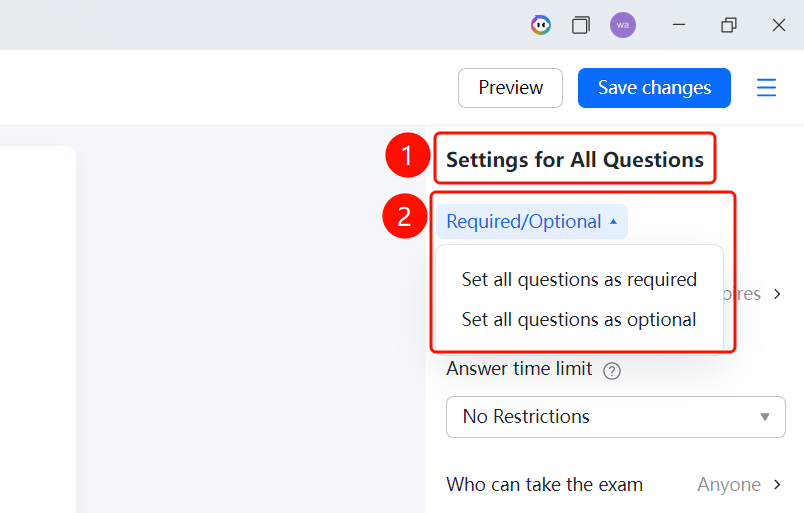
"Global Settings" panel → "Set All Questions as Required" drop-down list
- Click the Global Settings button to expand the global settings panel on the right.
- Click Set All Questions as Required (the current value is displayed on the right) to expand the options list.
- Select Set All Questions as Required or Set All Questions as Optional.
Set Exam Validity Period
Feature Entry
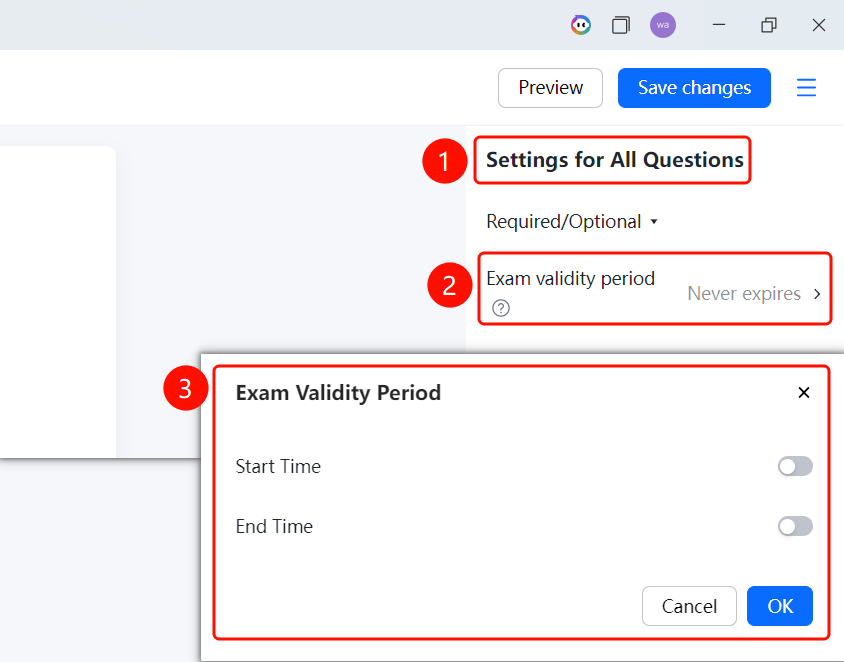
"Global Settings" panel → "Exam Validity Period" option
Click the Global Settings button to expand the global settings panel on the right.
Click Exam Validity Period (currently set to Unlimited). A tooltip note will appear: Candidates can take the exam within the validity period; otherwise, they cannot access the exam.
In the pop-up Exam Validity Period dialog:
- Turn on the Start Time switch, and set the start date and time in the date input box (with a calendar icon) below.
- Turn on the End Time switch, and set the end date and time in the date input box below.
Click the OK button to save.
Set Answer Time Limit
Feature Entry
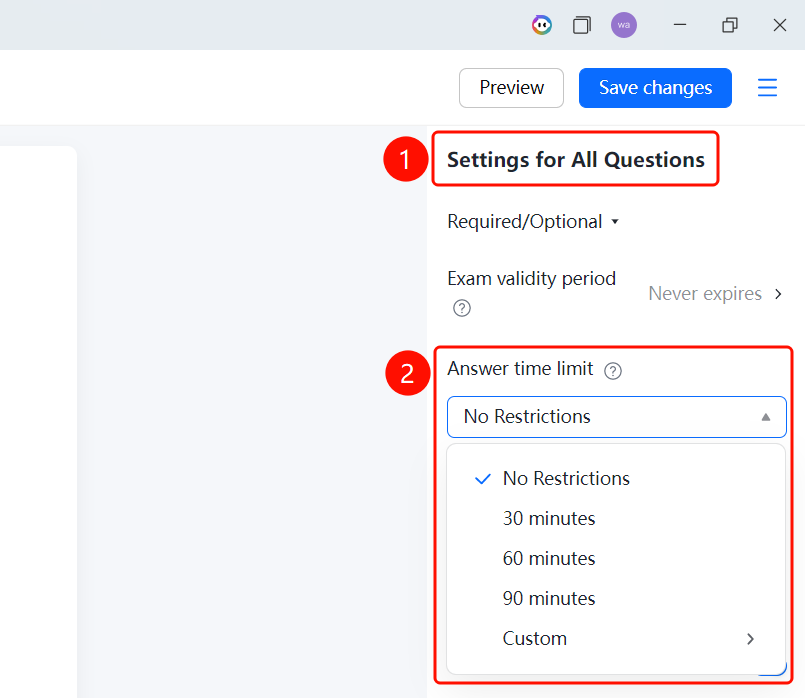
"Global Settings" panel → "Answer Time Limit" drop-down list
- Click the Global Settings button to expand the global settings panel on the right.
- Click the Answer Time Limit drop-down list (currently set to No Limit).
- Select a time limit: No Limit (selected by default), 30 Minutes, 60 Minutes, 90 Minutes, or Custom.
- Once set, the countdown starts as soon as the candidate clicks Start Exam, and the exam will be forcibly submitted when the time is up.
Set Who Can Take the Exam
Feature Entry
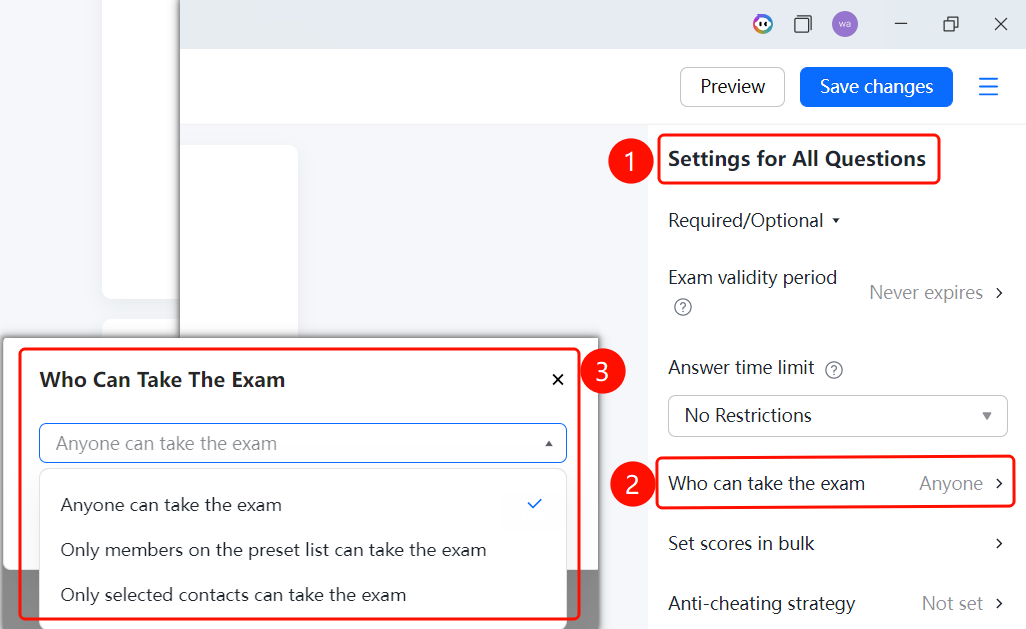
"Global Settings" panel → "Who Can Take the Exam" option
Click the Global Settings button to expand the global settings panel on the right.
Click Who Can Take the Exam (currently set to Anyone).
In the pop-up Who Can Take the Exam dialog, select from the Anyone can take the exam drop-down list:
- Anyone can take the exam (selected by default)
- Only members on the preset list can take the exam
- Only selected contacts can take the exam
Batch Set Scores
Feature Entry
"Global Settings" panel → "Batch Set Scores" option
- Click the Global Settings button to expand the global settings panel on the right.
- Click Batch Set Scores.
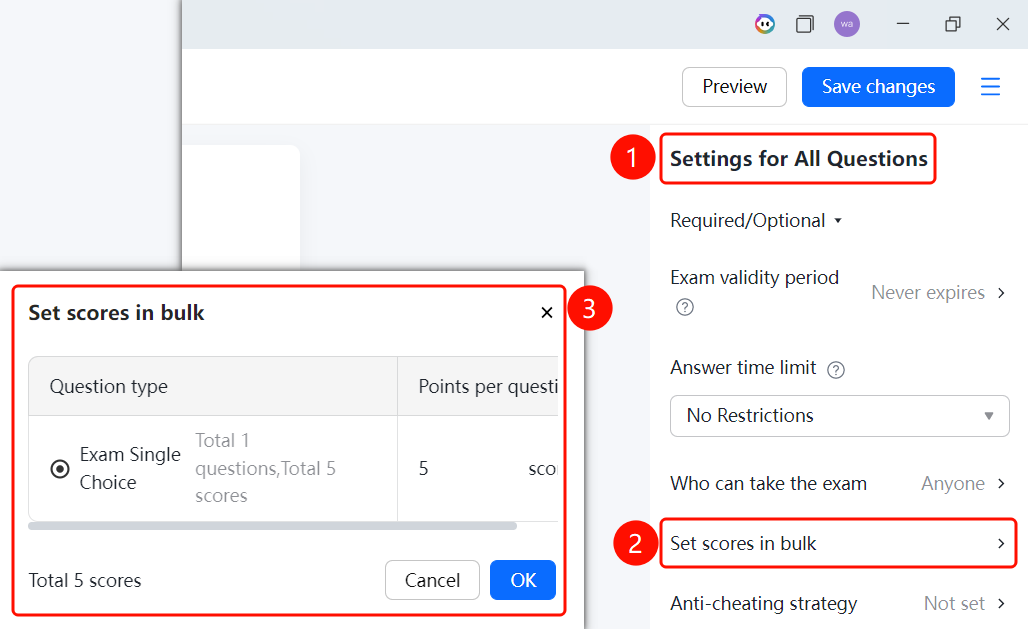
- In the table (with "Question Type" and "Score per Question" columns) of the pop-up Batch Set Scores dialog, set the score by question type: select the radio button for Single-Choice Exam on the left of the question type row, and enter the score in the Score per Question input box on the right. The row will display "Total X questions, X points in total".
- The bottom of the dialog displays Total: X Points.
- Click the OK button to save.
Set Anti-Cheating Policy
Feature Entry
"Global Settings" panel → "Anti-Cheating Policy" option
Click the Global Settings button to expand the global settings panel on the right.
Click Anti-Cheating Policy (currently set to Not Set).
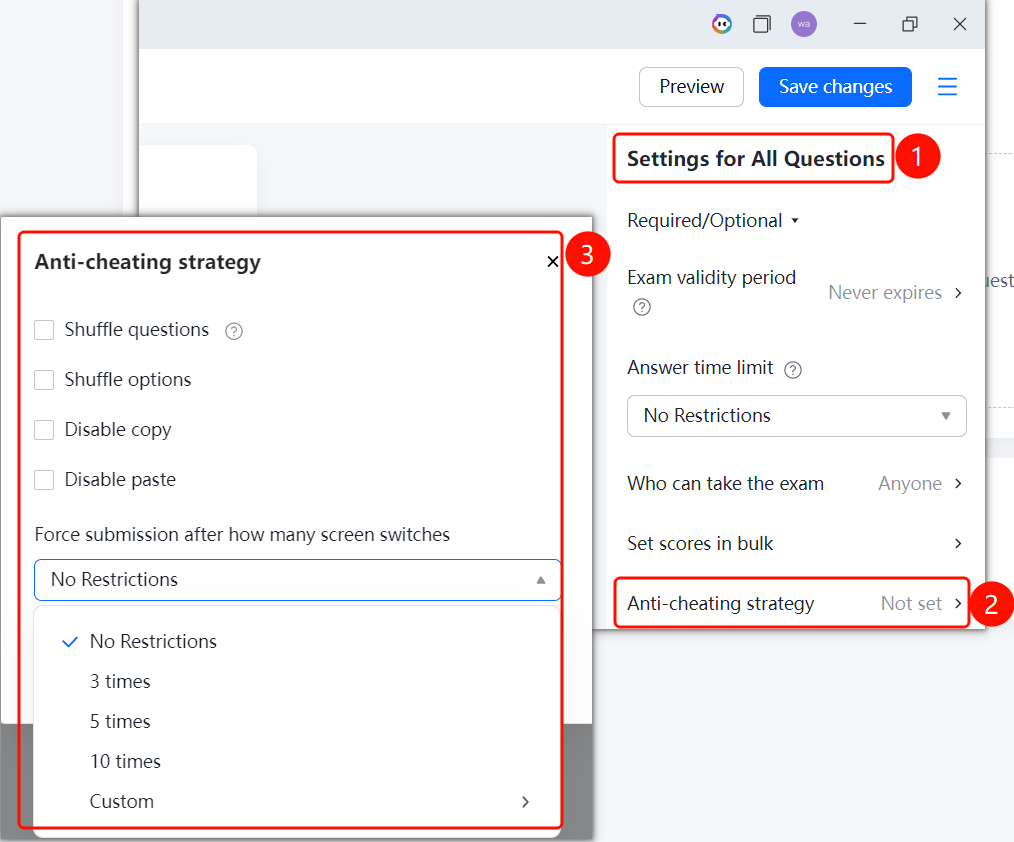
Configure the settings in the pop-up Anti-Cheating Policy panel:
- Select the Shuffle Question Order checkbox: Once enabled, the order of questions will be randomized.
- Select the Shuffle Option Order checkbox: Once enabled, the order of options will be randomized.
- Select the Disable Copying checkbox: Prevents respondents from copying question content.
- Select the Disable Pasting checkbox: Prevents respondents from pasting content.
- Select from the Force submission after switching screens how many times drop-down list: No Limit (selected by default), 3 Times, 5 Times, 10 Times, or Custom.
Once configuration is complete, click the × in the upper right corner of the panel to close it.
Set Allow Only One Attempt
Feature Entry
"Global Settings" panel → "Allow Only One Attempt" switch
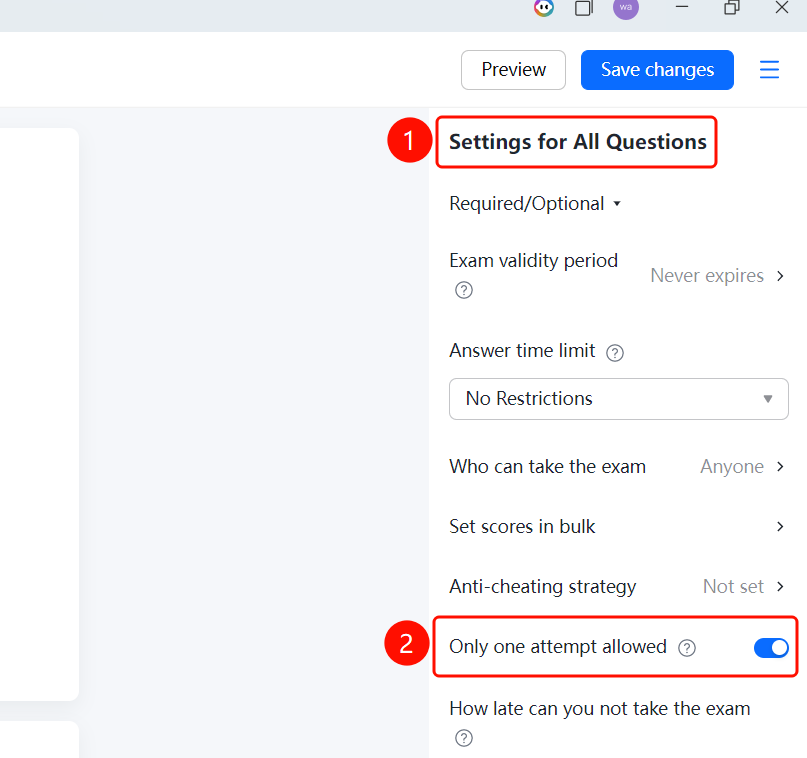
- Click the Global Settings button to expand the global settings panel on the right.
- Turn on the Allow Only One Attempt switch.
- Once enabled, candidates must sign in to take the exam, and each candidate can only take the exam once.
Set Late Arrival Time Limit for Exam Entry
Feature Entry
"Global Settings" panel → "Late Arrival Time Limit for Exam Entry" drop-down list
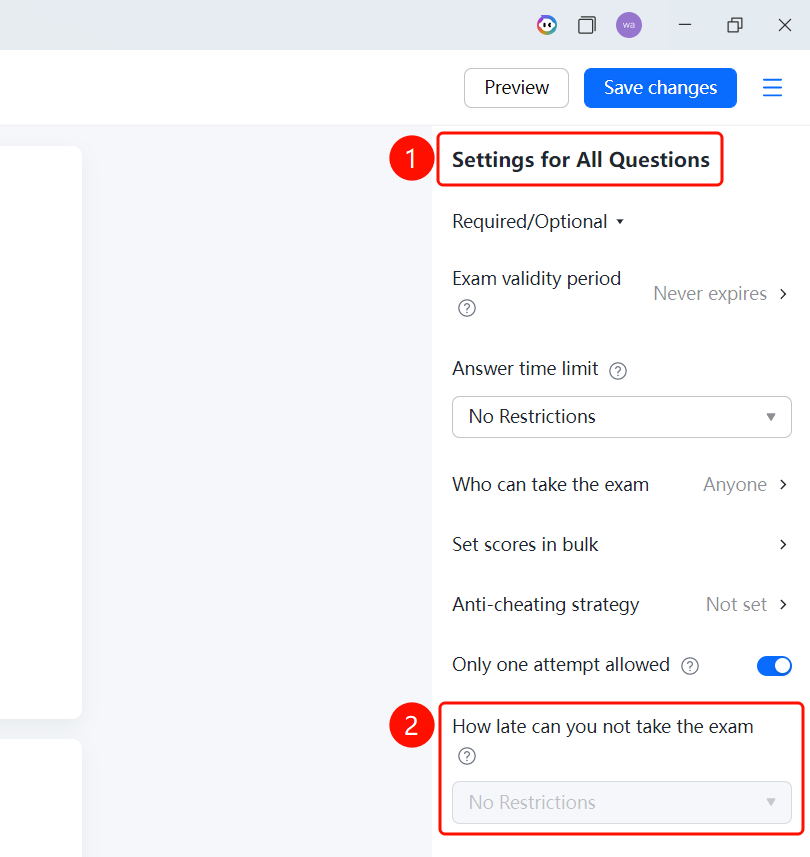
- Click the Global Settings button to expand the global settings panel on the right.
- Select a time limit in the Late Arrival Time Limit for Exam Entry drop-down list.
- This setting takes effect only after the exam start time is set: It specifies how long after the exam starts candidates are barred from entering. For example, if the exam starts at 8:00 AM and this option is set to 10 minutes, candidates will not be able to enter the exam after 8:10 AM.
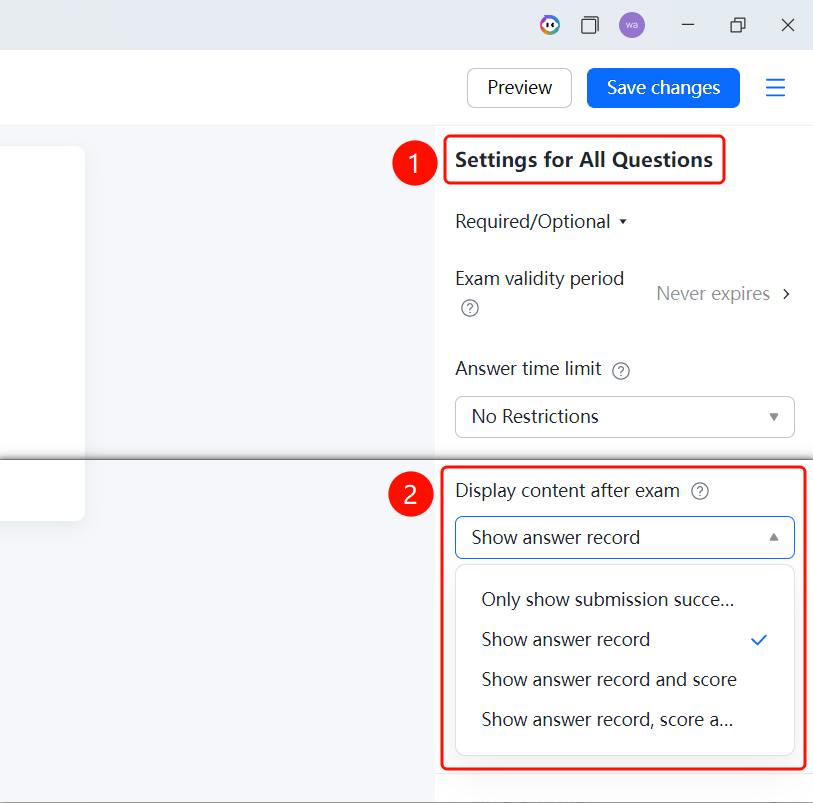
Set Content Displayed After Exam
Feature Entry
"Global Settings" panel → "Content Displayed After Exam" drop-down list
- Click the Global Settings button to expand the global settings panel on the right.
- Select the content to display (such as Show Answer Records) from the Content Displayed After Exam drop-down list.
- Candidates can view scores, answers, and explanations after completing the exam. Note that if there are questions requiring manual grading, the total score will not be displayed until manual grading is completed.
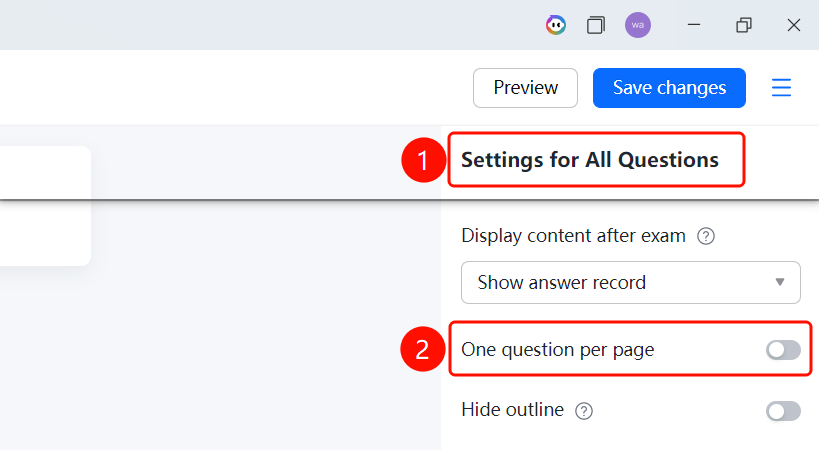
Set One Question per Page
Feature Entry
"Global Settings" panel → "One Question per Page" switch
- Click the Global Settings button to expand the global settings panel on the right.
- Turn on the One Question per Page switch.
- Once enabled, only one question will be displayed on each page.
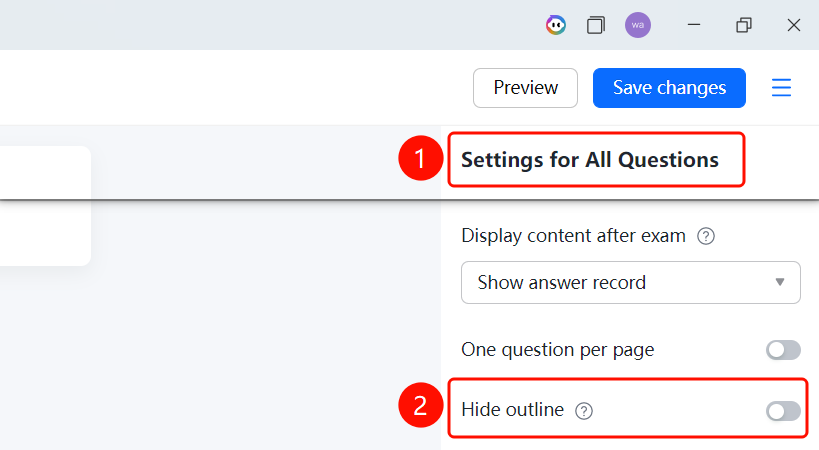
Set Hide Question Numbers
Feature Entry
"Global Settings" panel → "Hide Question Numbers" switch
- Click the Global Settings button to expand the global settings panel on the right.
- Turn on the Hide Question Numbers switch.
- Once enabled, question numbers will not be displayed.
FAQ
Q1: How do I quickly set all questions as required?
- Solution: Click the "Set All Questions as Required" drop-down list in the global settings panel, and select "Set All Questions as Required".
Q2: How do I set who can take the exam?
- Solution: Click "Who Can Take the Exam" in the global settings panel, and select the permission scope (Anyone can take the exam/Only members on the preset list can take the exam/Only selected contacts can take the exam) from the drop-down list in the dialog.
Q3: How do I prevent candidates from cheating?
- Solution: Click "Anti-Cheating Policy" in the global settings panel. You can select checkboxes to shuffle the question order, shuffle the option order, disable copying, and disable pasting. You can also set the screen-switching forced submission rule via the "Force submission after switching screens how many times" drop-down list.
Notes
- Global settings are located in the upper right corner of the edit page. Click it to expand all global settings options on the right.
- The exam validity period and answer time limit can take effect at the same time.
- Once "Allow Only One Attempt" is enabled, candidates must sign in to take the exam.