Feature Summary
Formula questions automatically calculate results based on the filled content, such as total score, average score, and total amount, according to the formula. No manual input is required from candidates.
Feature Description
| Feature Dimension | Description |
|---|---|
| Member Limit | No member limit |
| Version Limit | No version limit |
Steps
Add a Formula Question
Feature Entry
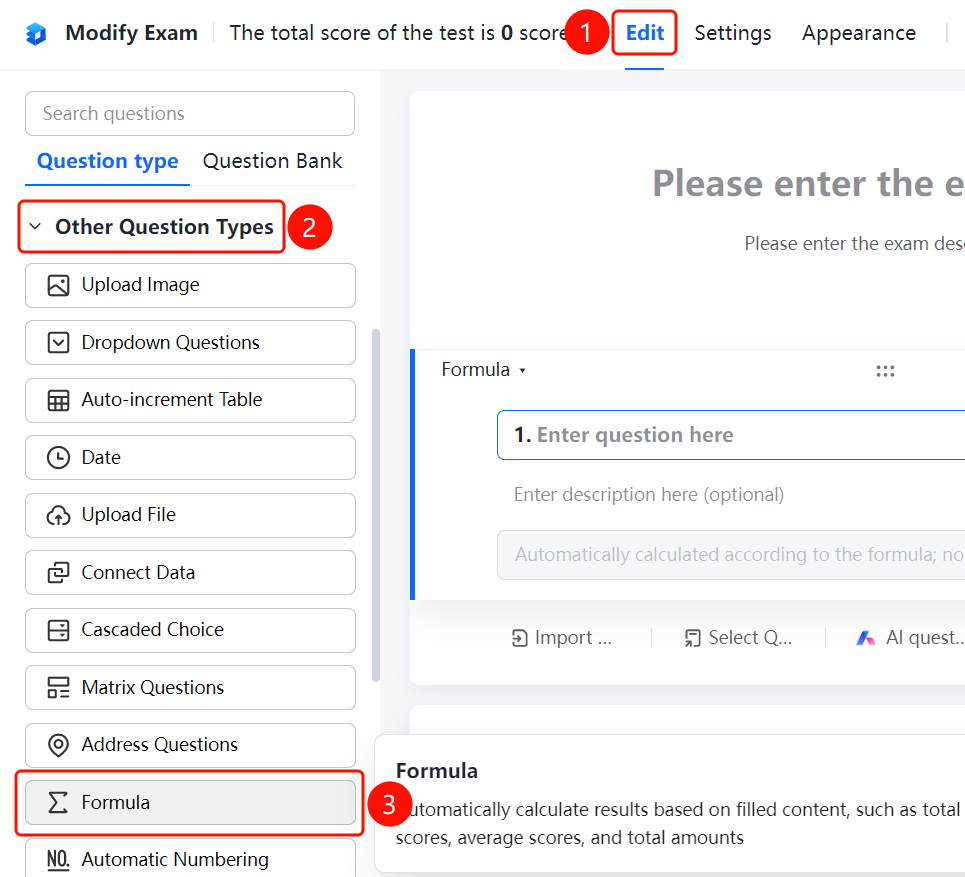
Edit tab > Other Question Types > Formula button
- Click the Edit tab at the top.
- Expand the Other Question Types area in the left panel.
- Click the Formula button to add a formula question to the exam.
Edit Formula
Feature Entry
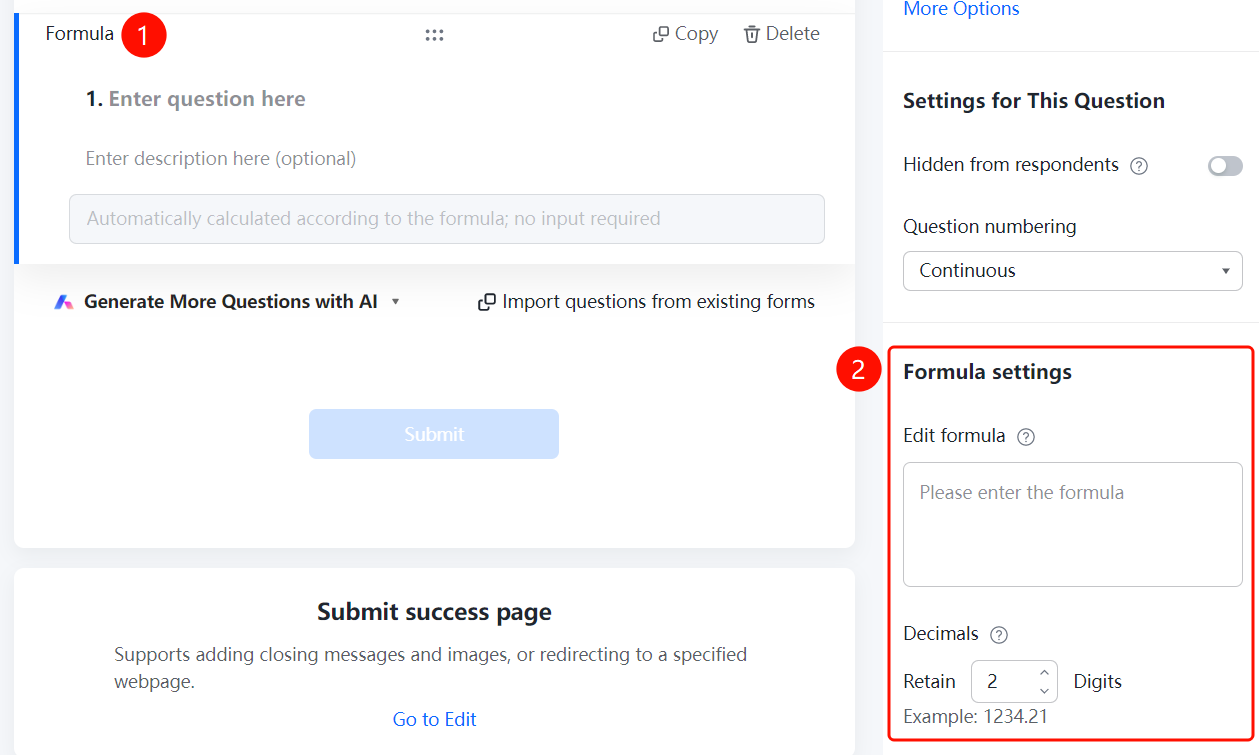
Formula question > Formula Settings > Edit Formula option
- Click the added formula question.
- Click the Edit Formula option in the Formula Settings panel on the right.
- Enter the calculation formula and set the decimal places.
FAQ
Question 1: What calculation types do formula questions support?
- Solution: Formula questions support automatic calculation of results based on filled content, such as total score, average score, and total amount.
Question 2: How do I set the decimal places for calculation results?
- Solution: Click the formula question and set the decimal places in the Formula Settings panel.
Question 3: What questions can a formula question reference data from?
- Solution: Formula questions can reference data from numeric questions. Select the referenced questions using the formula editor.
Notes
- Calculation results for formula questions are generated automatically. No manual input is required from candidates.