Feature Summary
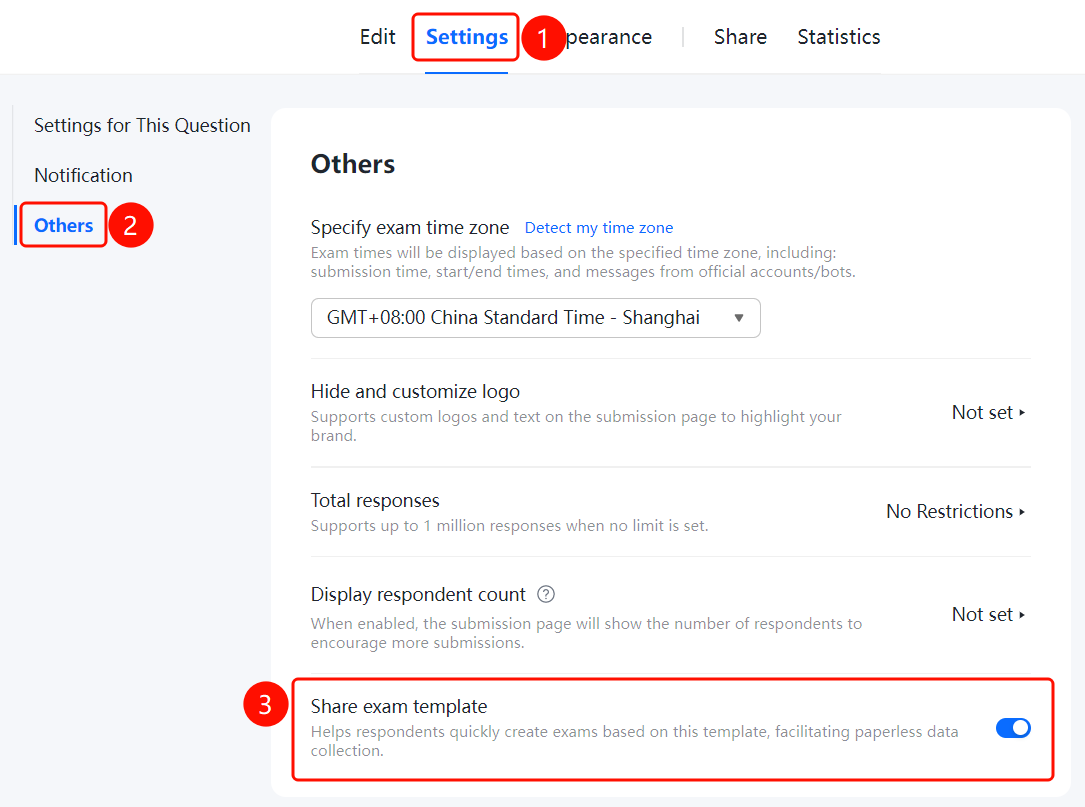
Other Settings is used to configure additional parameters for exam forms, including specifying the exam time zone, hiding and customizing the logo, limiting the total number of responses, displaying the number of participants, and sharing exam templates.
Feature Description
| Feature Dimension | Description |
|---|---|
| Member Restrictions | No member restrictions |
| Version Restrictions | No member restrictions |
Operating Steps
Specify Exam Time Zone
Feature Entry
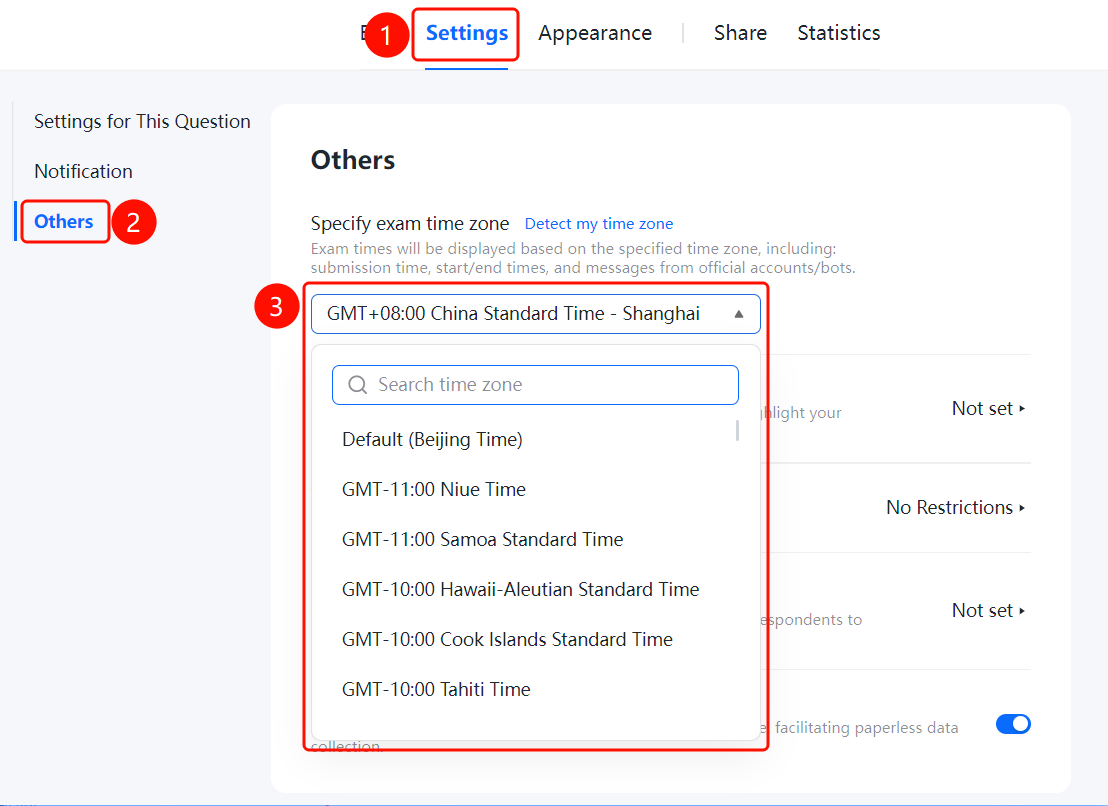
Settings tab > Other Settings > Specify Exam Time Zone option
- Click the Settings tab at the top.
- Click Other Settings in the left menu.
- Click the Specify Exam Time Zone drop-down menu to select a time zone.
- You can click Get Current Time Zone to automatically obtain your current time zone.
- The time in the exam will be displayed according to the specified time zone.
Hide and Customize Logo
Feature Entry
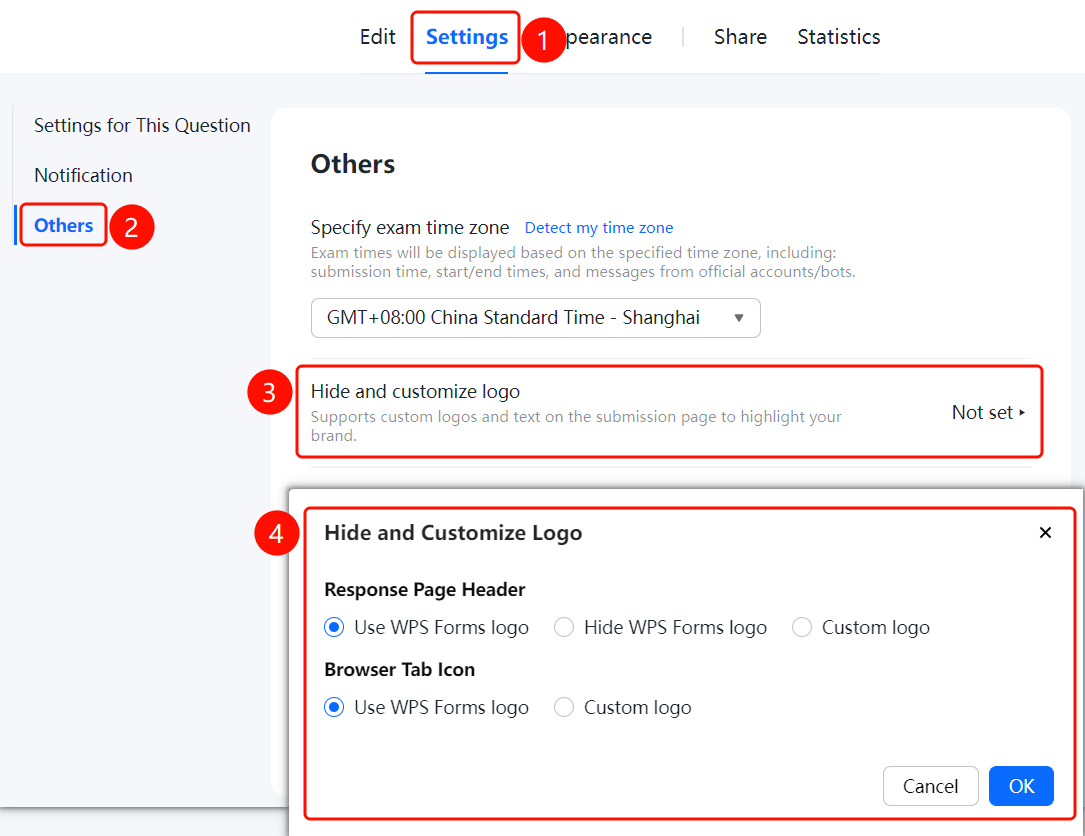
Settings tab > Other Settings > Hide and Customize Logo option
Click the Hide and Customize Logo option (currently set to Not Set).
Configure the following in the pop-up dialog:
- Navigation Bar on Fill-out Page: Use WPS Forms logo / Hide WPS Forms logo / Custom logo
- Computer Browser Tab: Use WPS Forms logo / Custom logo
Click OK to save the settings.
Set Total Responses
Feature Entry
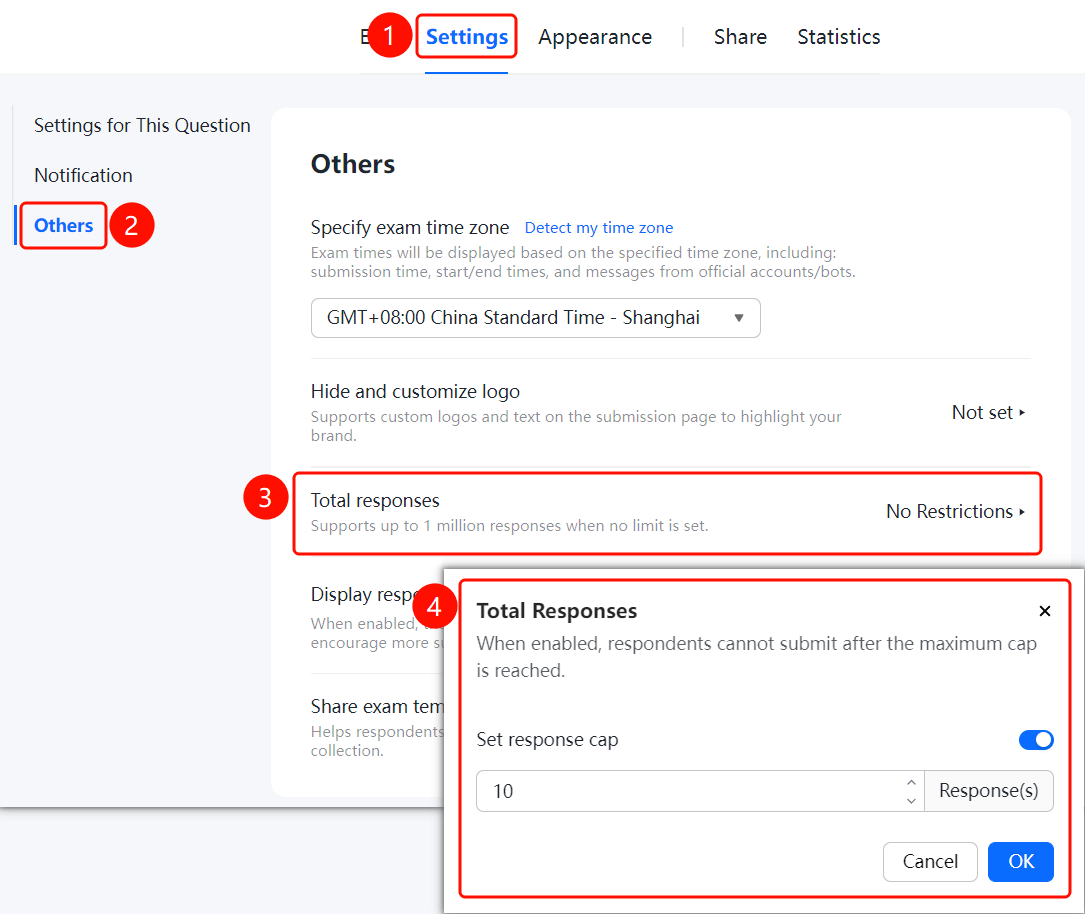
Settings tab > Other Settings > Total Responses option
- Click the Total Responses option (currently set to No Limit).
- Turn on the Limit Total Responses switch.
- Enter the maximum number of responses (such as 10).
- Once the limit is enabled, respondents will not be able to submit after the maximum limit is exceeded.
- Click OK to save the settings.
Display Number of Participants
Feature Entry
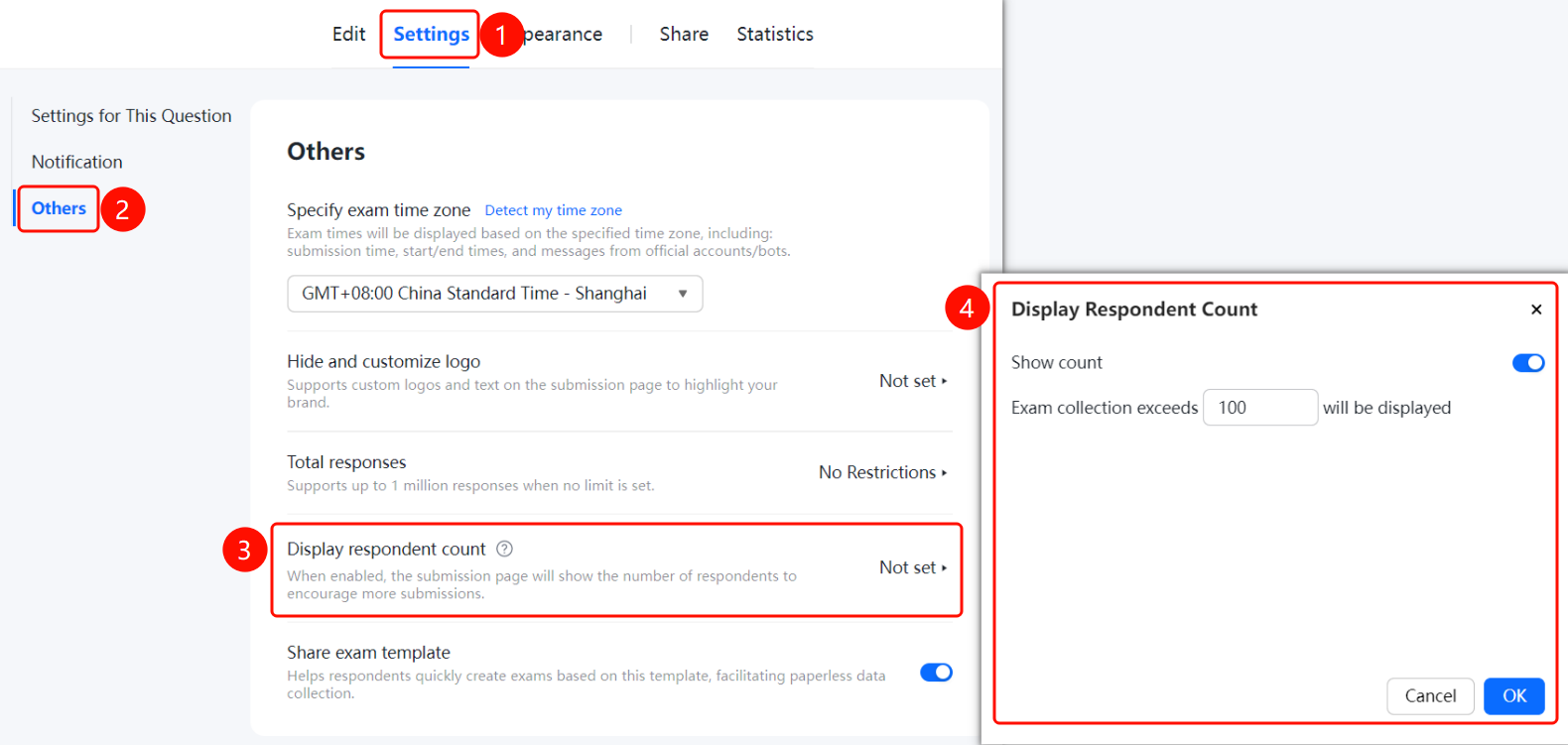
Settings tab > Other Settings > Display Number of Participants option
- Click the Display Number of Participants option (currently set to Not Set).
- Turn on the Display Participants switch.
- Set the display condition: Display when the number of collected exam responses exceeds the specified quantity (such as 100).
- Once enabled, the fill-out page will display the number of participants to encourage more people to fill it out.
- Click OK to save the settings.
Share Exam Template
Feature Entry
Settings tab > Other Settings > Share Exam Template switch
- Find the Share Exam Template option.
- Turn the sharing switch on or off.
- Once enabled, it helps respondents quickly create exams based on this template, assisting in paperless collection.
FAQ
Question 1: How do I set the exam time zone?
- Solution: Go to Settings > Other Settings, click Specify Exam Time Zone, and select or search for the required time zone.
Question 2: How do I limit the number of exam responses?
- Solution: Click Total Responses, turn on the Limit Total Responses switch, and enter the maximum quantity.
Question 3: How do I customize the exam logo?
- Solution: Click Hide and Customize Logo, select Custom Logo in the pop-up dialog, and upload an image.
Notes
- The exam time zone setting ensures that the time seen by all candidates is consistent.
- Once the total response limit is enabled, submissions will not be allowed after the limit is exceeded.
- Sharing the exam template can help others quickly create similar exams.