Feature Summary
Fill-in-the-blank questions are used to collect text entered by respondents. You can also specify the format of the content through format limits, such as phone numbers, ID numbers, or bank card numbers, to prevent respondents from entering invalid information.
Feature Details
| Feature Dimension | Description |
|---|---|
| Premium Limits | No premium limits |
| Version Limits | No premium limits |
Steps
Add Fill-in-the-Blank Questions
Feature Entry
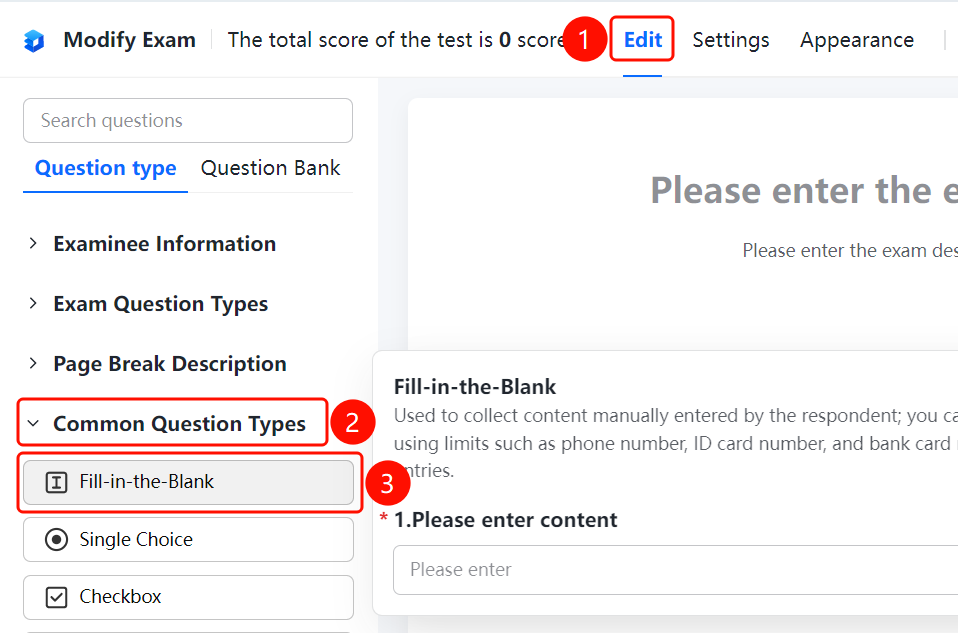
"Edit" tab > "Common Question Types" > "Fill-in-the-Blank" button
- Click the Edit tab at the top.
- Expand the Common Question Types area in the left panel.
- Click the Fill-in-the-Blank button to add a fill-in-the-blank question to the exam.
- Enter the question in the question editing area. Respondents will enter text in the answer area.
Set Format Limits
Feature Entry
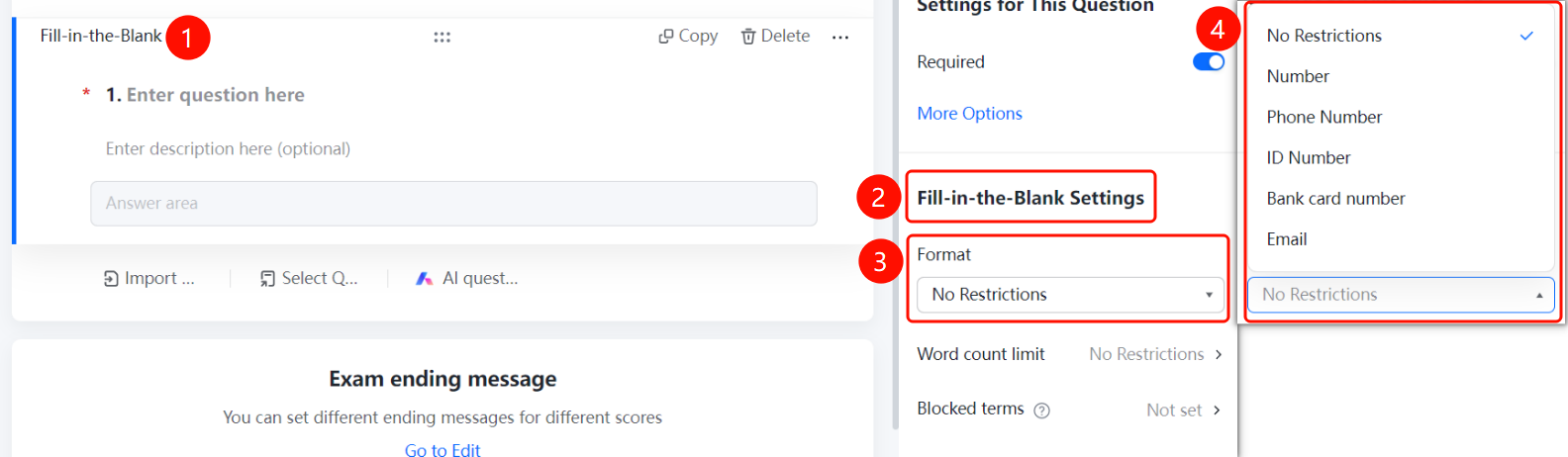
Fill-in-the-blank question > "Fill-in Settings" > "Format Limits" option
- Click the added fill-in-the-blank question.
- Click the Format Limits drop-down list in the Fill-in Settings panel on the right.
- Select a format limit: No Limit, Digits, Phone Number, ID numbers, Bank Card Number, or Email.
- Once set, respondents must fill in the content according to the specified format.
Set Character Limits
Feature Entry
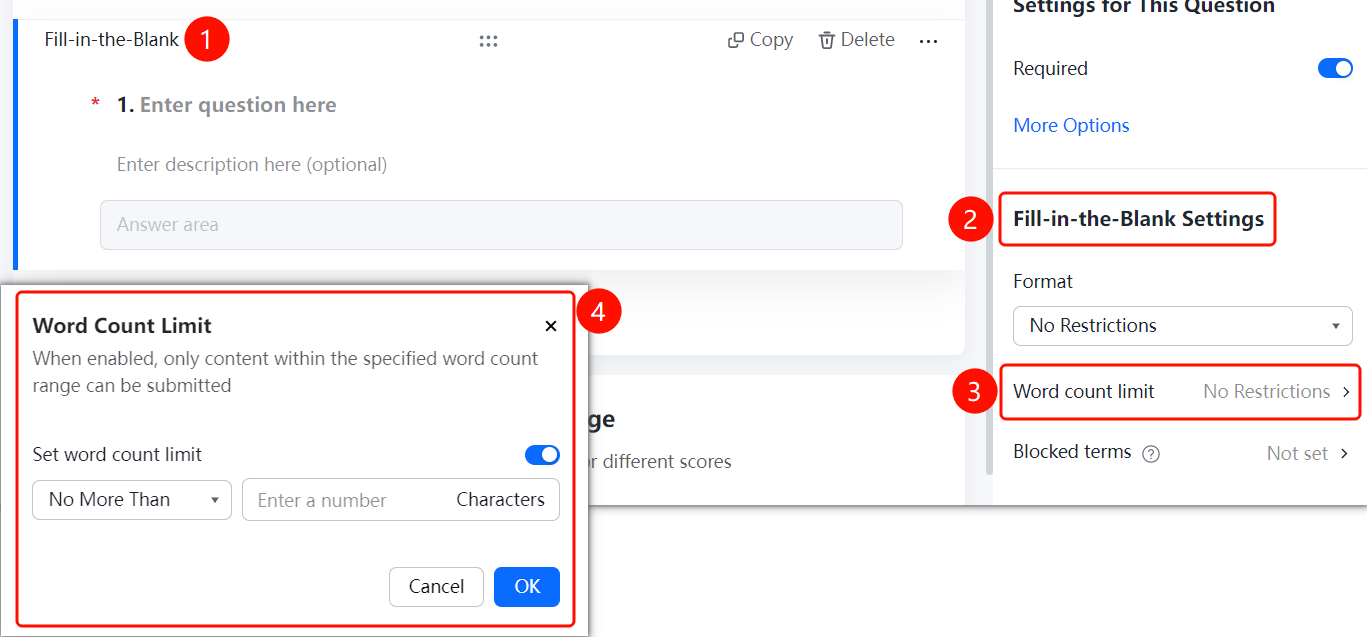
Fill-in-the-blank question > "Fill-in Settings" > "Character Limits" option
- Click the added fill-in-the-blank question.
- Click the Character Limits option (currently No Limit) in the Fill-in Settings panel on the right.
- Turn on the Set Character Limits switch.
- Enter the minimum and maximum character counts.
- Once enabled, respondents can only submit content within the specified character range.
- Click OK to save the settings.
Set Blocked Content
Feature Entry
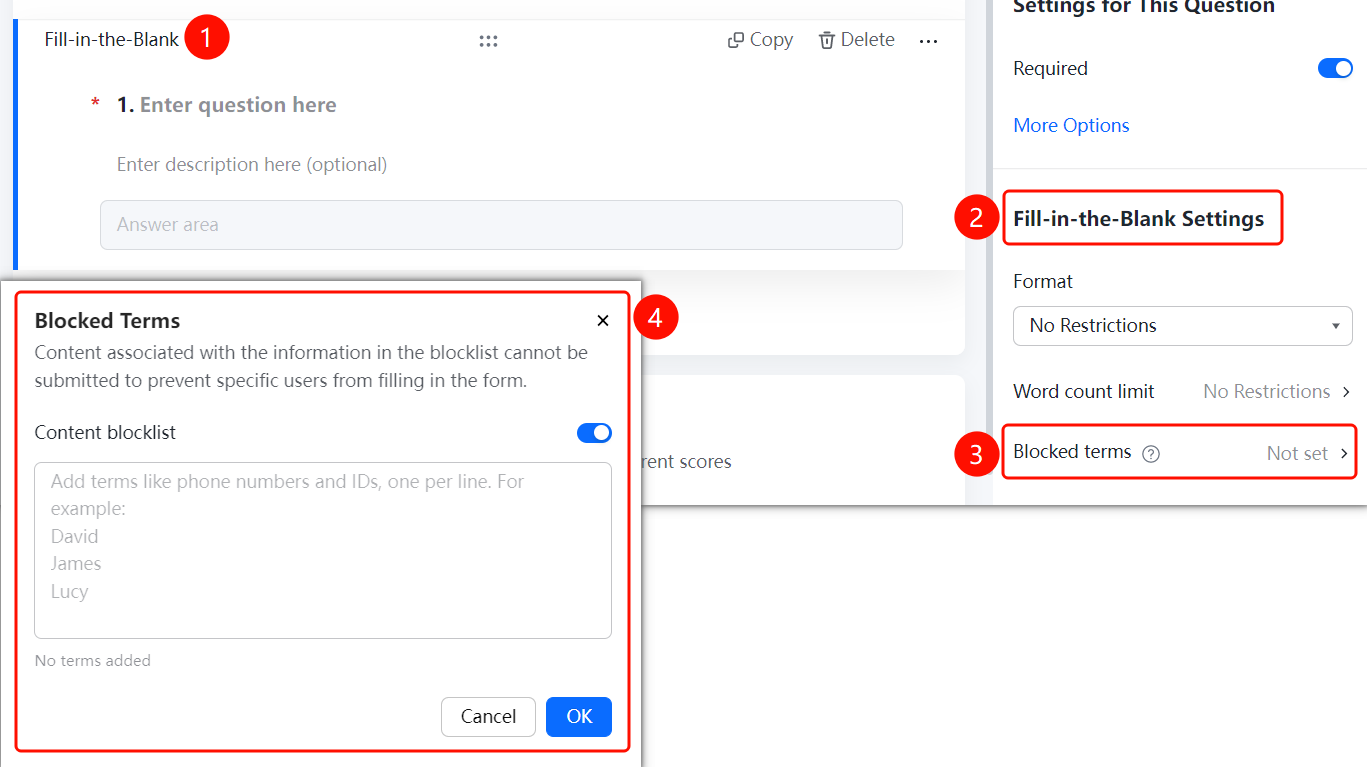
Fill-in-the-blank question > "Fill-in Settings" > "Blocked Content" option
- Click the added fill-in-the-blank question.
- Click the Blocked Content option (currently Not Set) in the Fill-in Settings panel on the right.
- Turn on the Content Blocklist switch.
- Add blocked content in the text box, such as names, phone numbers, or employee IDs, with one item per line.
- Content in the blocklist cannot be submitted, which can effectively prevent certain entries.
- Click OK to save the settings.
FAQ
Q1: How do I set format limits for fill-in-the-blank questions?
- Solution: Click the fill-in-the-blank question, click the "Format Limits" drop-down list in the "Fill-in Settings" panel, and select a format such as phone number or ID numbers.
Q2: What is the purpose of character limits?
- Solution: Once character limits are enabled, respondents can only submit content within the specified character range. This is useful for scenarios where you need to control the length of the response.
Q3: How do I block certain content from being submitted?
- Solution: Click the fill-in-the-blank question, click "Blocked Content" in the "Fill-in Settings" panel, turn on "Content Blocklist", and add the blocked content.
Notes
- Format limits help prevent respondents from entering invalid information.
- The content blocklist is useful for scenarios where you need to block specific entries.