Feature Summary
Multi-segment fill-in-the-blank questions are used to collect multiple segments of content entered by respondents. If there are multiple places in a single paragraph that need to be filled in by others, you can use this question type and insert blank placeholders to achieve multi-segment fill-in-the-blank.
Feature Description
| Feature Dimension | Description |
|---|---|
| Membership Restrictions | No membership restrictions |
| Version Restrictions | No membership restrictions |
Steps
Add Multi-Segment Fill-in-the-Blank Questions
Feature Entry
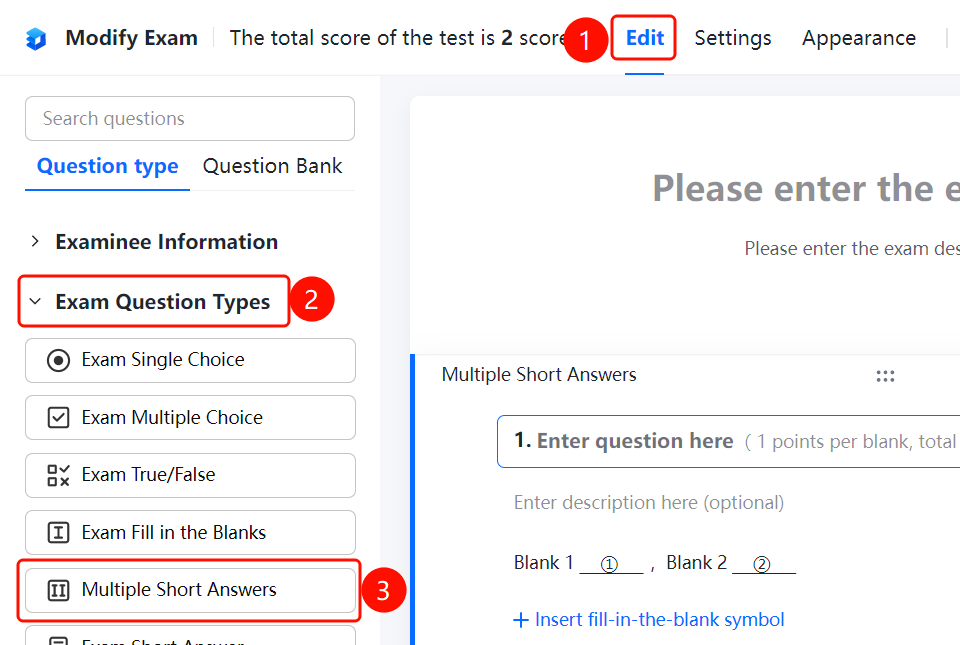
Edit tab → Exam Question Types → Multi-Segment Fill-in-the-Blank button
- Click the Edit tab at the top.
- In the left panel, expand the Exam Question Types area.
- Click the Multi-Segment Fill-in-the-Blank button to add a multi-segment fill-in-the-blank question to the exam.
- Enter the question content in the question editing area, such as Blank 1 and Blank 2.
- Click Insert Blank Placeholder to insert a blank area where it needs to be filled in.
Set Answers and Scores
Feature Entry
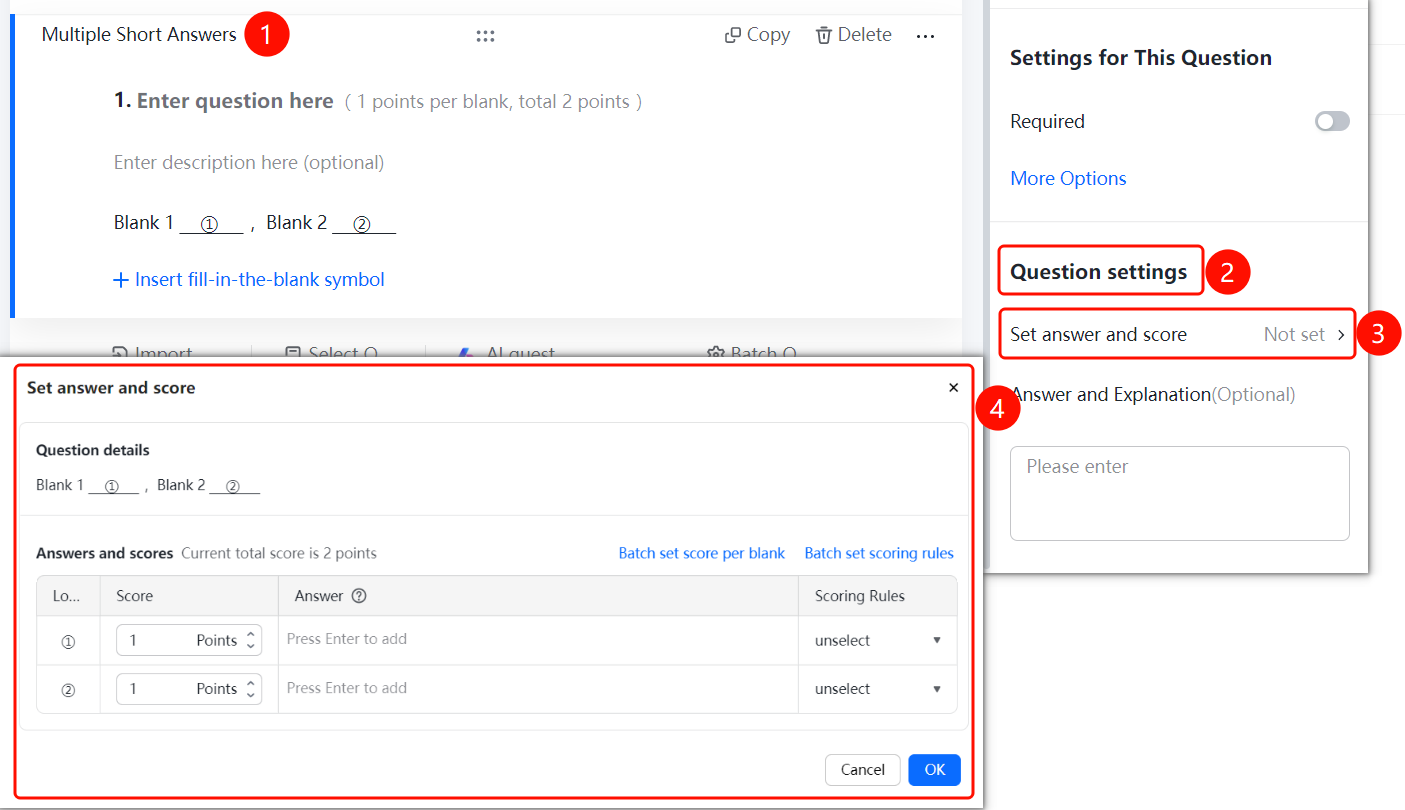
Multi-Segment Fill-in-the-Blank → Question Settings → Set Answers and Scores option
- Click the added multi-segment fill-in-the-blank question.
- In the Question Settings panel on the right, click Set Answers and Scores (currently displayed as Not Set).
- In the pop-up dialog, view the question details, such as Blank 1 ①, Blank 2 ②.
- Set the score and answer for each blank in the Answers and Scores area.
- You can click Batch Set Score per Blank or Batch Set Scoring Rules to configure them quickly.
- Click OK to save the settings.
Set Answer Analysis
Feature Entry
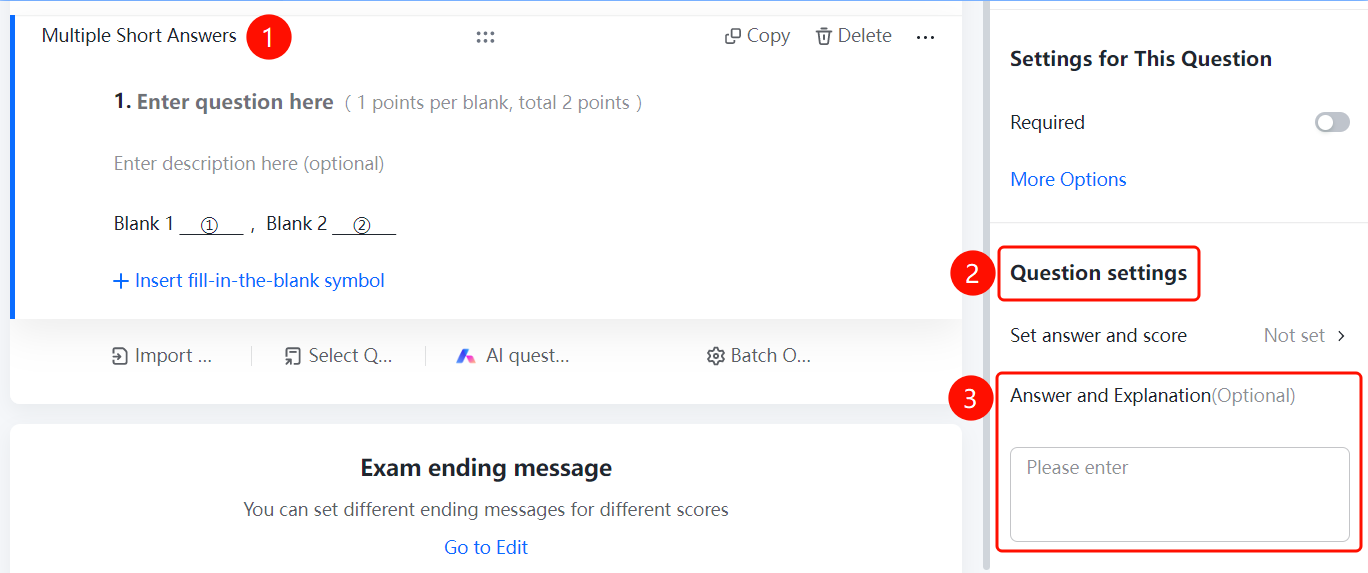
Multi-Segment Fill-in-the-Blank → Question Settings → Answer Analysis option
- Click the added multi-segment fill-in-the-blank question.
- In the Question Settings panel on the right, find Answer Analysis (Optional).
- Enter the answer analysis content in the input box.
- Candidates can view the answer analysis after submitting.
FAQ
Question 1: How do I set different scores for each blank?
- Solution: Click the multi-segment fill-in-the-blank question. In the Set Answers and Scores dialog, you can set a score for each blank position individually.
Question 2: What is the difference between multi-segment fill-in-the-blank and standard fill-in-the-blank?
- Solution: A standard fill-in-the-blank question has a single blank area. Multi-segment fill-in-the-blank allows you to insert multiple blank positions within the same paragraph of text, which is suitable for scenarios where respondents need to provide multiple pieces of information.
Question 3: How do I set answer analysis?
- Solution: Click the multi-segment fill-in-the-blank question, find Answer Analysis (Optional) in the Question Settings panel, and enter the analysis content.
Notes
- Multi-segment fill-in-the-blank is suitable for scenarios where respondents need to provide multiple pieces of information, such as contract templates and notification templates.
- After setting answers and scores, the system can automatically grade the papers.