Summary
The handwritten signature question is used to collect handwritten signatures from respondents, which can serve as confirmation credentials. It supports adding watermarks, customizing signature image naming methods, and creating categorized folders.
Feature Description
| Dimension | Description |
|---|---|
| Membership limit | No membership limit |
| Version limit | No version limit |
Steps
Add a Handwritten Signature Question
Entry
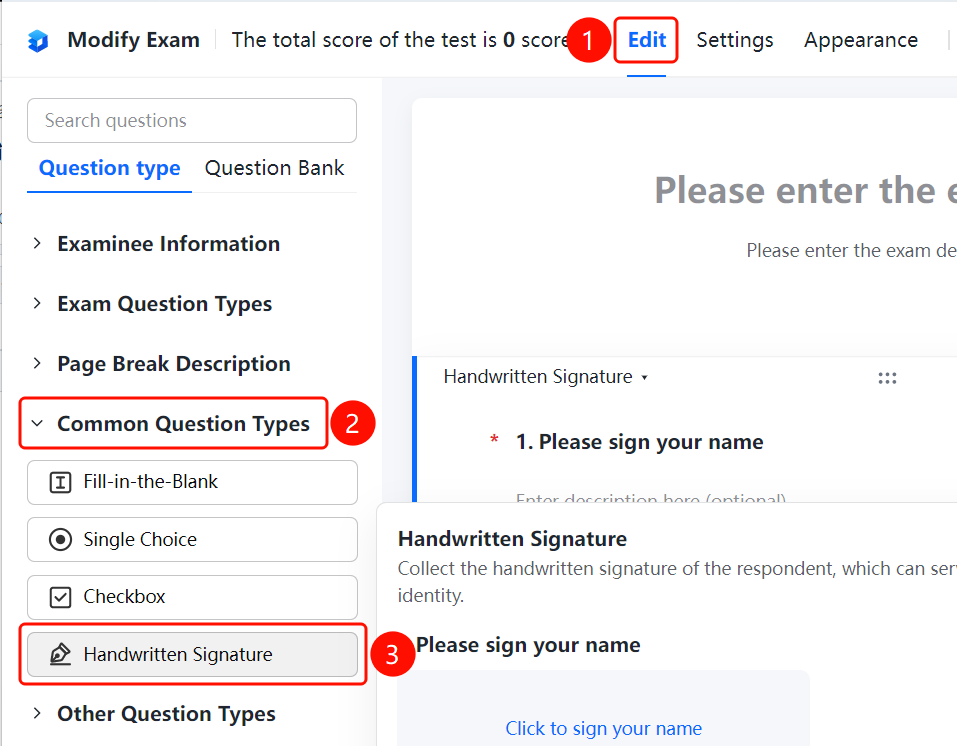
Edit tab → Common Question Types → Handwritten Signature button
- Click the Edit tab at the top.
- Expand the Common Question Types area in the left panel.
- Click the Handwritten Signature button to add a handwritten signature question to the exam.
- Enter the question content in the question editing area, such as "Please sign".
- Respondents click Click to Start Handwritten Signature to sign.
Add Watermarks
Entry
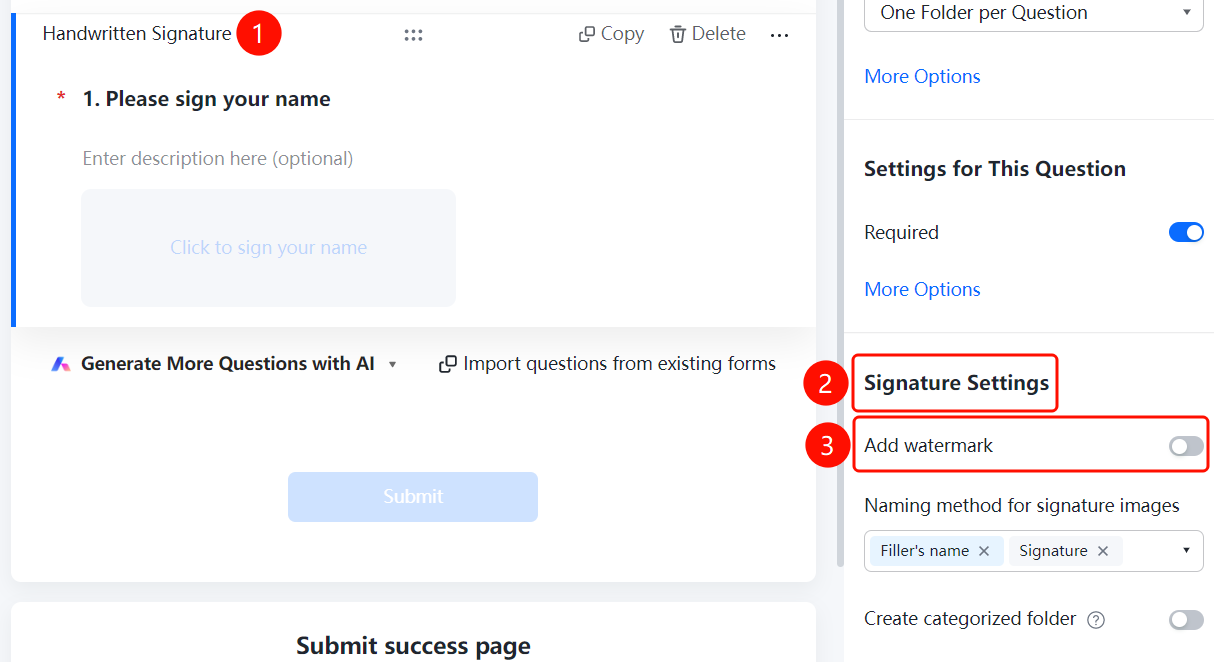
Handwritten signature question → Signature Settings → Add Watermark option
- Click the added handwritten signature question.
- Click the Add Watermark option in the Signature Settings panel on the right.
- Set the watermark content. You can enter custom watermark text in the pop-up input box.
Set the Signature Image Naming Method
Entry
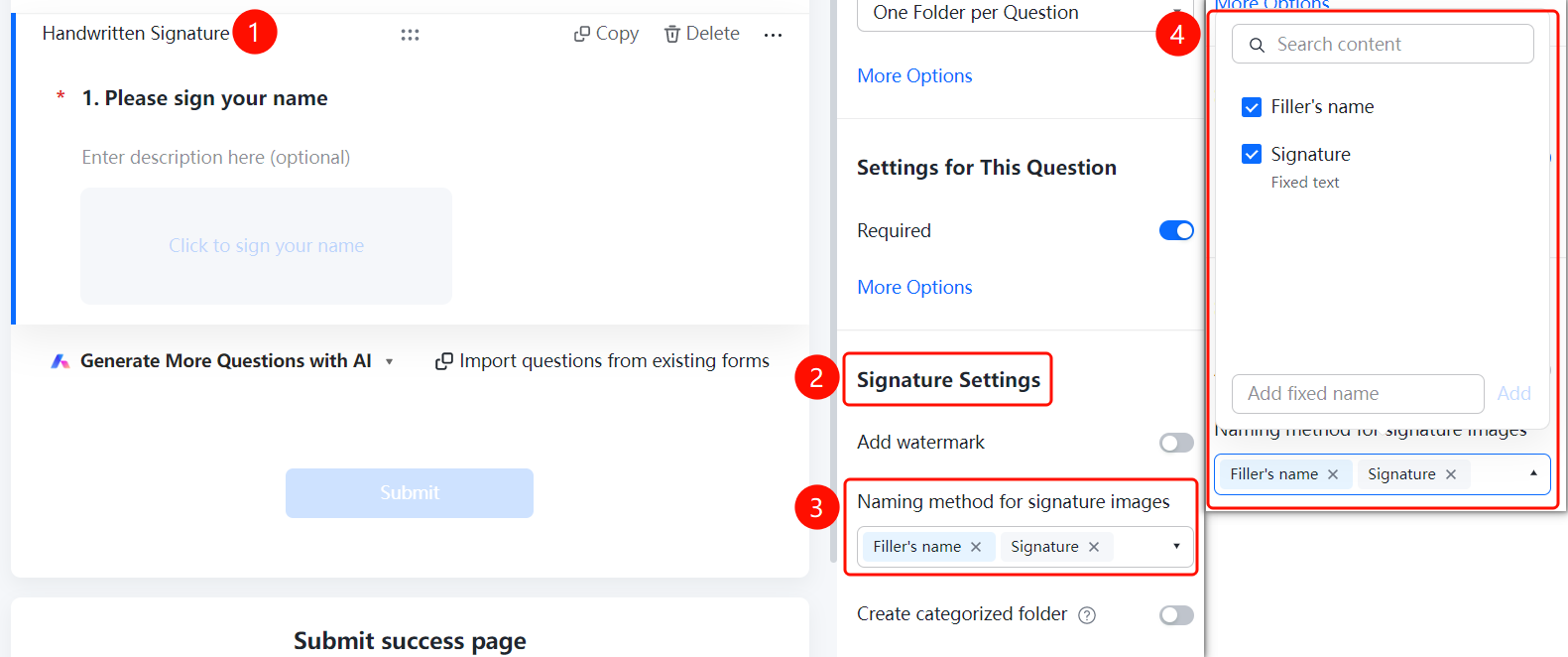
Handwritten signature question → Signature Settings → Signature Image Naming Method option
- Click the added handwritten signature question.
- Click the Signature Image Naming Method option in the Signature Settings panel on the right.
- Choose a naming method: Respondent Nickname, Signature, Fixed Text, or click Add Custom Fixed Naming to add custom rules.
- The currently selected naming method will display a label, such as Respondent Nickname ×, Signature ×.
Create Categorized Folders
Entry
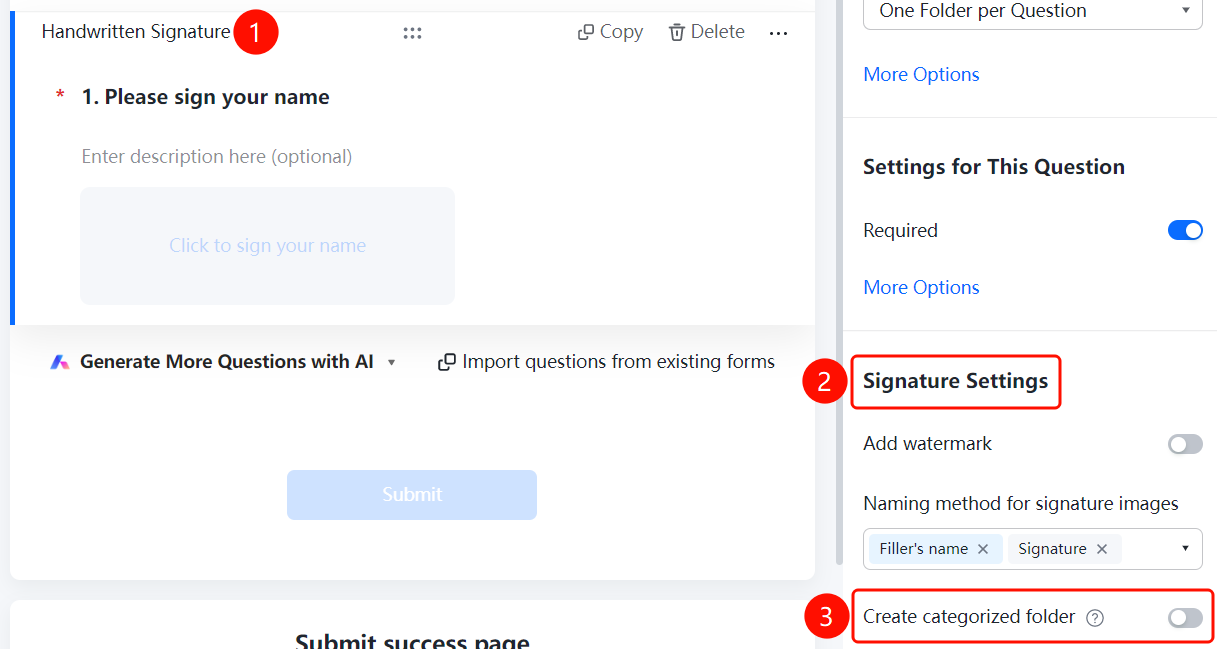
Handwritten signature question → Signature Settings → Create Categorized Folders switch
- Click the added handwritten signature question.
- Turn on the Create Categorized Folders switch in the Signature Settings panel on the right.
- Once enabled, folders will be automatically created according to the folder naming method, and collected signatures will be categorized and summarized. For example, if the folder is named by "Department", signatures from the same department will be automatically categorized and summarized into the same folder.
FAQ
Question 1: How do I add a watermark to a signature?
- Solution: Click the handwritten signature question, click Add Watermark in the Signature Settings panel, and set the watermark content in the pop-up input box.
Question 2: What are the naming methods for signature images?
- Solution: It supports naming methods such as respondent nickname, signature, and fixed text. You can also click Add Custom Fixed Naming to add custom rules.
Question 3: How do I categorize and manage collected signatures?
- Solution: Click the handwritten signature question, turn on the Create Categorized Folders switch in the Signature Settings panel, and the system will categorize and summarize signatures according to the folder naming method.
Notes
- Handwritten signatures can serve as confirmation credentials, suitable for scenarios such as contract signing and agreement confirmation.
- Signature images support adding watermarks to enhance security.