Feature Summary
Phone Number is used to collect respondents' phone numbers. It is a fill-in-the-blank question type under candidate information. The default format limit is set to Phone Number. It supports phone number verification and blocking submissions of specific phone numbers.
Feature Description
| Feature Dimension | Description |
|---|---|
| Premium Limit | No premium limits |
| Version Limit | No premium limits |
Operating Steps
Add Phone Number
Feature Entry
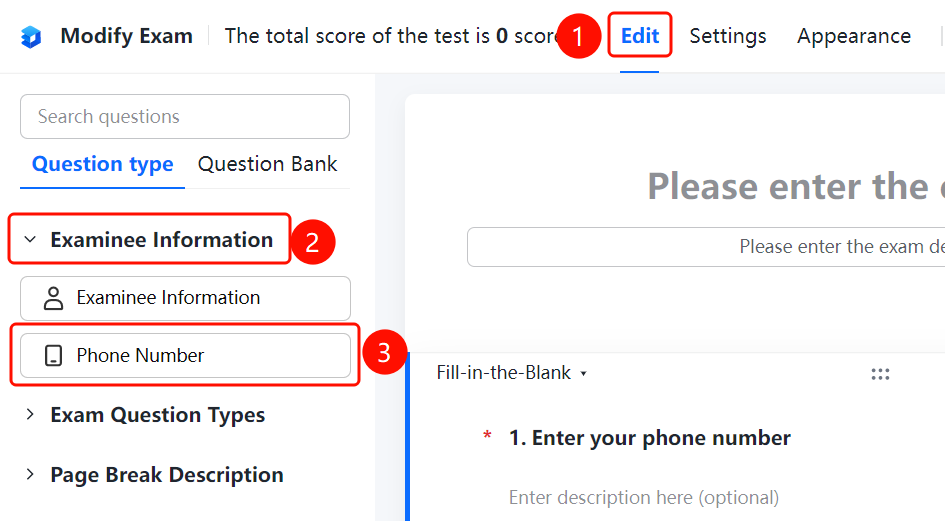
"Edit" tab → "Candidate Information" → "Phone Number" option
- Click the "Edit" tab at the top.
- In the left panel, expand the "Candidate Information" area.
- Click the "Phone Number" option to add the phone number field to the exam.
- Respondents can enter their phone numbers in the "Respondent Answer Area (Phone Number)".
Set Format Limits
Feature Entry
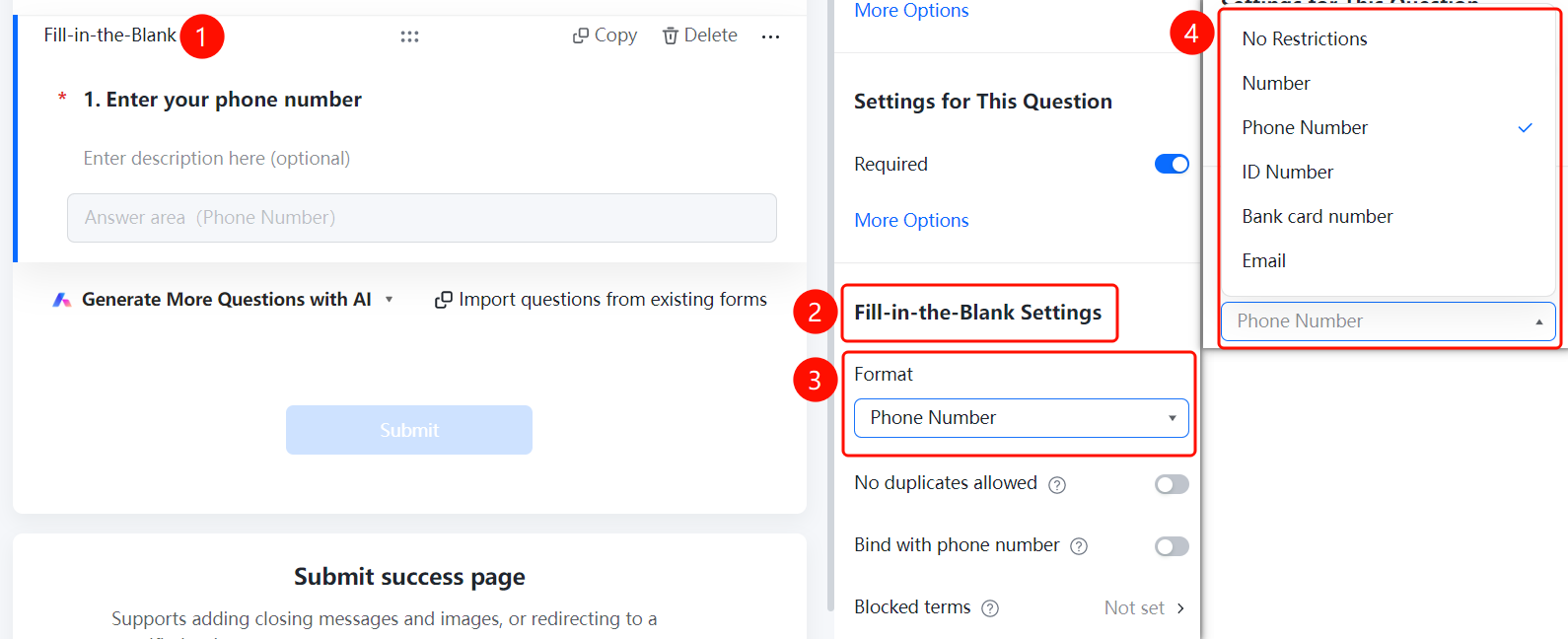
Phone Number → "Fill-in Settings" → "Format Limit" option
- Click the added phone number field.
- In the "Fill-in Settings" panel on the right, click the "Format Limit" drop-down box (currently set to "Phone Number").
- You can switch the format type: "No Limit", "Number", "Phone Number", "ID numbers", "Bank Card Number", or "Email".
Enable Phone Number Verification
Feature Entry
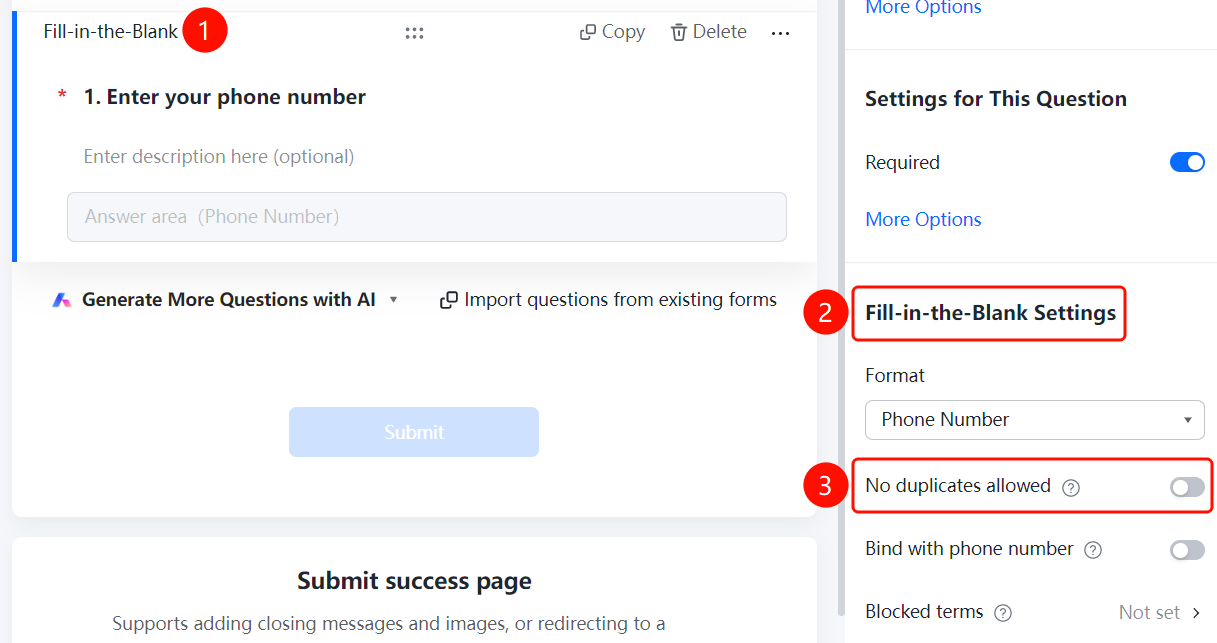
Phone Number → "Fill-in Settings" → "Verify Phone Number" switch
- Click the added phone number field.
- In the "Fill-in Settings" panel on the right, turn on the "Verify Phone Number" switch.
- Once enabled, respondents must enter a verification code to verify their phone numbers, preventing random entries.
Set Blocked Content
Feature Entry
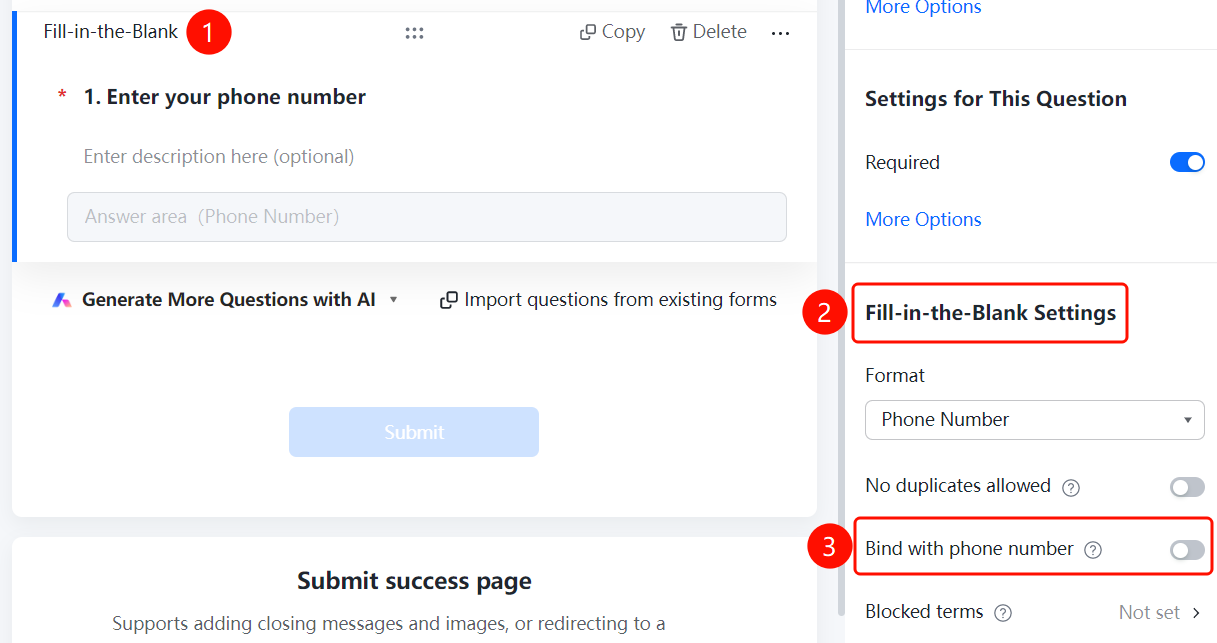
Phone Number → "Fill-in Settings" → "Blocked Content" option
- Click the added phone number field.
- In the "Fill-in Settings" panel on the right, click "Blocked Content" (currently set to "Not Set").
- Turn on the "Content Blocklist" switch.
- Add the phone numbers you want to block in the input box, with one number per line.
- Phone numbers on the blocklist will not be allowed to submit, effectively preventing certain people from filling out the form.
- Click "OK" to save the settings.
FAQ
Q1: How do I prevent respondents from entering fake phone numbers?
- Solution: Click the phone number field, turn on "Verify Phone Number" in "Fill-in Settings", and respondents will be required to enter a verification code to verify their phone numbers.
Q2: How do I block certain phone numbers from submitting?
- Solution: Click the phone number field, click "Blocked Content" in "Fill-in Settings", turn on the content blocklist, and add the blocked phone numbers.
Q3: Can I change the phone number to other formats?
- Solution: Yes. Click the phone number field, click "Format Limit" in "Fill-in Settings", and you can switch to formats such as No Limit, Number, or ID numbers.
Notes
- Phone Number is a fill-in-the-blank question type under candidate information, and its default format limit is set to Phone Number.
- Once phone number verification is enabled, respondents must enter a verification code to submit.