Feature Summary
Image stitching questions are used to collect stitched large images, such as "double code collection" and "front and back ID card stitching". After respondents upload multiple images, the system automatically stitches them together.
Feature Description
| Feature Dimension | Description |
|---|---|
| Premium Restrictions | No premium restrictions |
| Version Restrictions | No version restrictions |
Operating Steps
Add an Image Stitching Question
Feature Entry
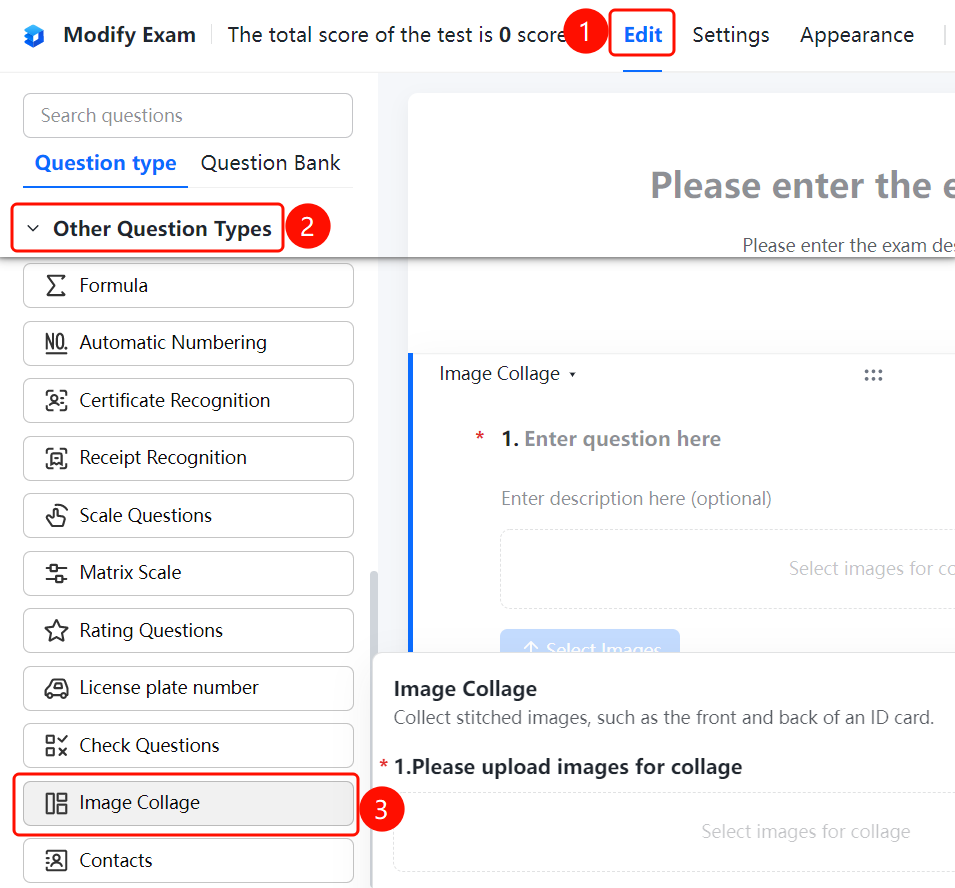
Edit tab -> Other Question Types range -> Image Stitching Question button
- Click the Edit tab.
- In the question type panel on the left, expand the Other Question Types range.
- Click the Image Stitching Question button to add the image stitching question to the exam.
Add Watermark
Feature Entry
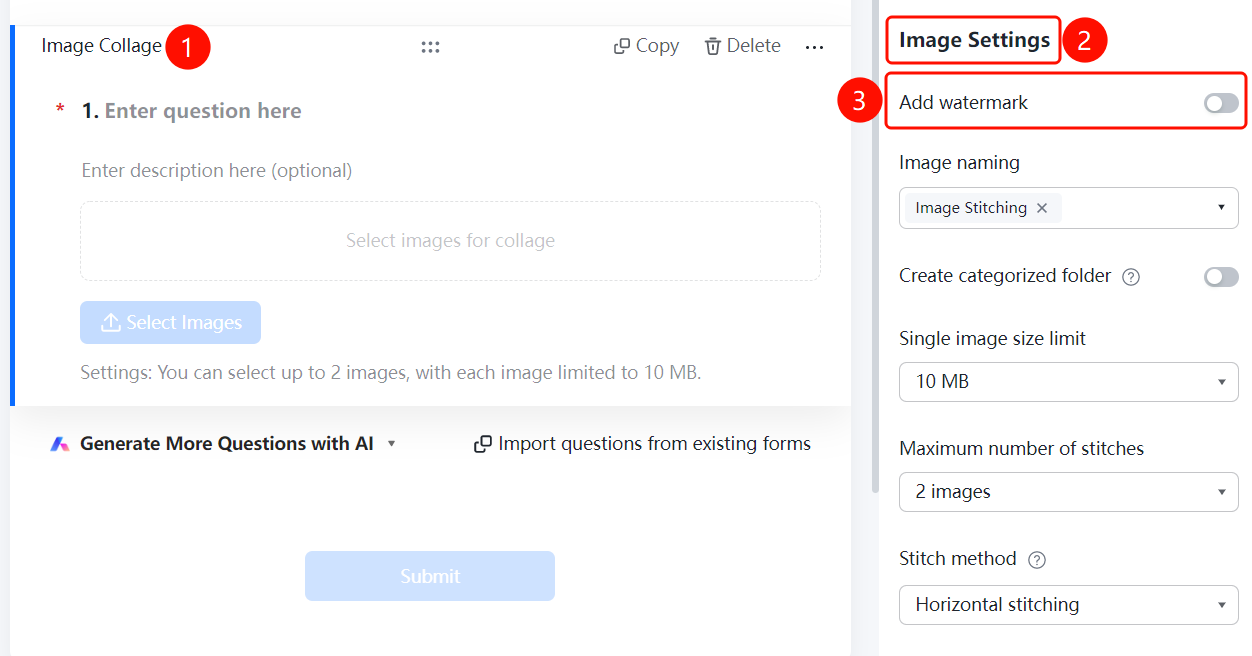
Image Stitching Question -> Image Settings panel -> Add Watermark switch
- Click the added image stitching question.
- In the Image Settings panel on the right, find the Add Watermark option.
- Turn on the Add Watermark switch, and the stitched image will automatically have a watermark added.
Set Image Naming Method
Feature Entry
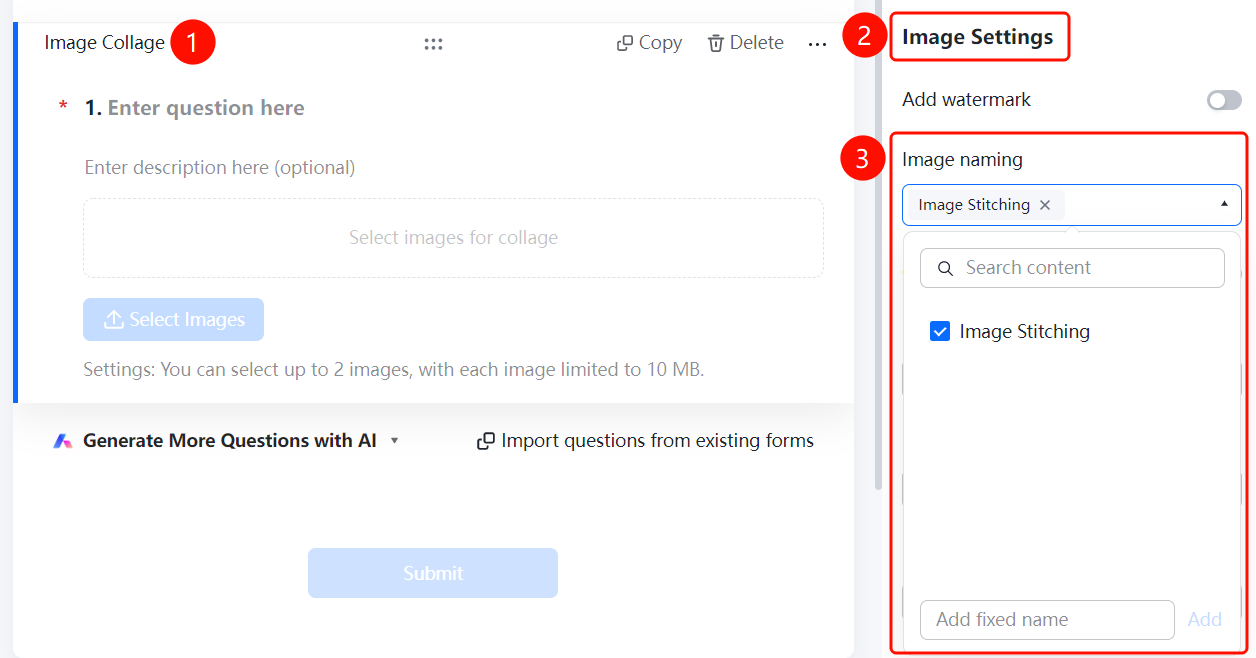
Image Stitching Question -> Image Settings panel -> Image Naming Method dropdown list
- Click the added image stitching question.
- In the Image Settings panel on the right, click the Image Naming Method dropdown list (currently "Stitched Image").
- In the dropdown panel, you can search for or select a naming method using the search box.
- Enter a name in the Add Custom Fixed Name input box at the bottom and click the Add button to add a custom naming rule.
Create Categorized Folders
Feature Entry
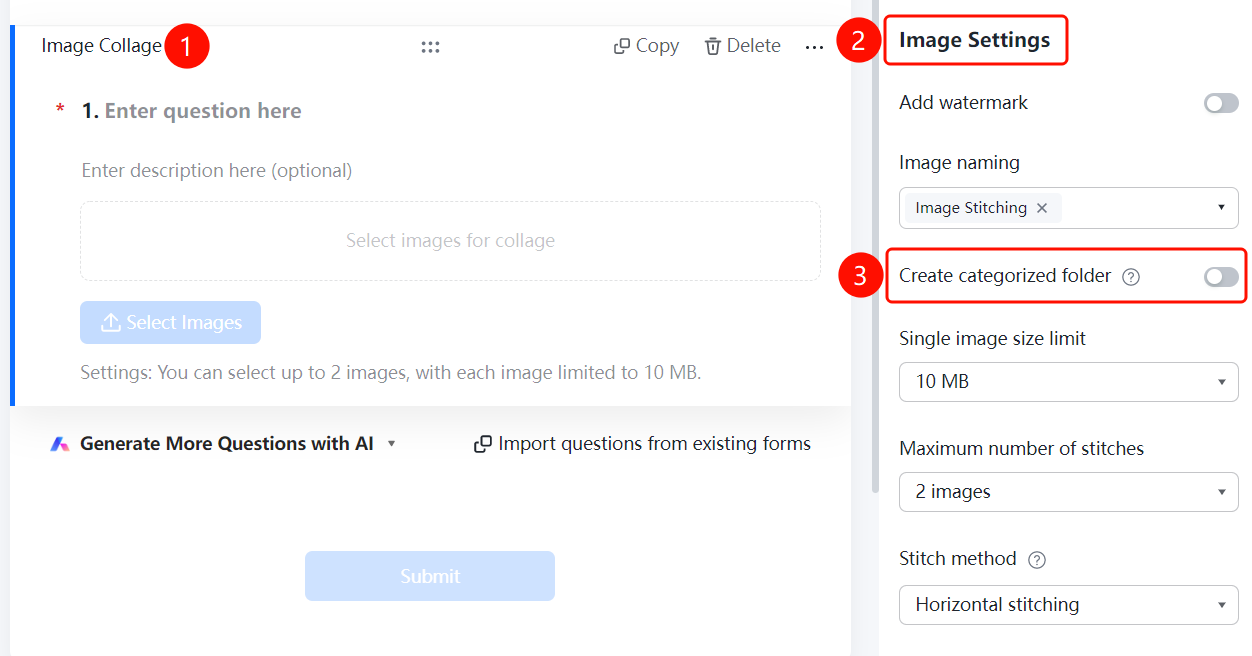
Image Stitching Question -> Image Settings panel -> Create Categorized Folders switch
- Click the added image stitching question.
- In the Image Settings panel on the right, find the Create Categorized Folders option.
- Turn on the Create Categorized Folders switch. Once enabled, folders will be automatically created according to the folder naming method, and the collected images will be categorized and summarized. For example, if the folder is named after "Department", images from the same department will be automatically categorized and summarized into the same folder.
Set Single Image Size Limit
Feature Entry
Image Stitching Question -> Image Settings panel -> Single Image Size Limit dropdown list
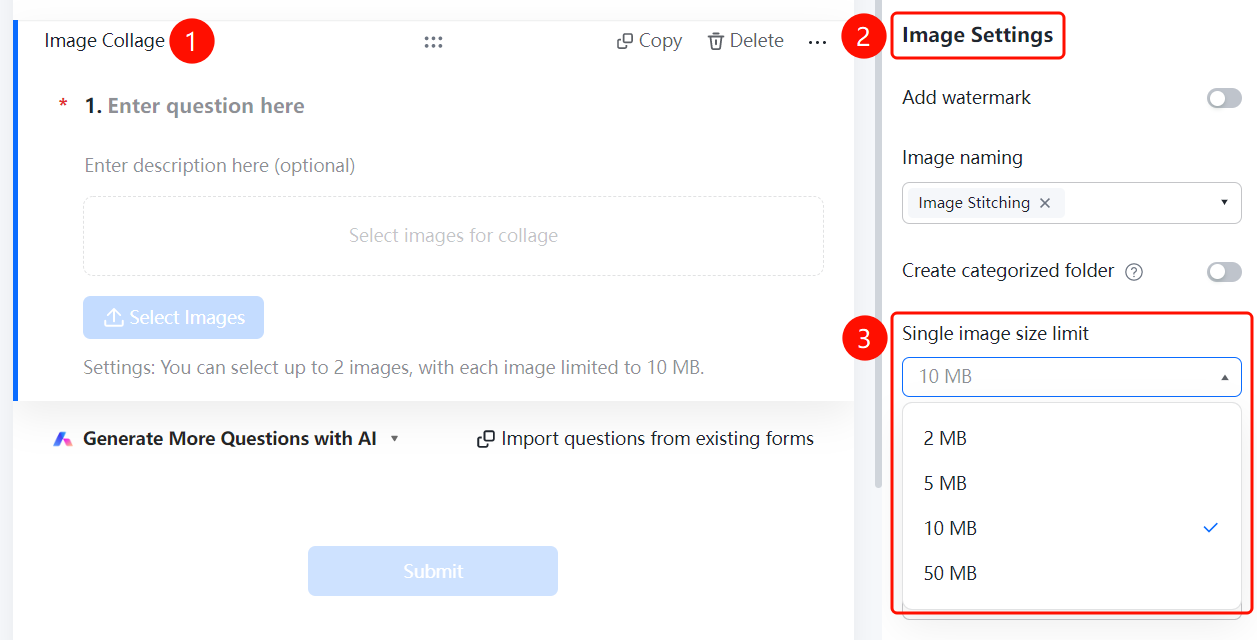
- Click the added image stitching question.
- In the Image Settings panel on the right, click the Single Image Size Limit dropdown list (currently "10M").
- Select the size limit for a single image: 2M, 5M, 10M (default), or 50M.
Set Maximum Stitched Images
Feature Entry
Image Stitching Question -> Image Settings panel -> Maximum Stitched Images dropdown list
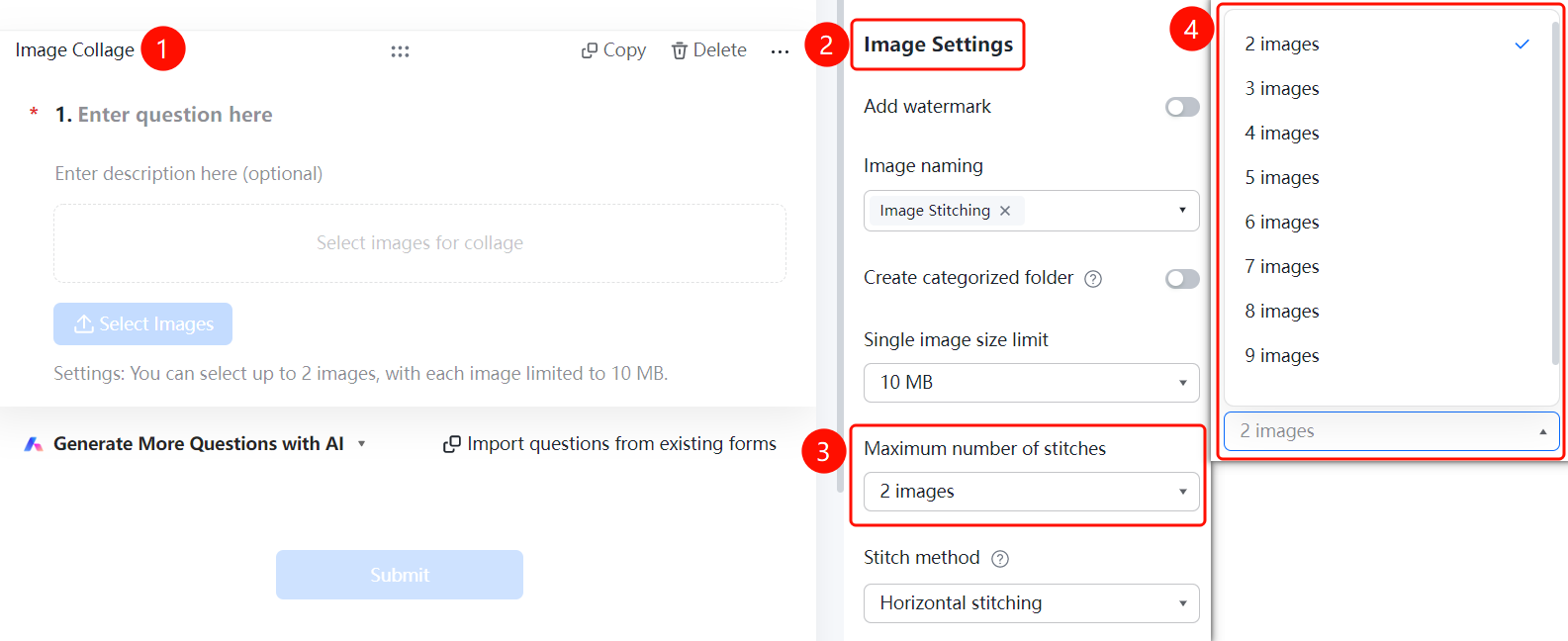
- Click the added image stitching question.
- In the Image Settings panel on the right, click the Maximum Stitched Images dropdown list (currently "2 images").
- Set the maximum number of stitched images that respondents can upload. A note will appear below the question: "Current setting: Select up to X images".
Set Stitching Method
Feature Entry
Image Stitching Question -> Image Settings panel -> Stitching Method dropdown list
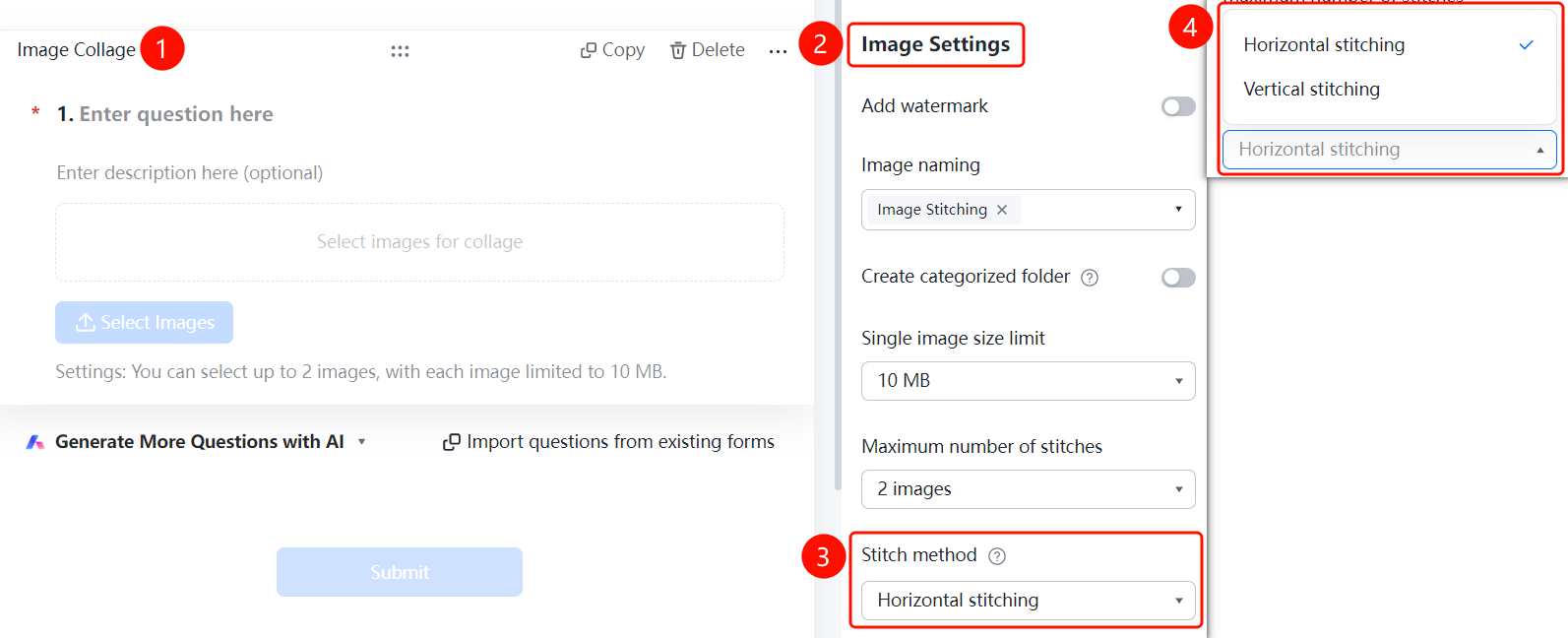
- Click the added image stitching question.
- In the Image Settings panel on the right, click the Stitching Method dropdown list (default is "Horizontal Stitching").
- Select the stitching method: Horizontal Stitching or Vertical Stitching.
- The collected images will be stitched together in the order they were uploaded by the respondent.
FAQ
Question 1: What scenarios are image stitching questions suitable for?
- Solution: Image stitching questions are used to collect stitched large images, such as "double code collection" and "front and back ID card stitching". After respondents upload multiple images, the system automatically stitches them together.
Question 2: How do I categorize and manage the collected images?
- Solution: Click the image stitching question, and in the "Image Settings" panel, turn on the "Create Categorized Folders" switch. The system will automatically create folders according to the folder naming method and categorize and summarize the collected images.
Question 3: How do I limit the size and quantity of uploaded images?
- Solution: Click the image stitching question. In the "Image Settings" panel, set the single image size (2M/5M/10M/50M) via the "Single Image Size Limit" dropdown list, and set the maximum number of images that can be uploaded via the "Maximum Stitched Images" dropdown list.
Notes
- The image stitching question is located in the "Other Question Types" range on the left panel of the "Edit" tab.
- The stitching method supports horizontal stitching and vertical stitching. Images are stitched in the order they are uploaded.
- Enabling "Add Watermark" can add watermarks to the stitched images, enhancing image security.